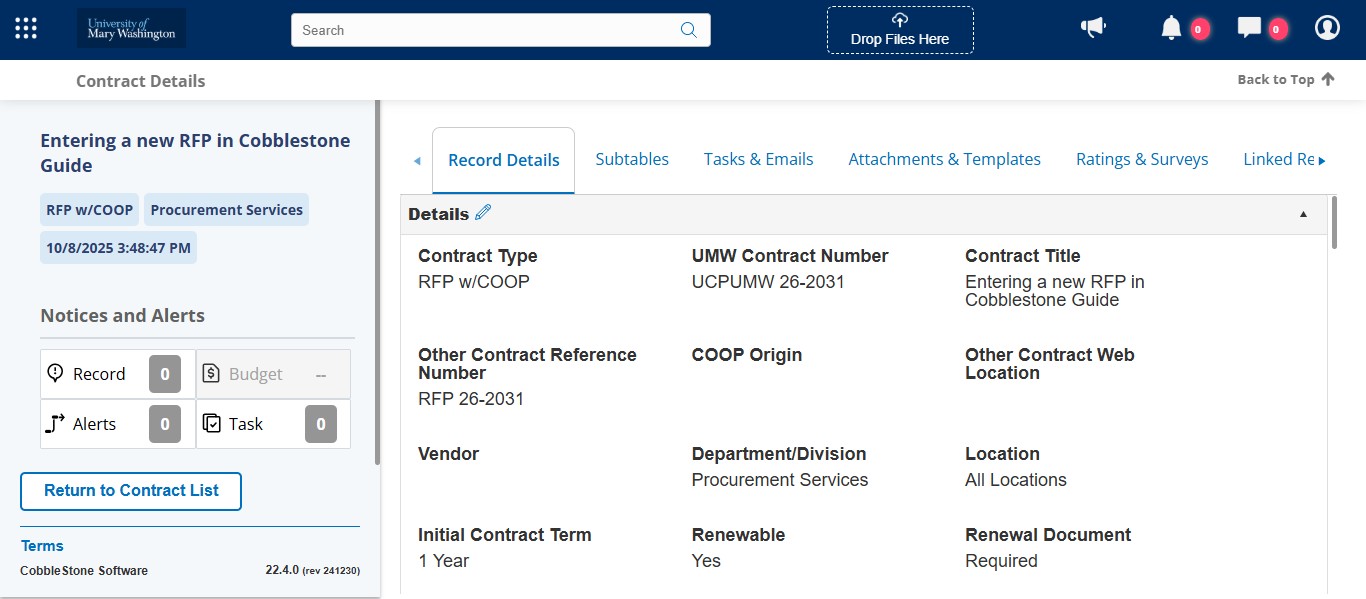
Cobblestone - Entering a New Solicitation (RFP/IFB) Contract Record
This guide is intended to walk through the steps of entering a new solicitation contract record for an intended RFP, RFP with COOP, IFB, or IFB with COOP in Cobblestone.
Log into Cobblestone.
Click on the Core Application Menu icon.
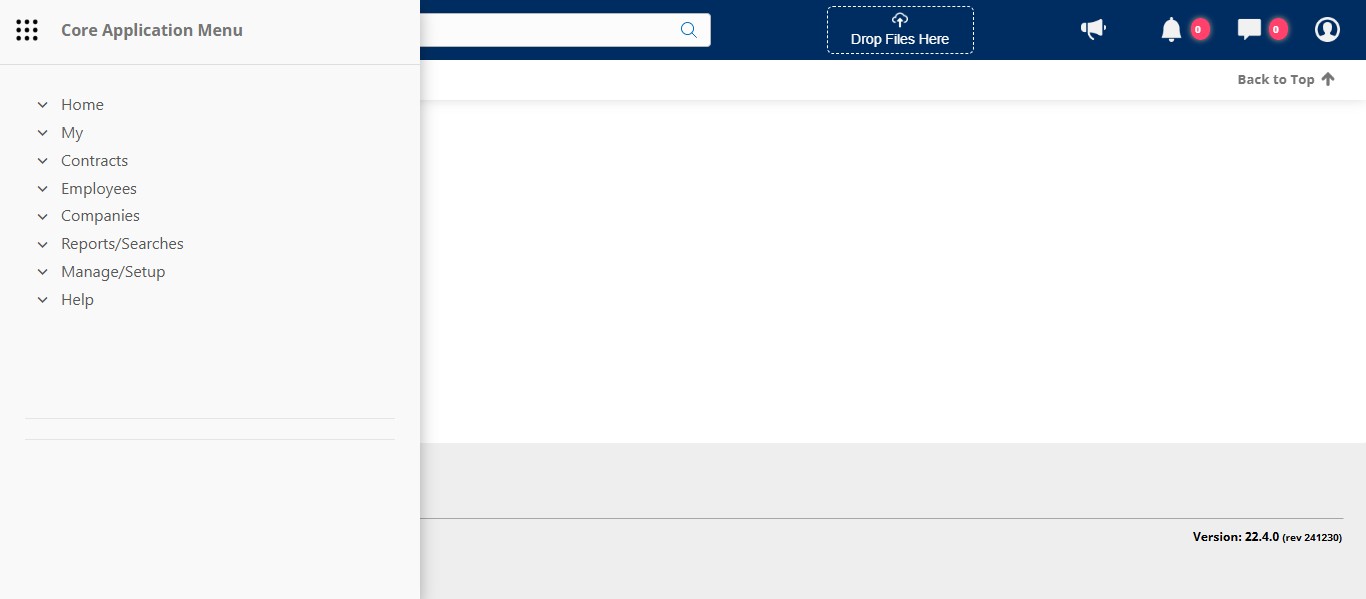
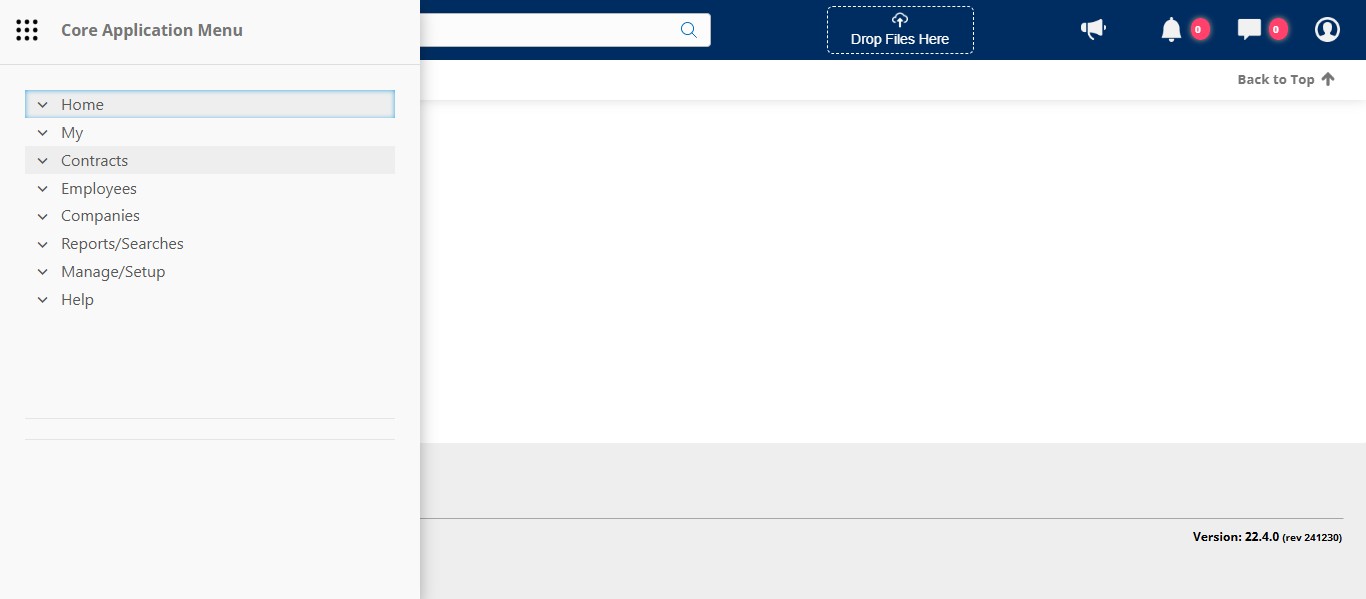
Click the Contracts drop down.
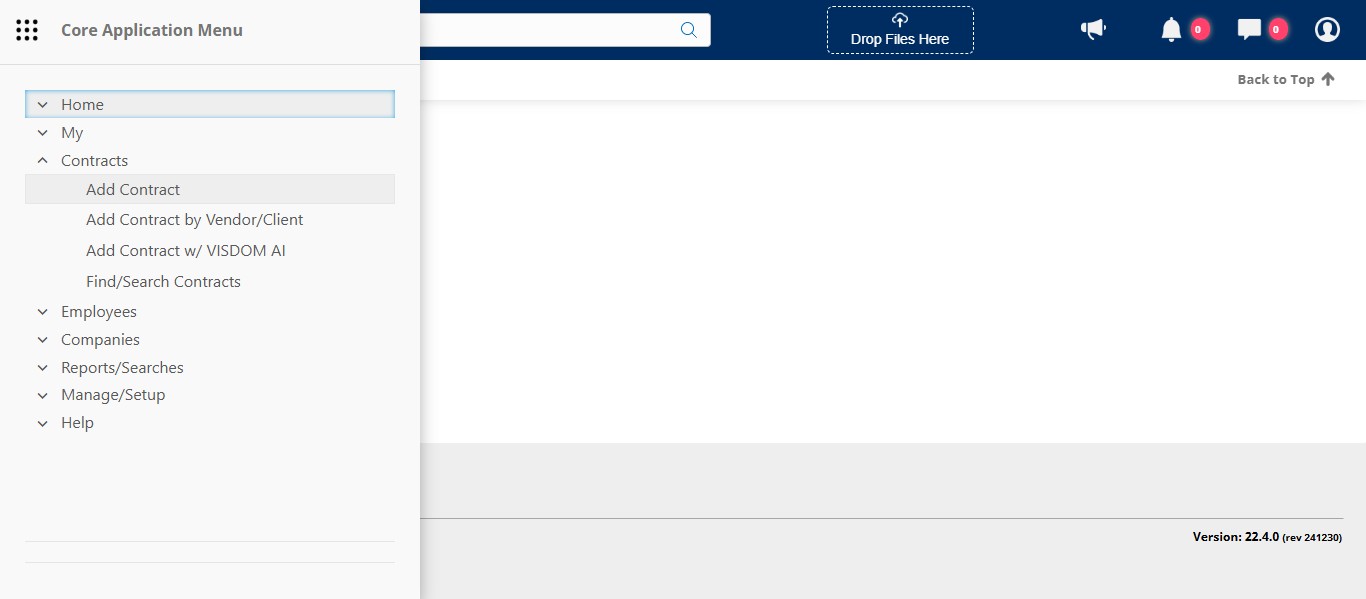
Click on "Add Contract"
Select the type of contract from the drop down. For this example, we will be creating an RFP that contains a cooperative clause. Click on "RFP w/COOP"
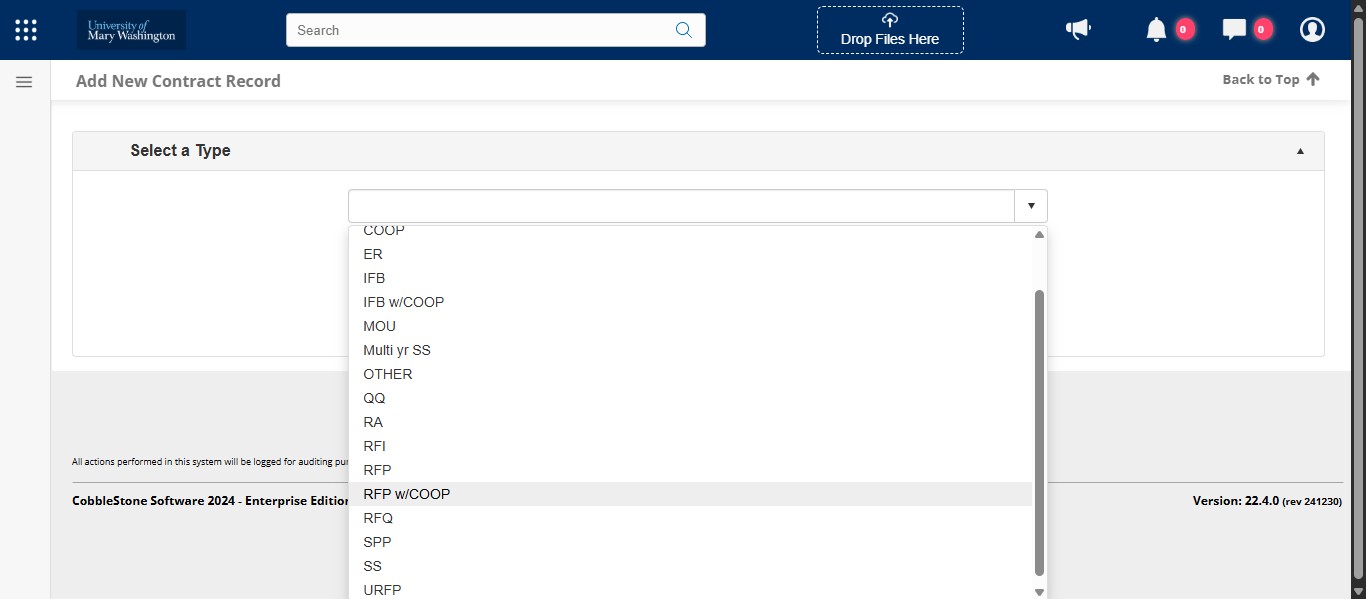
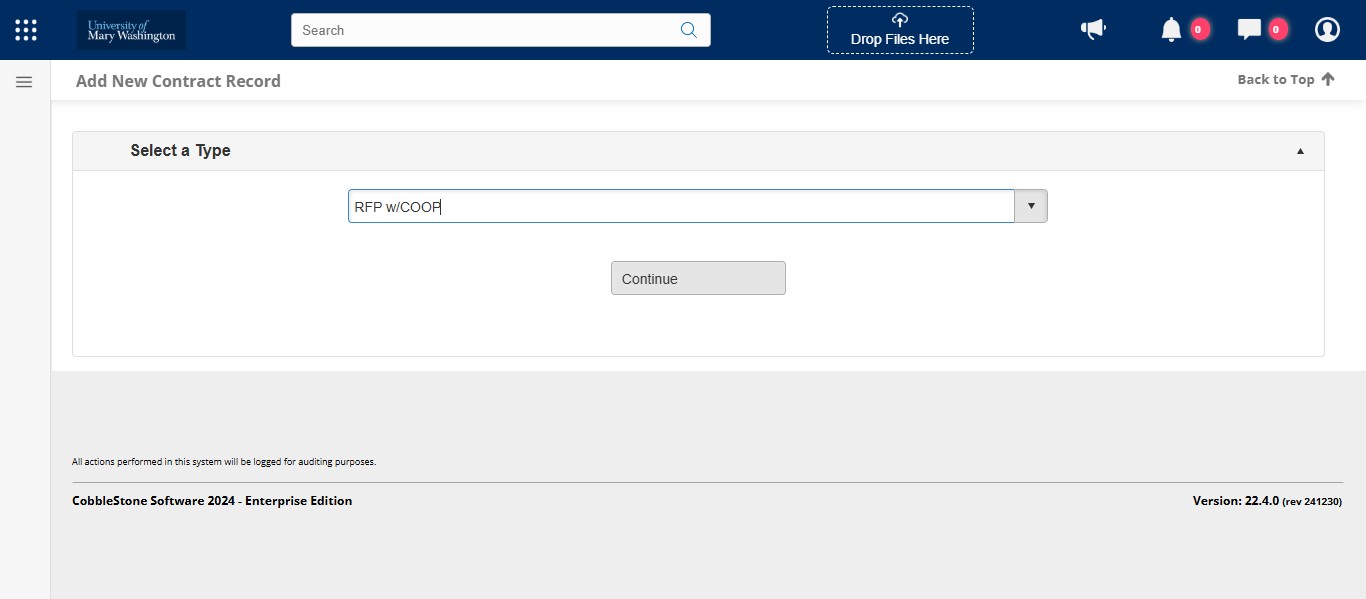
Click Continue.
Enter the Contract Title. Make sure it has enough logical keywords for the University community to search on the public portal later.
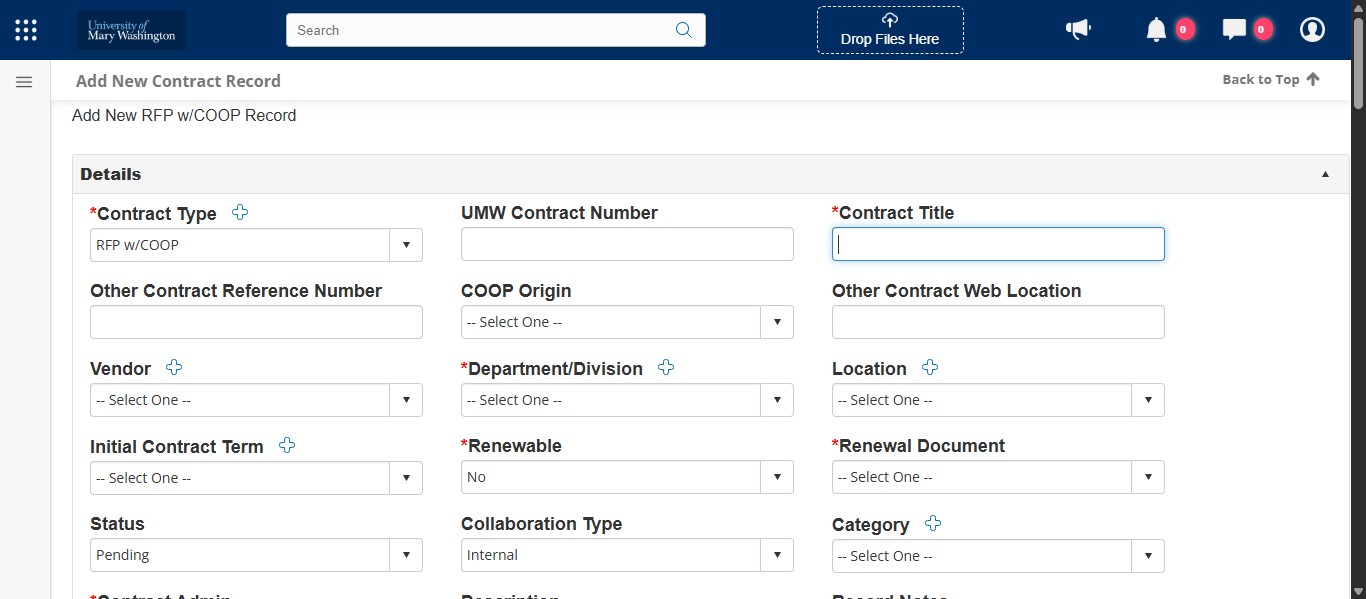
Since the RFP process hasn't been completed yet, we don't have a vendor selected, so we will skip this field for now.
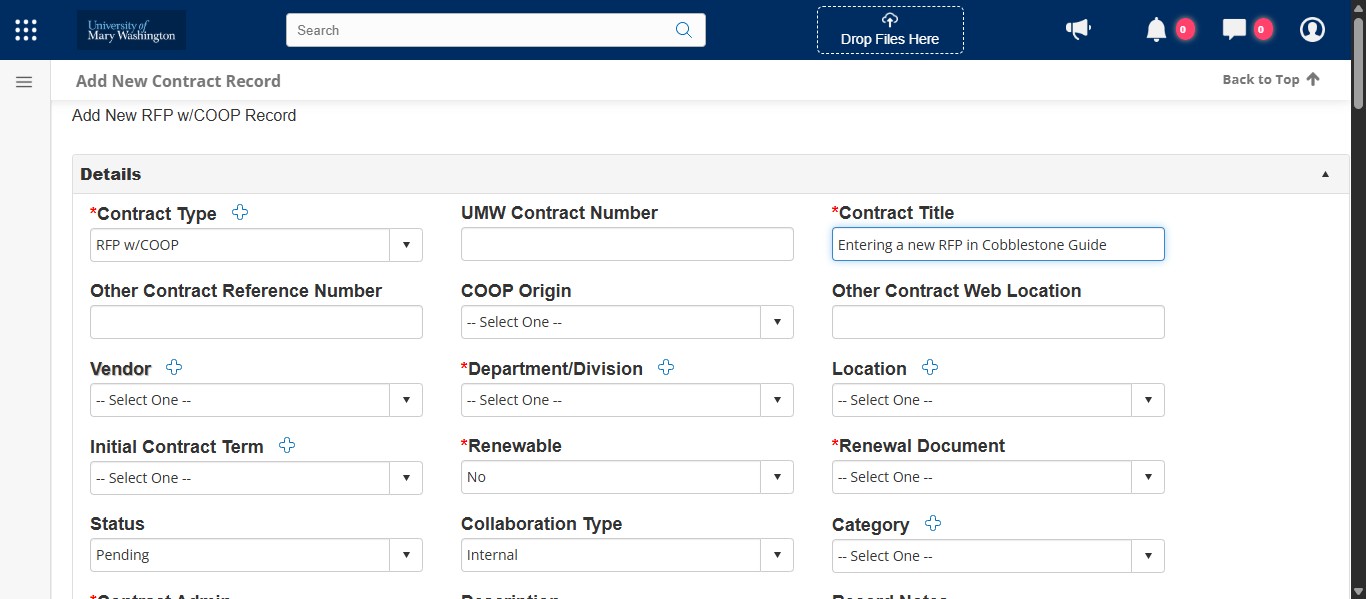
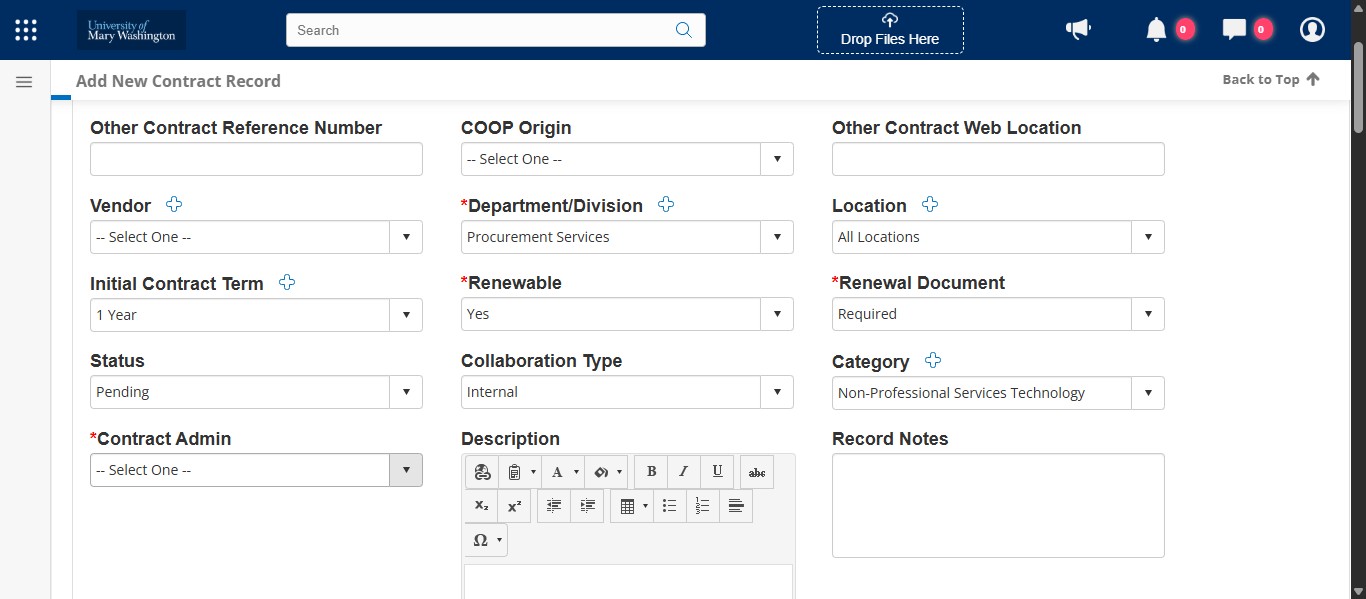
Select the department the solicitation is for from the drop down.
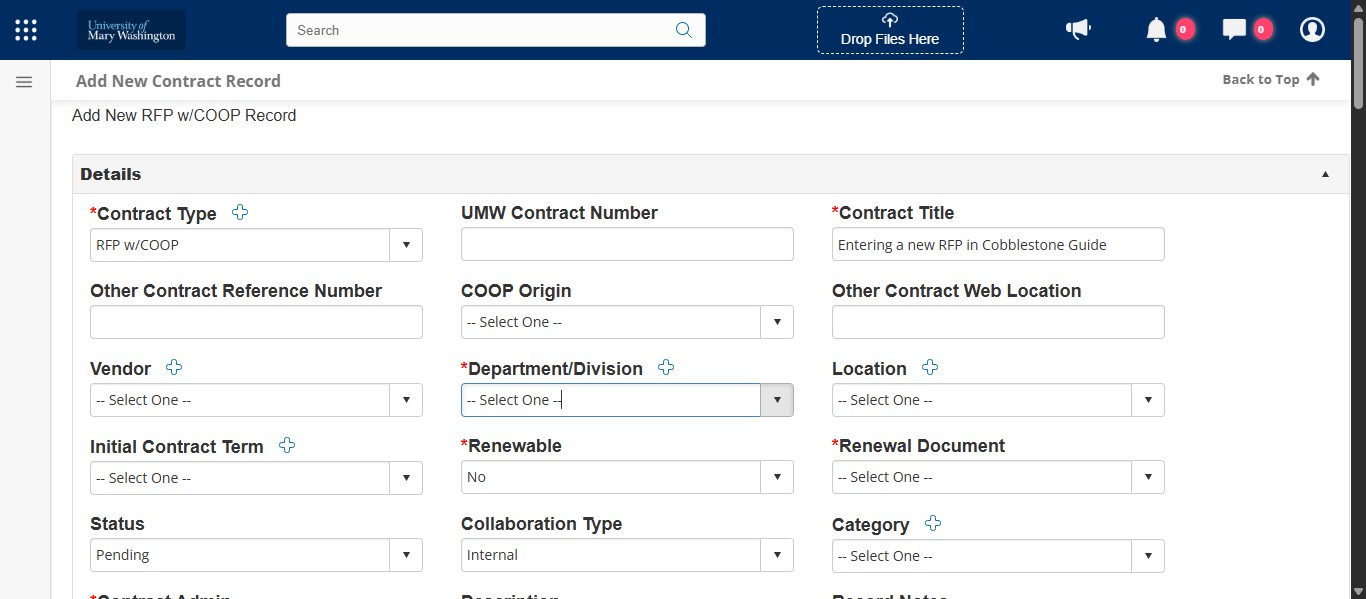
Select the most appropriate location where the RFP will provide goods or services. If you are unsure, just select All Locations.
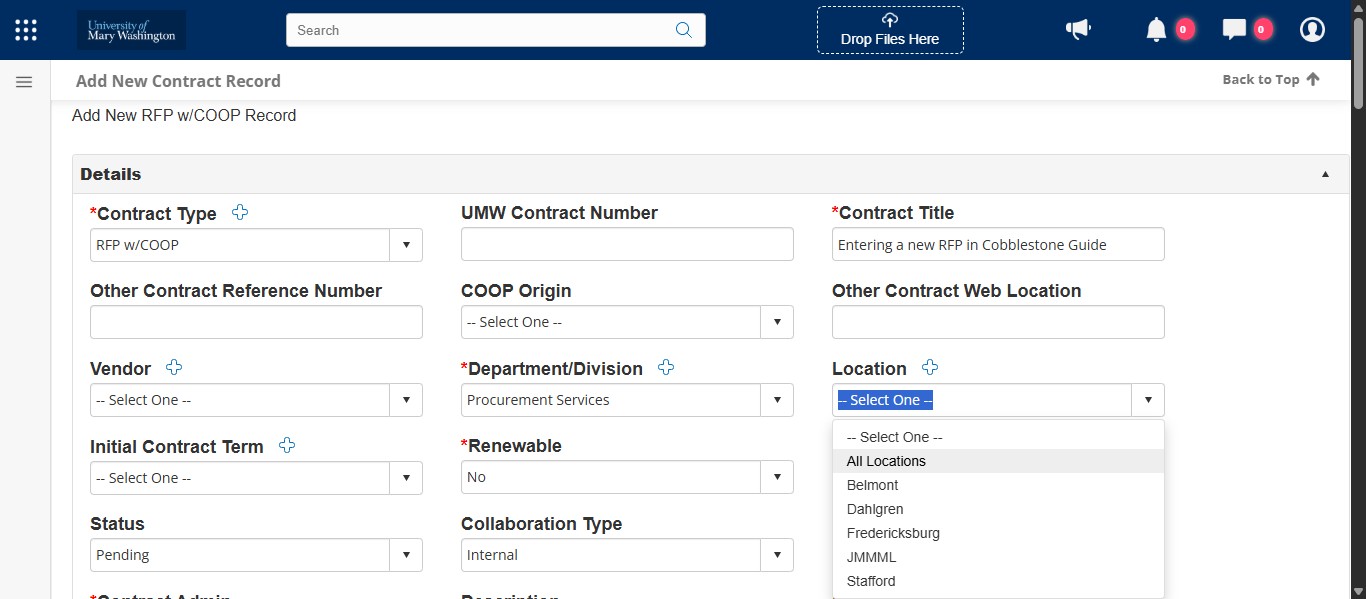
Select the anticipated Initial Contract Term from the drop down. If you negotiate something different with the awarded vendor, you can change this later.
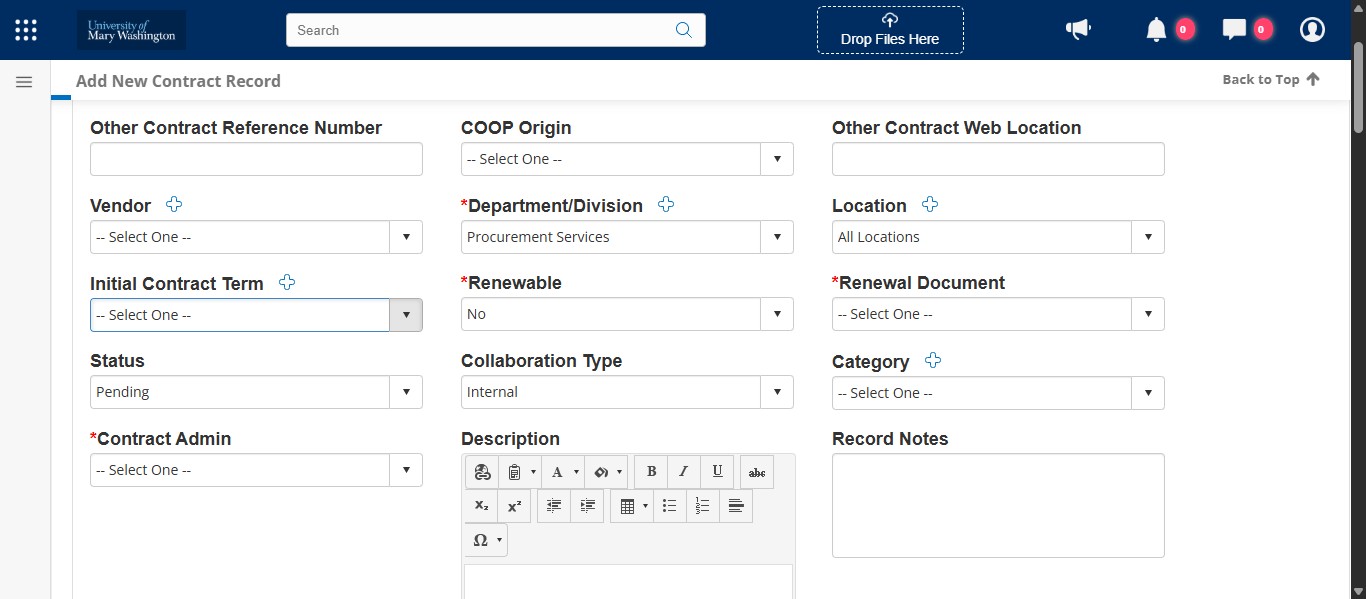
Select your intention to renew from the drop down. This field will default to No unless changed.
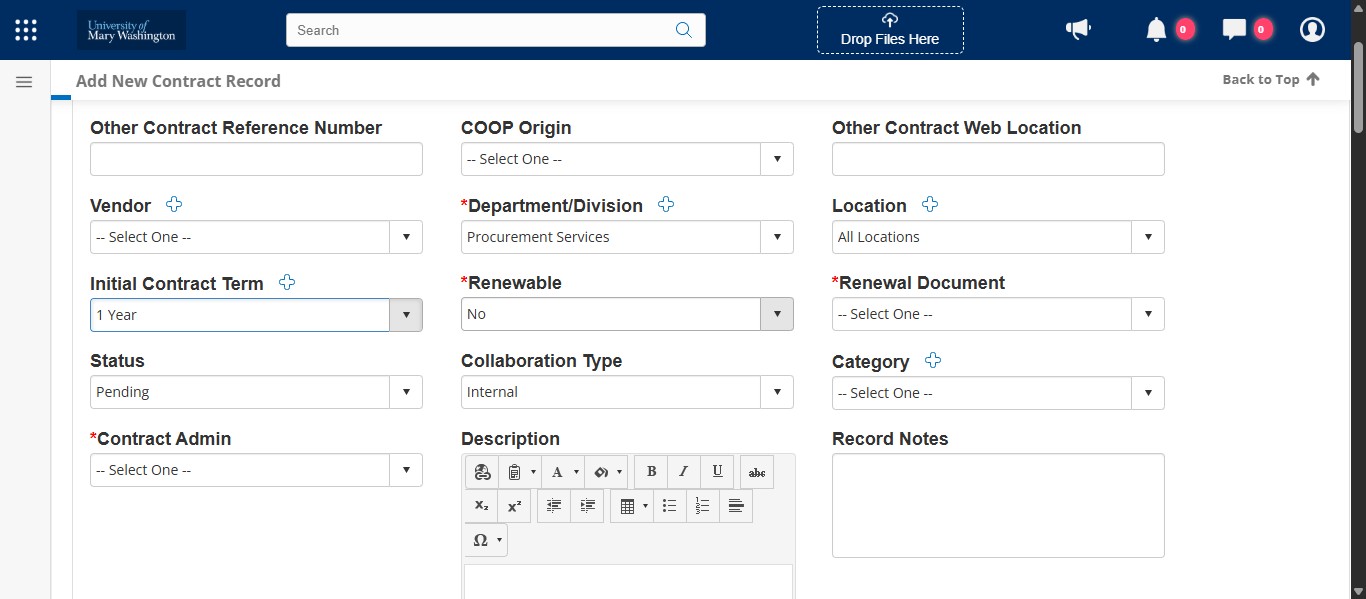
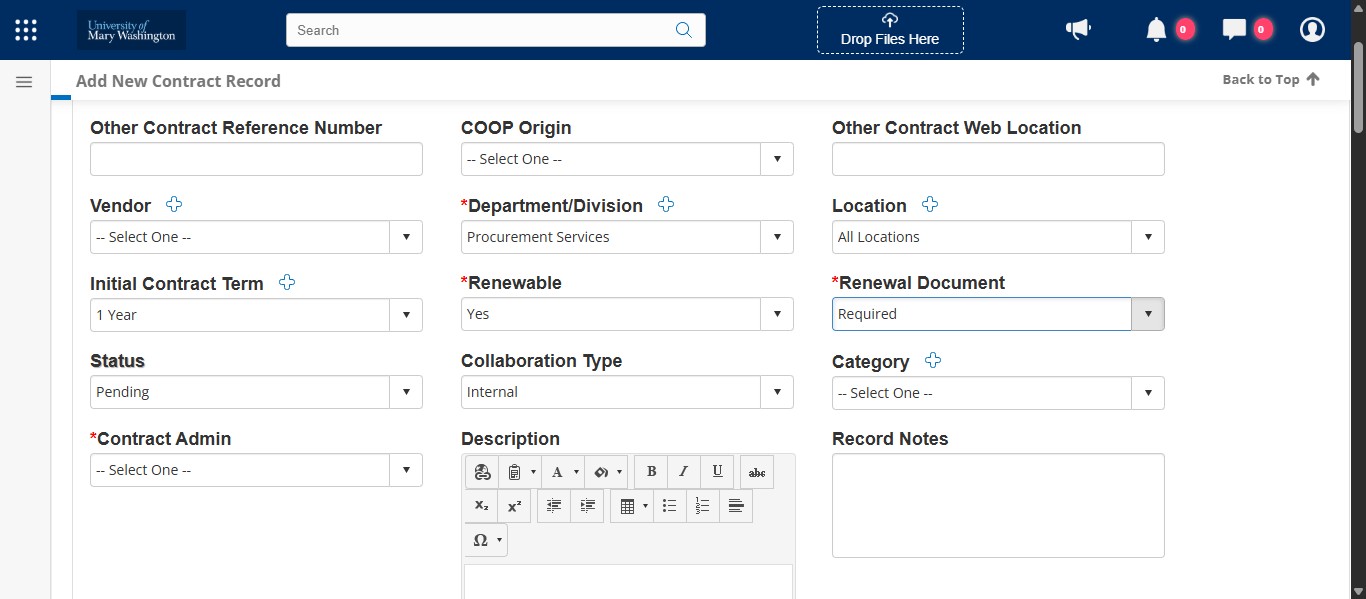
All UMW-initiated procurements require a renewal document to be sent out from Procurement to the vendor for signature, so with an RFP you will select Required from the drop down.
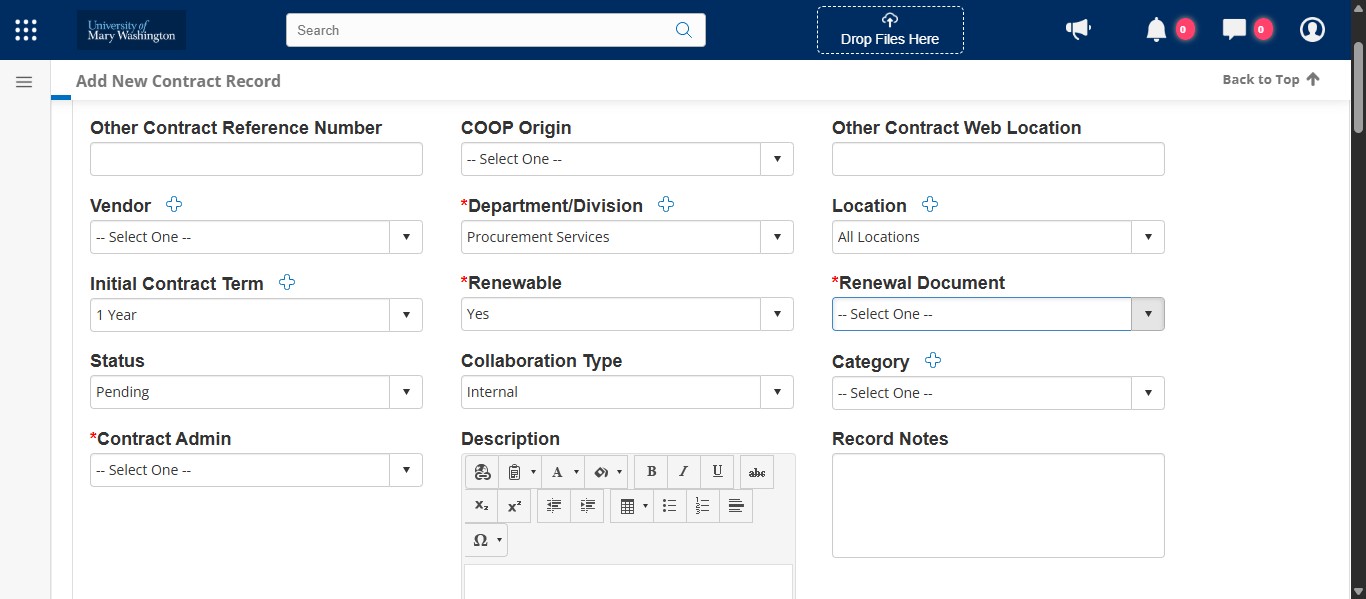
The RFP hasn't been issued on the VBO or awarded yet, so the Status will stay Pending for now.
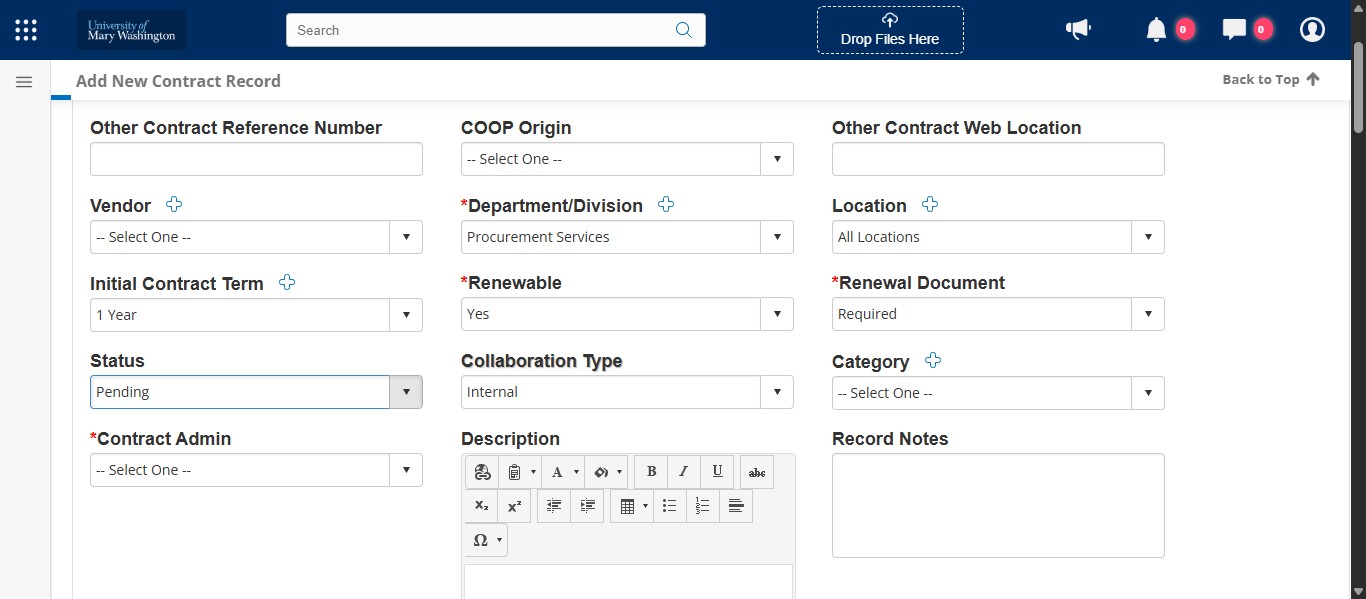
The contract is not awarded yet and is therefore not available for public view, so keep the Collaboration Type as Internal for now.
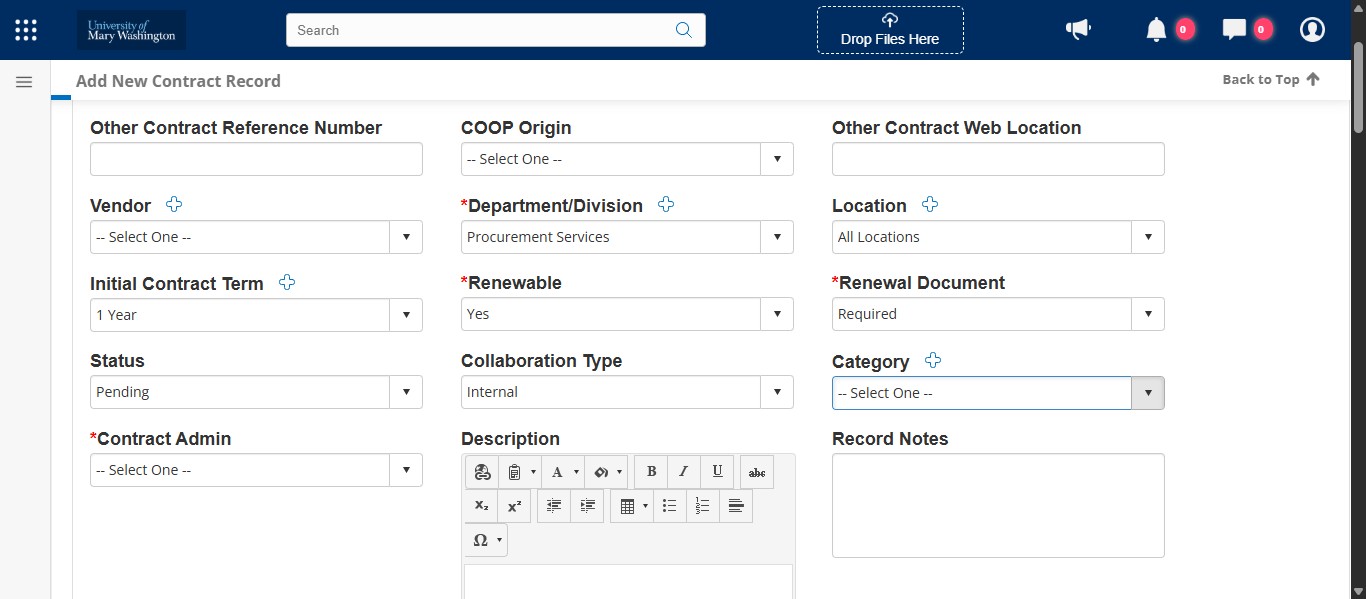
Select the Category that most closely relates to your project. These are directly related to the PO Categories you will select in eVA on your Sourcing Project and in eVA Requisitions.
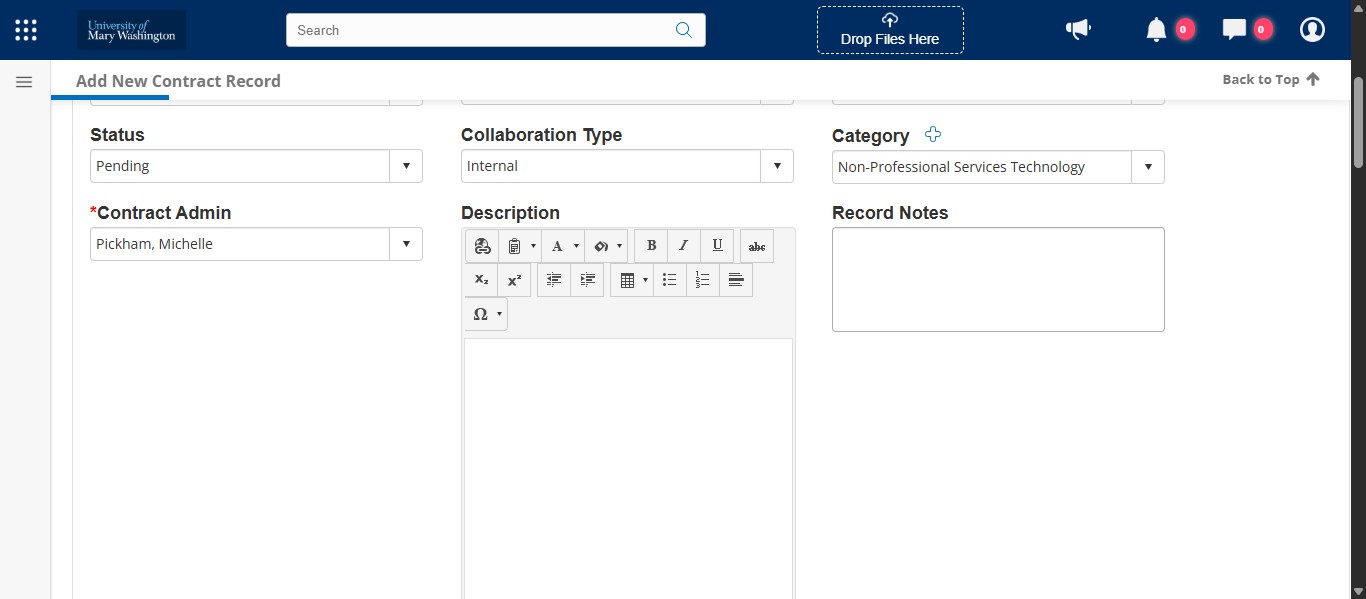
Even if we know who the Contract Administrator will be at the end, the contract is not completed and a Contract Admin form hasn't been assigned yet. For now, you can select yourself as the Contract Admin since it's a required field, or Procurement Services. This will ensure through reporting that you will change it later.
For the Record Notes area, enter any record notes at this point that you feel may be helpful, such as the previous RFP or contract # if we are doing a follow on procurement.
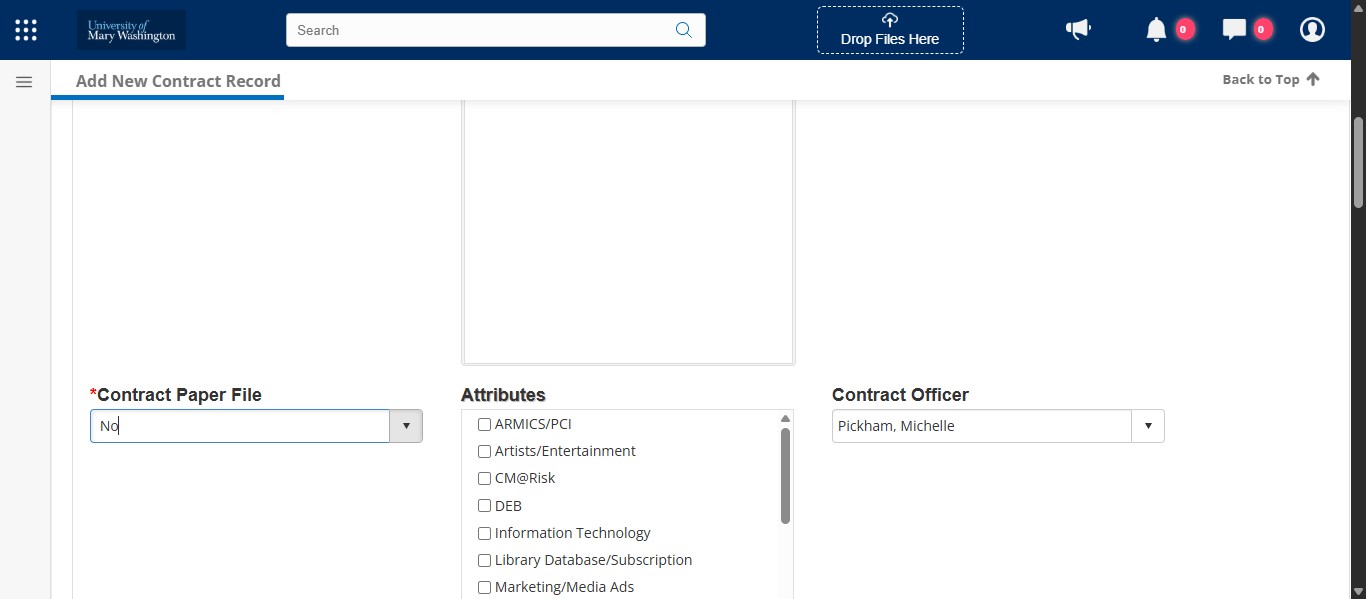
All Procurement Solicitations, except for Capital Projects, are paperless now. So select No from the drop down on Contract Paper File.
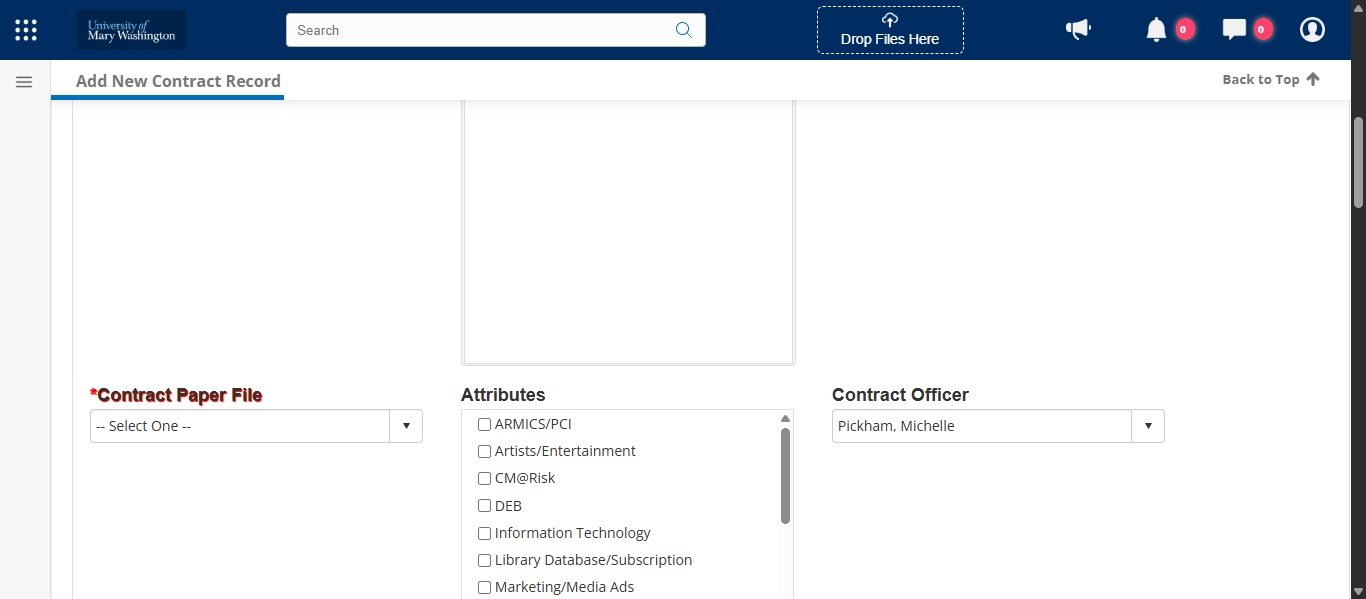
Select any and all applicable Attributes your resulting contract will have.
Unless we are actually purchasing Professional Servics, this field defaults to No. For this example, we are not purchasing professional services.
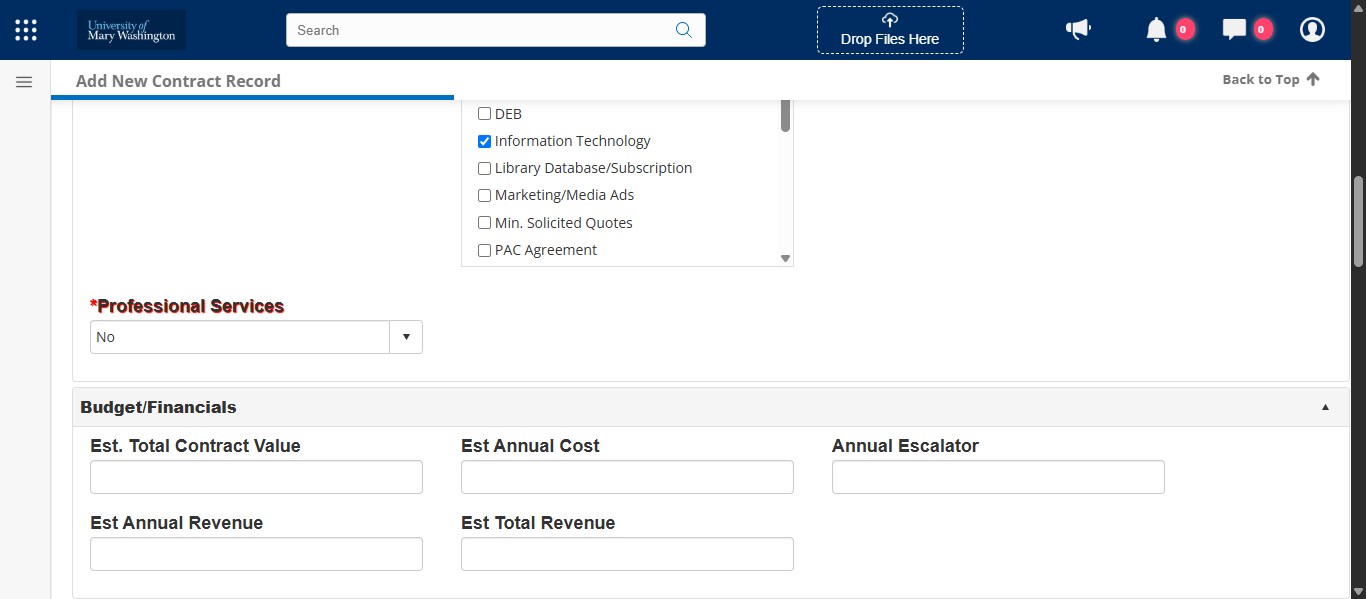
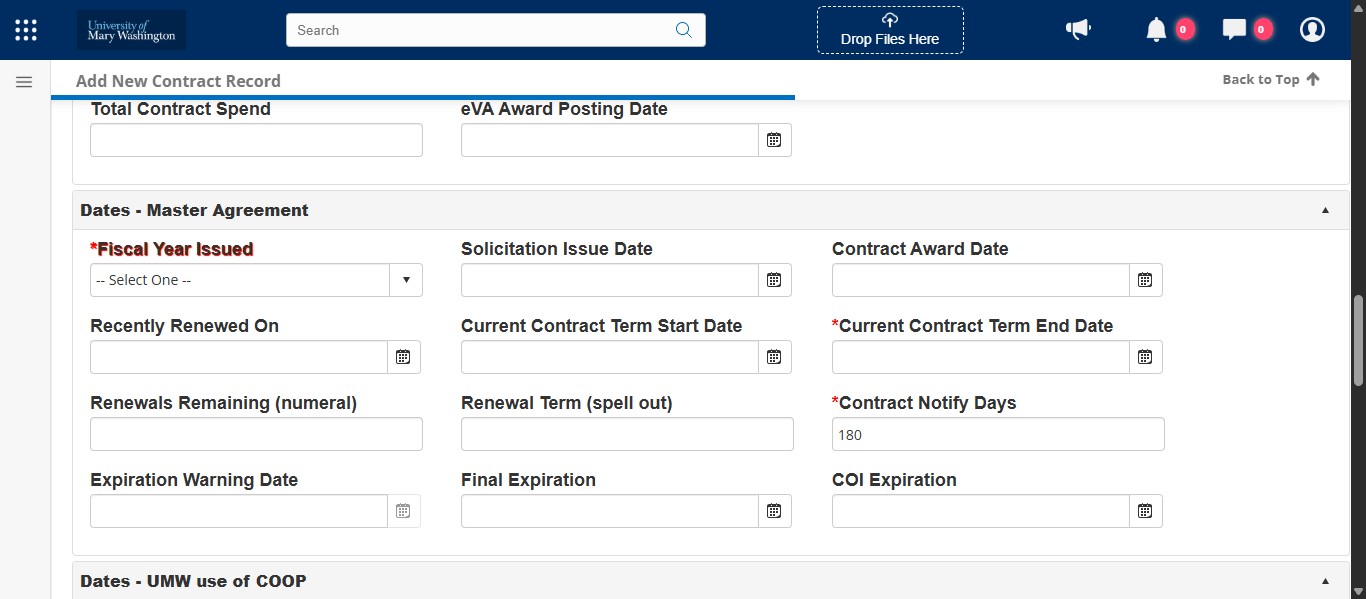
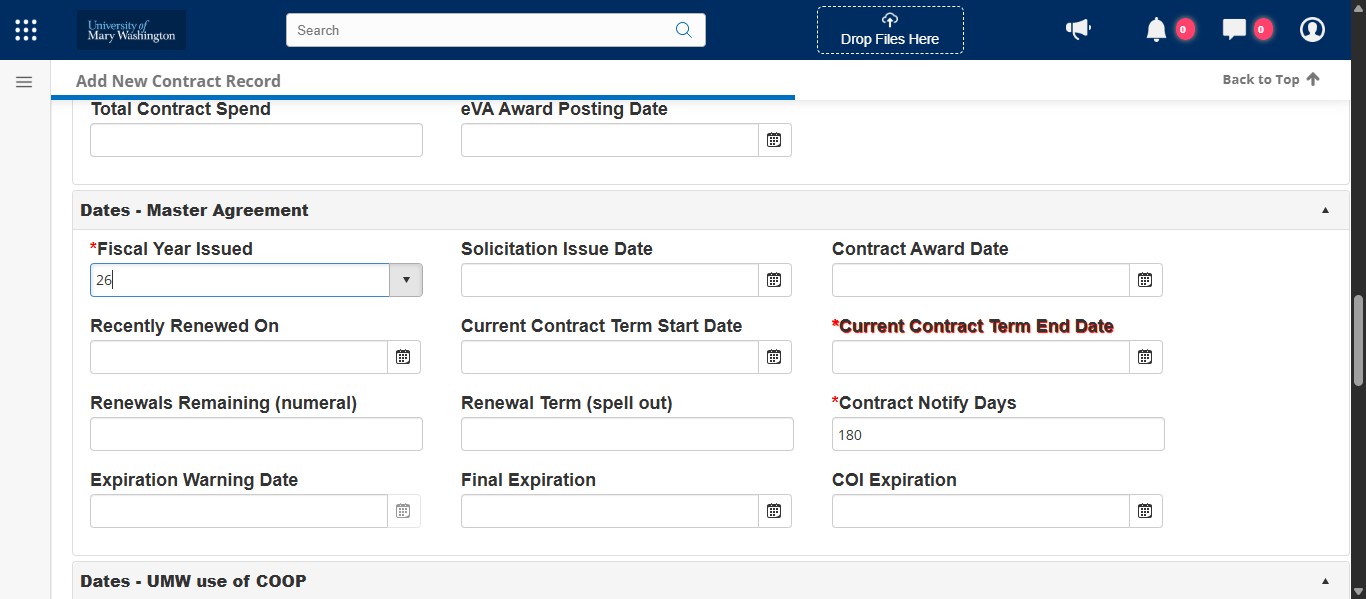
After completing the Contract Details section, scroll down to the Dates section. Select the Fiscal Year from the drop down in which the solicitation will be issued.
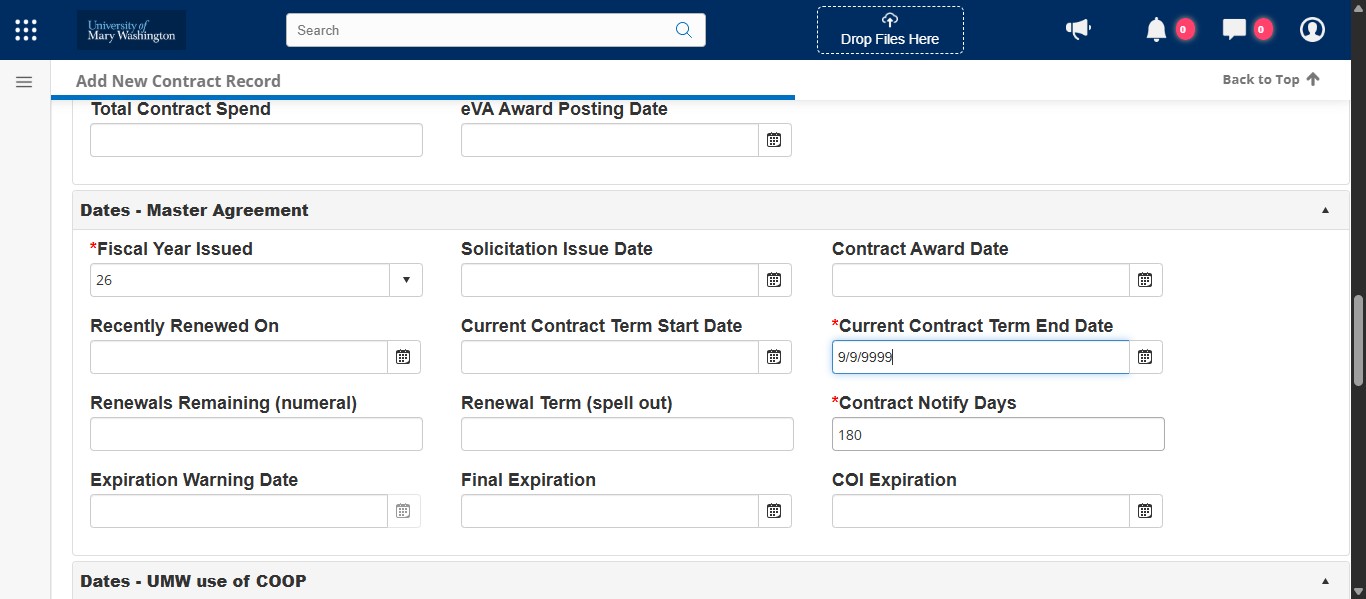
We haven't negotiated a contract term yet, so we don't have a firm Contract Term End Date. Enter a placeholder such as 0/0/0000 or 9/9/9999, anything cleary indicative of a placeholder in this field for now. You will change it later once we have a finalized contract.
Leave Contract Notify Days as 180 for now. You will change this later depending on the complexity of your RFP and the negotiated renewal language.
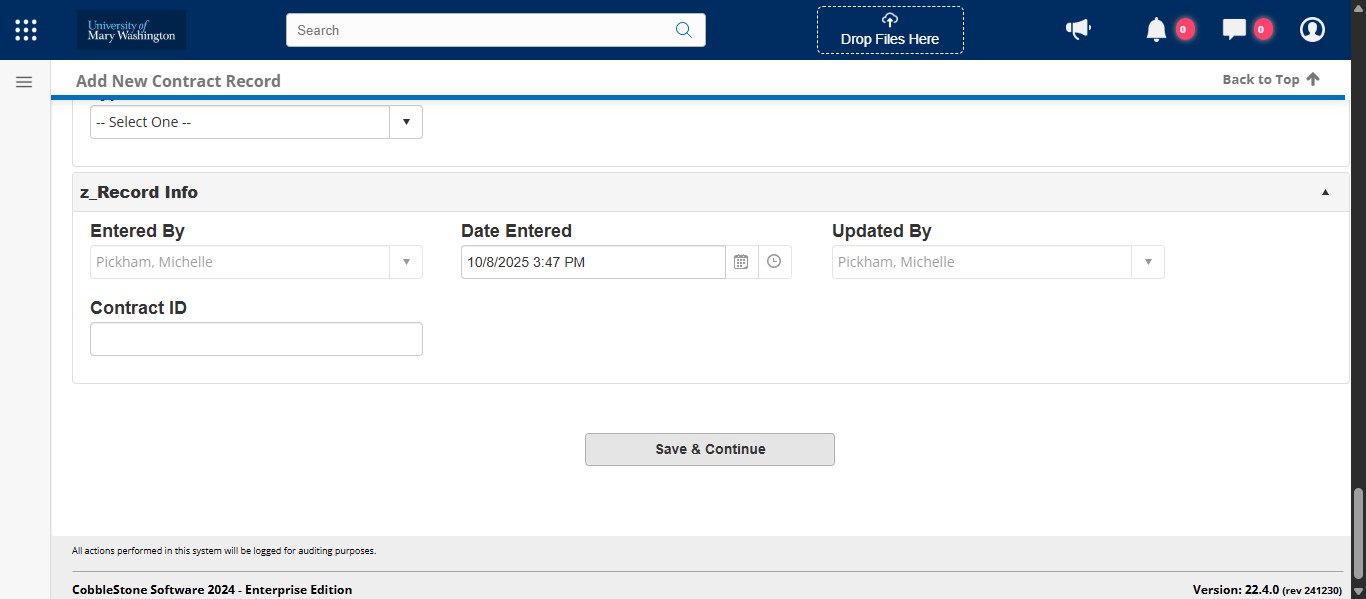
Click on "Save & Continue"
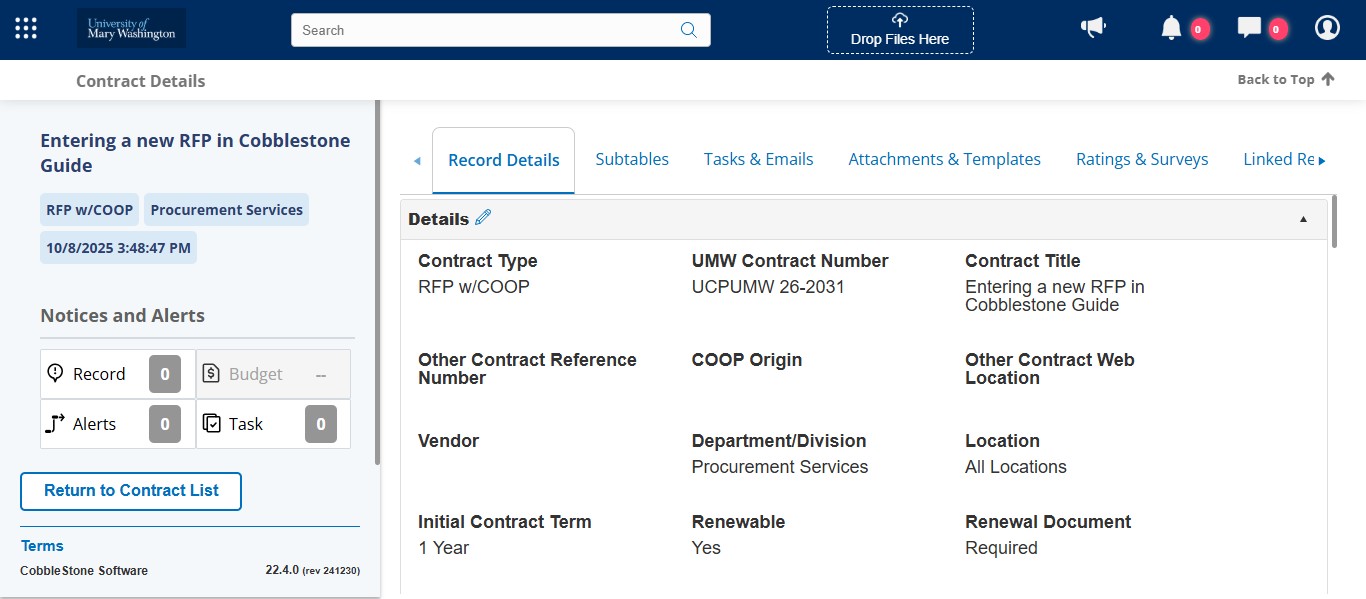
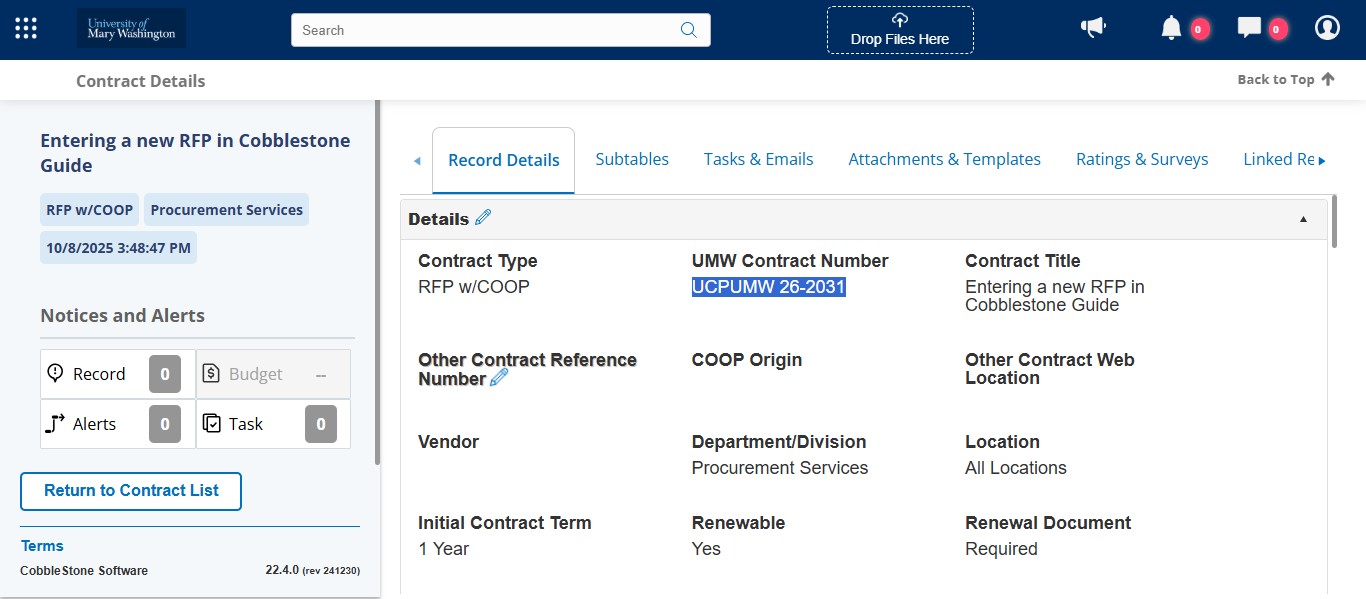
Once saved, the system will generate a UMW Contract Number. This is the number the finalized contract will be. When issuing a solicitation Sourcing Project in eVA, you can use the numbers from this section with an RFP designation for your project. For example: RFP 26-2031.
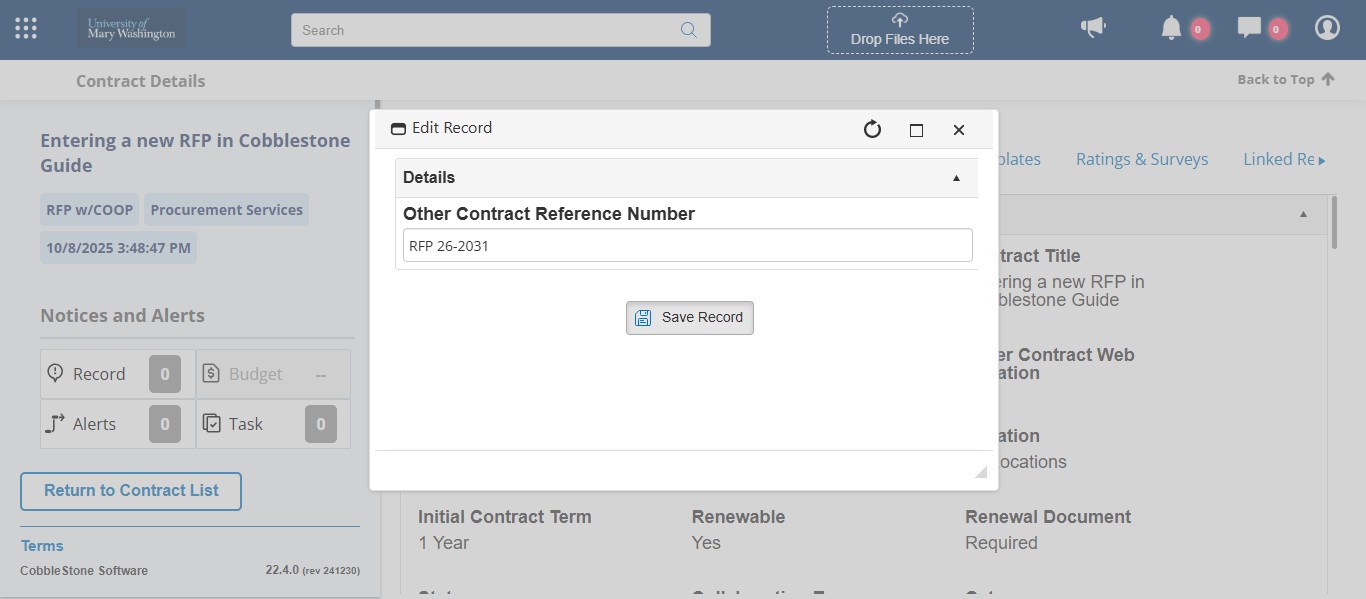
You should enter the RFP # in the Other Contract Reference Number field based on the Contract Number. For this case, we would enter RFP 26-2031.
Click on "Save Record"
You are now done with this RFP contract record for now until the contract is awarded.