
How to Pull the Bank of America Works Cardholder Billing Statement
Navigate to https://payment2.works.com/works/home
Click on "Reports"
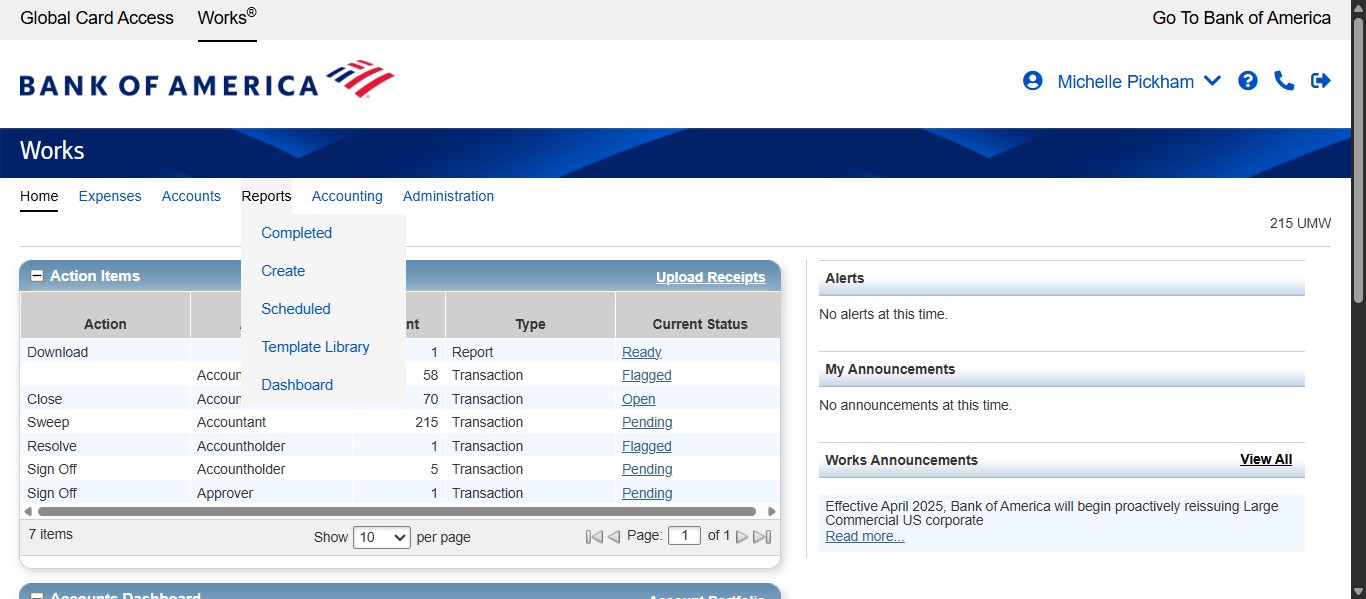
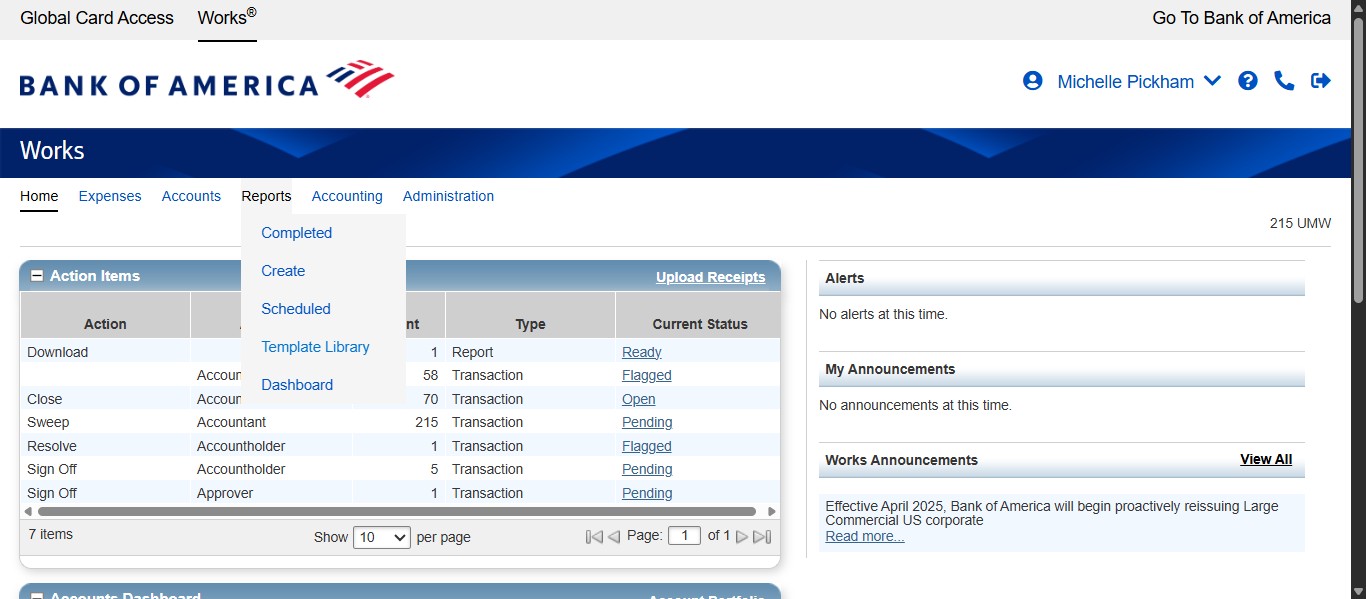
Click on "Template Library"
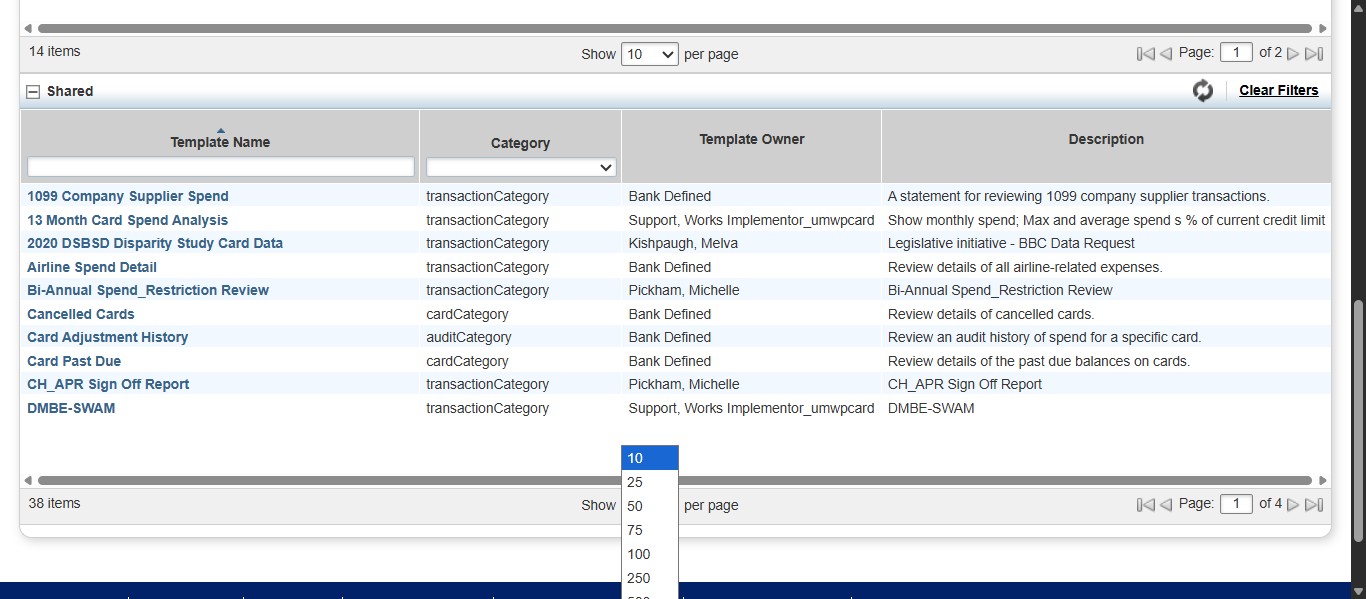
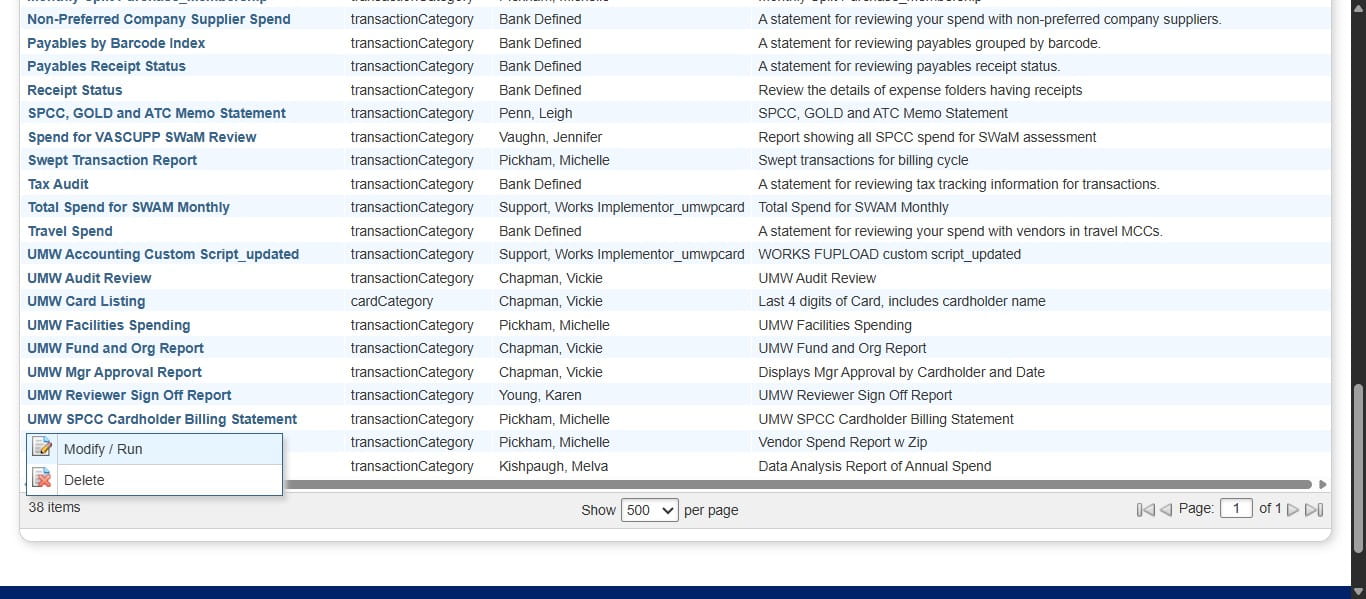
Scroll down to the Shared reports section and either navigate to the last page of the listed items or click to select more items per page to show all choices.
Select the drop down next to "UMW SPCC Cardholder Billing Statement."
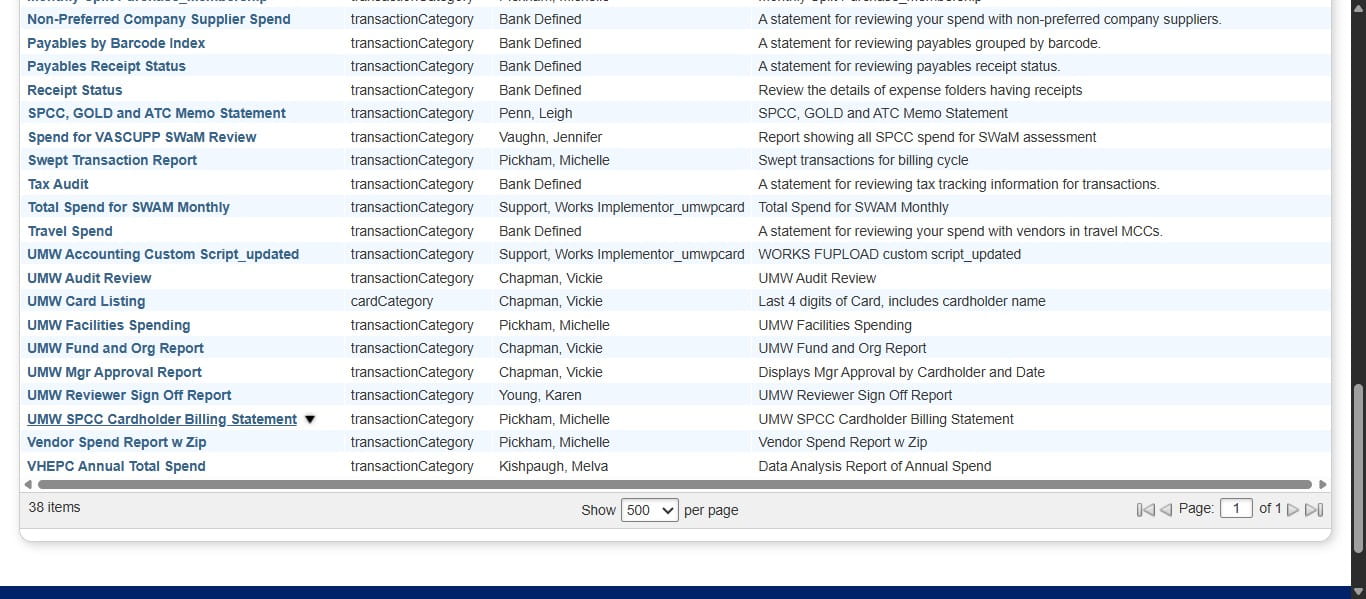
Click Modify/Run.
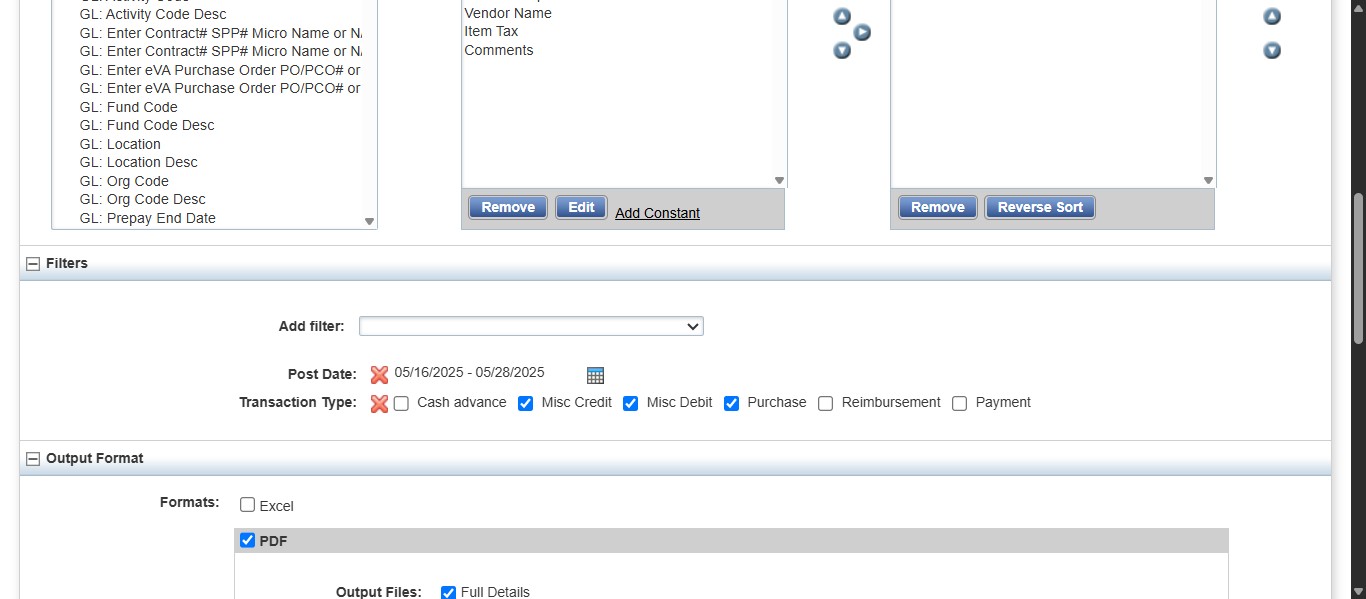
Scroll down to the Filters section and select the calendar icon to set the appropriate date range.
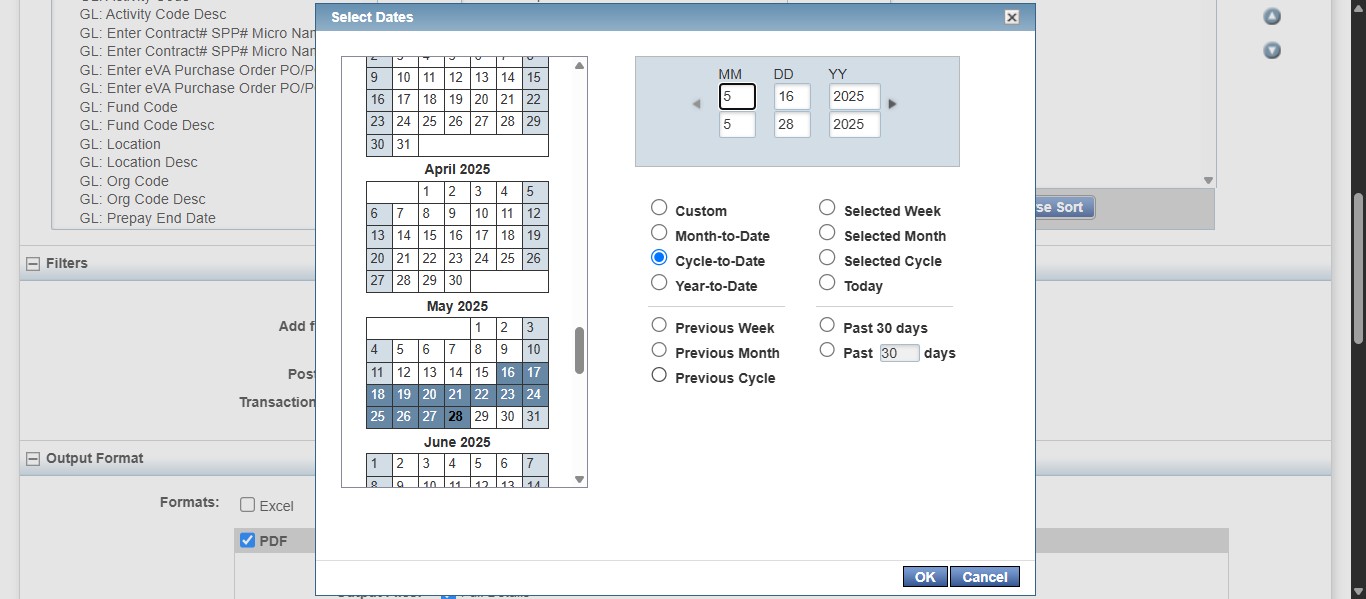
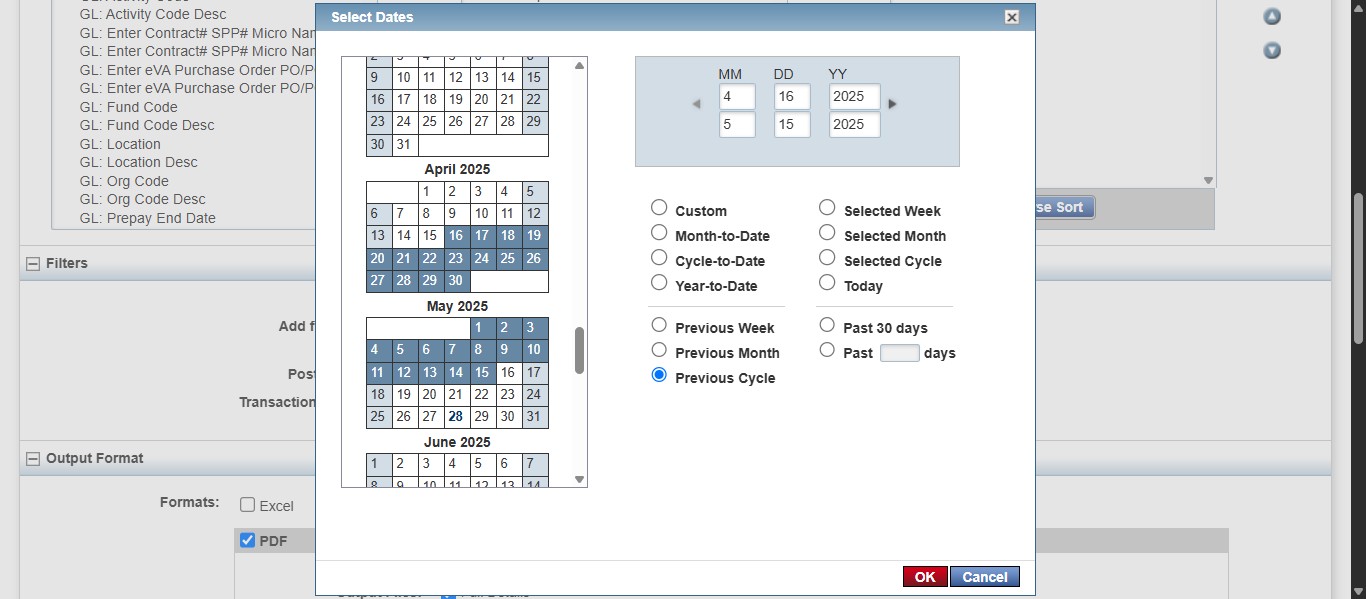
If you are printing the billing statement at the end of a cycle period or re-printing the statement to show all your allocations made, select "Previous Cycle." Otherwise, set the dates appropriately to what you need.
Click on "OK"
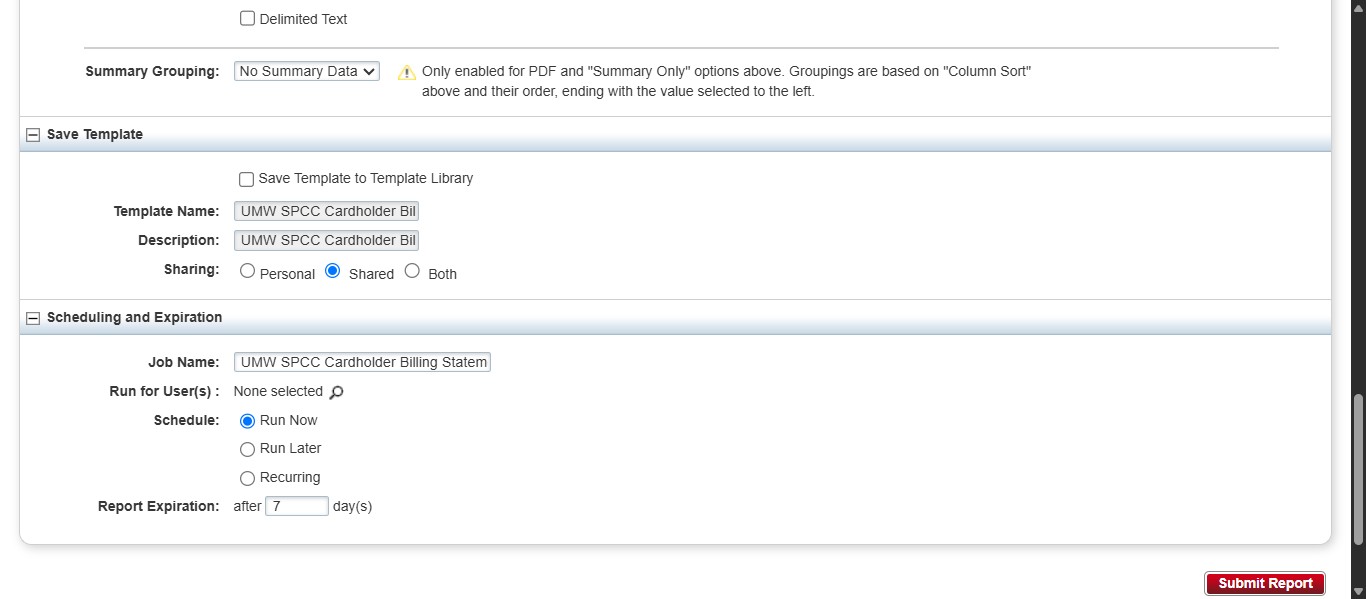
Then scroll down to the bottom to hit Submit Report. Once you click Submit, the report will run and will be available to download on the next screen once completed.
If you have not set up your billing statement to run automatically, you can follow the steps in the guide "Schedule Automatic Recurring SPCC Cardholder Billing Statement Report."