CDWG Quote Generation Process
Prior to following this quote generation process on the CDWG website, you must have reached out to the University's assigned CDWG representative to add you to the University's account and give you a link to the education portal for the University.
Navigate to https://www.cdwg.com/account/logon?target=%2F
Click on "Sign In"
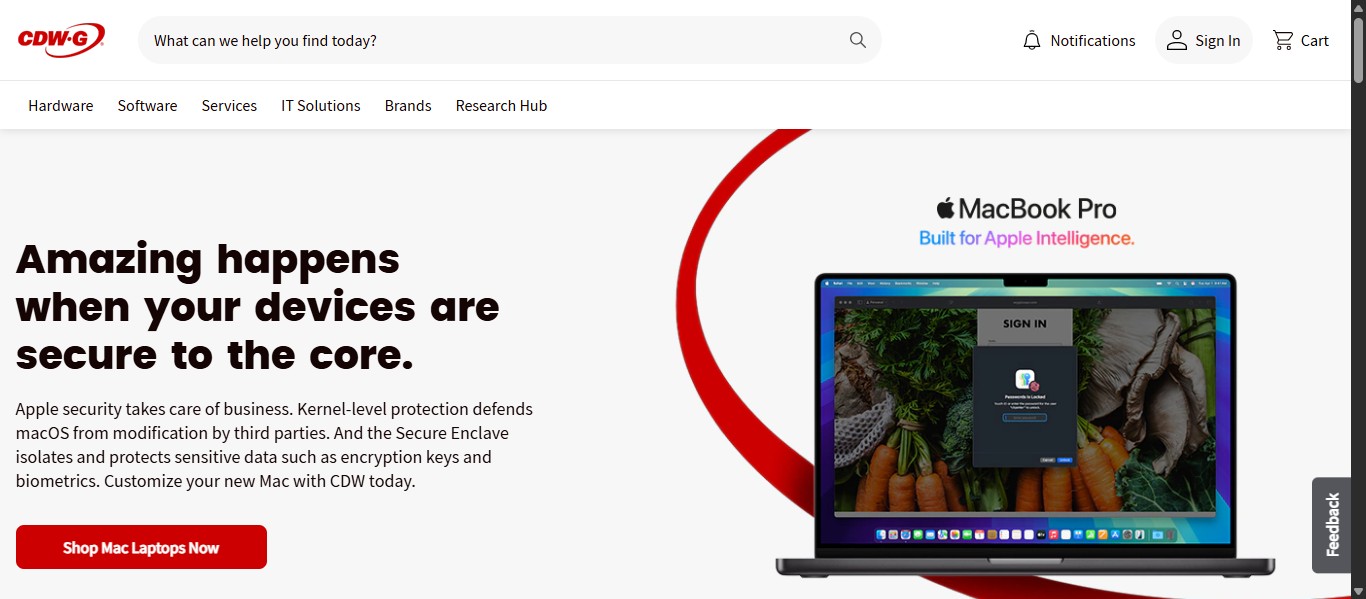
Click on "Sign In to Your Account"
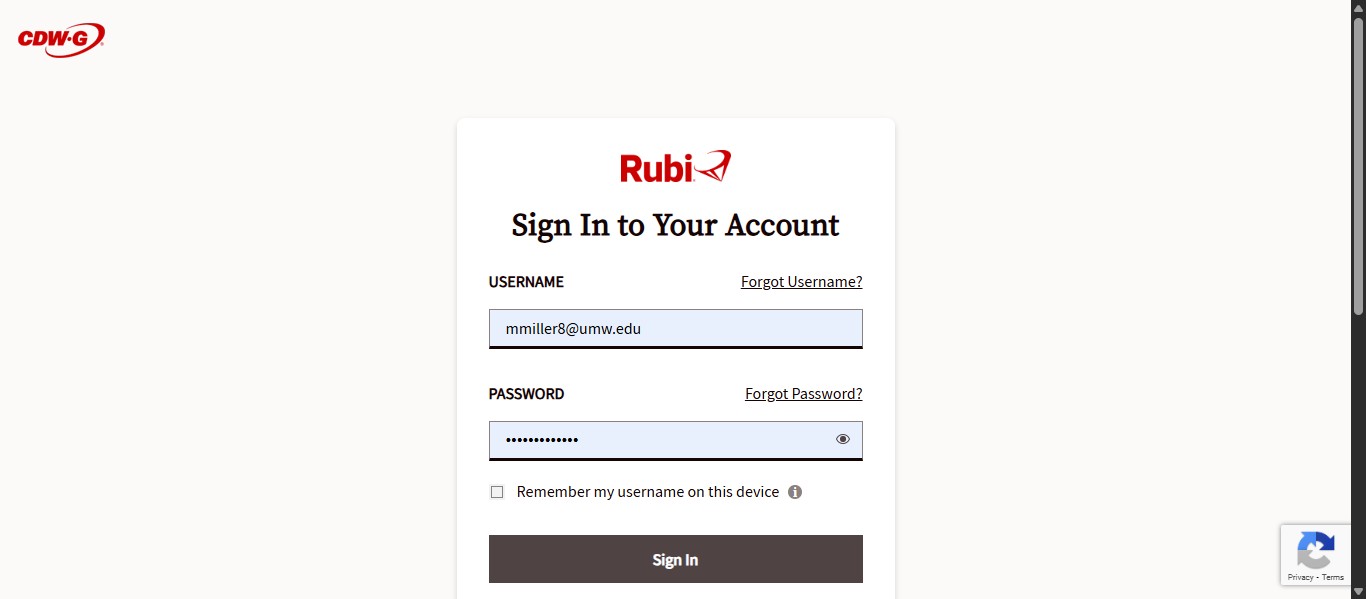
Enter the username and password that you set up with CDWG.
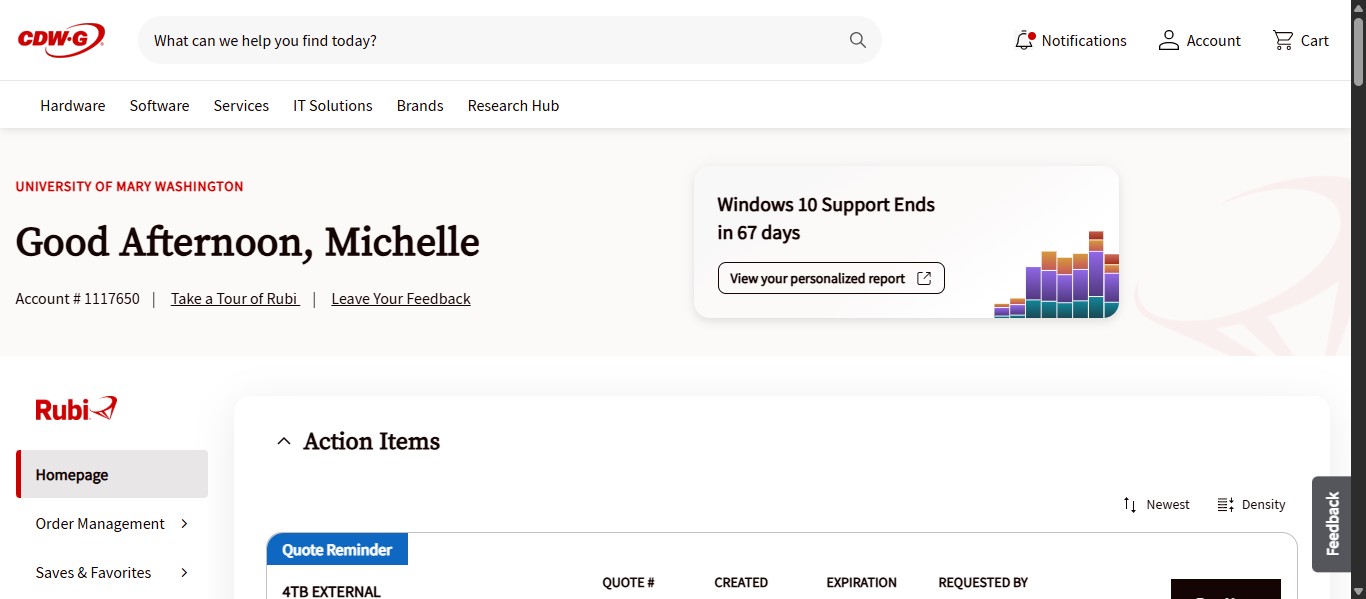
Search for the item quested via the form. You can enter keywords, manufacturer part numbers, or the CDWG part number if you know it.
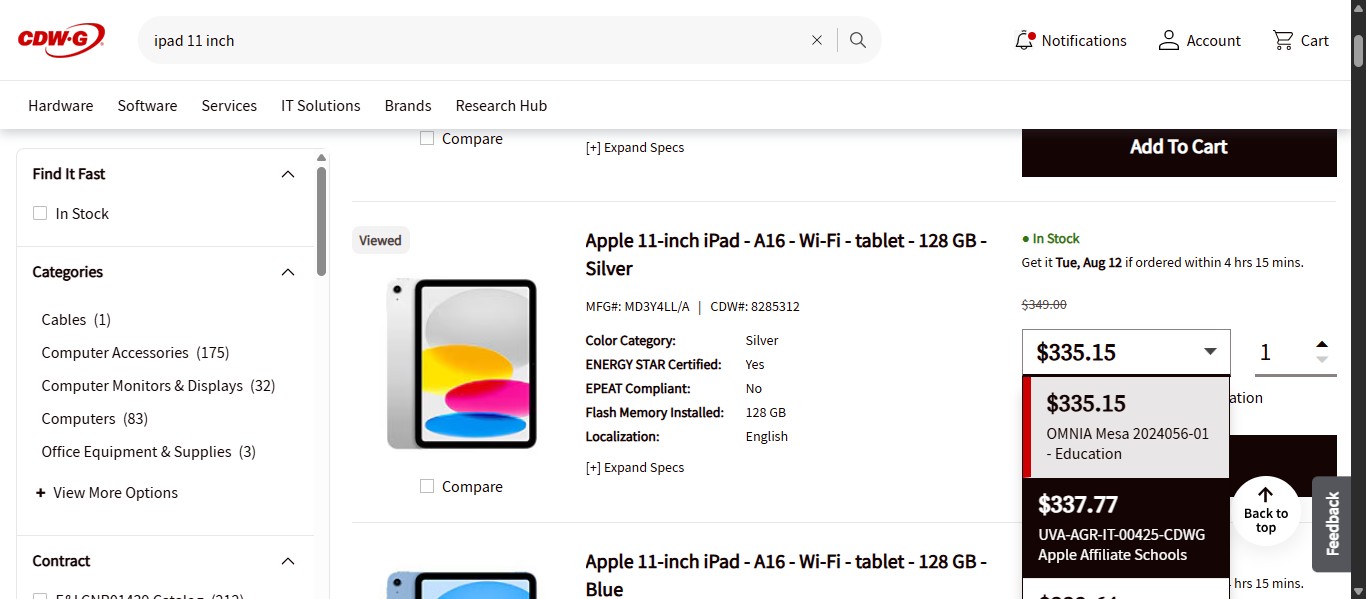
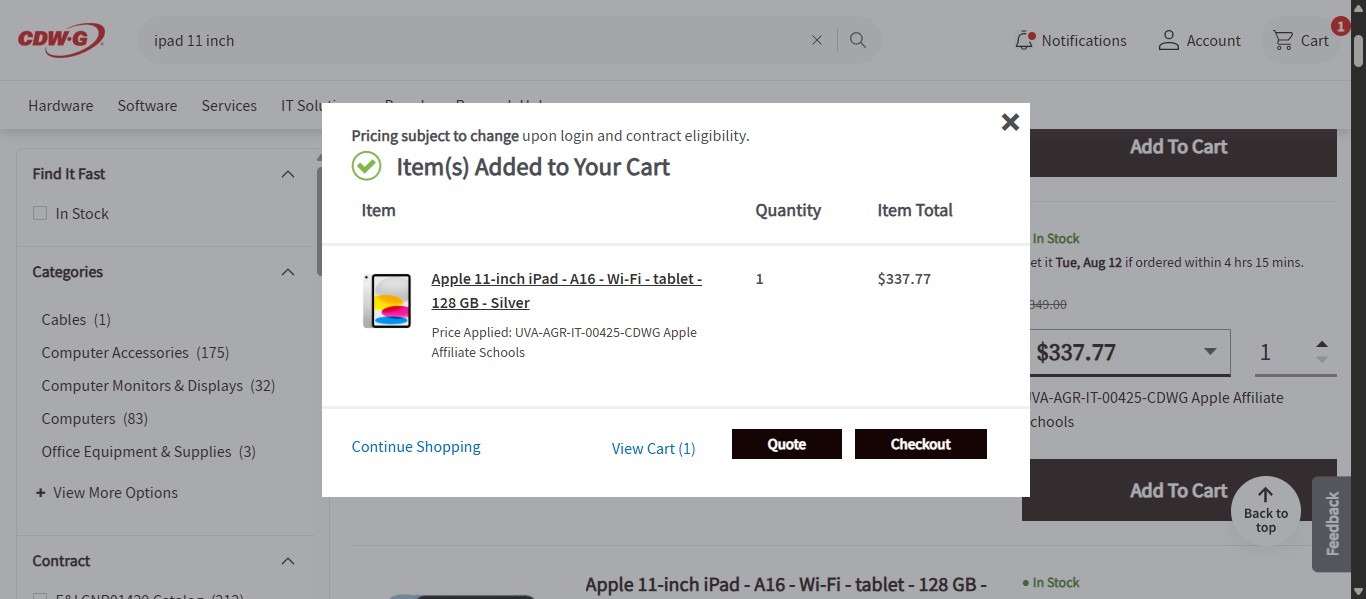
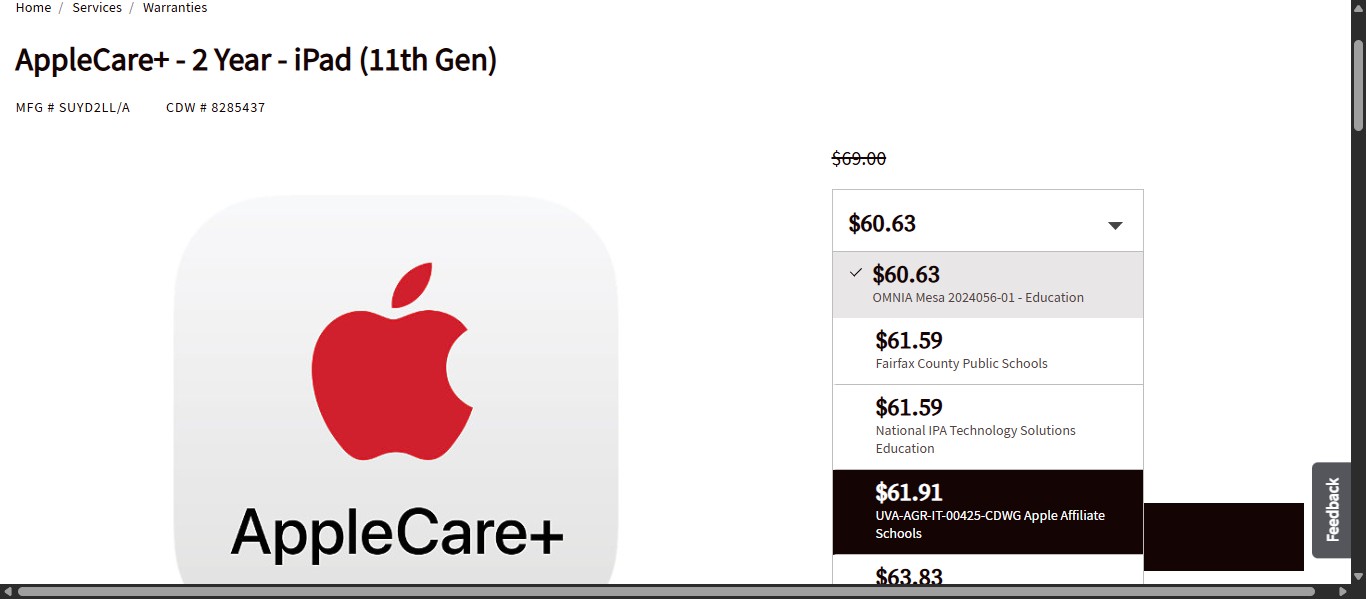
Once you have found the item requested, you want to make sure to select the correct contract for pricing. Click the drop down next to the price to access the cost list according to the different contracts available. The University uses two different contract selections: "UVA-AGR-IT-00425-CDWG Apple Affiliate Schools" or "E&I CNR01439 Catalog Apple." The same contract should be selected for the entire order.
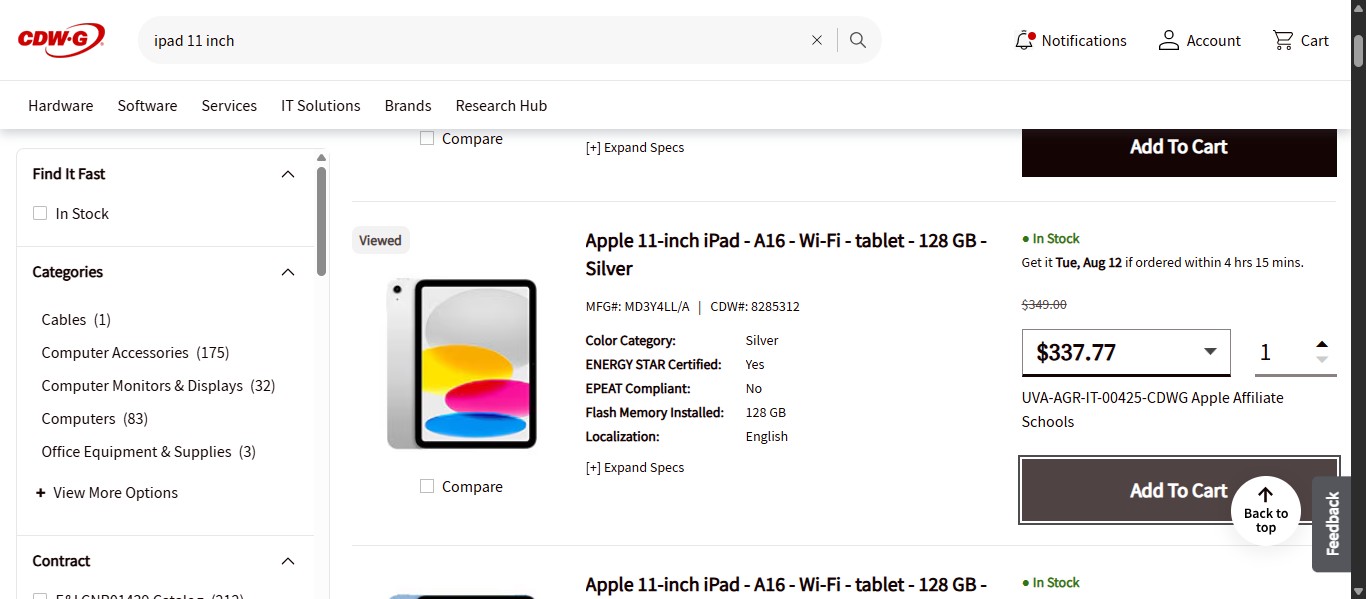
Once the correct contract pricing is selected, click on "Add To Cart"
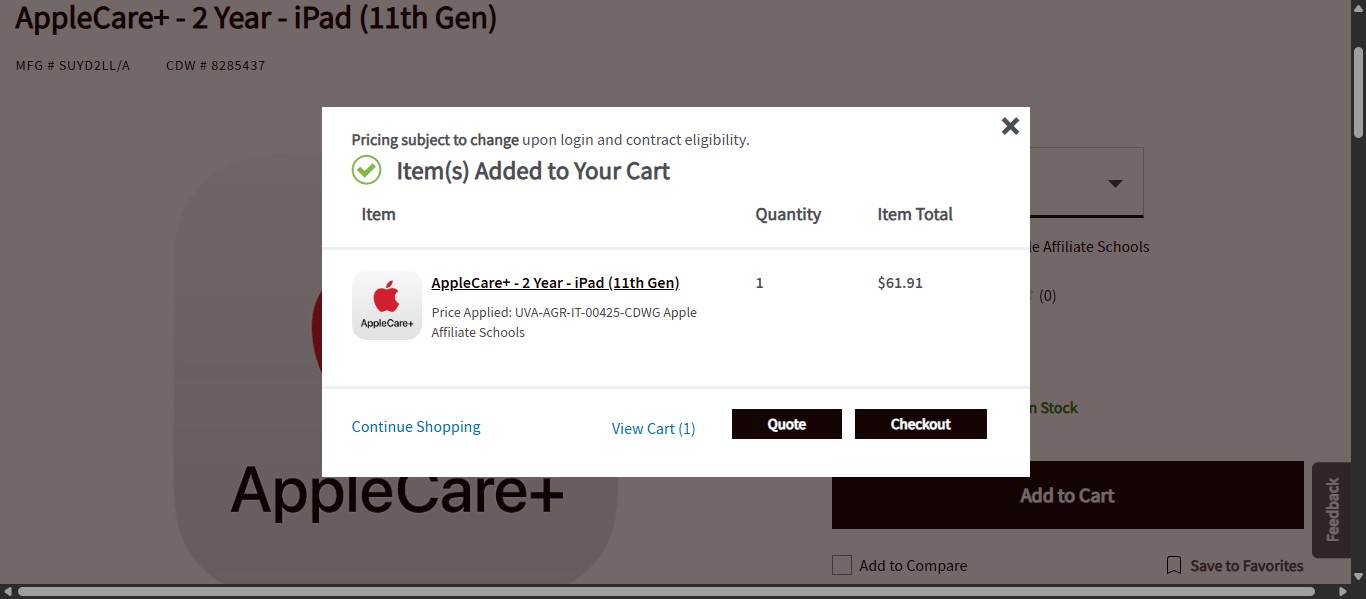
If you are only purchasing one item, you can click on "Quote." If you have other items to add to the quote request, click on the "X" in the box or on Continue Shopping.
If you have more than one item to purchase, search for your next item.
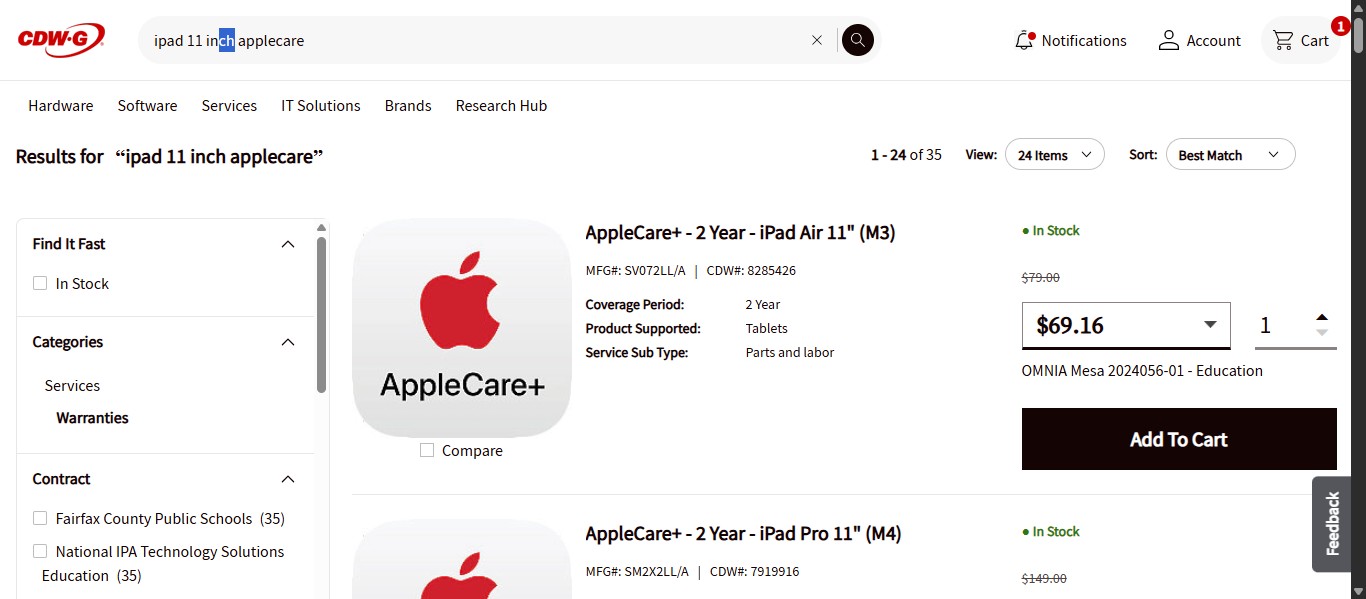
In an example where a user wishes to purchase a 128G 11-inch iPad and a 2-year AppleCare warranty, you will want to ensure that the AppleCare warranty you find is compatible with the model of iPad selected. To do this, click on the item to go to the item's page to view technical specifications.
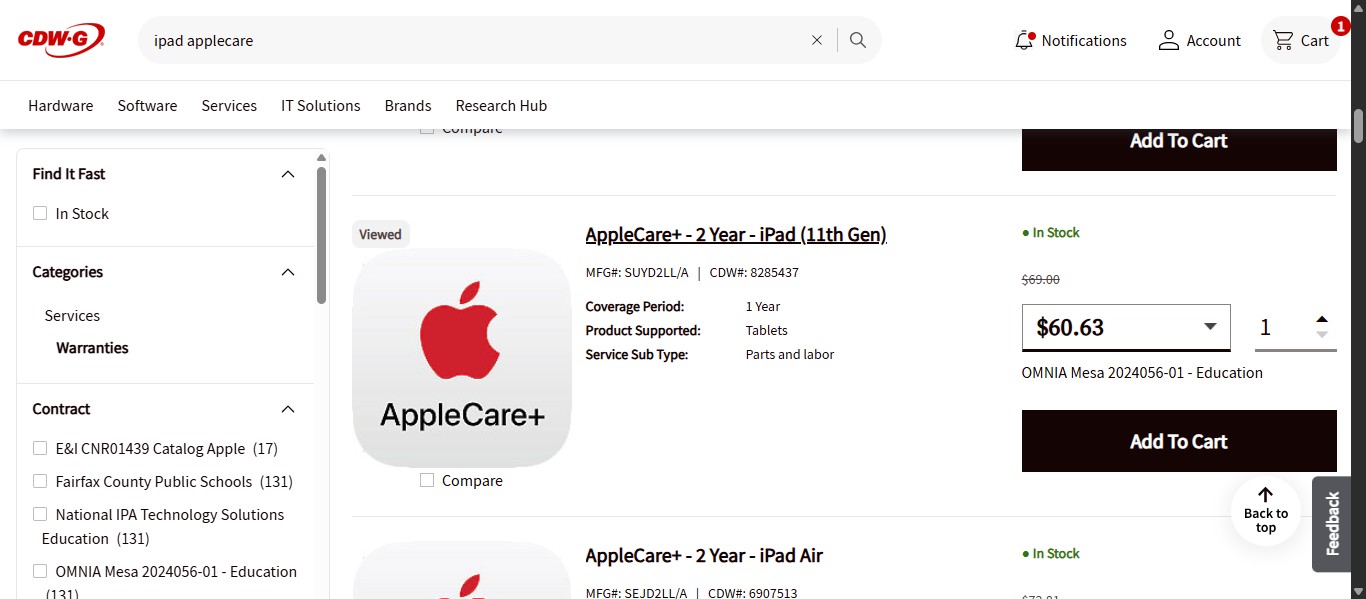
Find where the item's technical specifications "specs" are. Each item's specifications may be listed differently or have different places to access them. In this case, click on "View All".
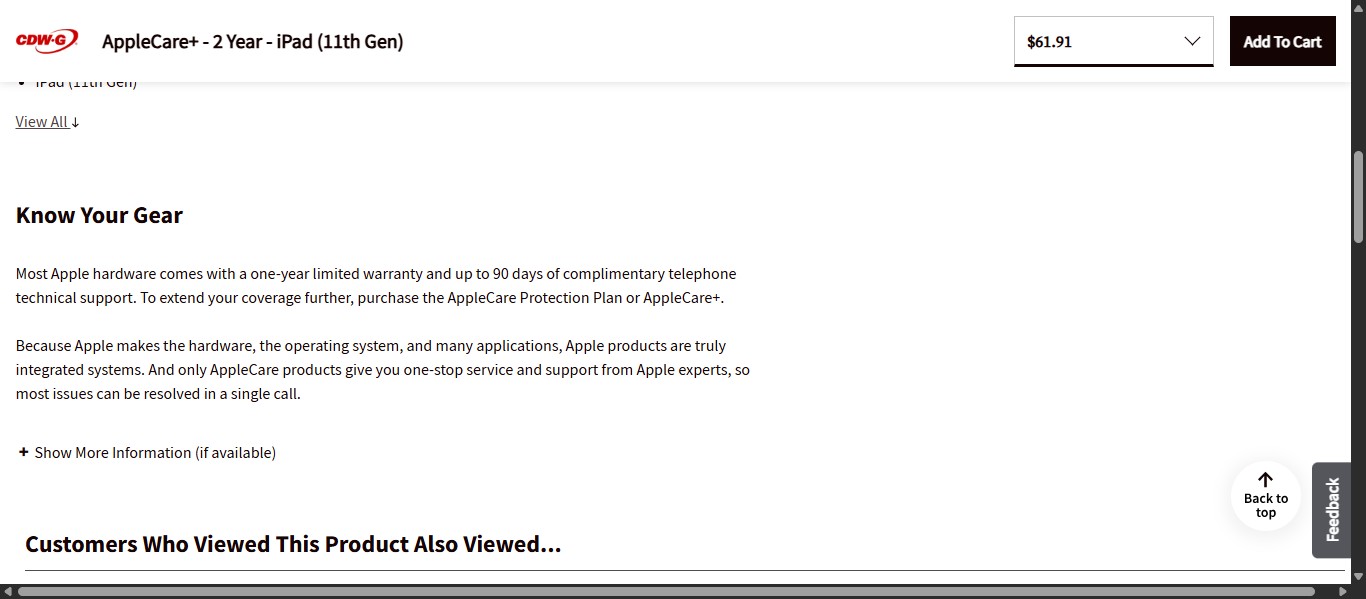
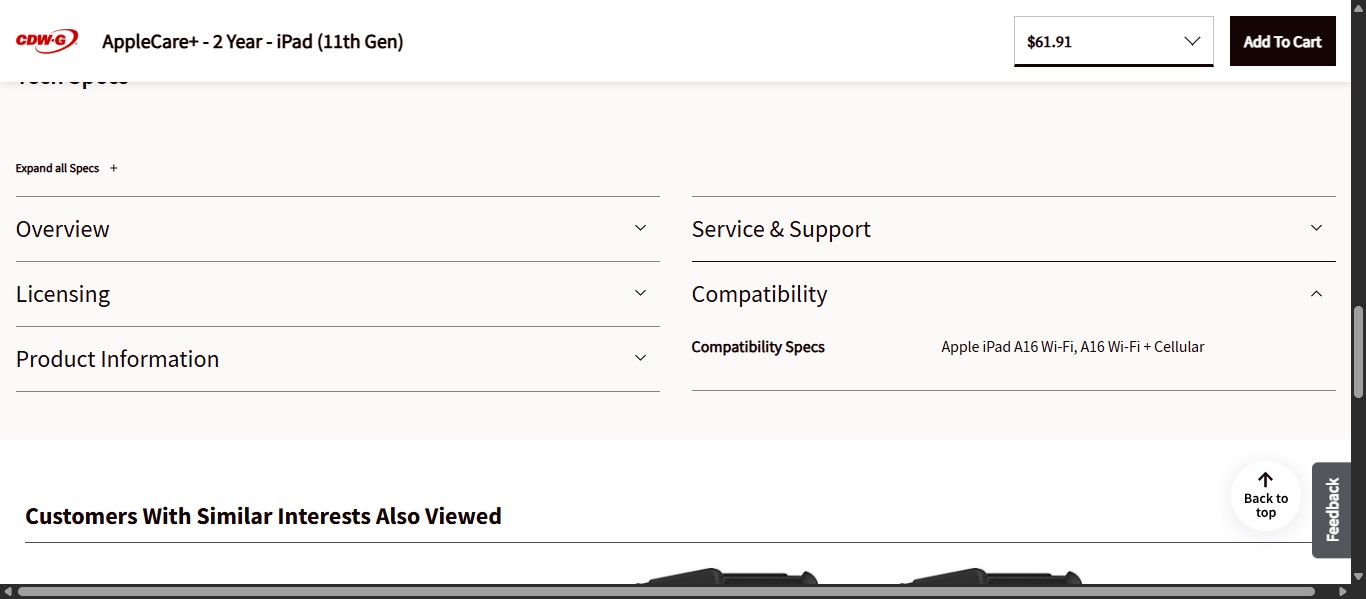
Click on "Compatibility"
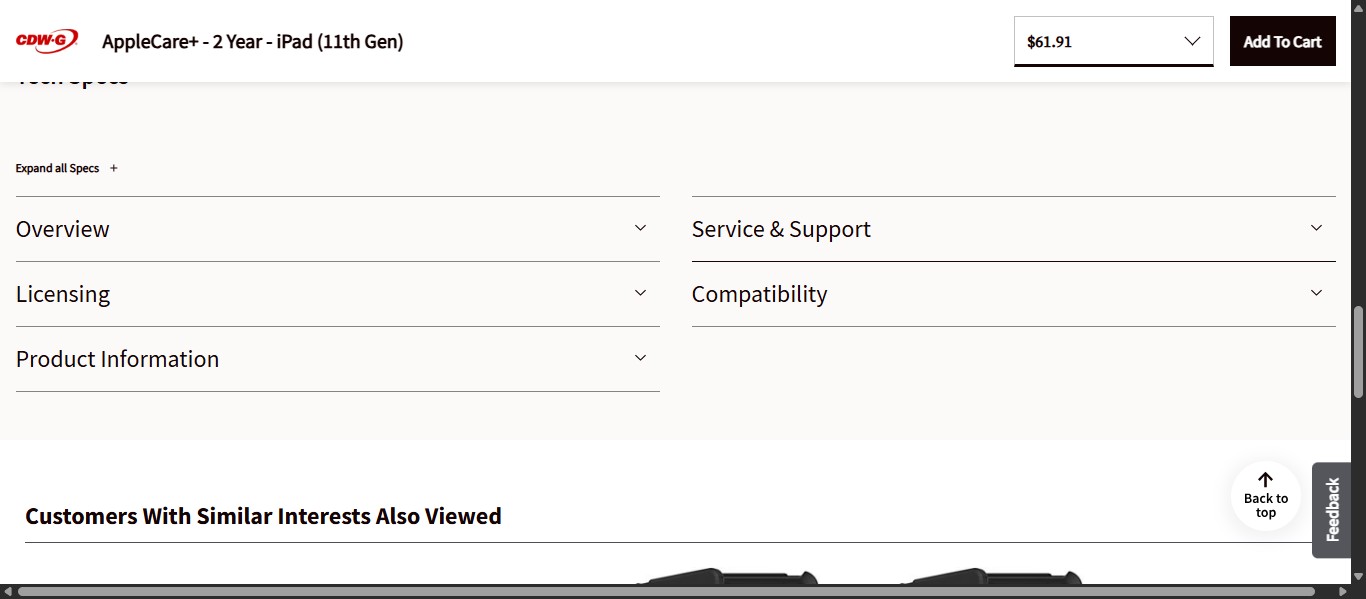
Check that the items listed include the item you are purchasing.
Once the compatibility is verified, select the correct contract pricing. Make sure that you are selecting the same contract as the one selected for the item previously. In this case, "UVA-AGR-IT-00425-CDWG Apple Affiliate Schools"
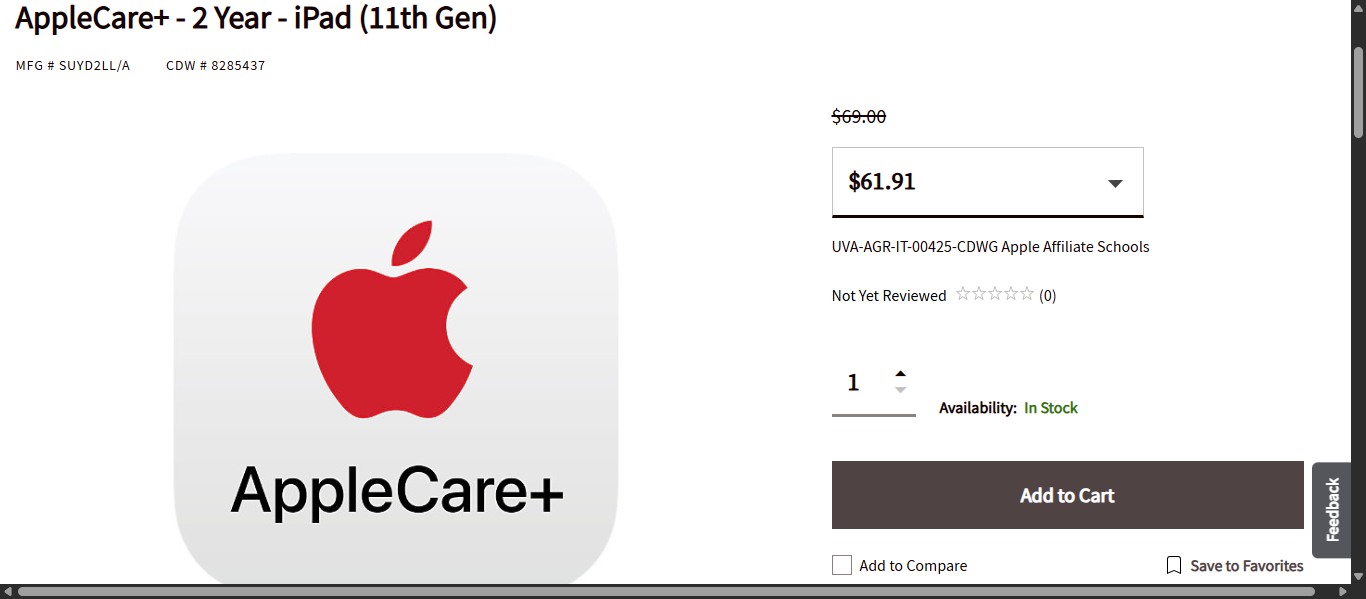
Click on "Add to Cart"
Once all items are added to the cart, click on "View Cart".
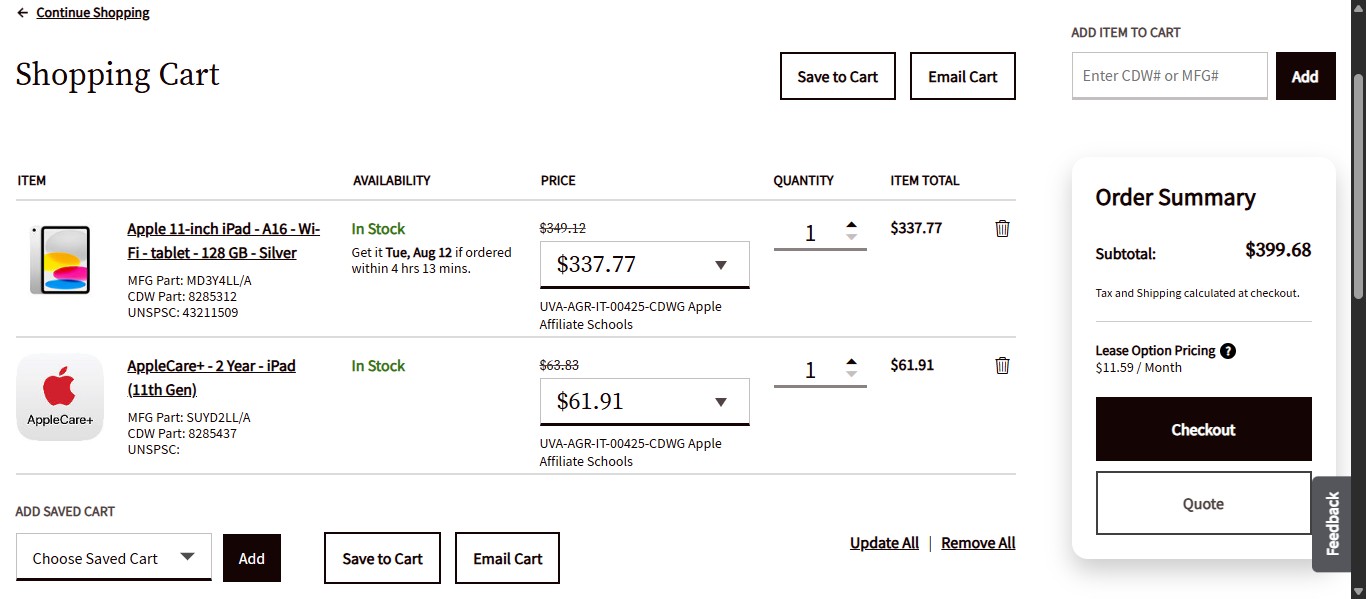
After verifying the items, quantities, and the contract numbers and pricing selected are correct, click on "Quote" on the right under Order Summary.
Change the Recipient Contact Information Name and Email Address to the item recipient on the form.
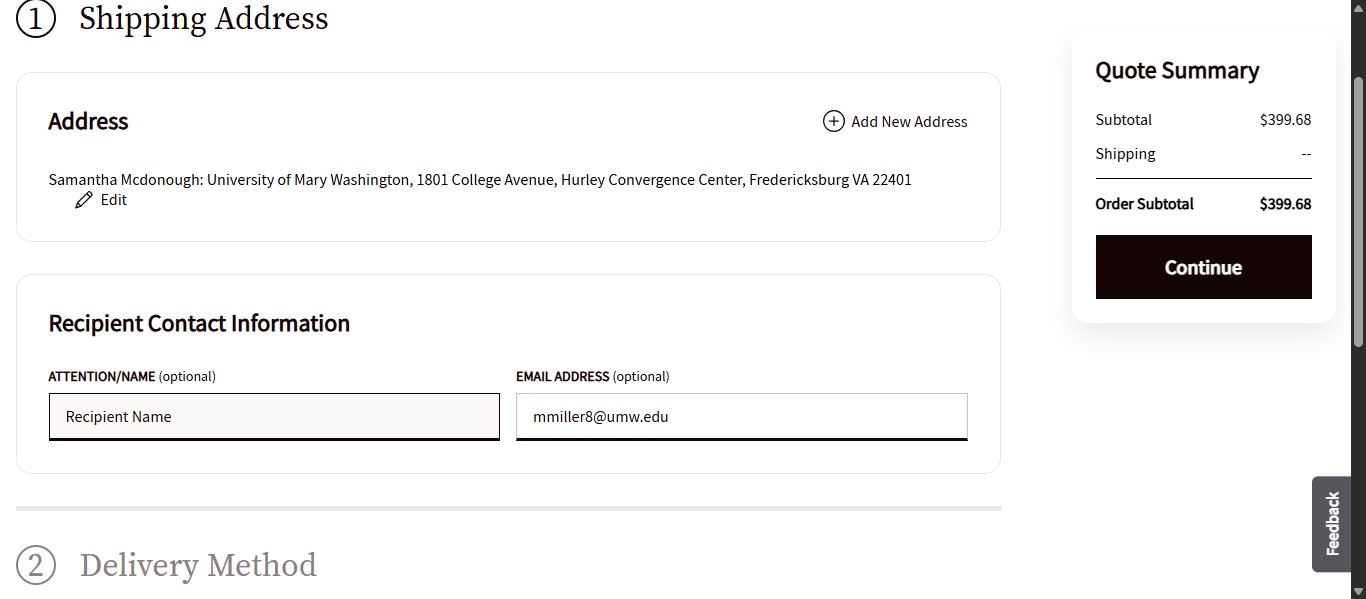
Click Continue.
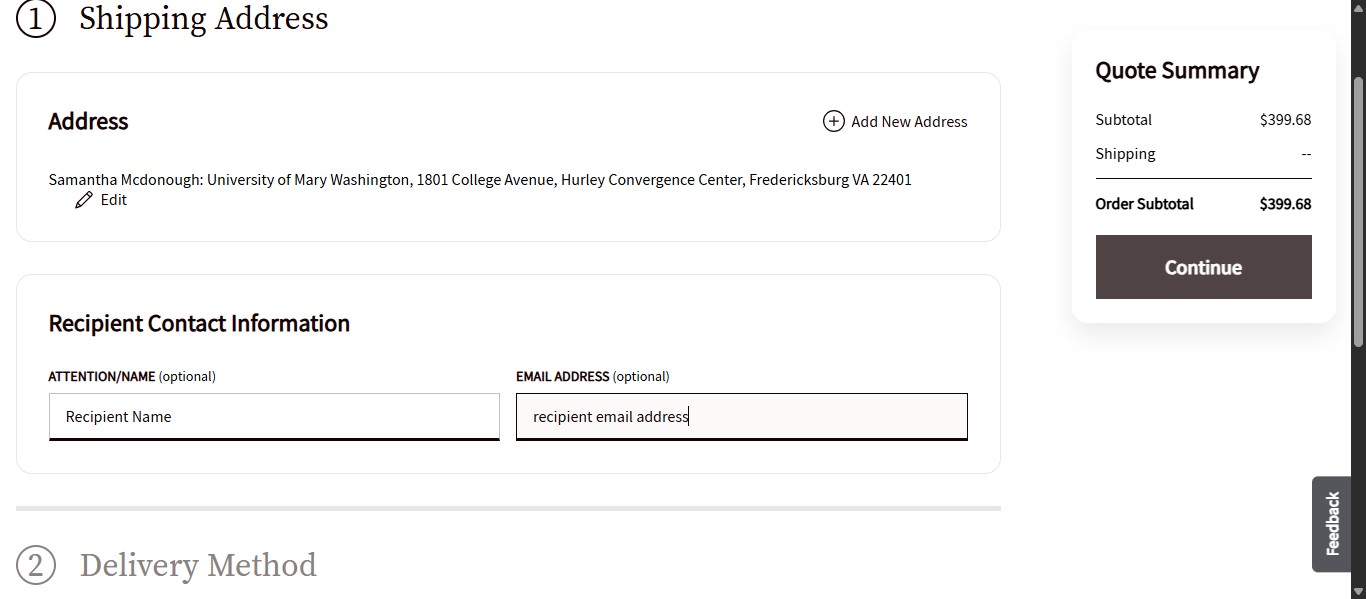
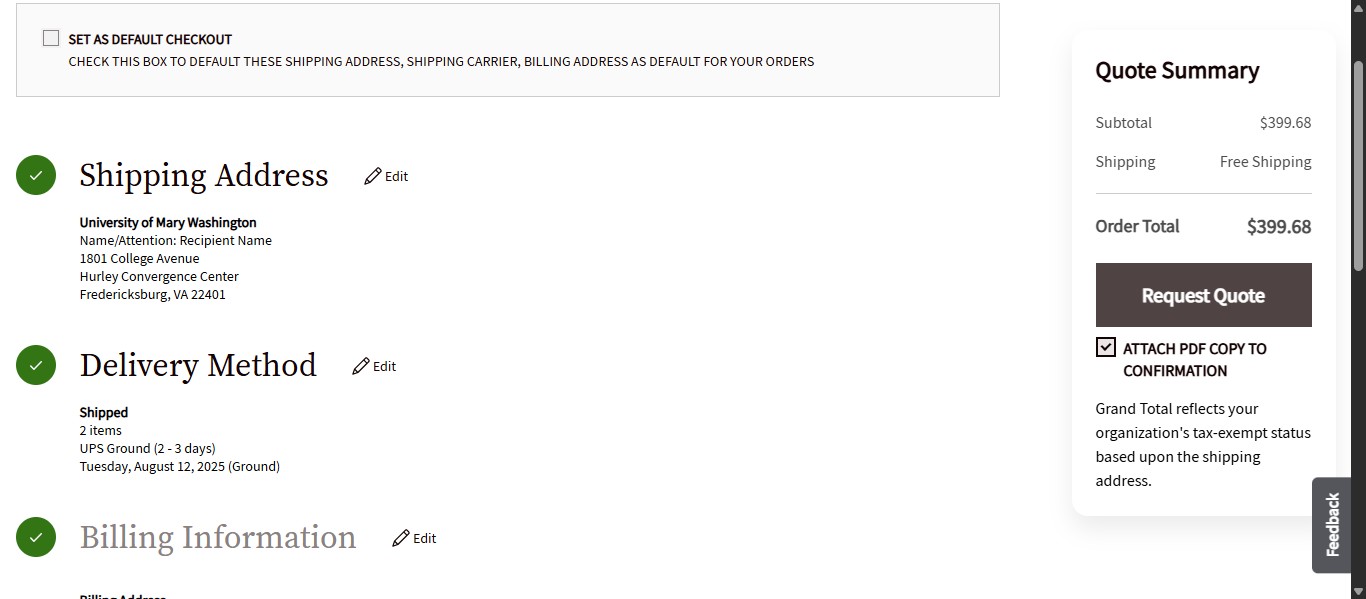
The Shipping information will default to the IT Business Office and is correct, so click Continue.
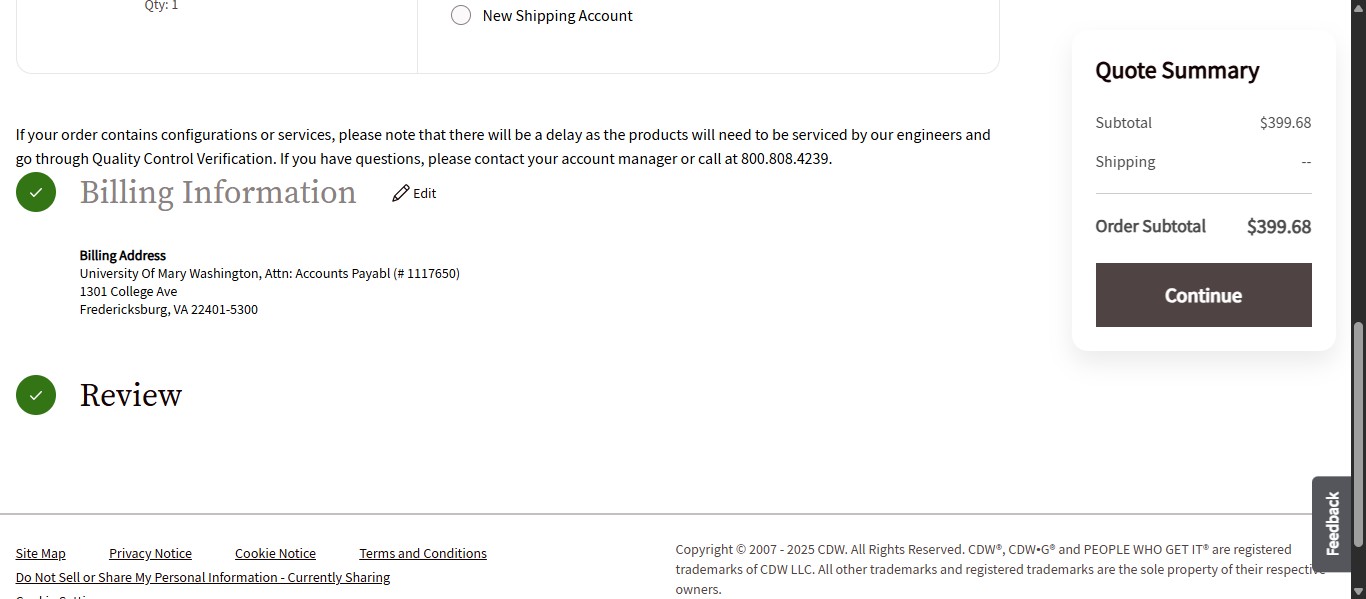
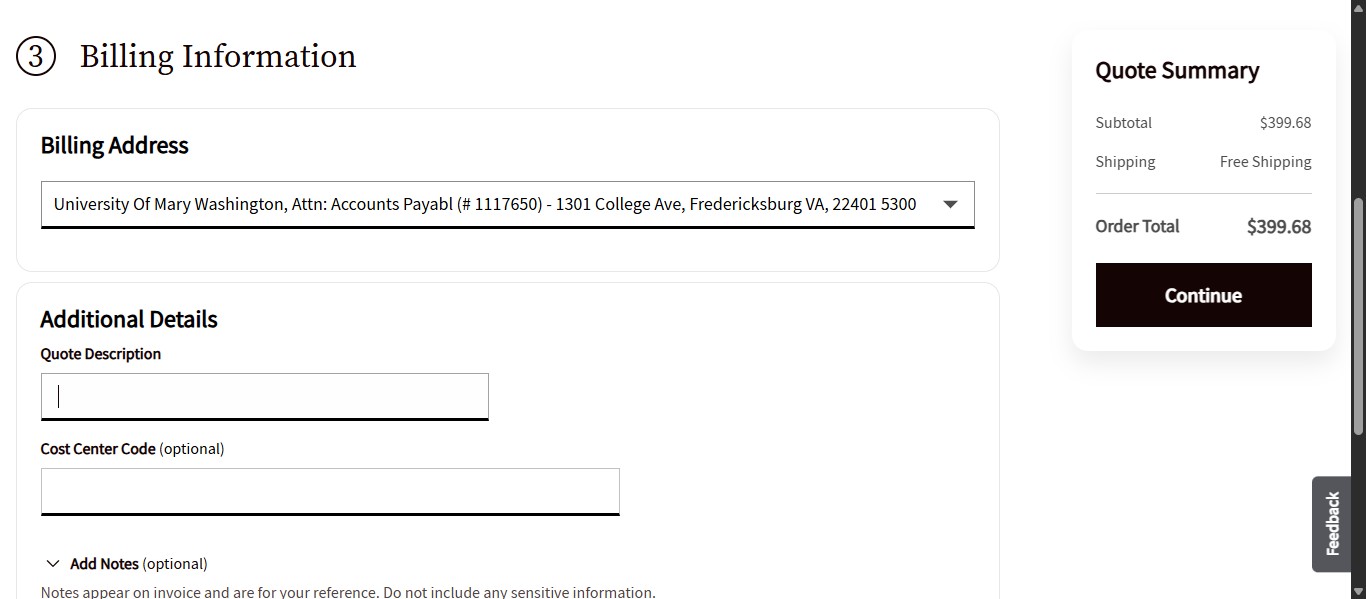
The Biling Address is preprogrammed to the Accounts Payable Office. But in this section you'll want to create a name or description for the quote you are creating under Additional Details and Quote Description.
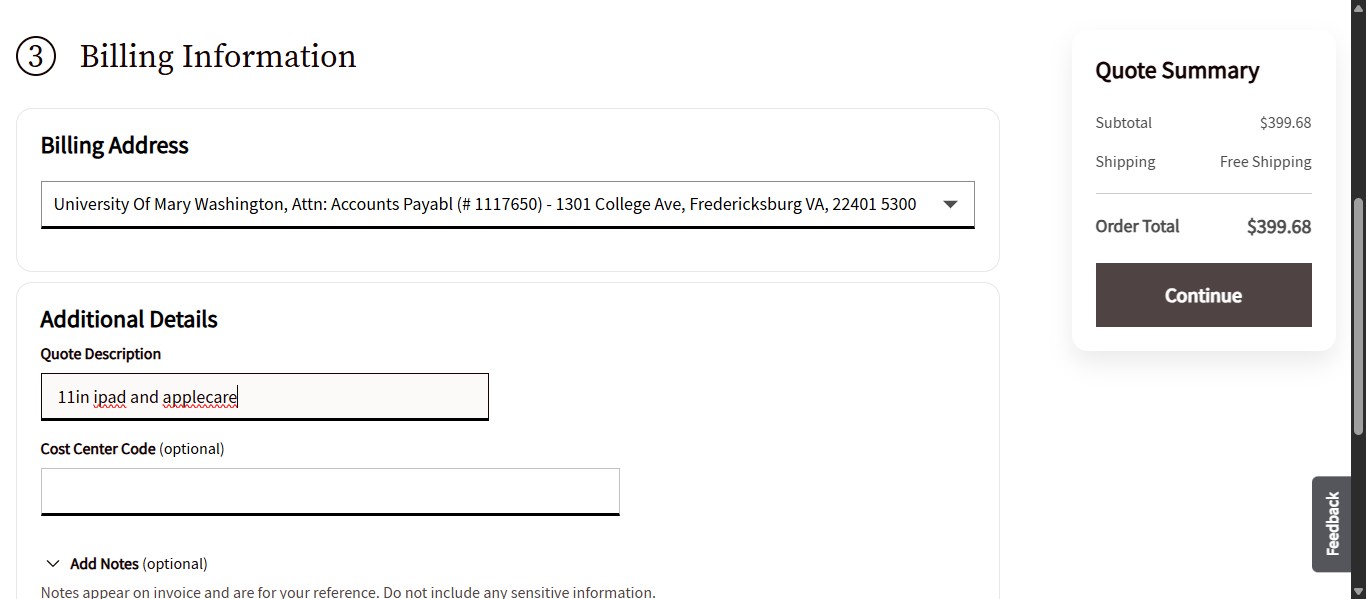
Once you've created a quote title, click on "Continue"
Click on "Attach PDF copy to confirmation"
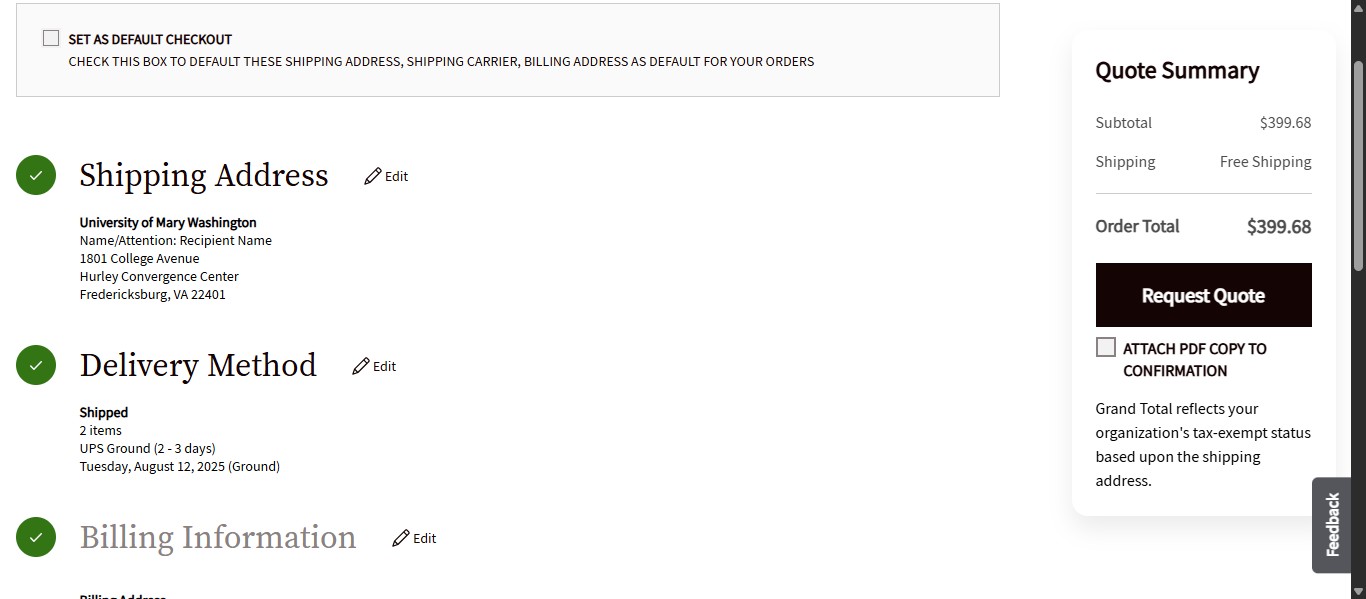
Click on "Request Quote"
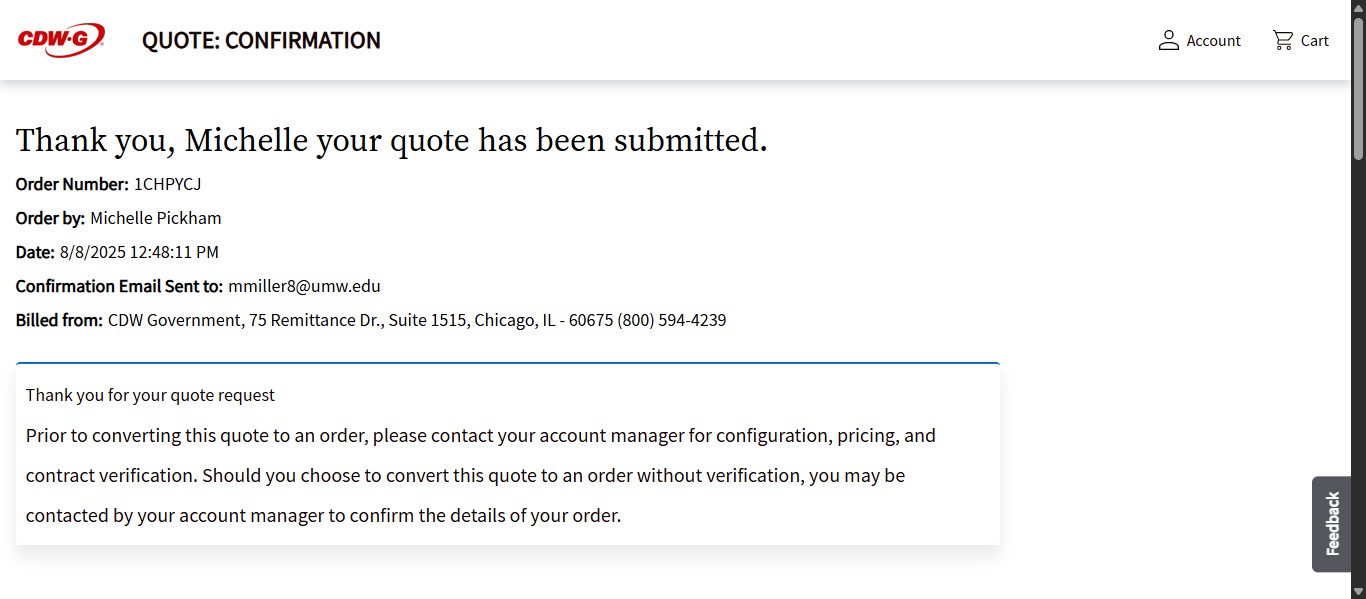
If submitted successfully, you will get this confirmation. It can take anywhere from a few minutes to a few hours for the quote to be sent to your email. The PDF generated should be attached to that email which you can use to enter the eVA purchase order on behalf of the user for any Standard or Non-Standard IT Requests, or send to the user to enter if the user only requested a quote generated for a Buy Your Own item.