SPCC Works - Required Document Upload Check
The invoice, receipt, and approval for purchase are required uploads for every transaction. The Program Admin should at a minimum check throughout the billing cycle to ensure any transactions that have been signed off include uploaded documentation. This guide will show how to check for that.
Navigate to https://payment2.works.com/works/home
Click on "Expenses"
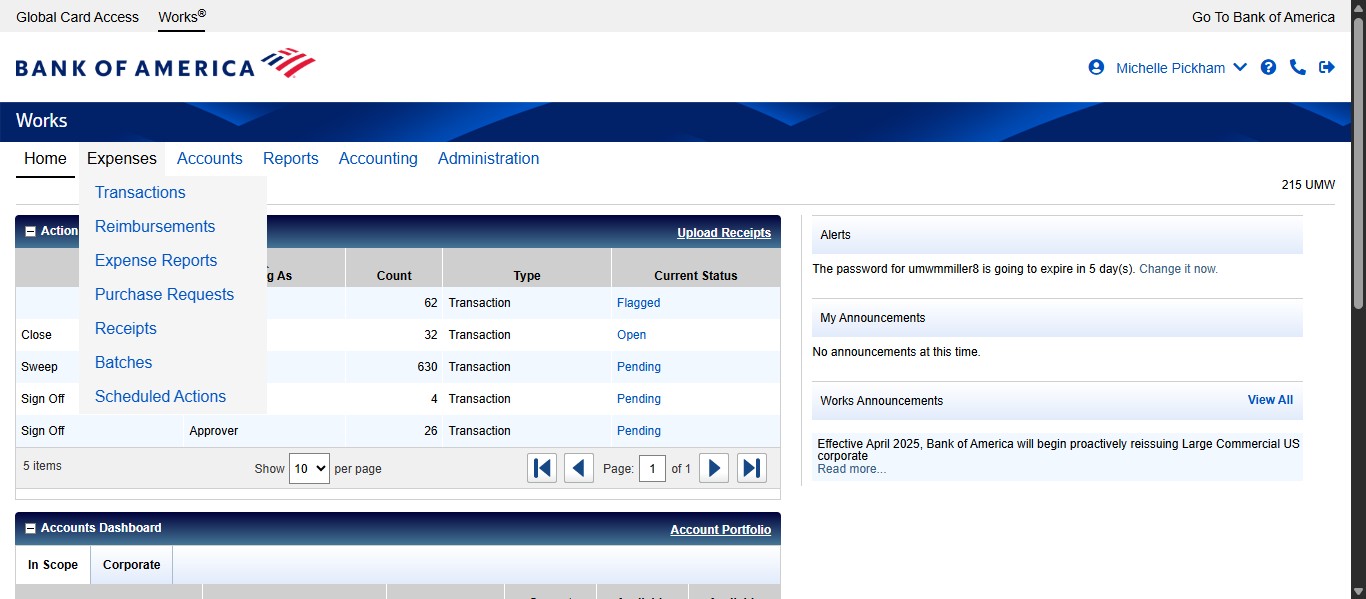
Click on "Transactions"
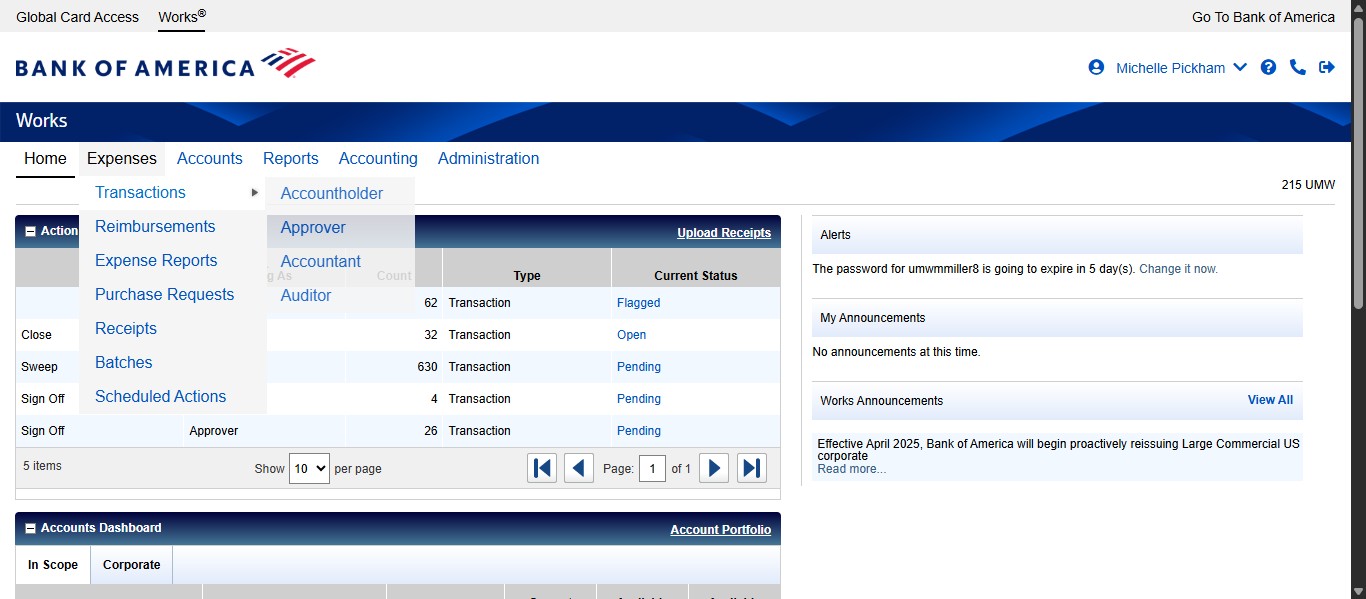
Click on "Accountant"
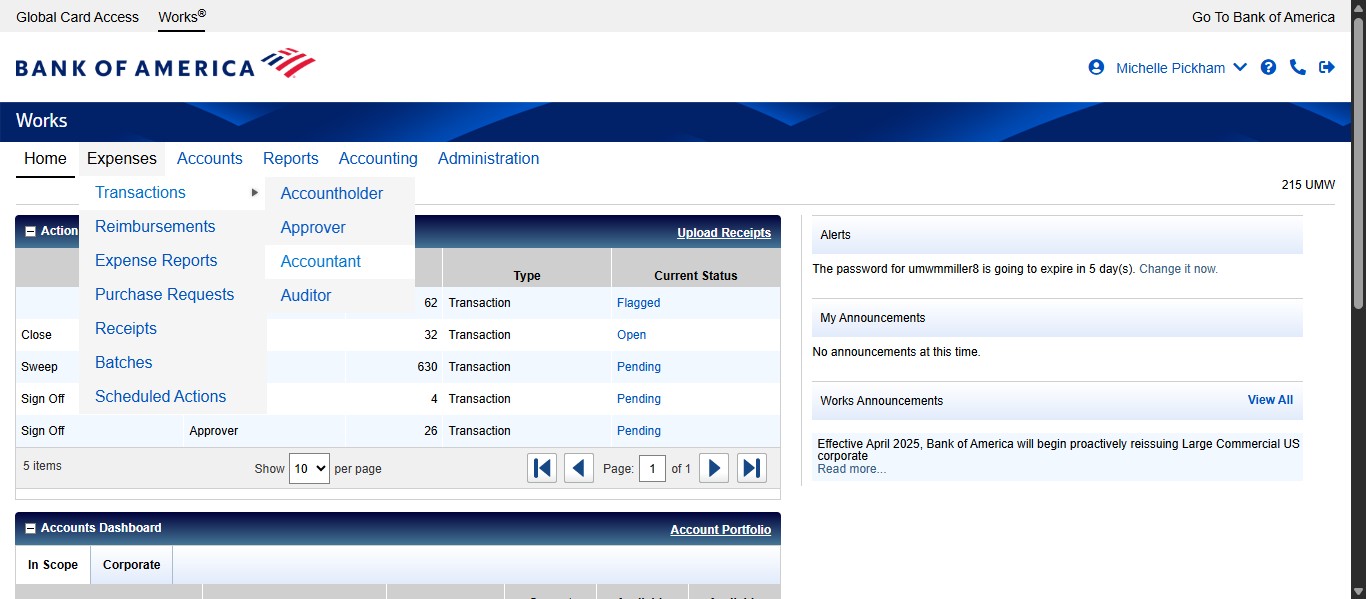
Click on "All"
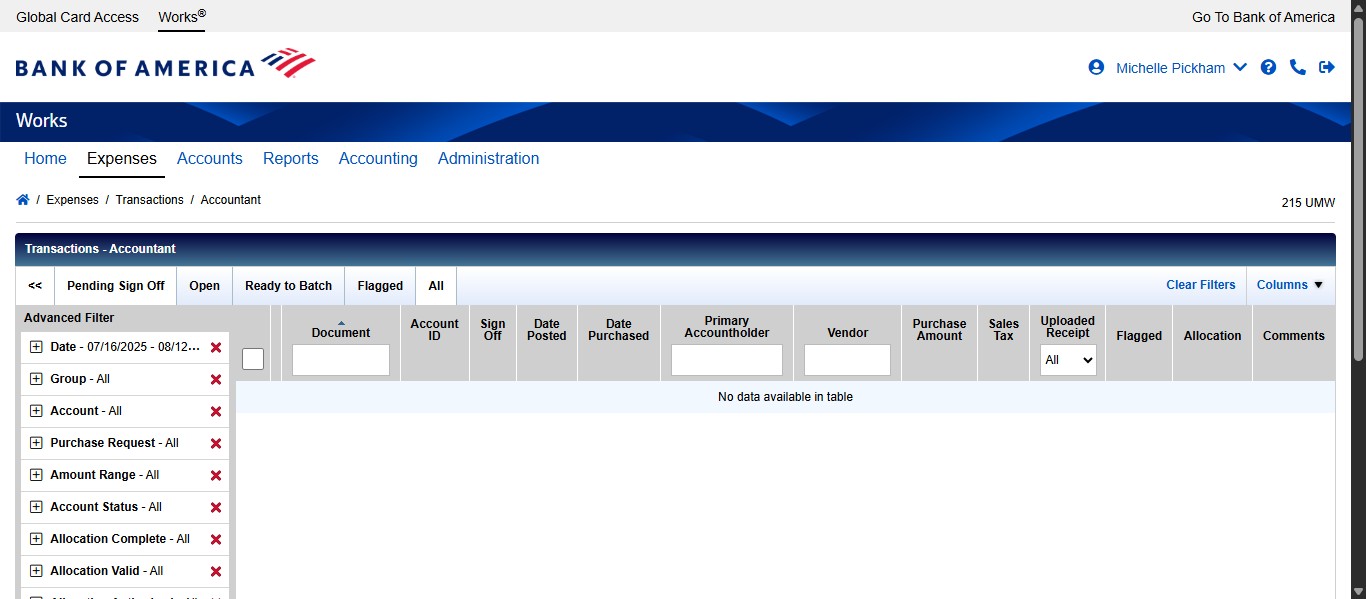
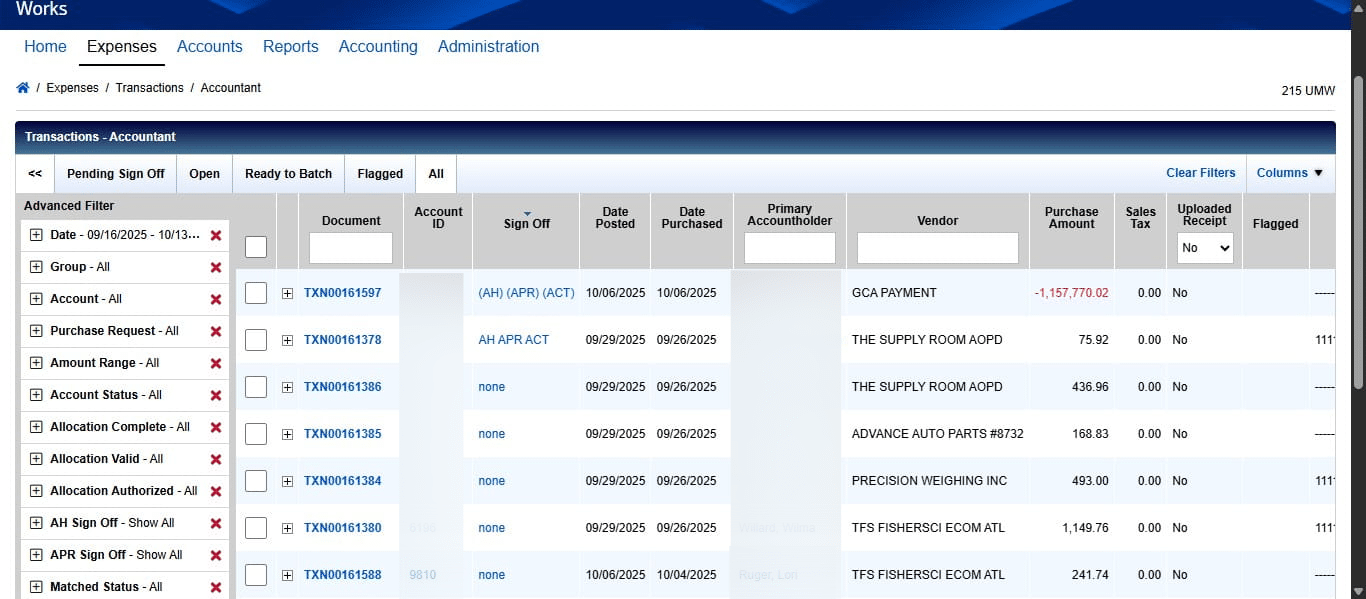
Check that the date range is set appropriately and adjust if needed. We want to find all signed off transactions that do NOT have documents attached, so under the Uploaded Receipt column, click the drop down and select No.
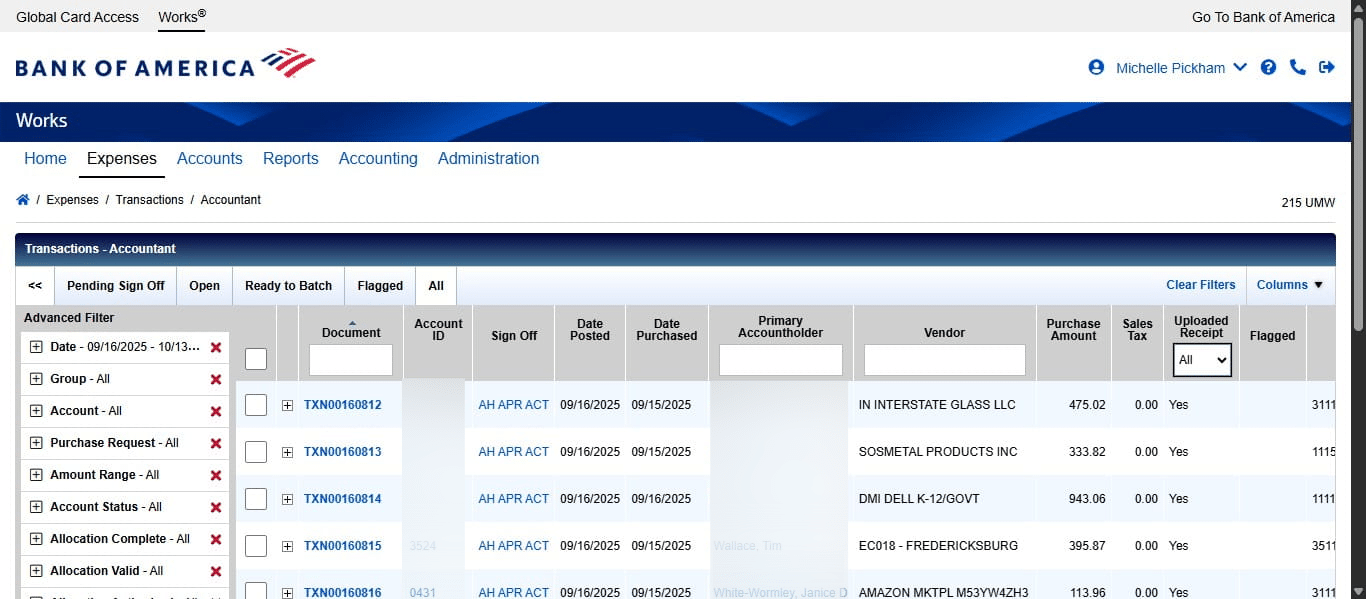
We want to only see transactions that have been signed off without receipts uploaded, so click on the column header for "Sign Off"
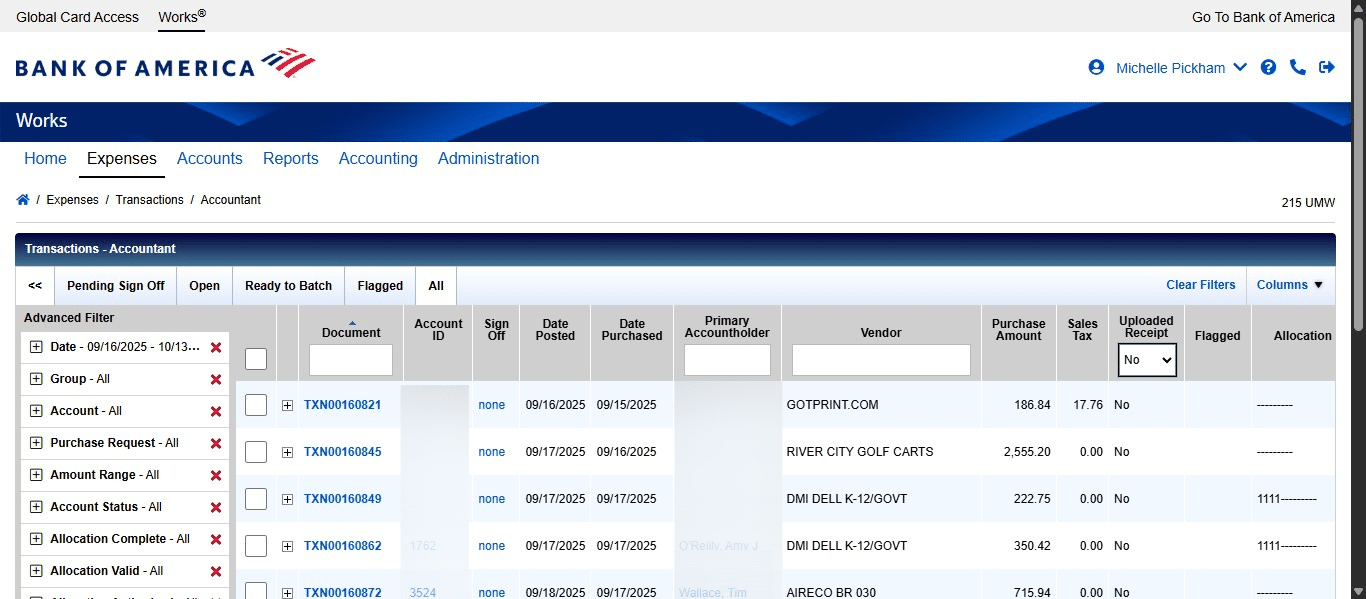
Clicking it once will sort it from smallest to largest, or "none" to "AH APR ACT", so click it again to sort from largest to smallest.
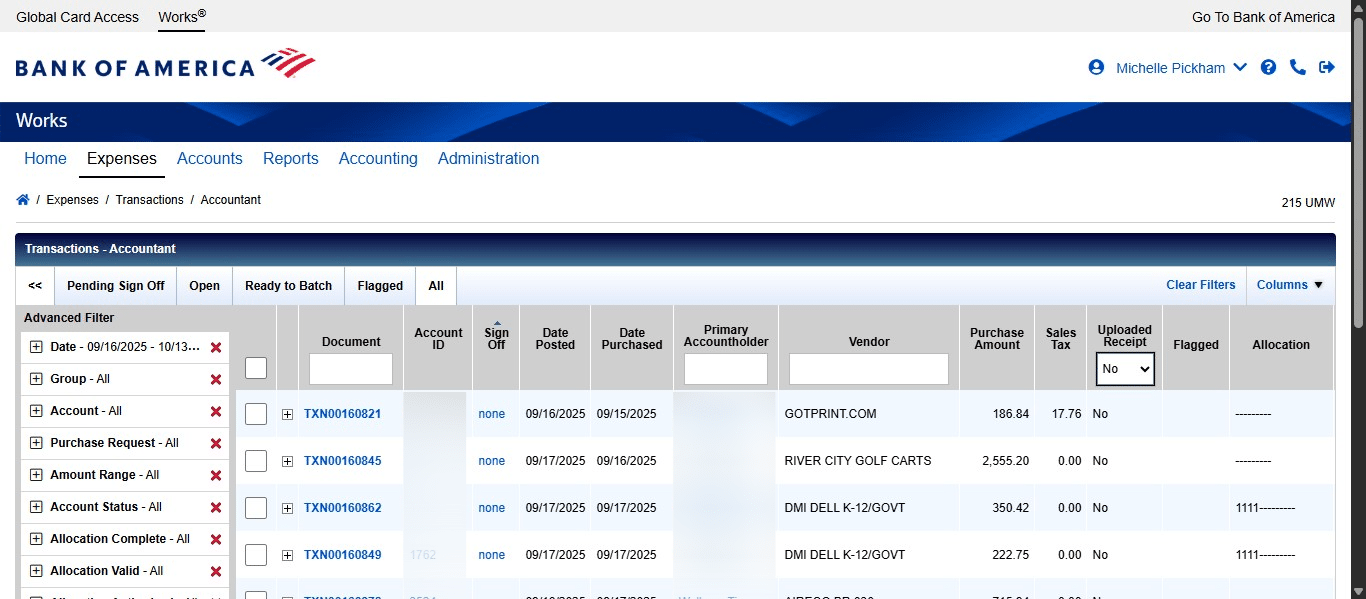
Once you've found a transaction that is signed off with no documents, check the comments of the transaction to make sure there wasn't anything pending or wrong with it first. If there are no comments explaining the lack of documentation that is acceptable, contact the user to have them send the documentation to you to upload on their behalf if the system does not let them upload it themselves.