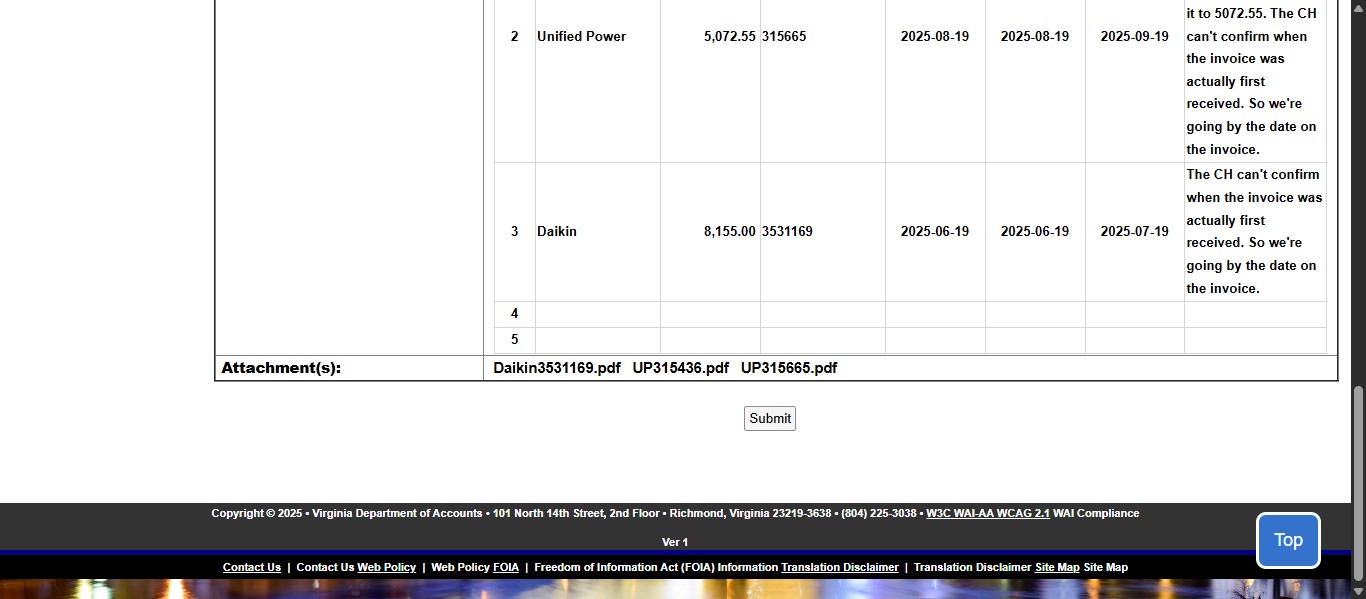
SPCC DOA - How to Submit a Late Payment Request in CCA Forms
Navigate to CCA Online Services https://cca.doa.virginia.gov/ and log in.
 and log in.](https://assets.guidejar.com/uploads/7281f42d-0144-4131-92a8-391bc8ddcd80/SLS2HabFEwMopArHVtEupW5fdTM2/31c2051e-460f-476d-9db9-321f46ae4263/1759247944575.jpeg)
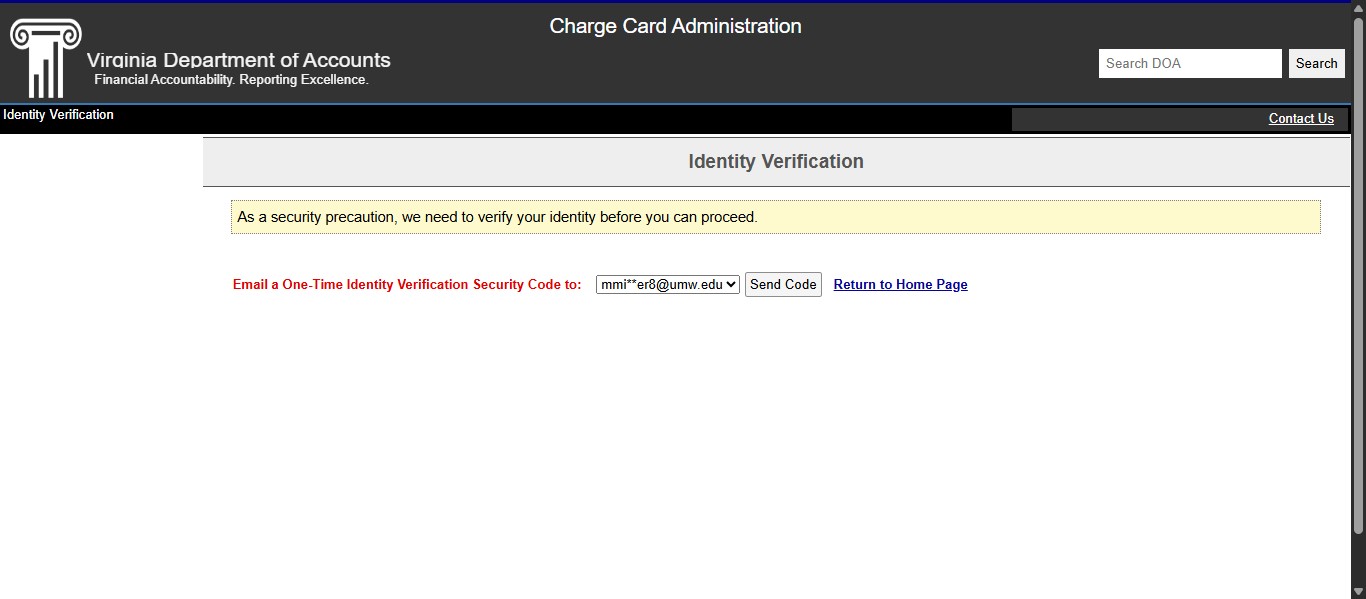
It will require you to request a one-time authentication code send to the email on file with your login account. Click Send Code.
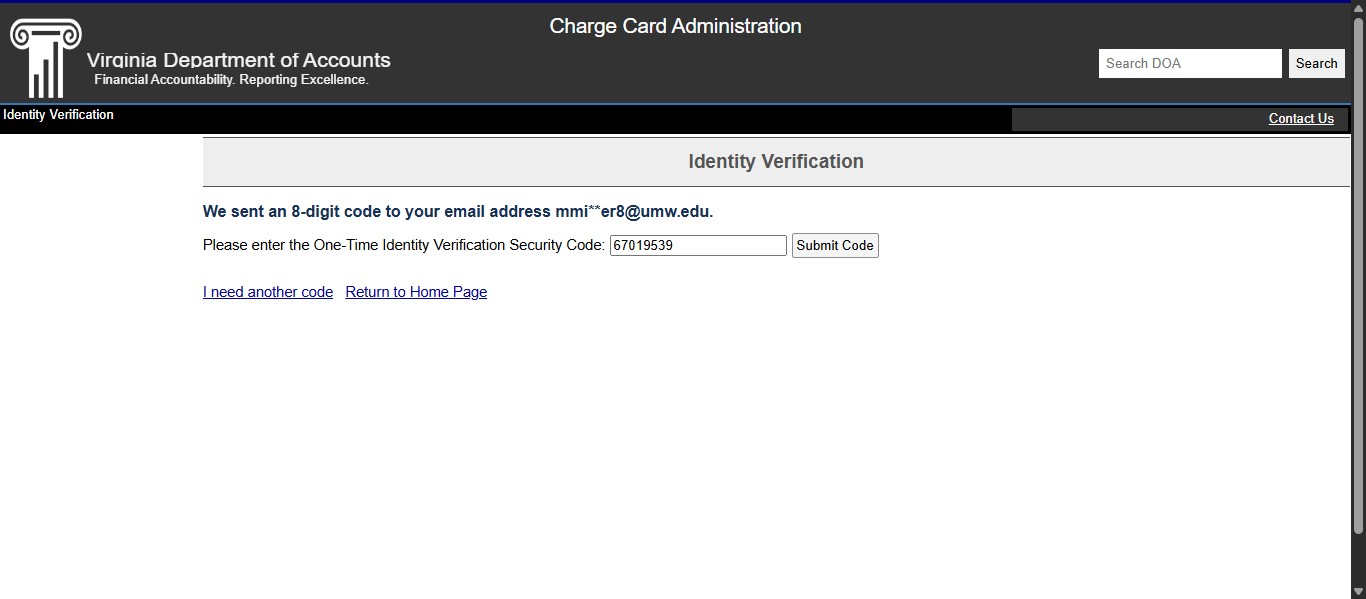
Copy/Paste or enter the 8-digit authentication code and hit Submit Code.
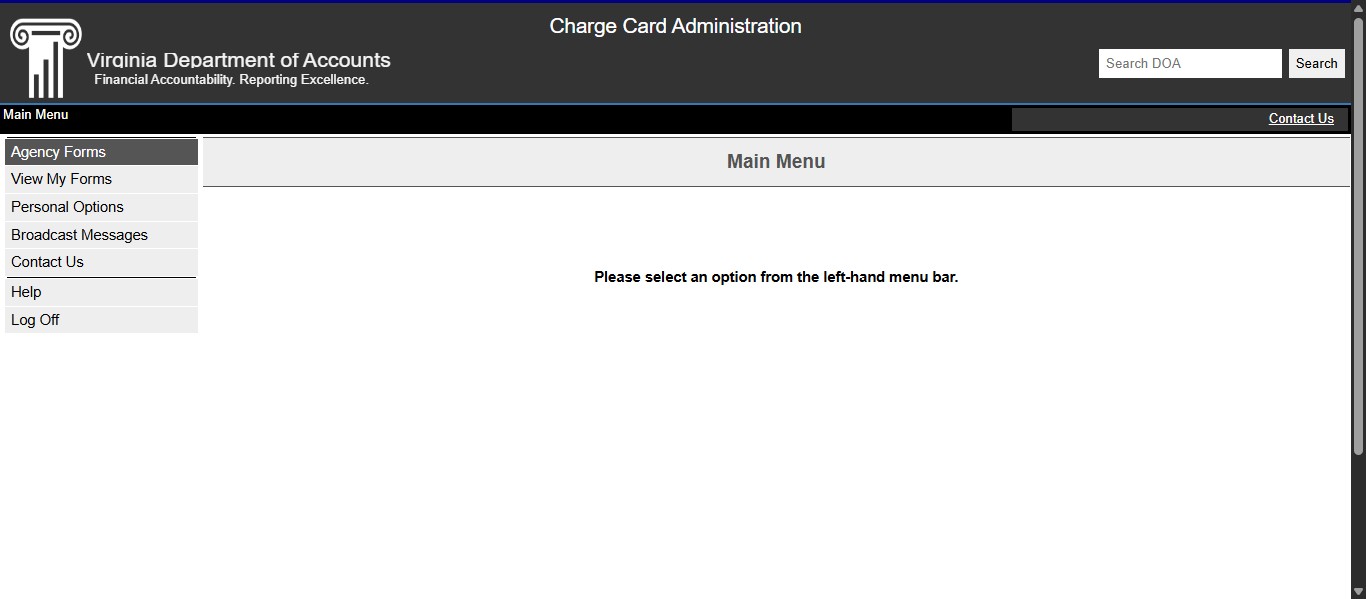
Once in the CCA Forms Database, Click on "Agency Forms"
Click on "CCA Pay Past Due Invoice(s) Form"
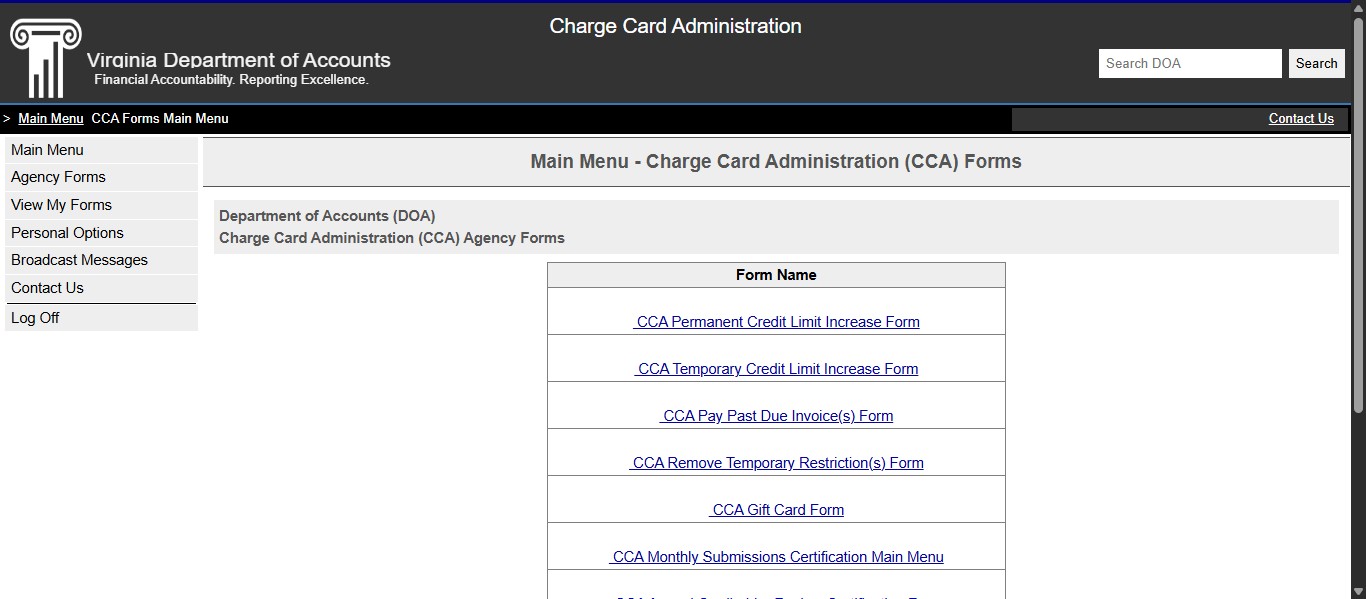
The first bit of information is already pre-filled based on your login. Click Next.
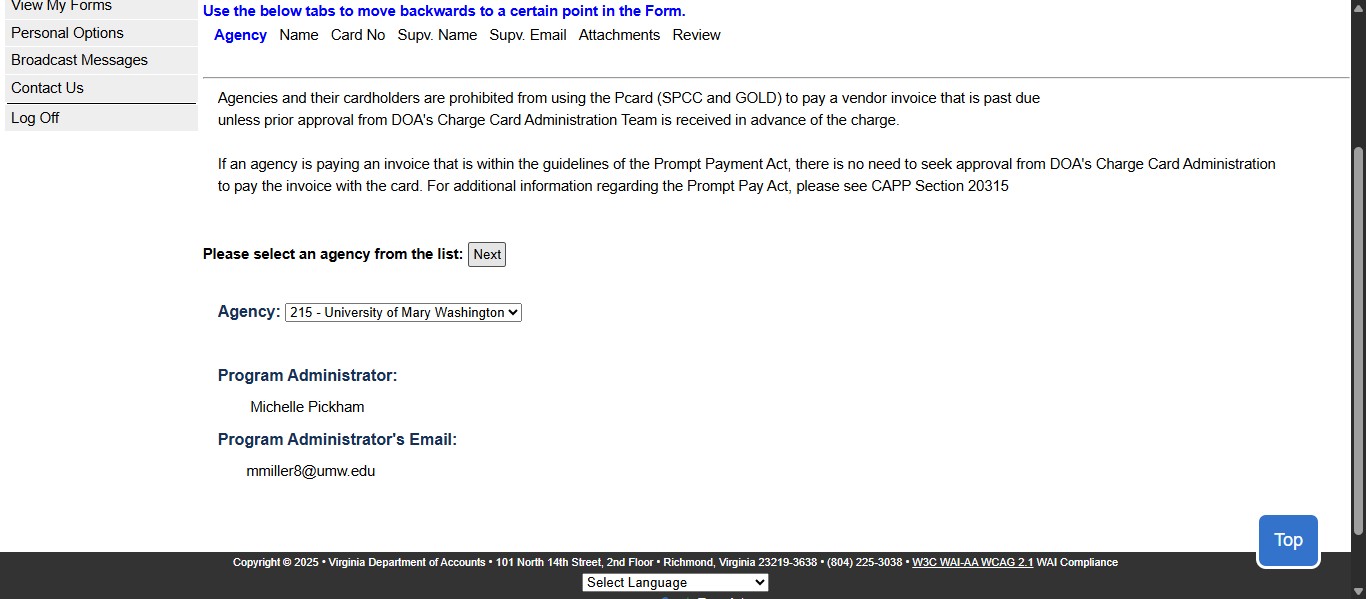
Enter the Cardholder's name and click Next.
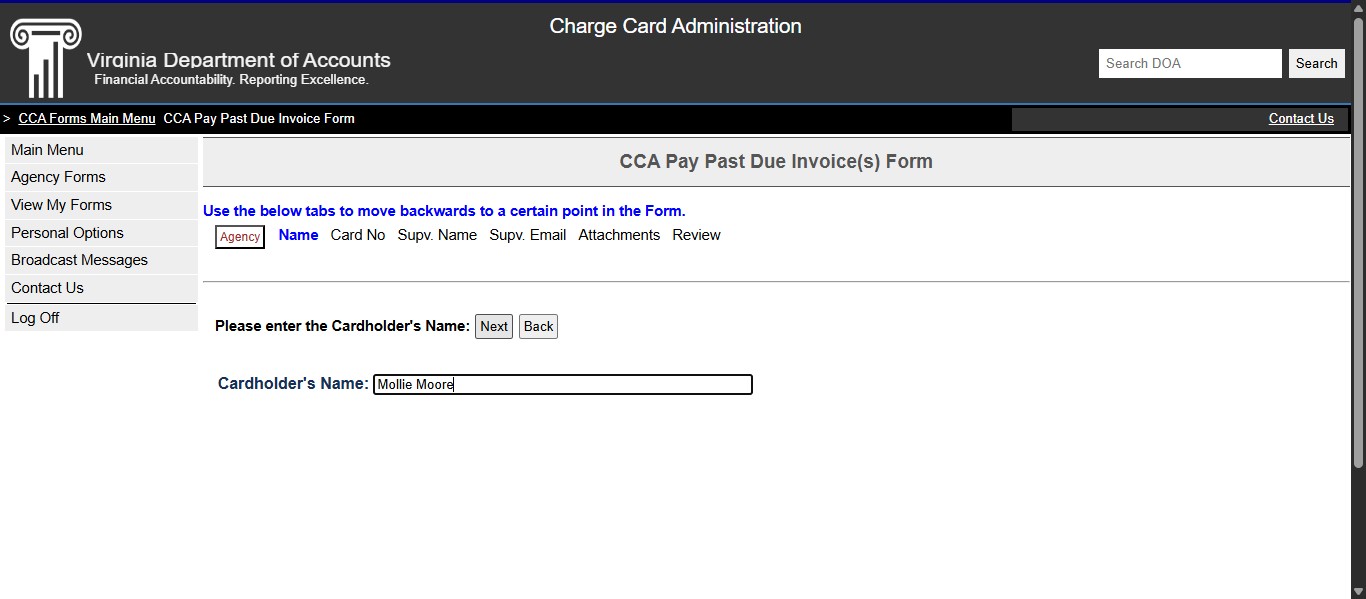
Enter the last 4 digits of the Cardholder's account (card number) and click Next. This information should be included on the Late Payment Request Form the user filled out.
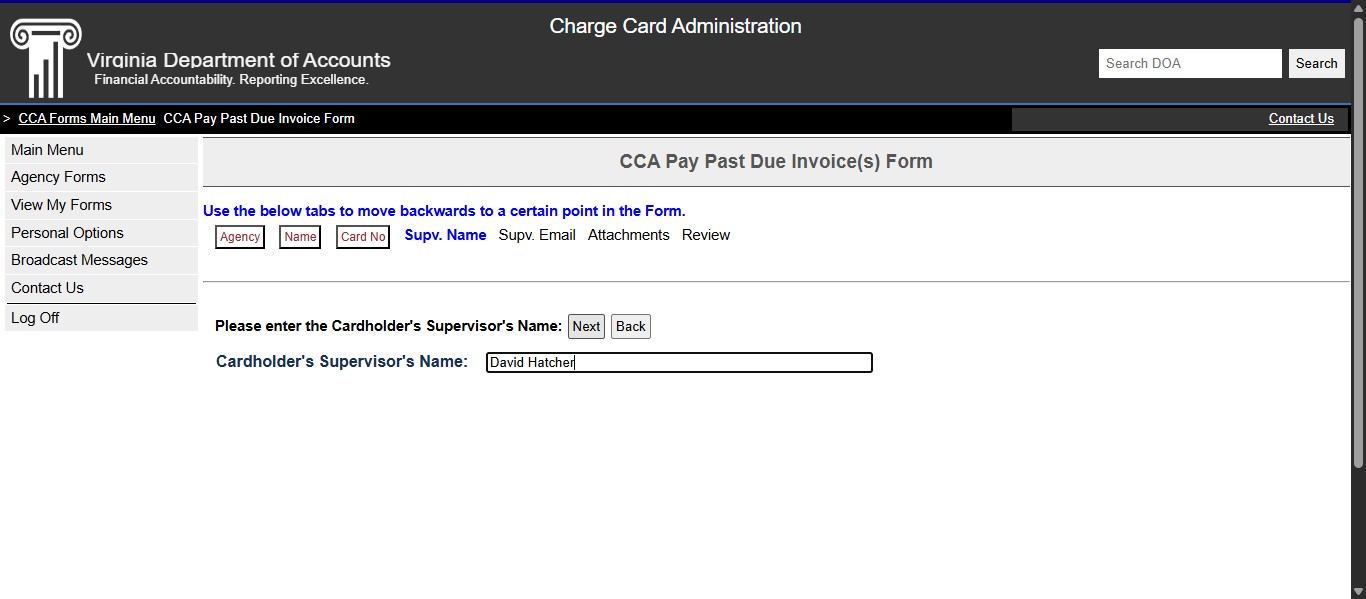
Enter the Cardholder's Approver's name and click Next.
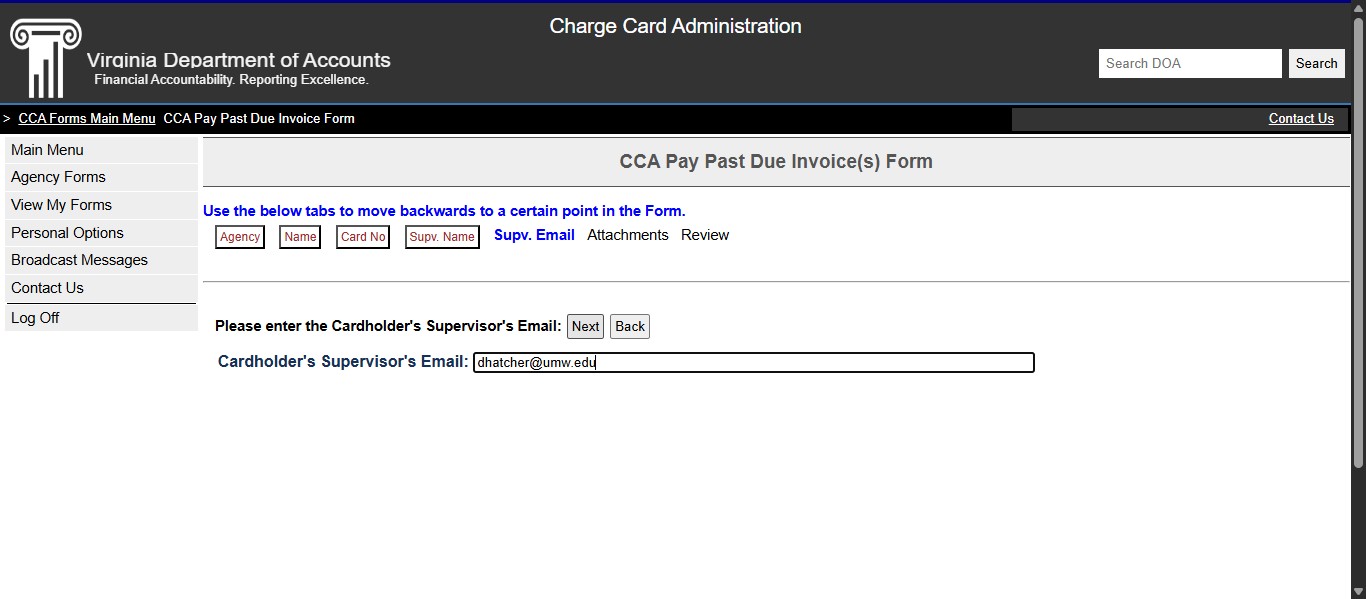
Enter the Cardholder's Approver's email and click Next.
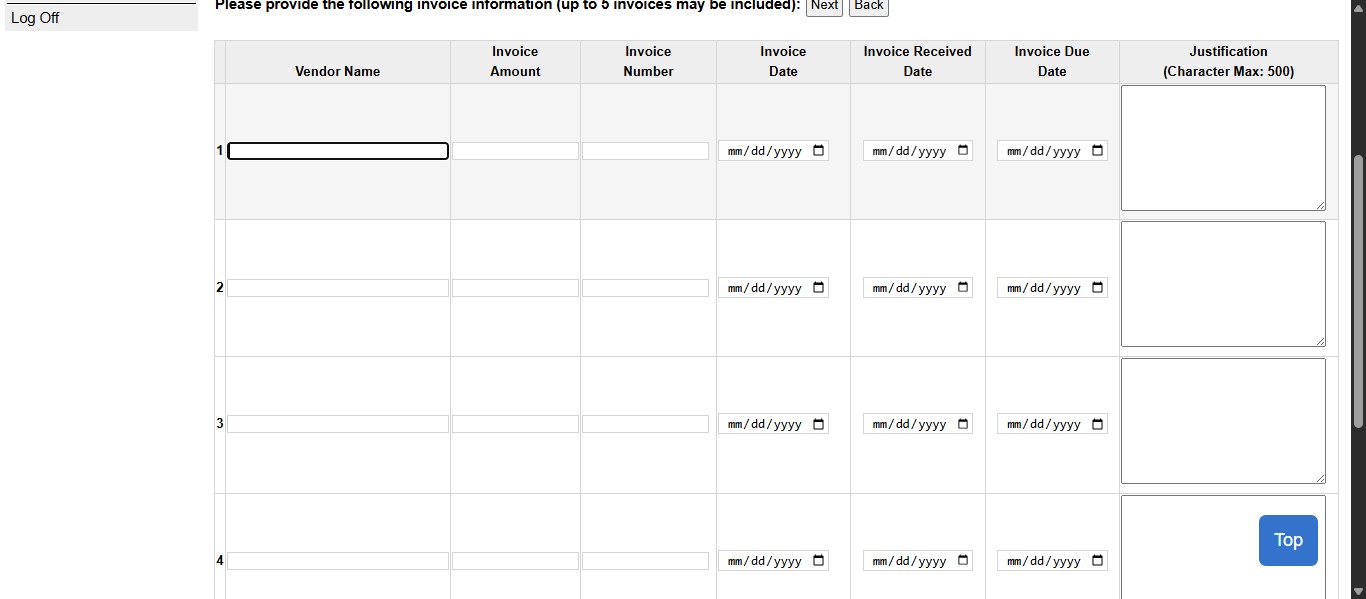
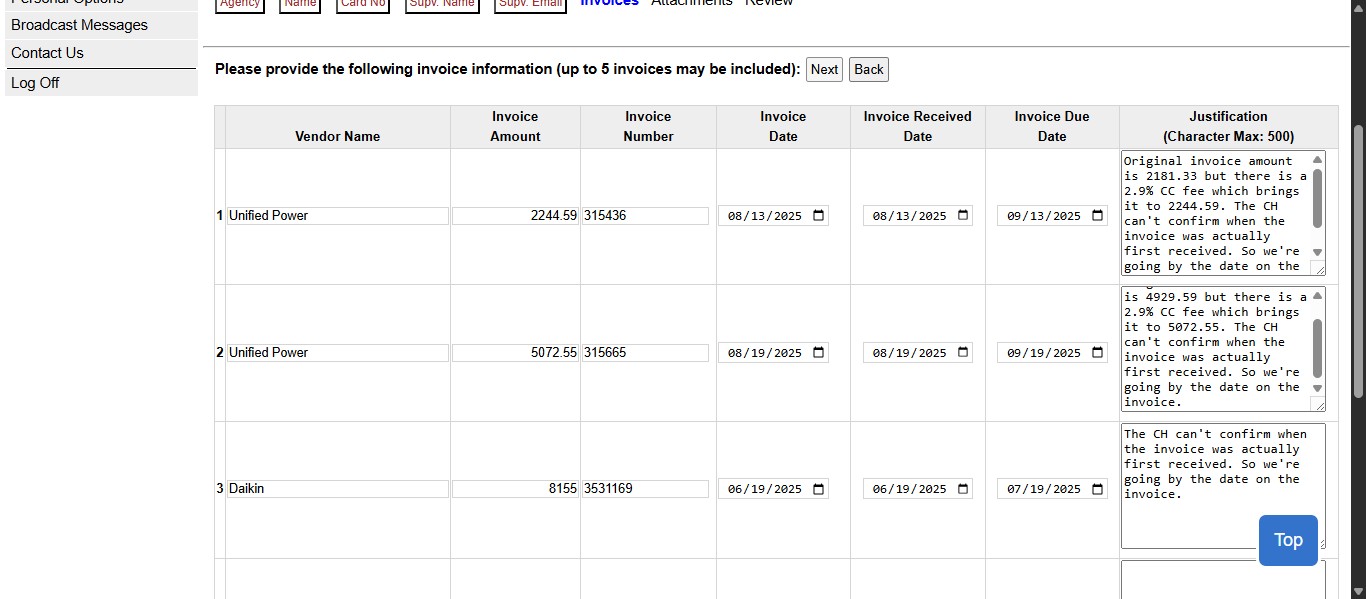
Fill out the information within this form based on the information provided in the Late Payment Request Form submitted to the SPCC Administrators. You can enter up to 5 separate invoices at a time if they are for the same cardholder.
Once you have all invoice information entered and have double checked the accuracy against the Late Payment Request Form, click Next.
DOA requires backup documentation for the submission. At a minimum it needs to include the invoice and the Approver's approval to submit the late payment request. UMW uses the Late Payment Request Form, Approver's written approval, invoice, and any other supporting documents combined into one PDF. The PDF name must have no characters or spacing or it will not upload correct. Click Choose File to browse for where the PDF is located you need to attach for your request.
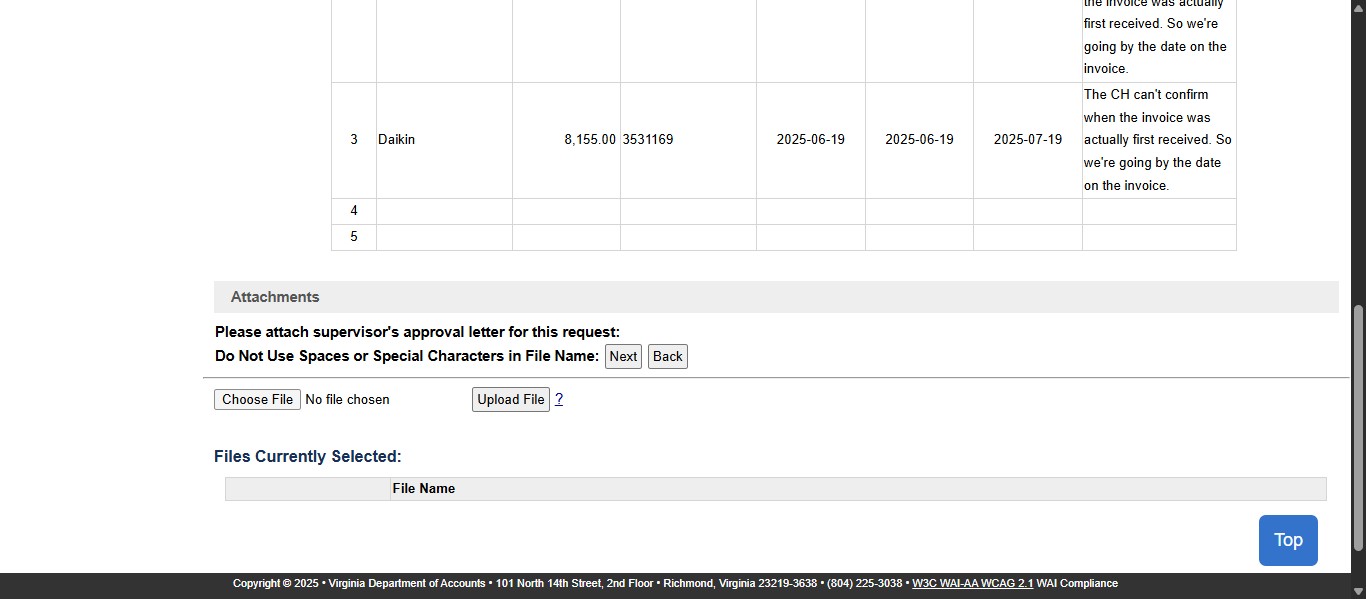
Once the file is selected, click Upload File.
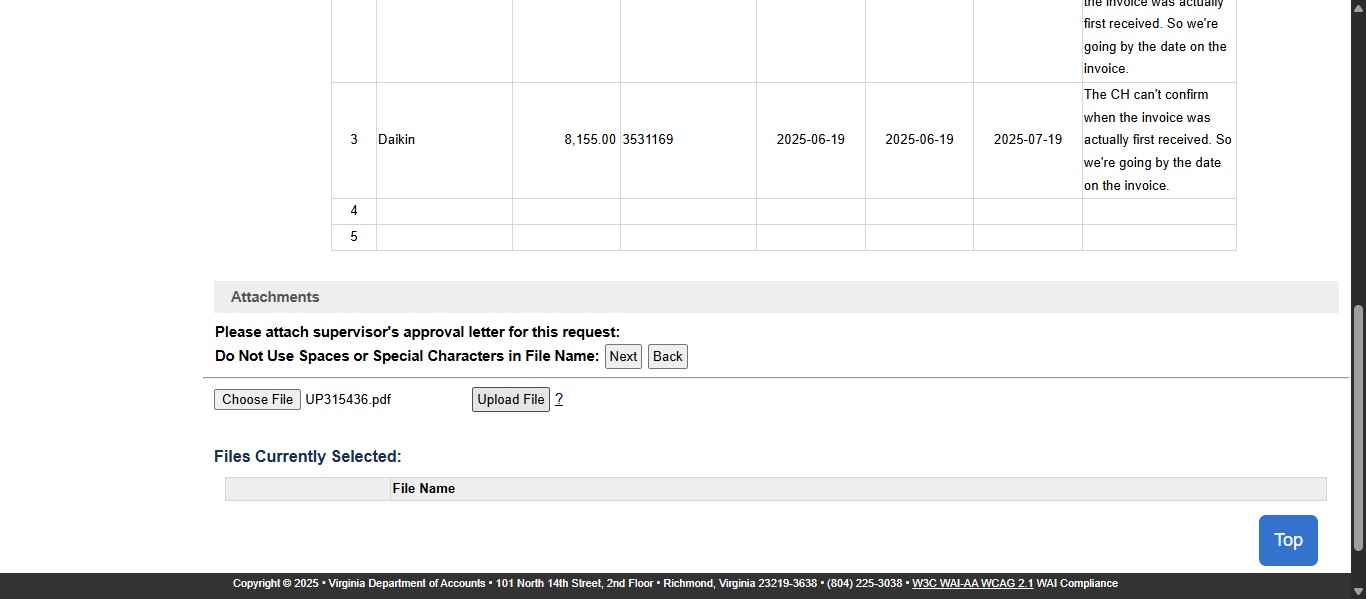
Repeat these steps as many times as needed to include all attachments for each invoice listed on the form, then click Next.
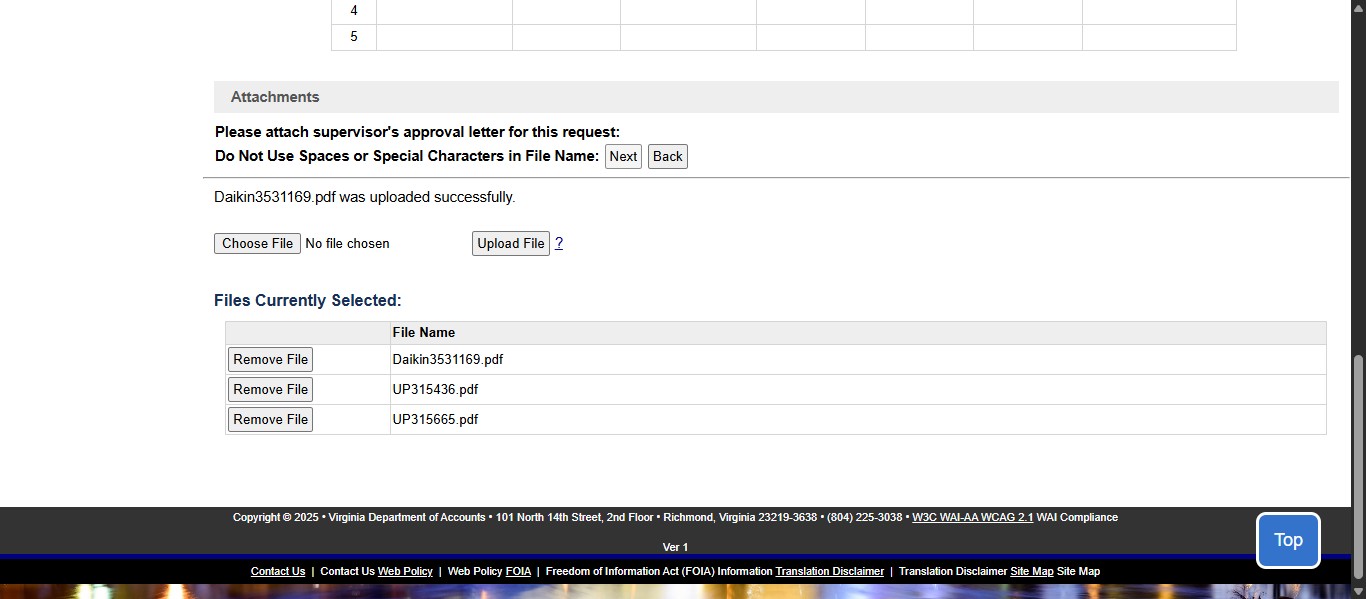
Review the information on the form and then click Submit. A confirmation email of the submission will be sent to you and the Approver.