

Banner 9 - Banner Receiving Adjustment Guide
This guide explains how to correct errors in Banner Receiving documents by reversing the original entry. It ensures accurate record-keeping and allows for the creation of a new, corrected Receiving document.
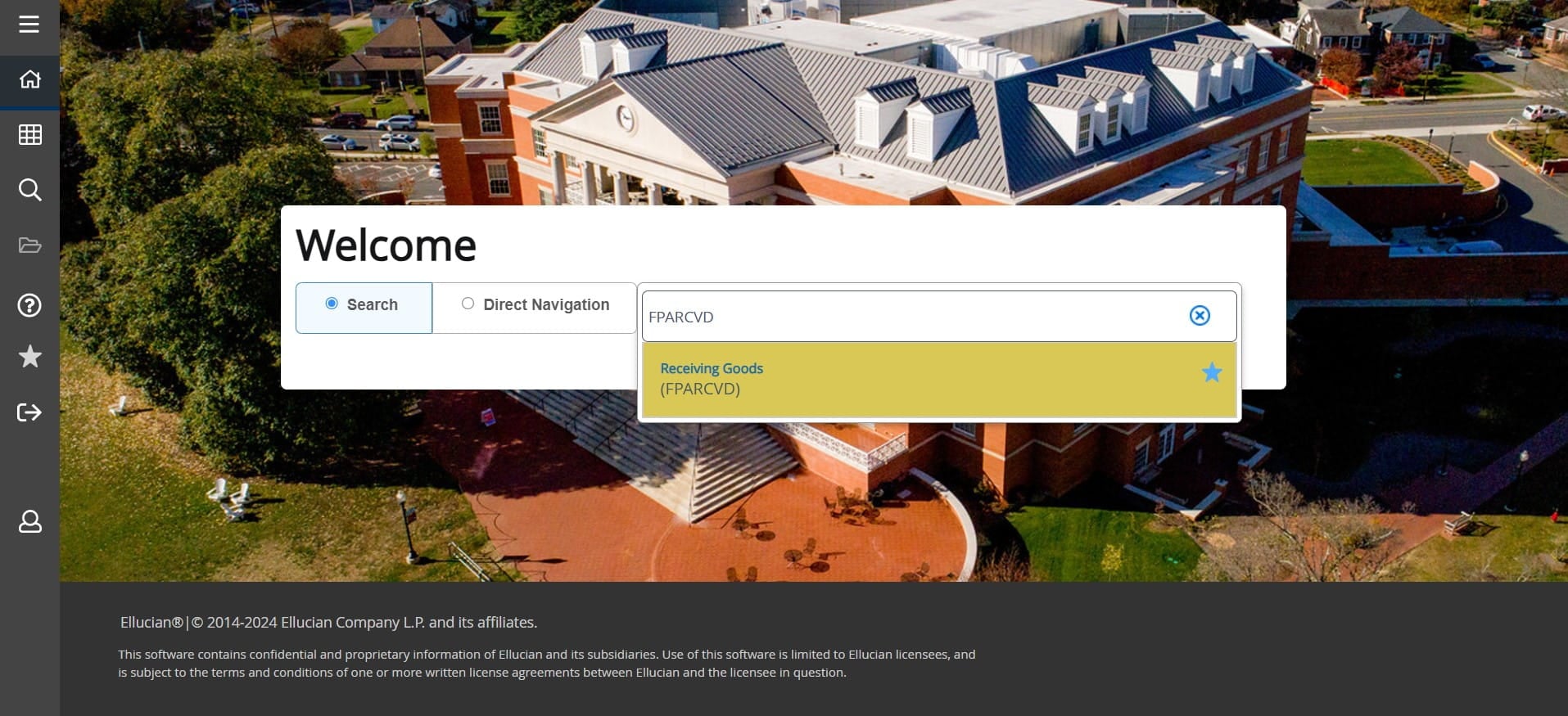
Banner Receiving Adjustment Guide
Frequently Asked Questions
- What should I enter in the Receiver Document field to begin a receiving adjustment?
Enter the word "NEXT" in the Receiver Document field, then select "GO".
- When and why do I enter the word "REVERSE"?
Enter the word "REVERSE" to indicate you are making a correction (a reversal) to a receiving.
- How do I select the purchase order line item to reverse?
After entering the purchase order number and selecting "Adjust", open "Tools" and click "Select Purchase Order Items". Double-click the line item you want to correct — a check mark will appear. Click SAVE, then click the "x" to return to the Receiving Header page. When prompted, click "yes" (this is a false alert). On the header page use the down arrow to view the selected line item.
- What quantity should I enter to reverse a received item, and what do I do after entering it?
Enter the quantity you want to reverse as a negative value (the reversal must be a negative number). Then click the "complete" button to finish the reversal. You may then enter a NEW receiving document with the necessary corrections.
- I received a prompt after returning to the header page — should I be concerned?
No. When you click the "x" to return to the Banner Receiving Header page you will see a prompt; click "yes". The guide notes this is a false alert and can be ignored.