SPCC Works - Removing Tax from Transactions
If Works shows that you were charged tax, but your documentation (invoice, receipt) shows you were NOT charged tax, you, as the Cardholder, can change the tax breakout. Follow these steps only when the transaction erroneously shows that tax was charged on your transaction.
You've identified a transaction where the Works system shows that tax was applied, but you've referenced your transaction documentation and it shows that $0 tax was charged. To change the system's tax breakout,
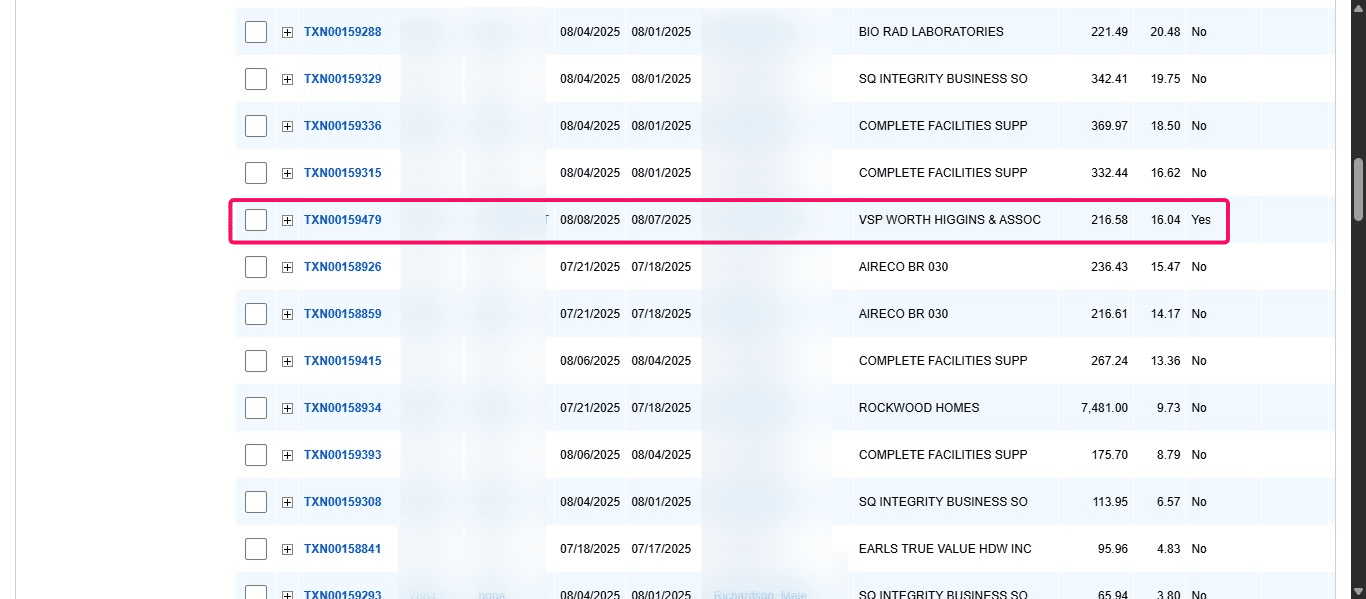
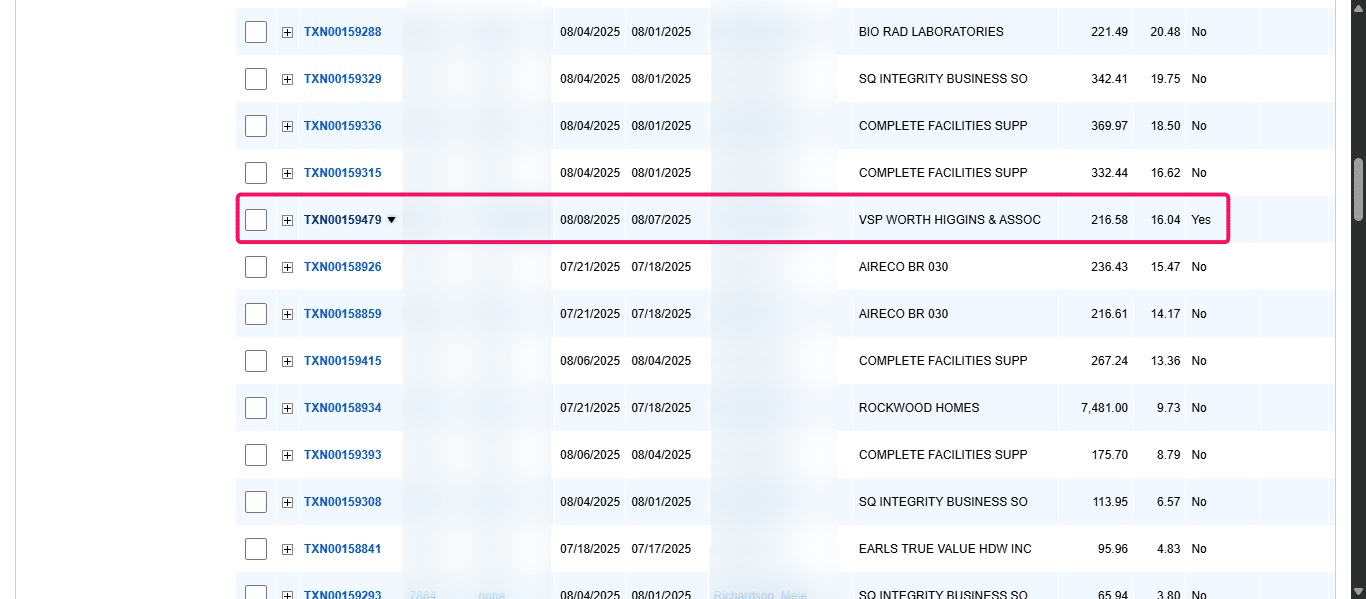
You've identified a transaction where the Works system shows that tax was applied, but you've referenced your transaction documentation and it shows that $0 tax was charged. To change the system's tax breakout, click on the Transaction ID drop down under the Document column of the transaction in question.
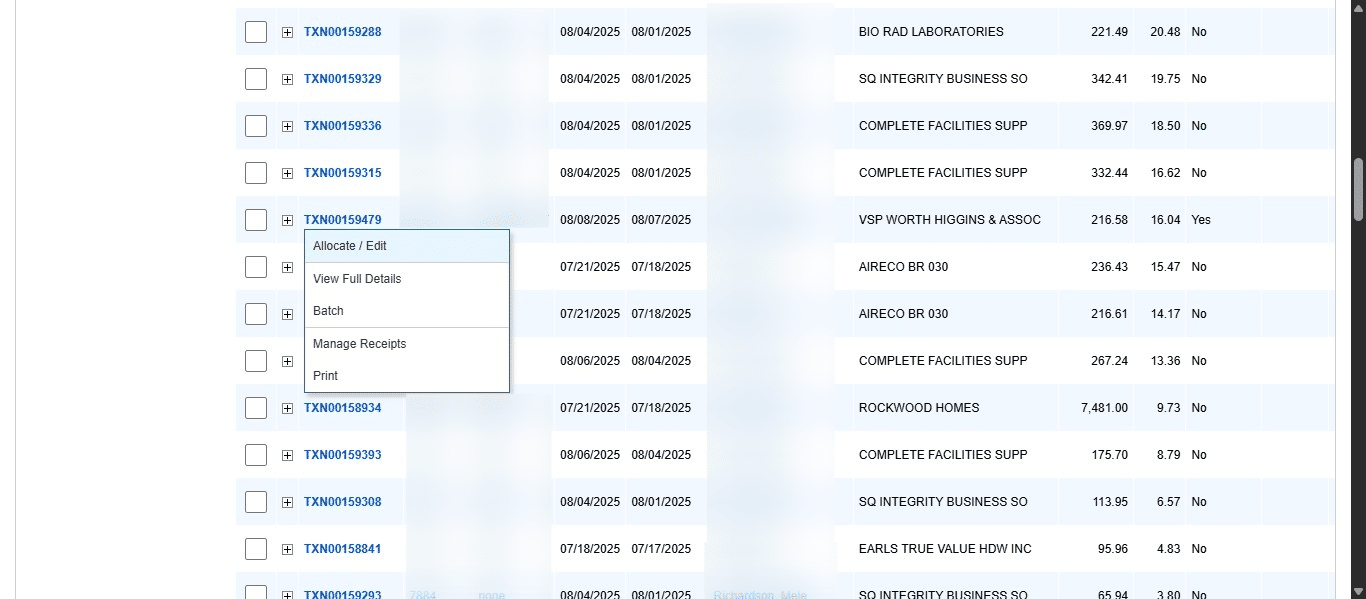
Click on "Allocate / Edit"
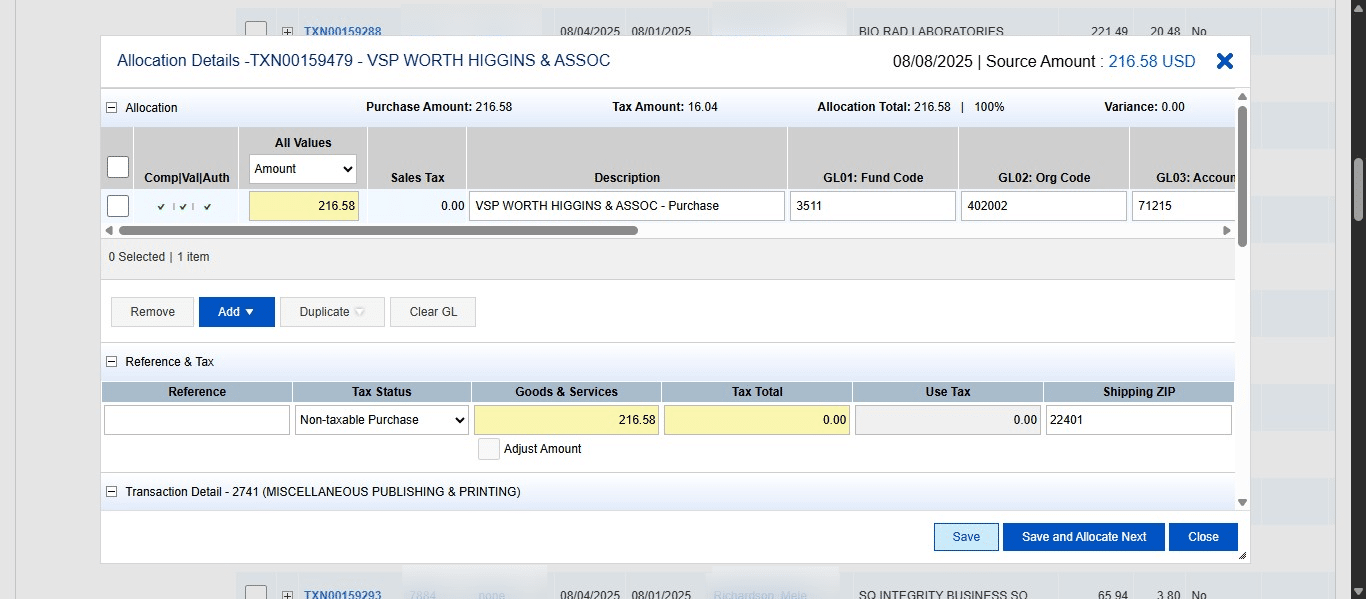
The tax is referenced in several areas within the Transaction Details. To change that, under the Reference & Tax Section, click on the drop down under Tax Status.
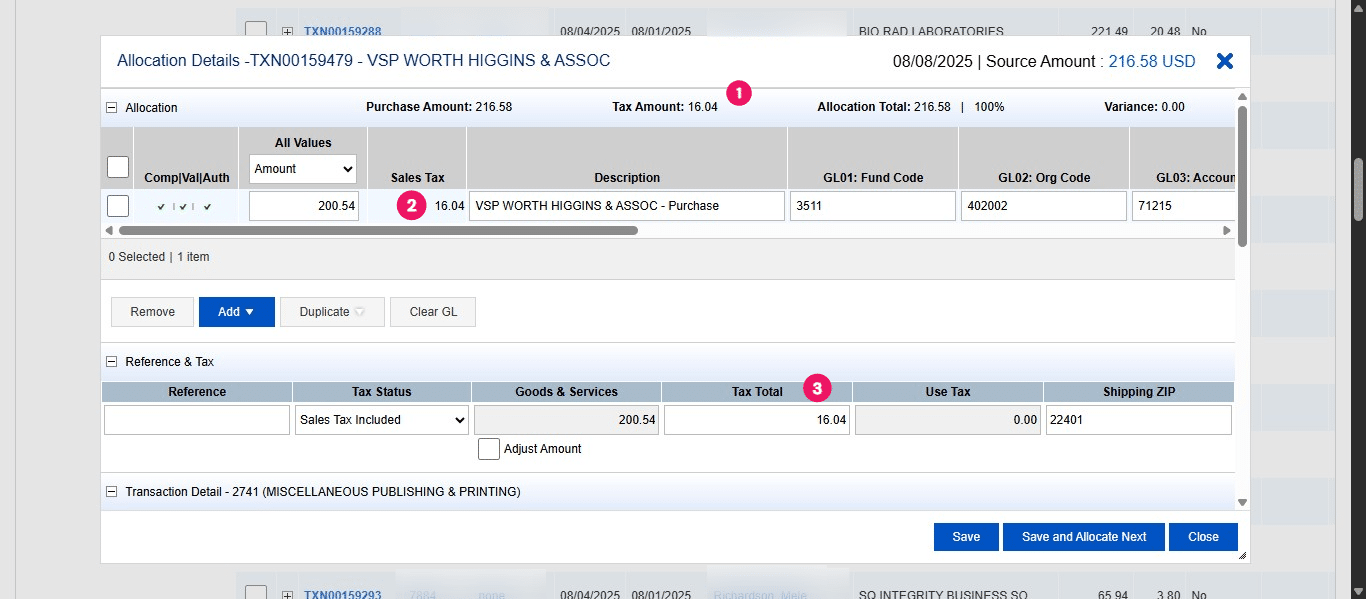
Change the selection from "Sales Tax Included" to "Non-Taxable Purchase."
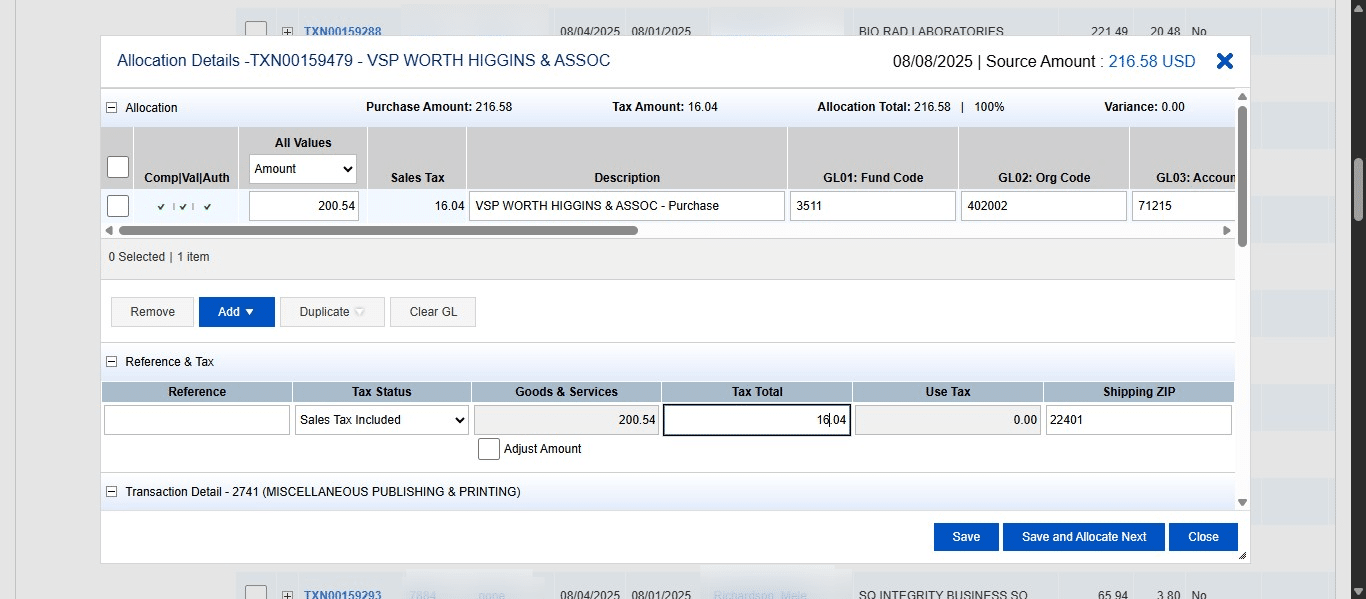
Once you select "Non-Taxable Purchase" the areas where tax was referenced will zero out. You should not need to manually change any amount. Then you can click "Save" and you are done.