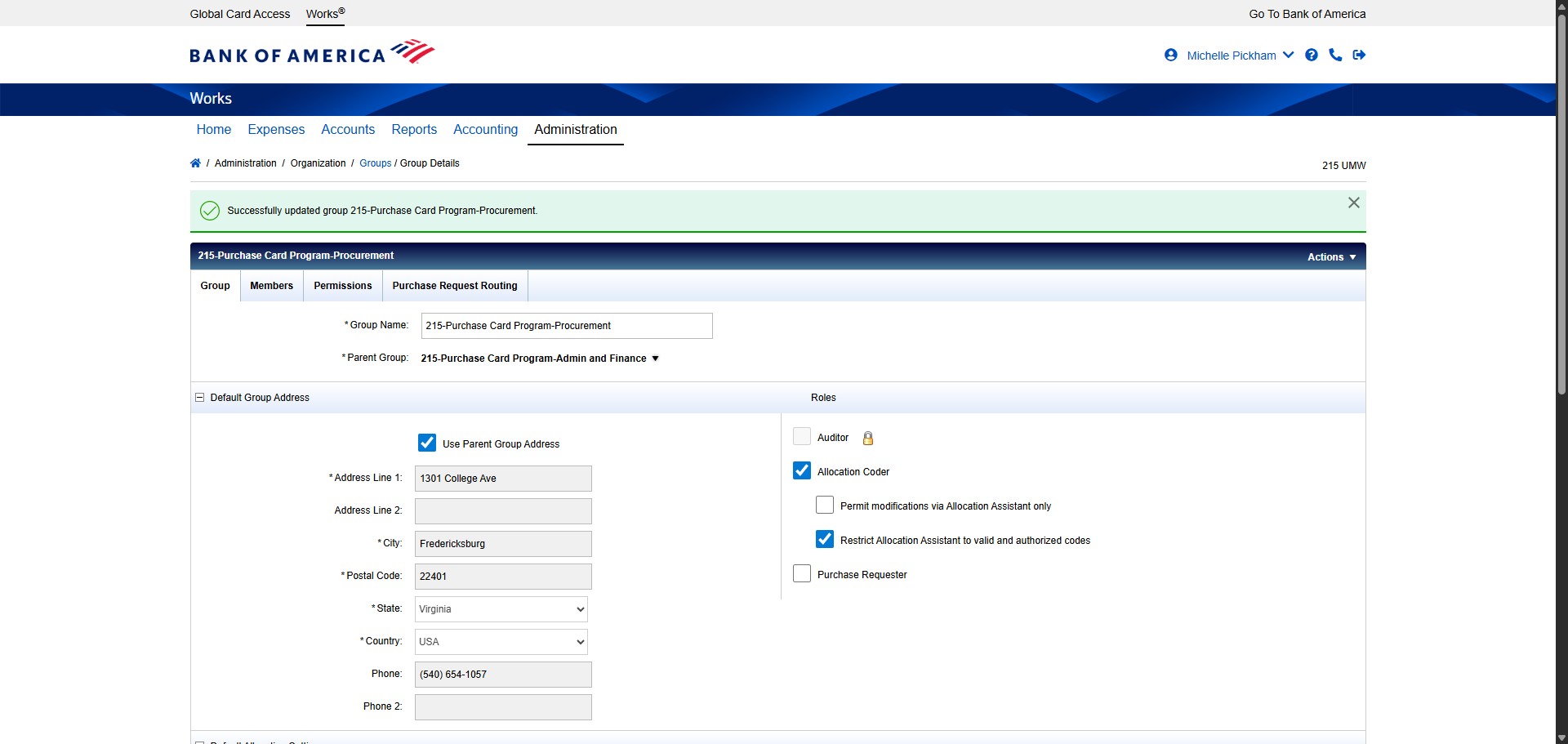
SPCC Works - How to Add a New Group
Navigate to https://payment2.works.com/works/home
Click on "Administration"
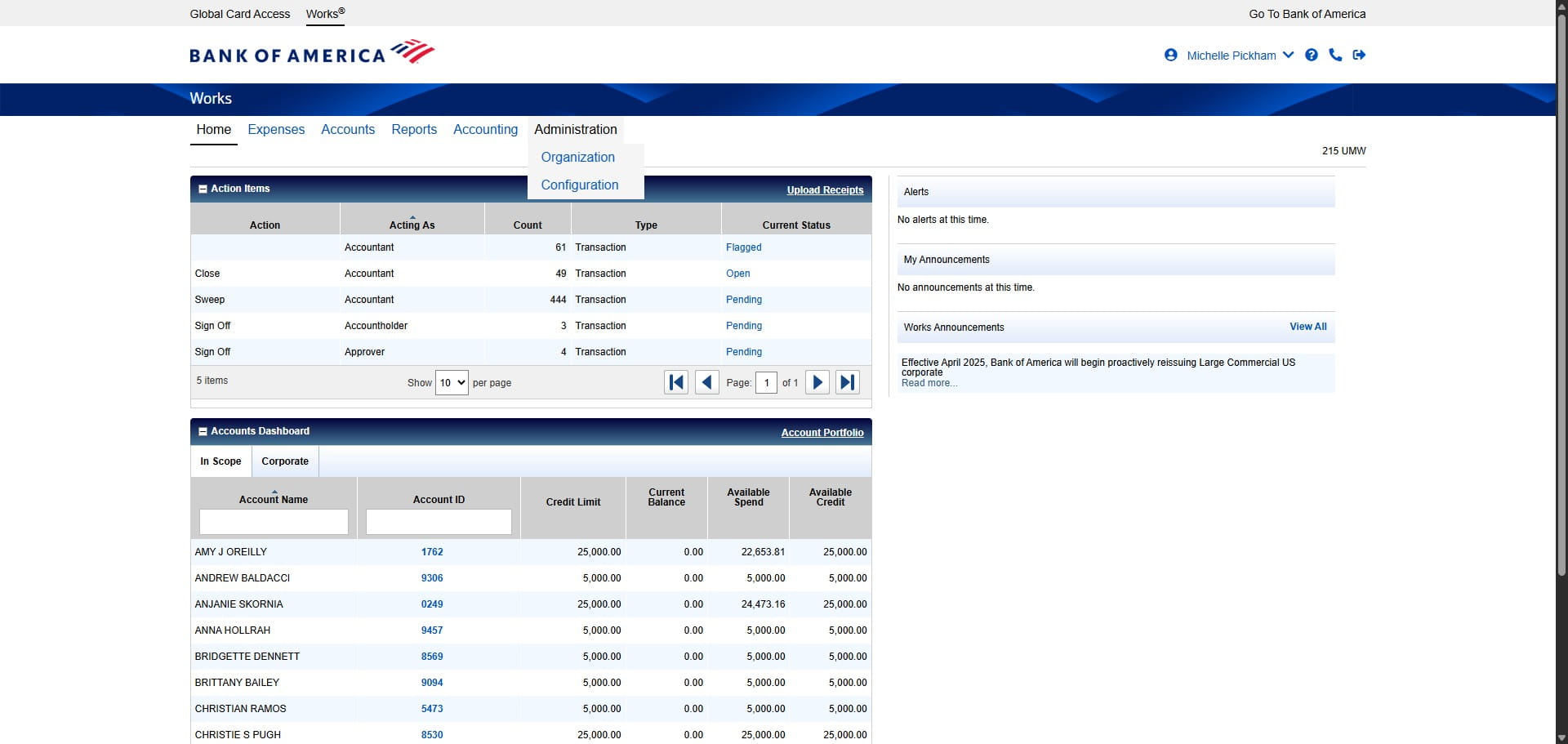
Click on "Organization"
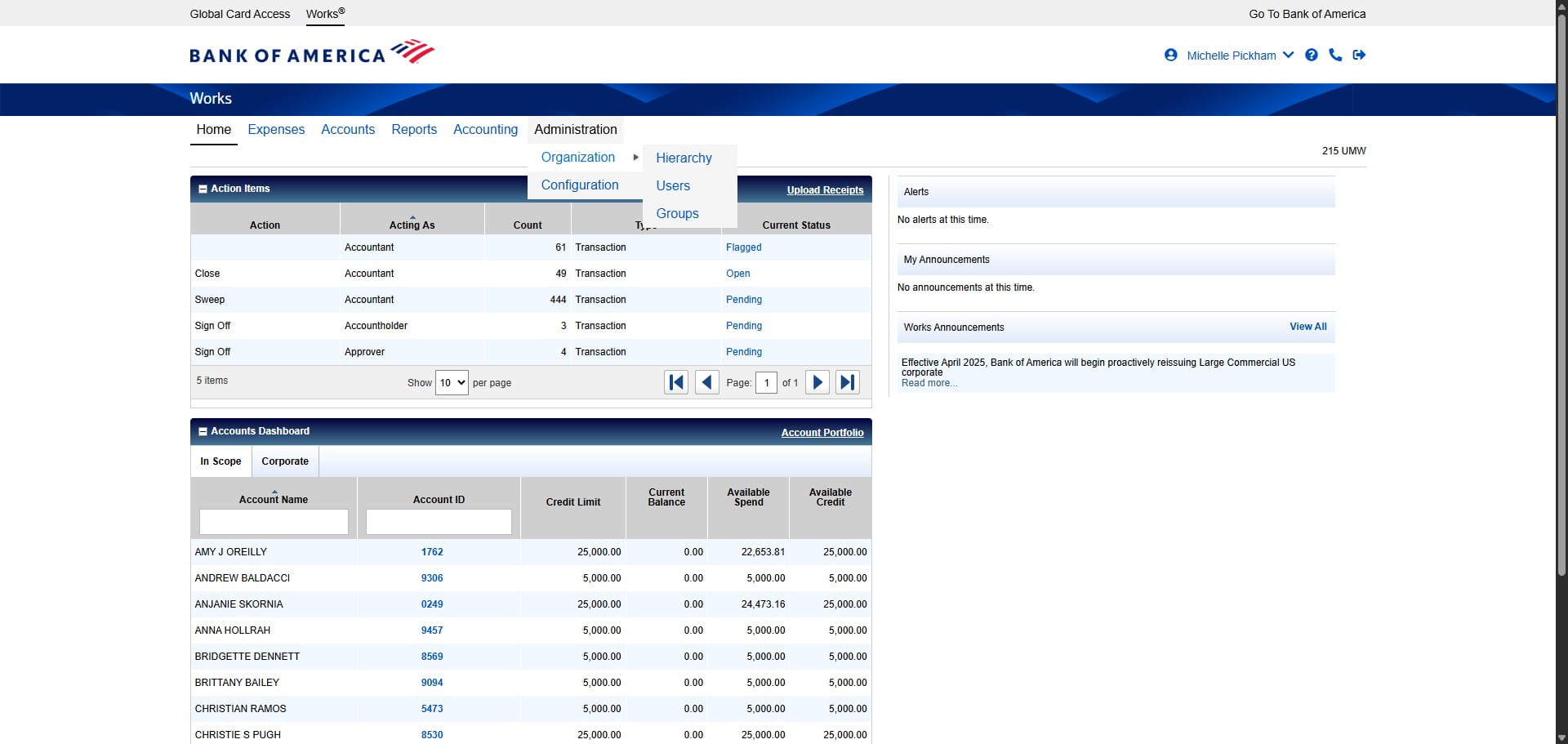
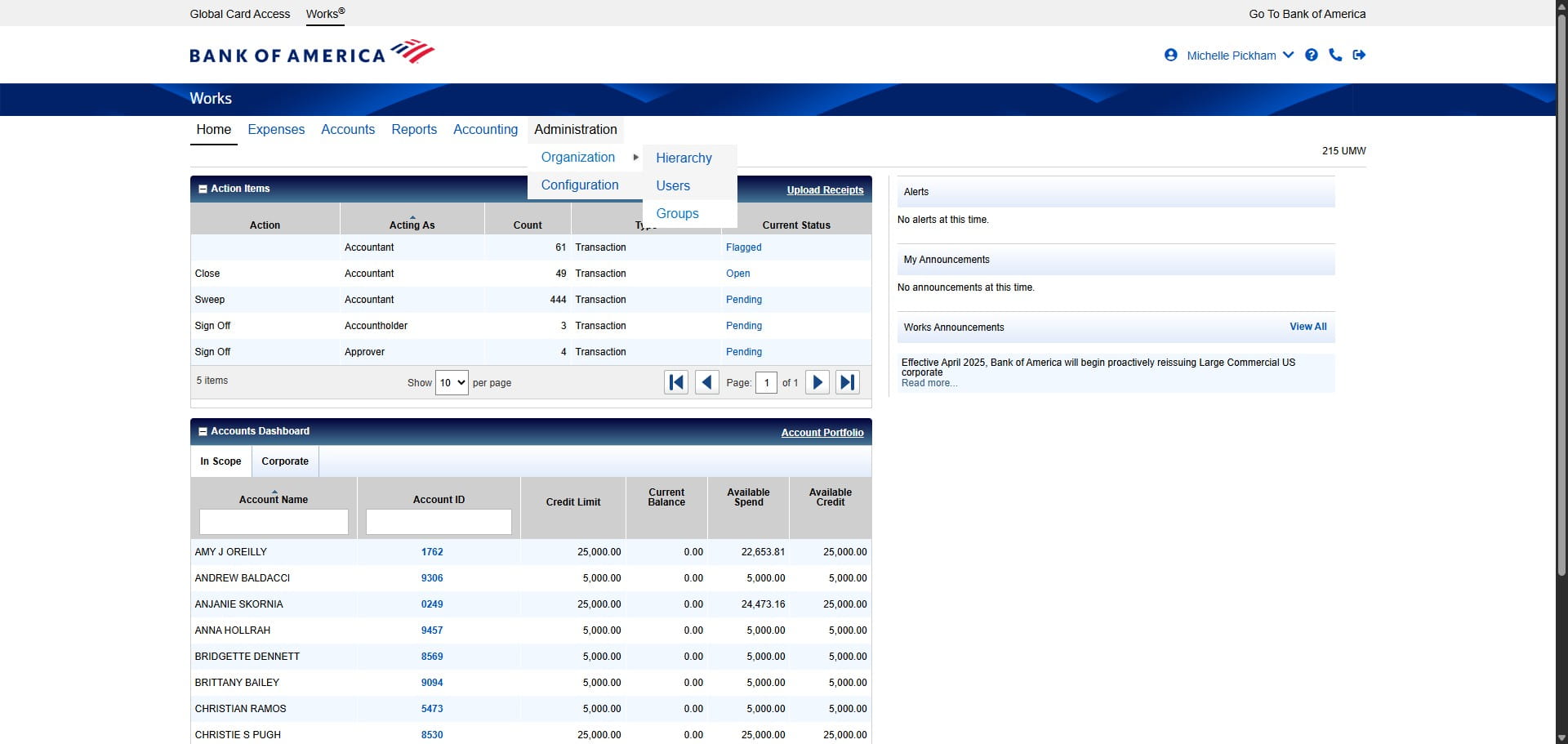
Click on "Groups"
Click the Drop Down on Create.
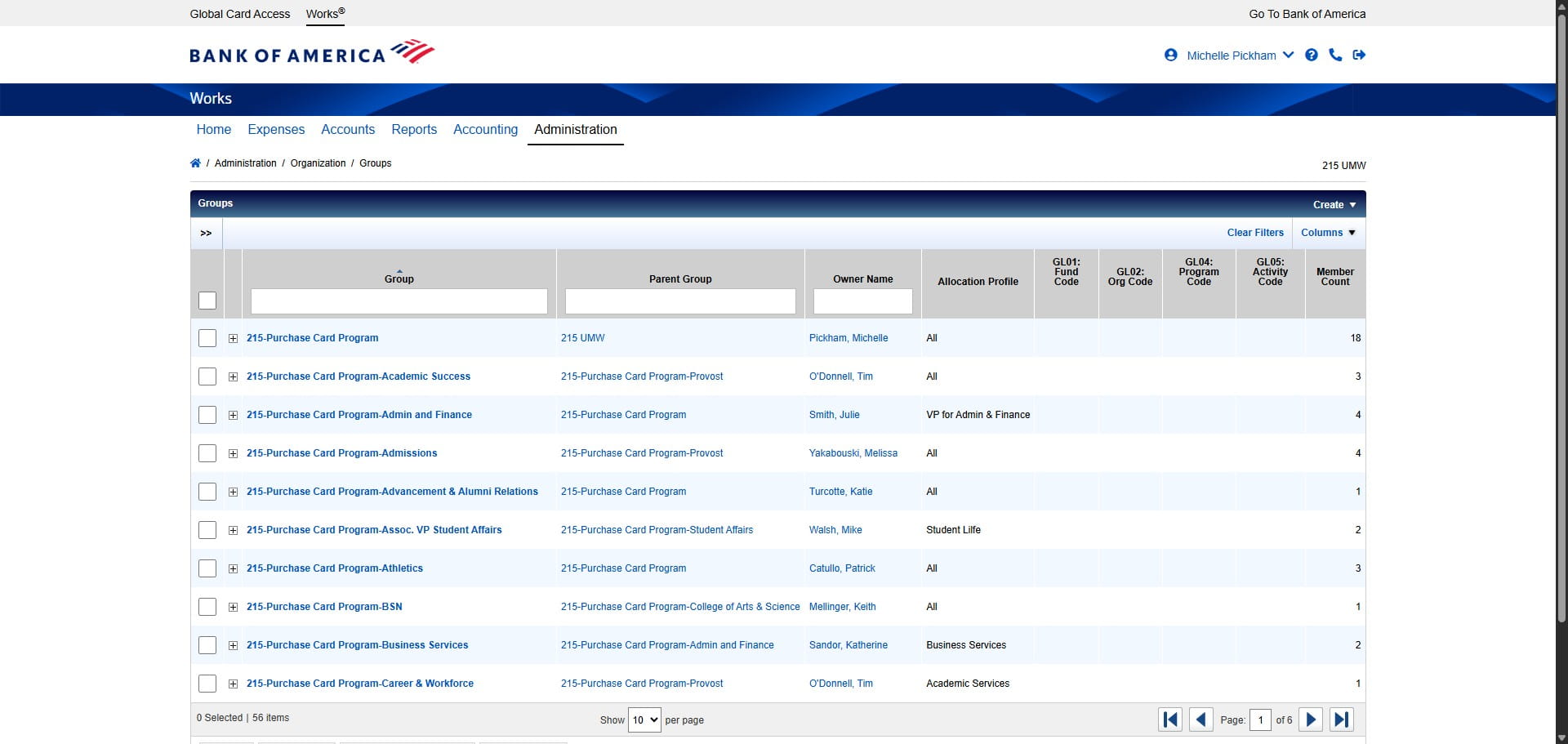
Click on "Create Group"
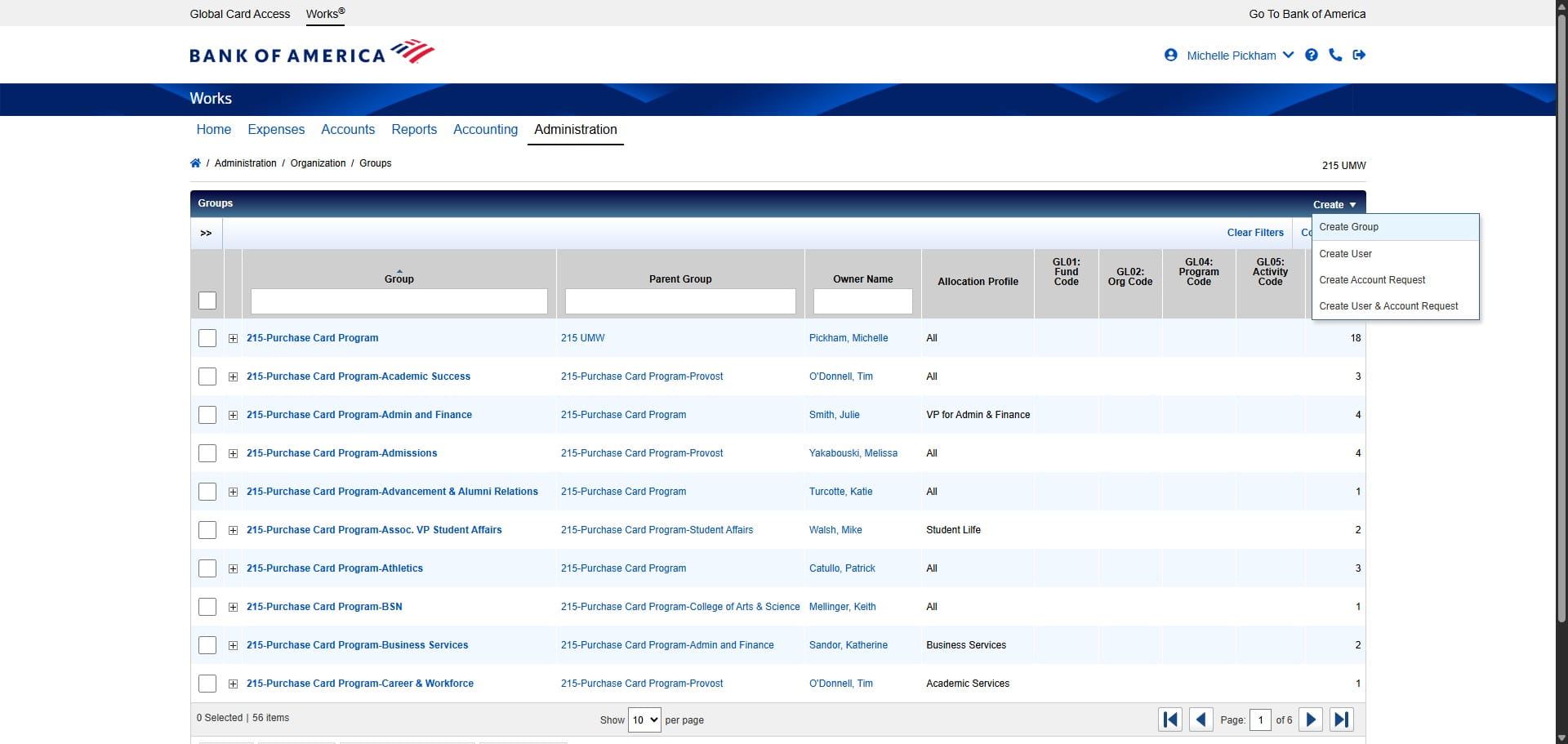
You must select a Parent Group for the new Group to live under within the hierarchy. In this case, Procurement is under the Administration and Finance division, so select Admin and Finance for the Parent Group and Click on "OK"
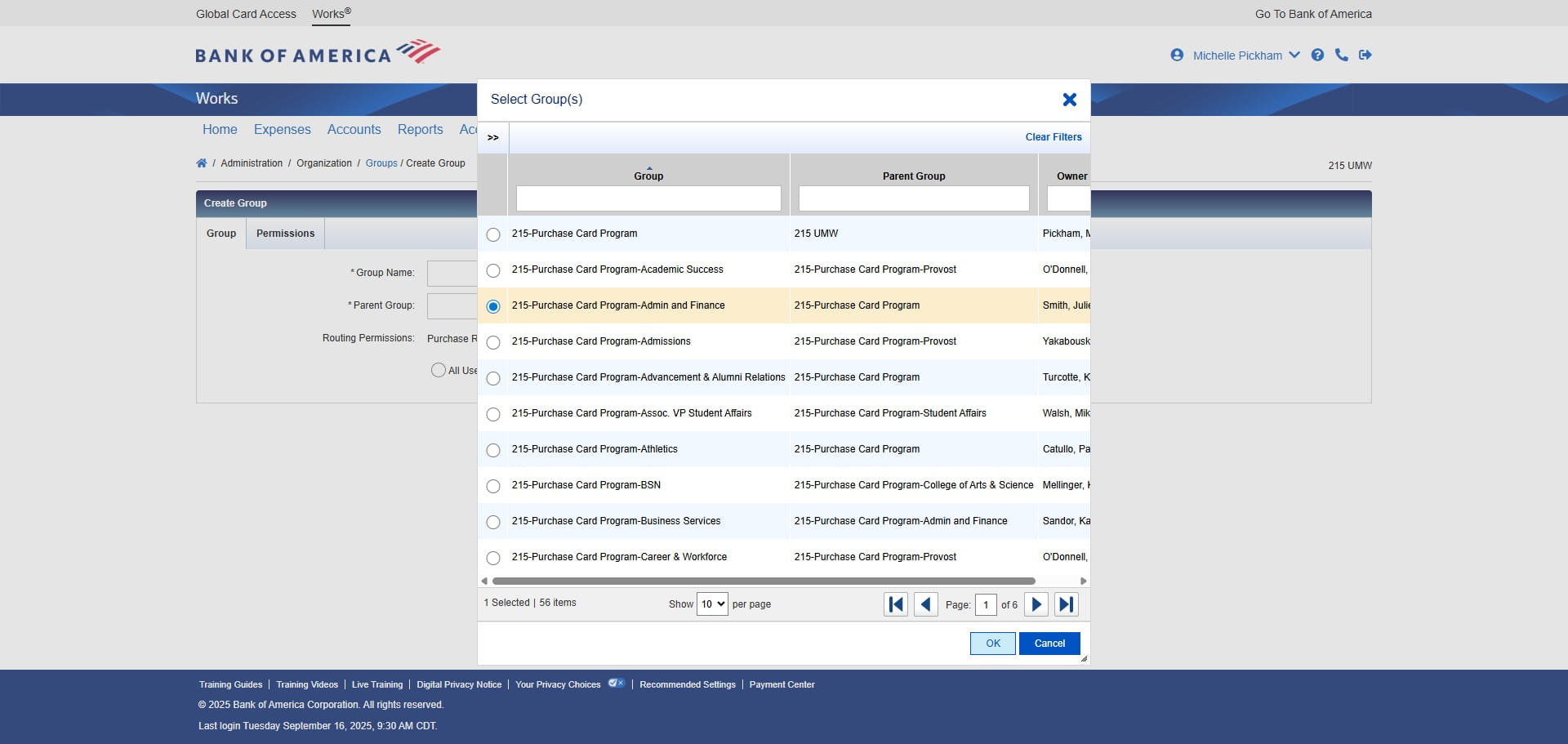
Enter the Group Name. DOA has formulated the naming convention to 215-Purchase Card Program-"Group Name". So for this new group, the name should be "215-Purchase Card Program-Procurement."
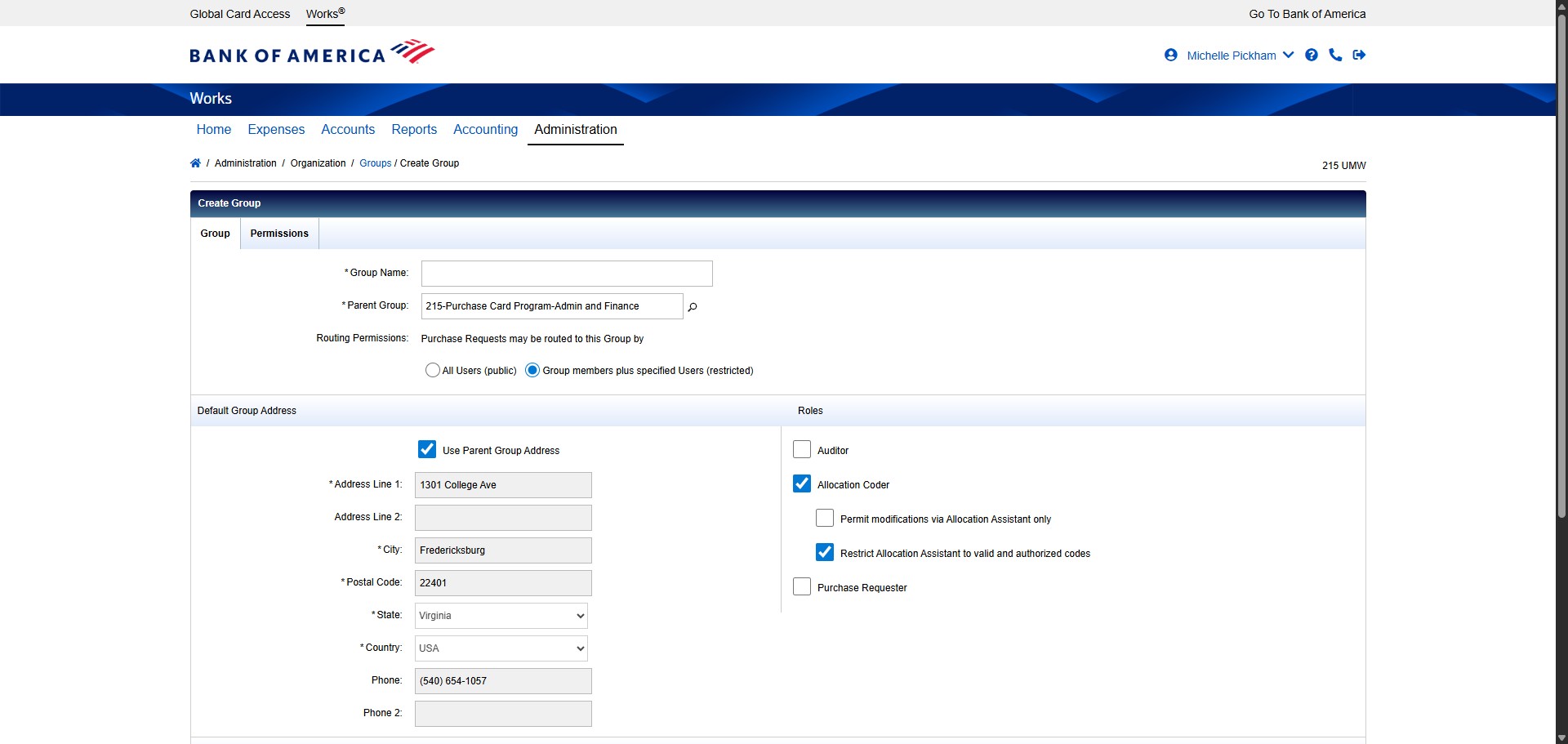
Scroll down to the Default Allocation Settings area. Unless the group being created has a very specific and narrow allocation profile allowed, select the magnifying glass to change the Allocation Profile to All.
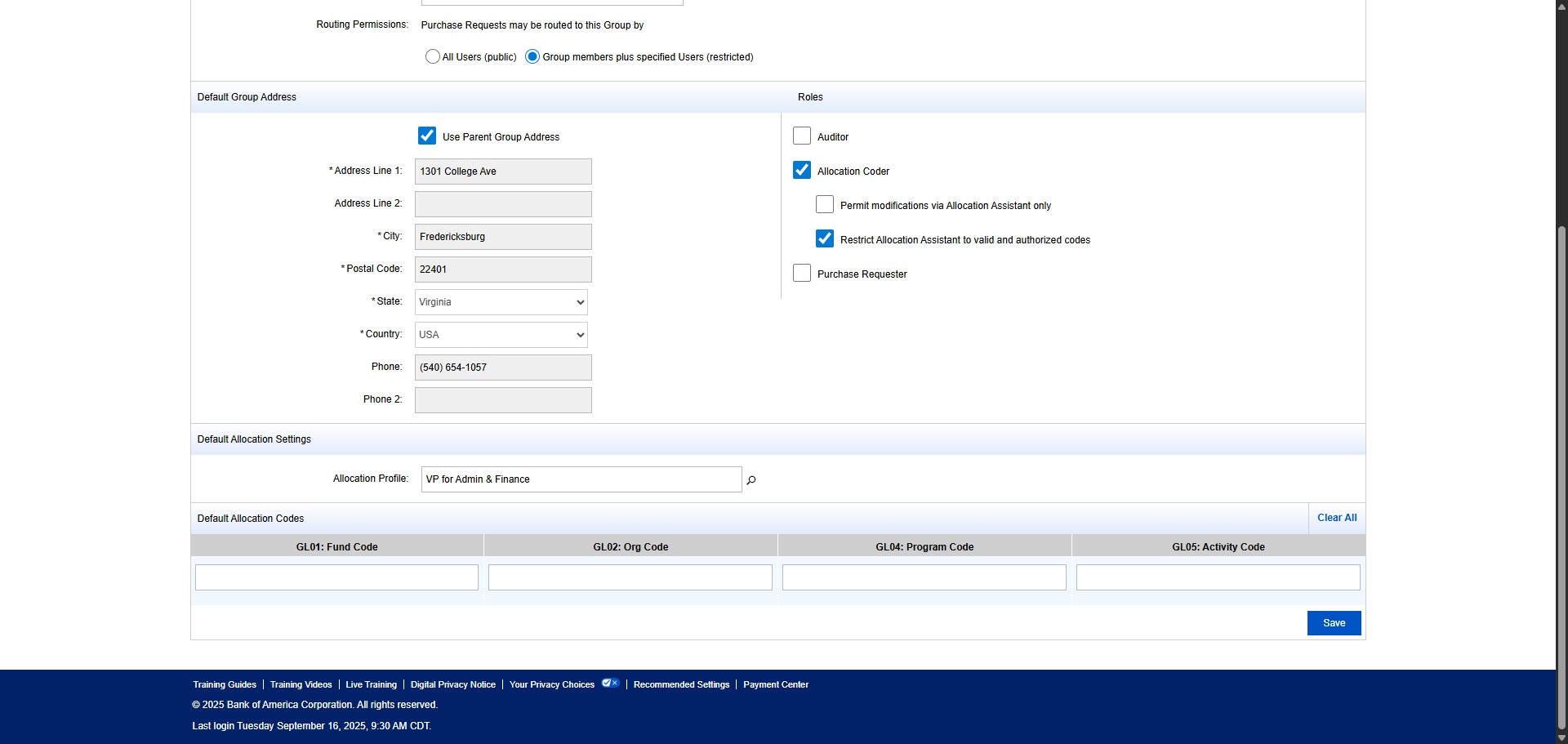
Click here
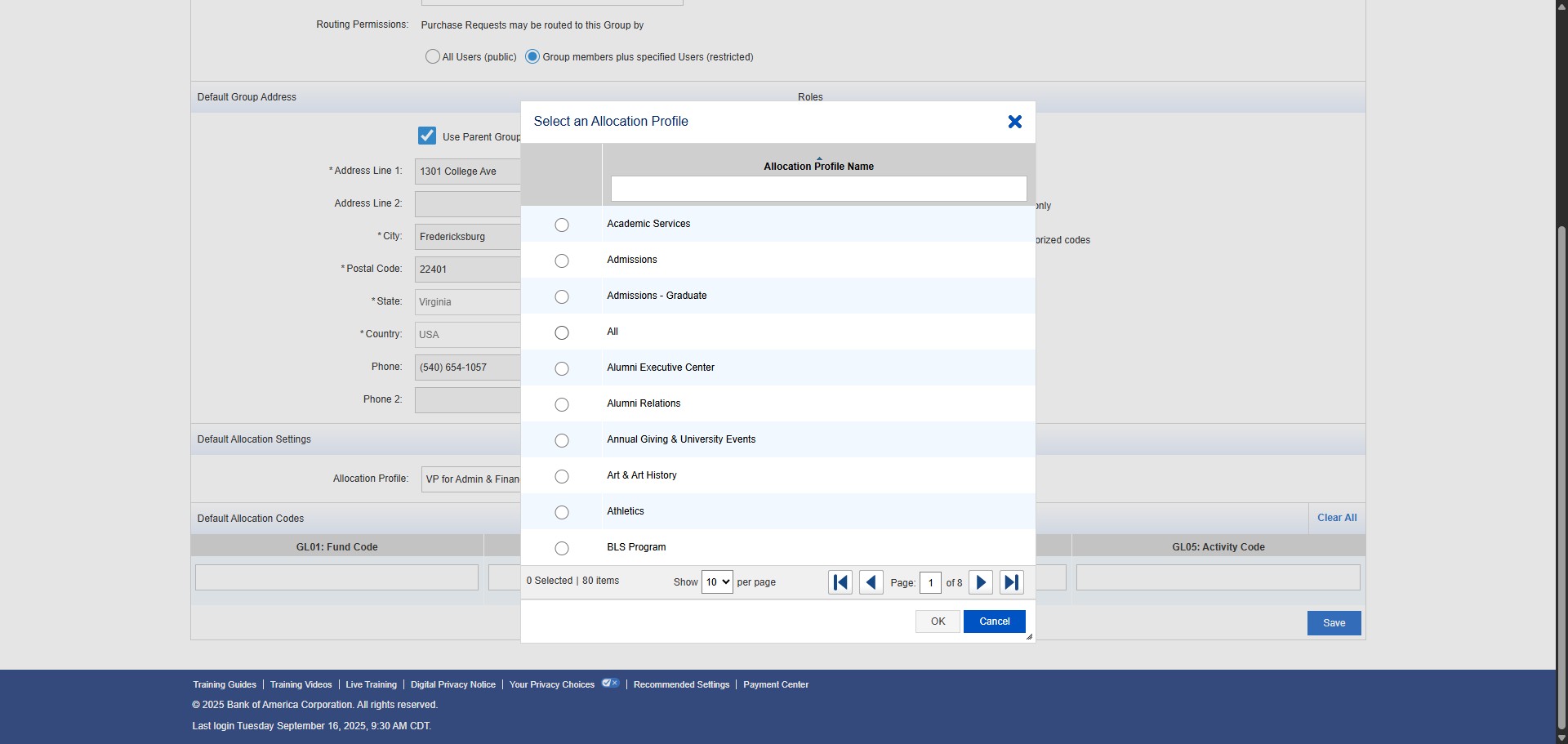
Click on "OK"
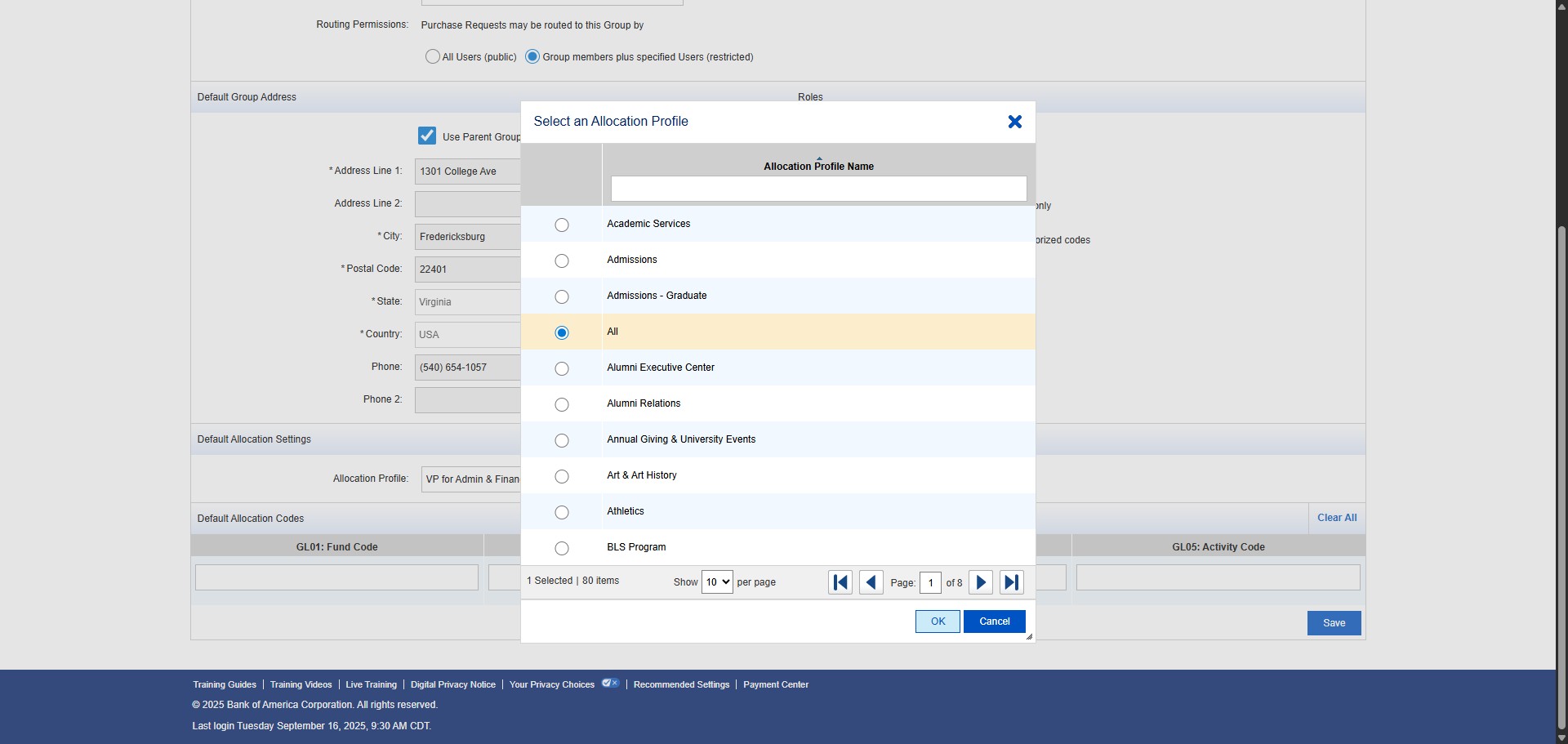
Then click Save.
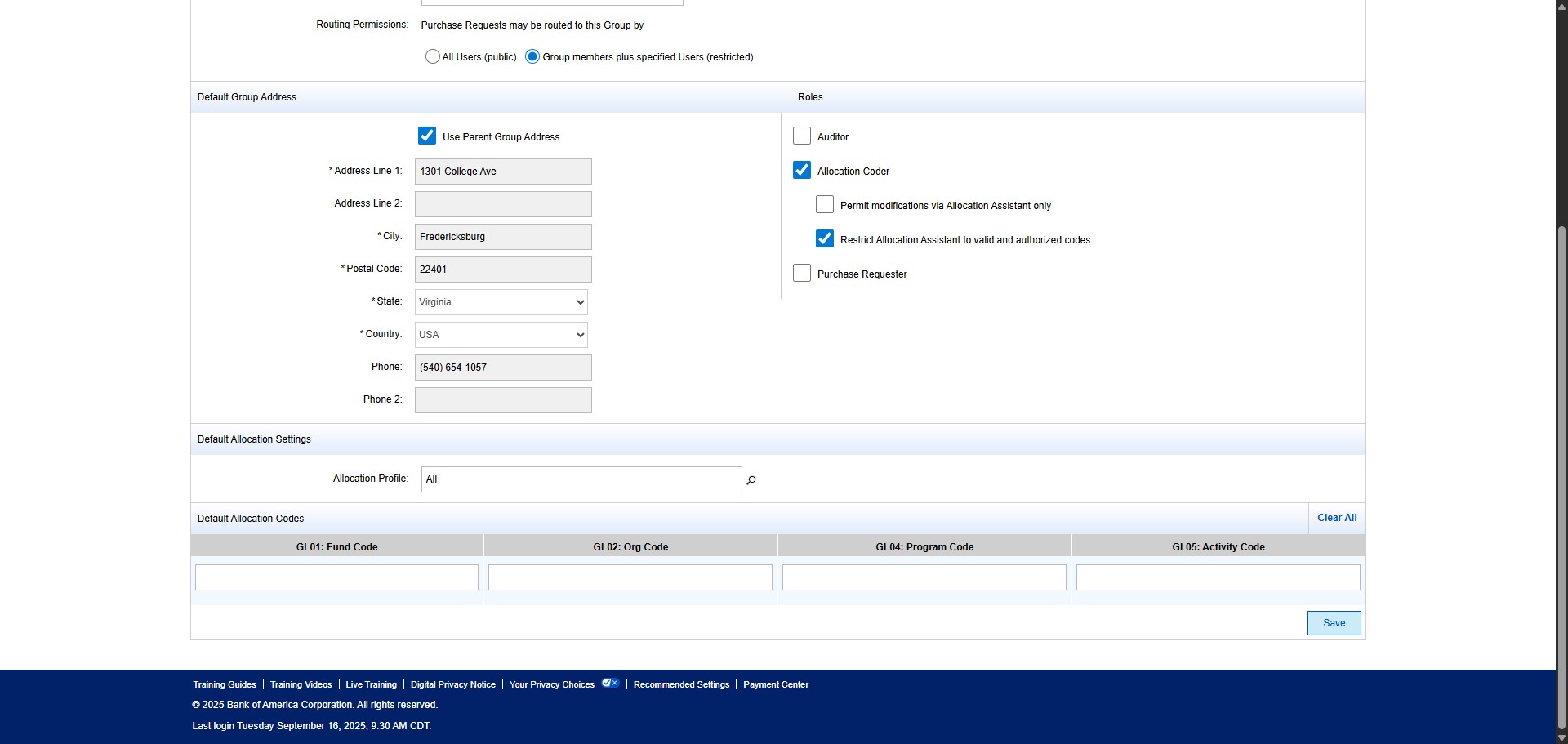
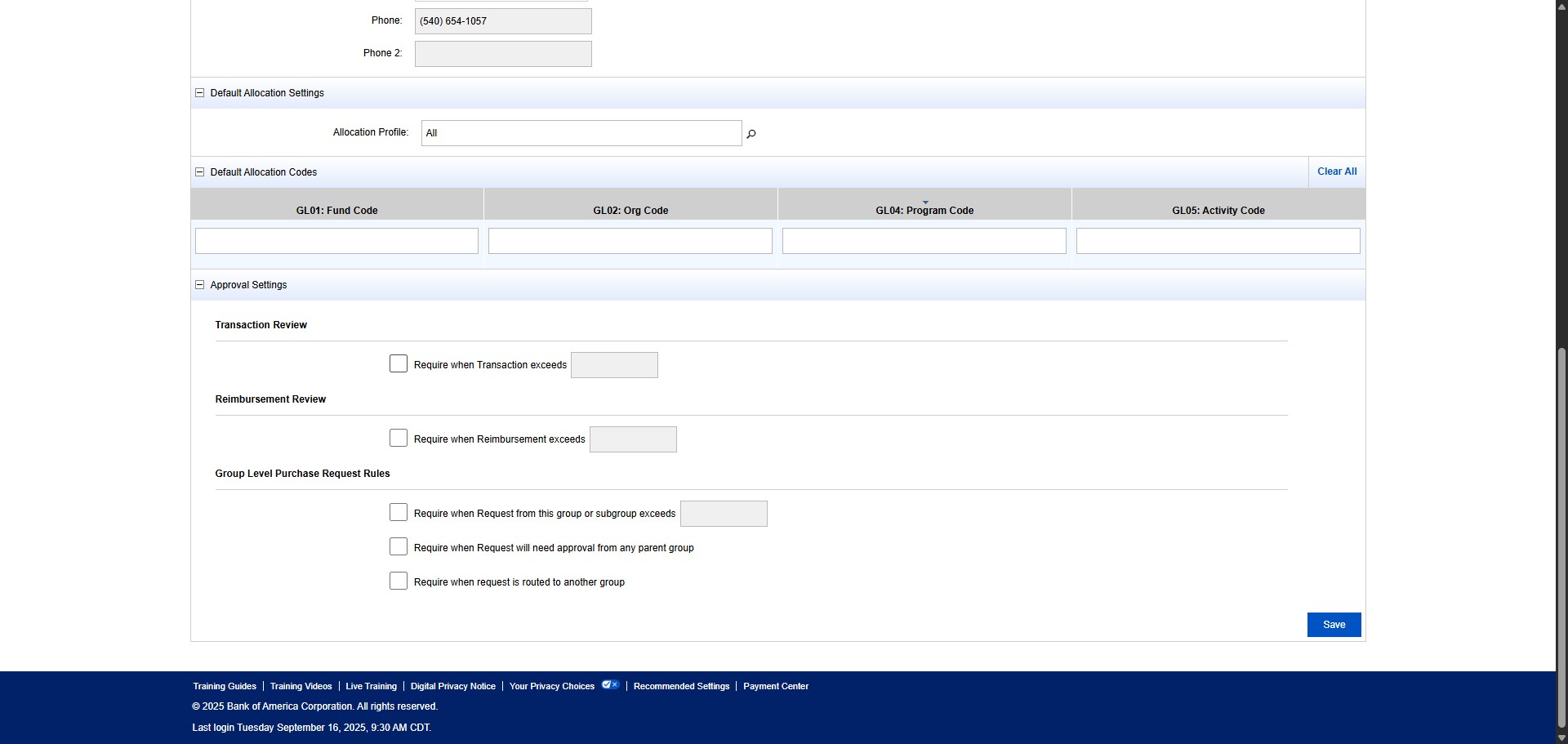
After you Save, scroll down to the Approval Settings section.
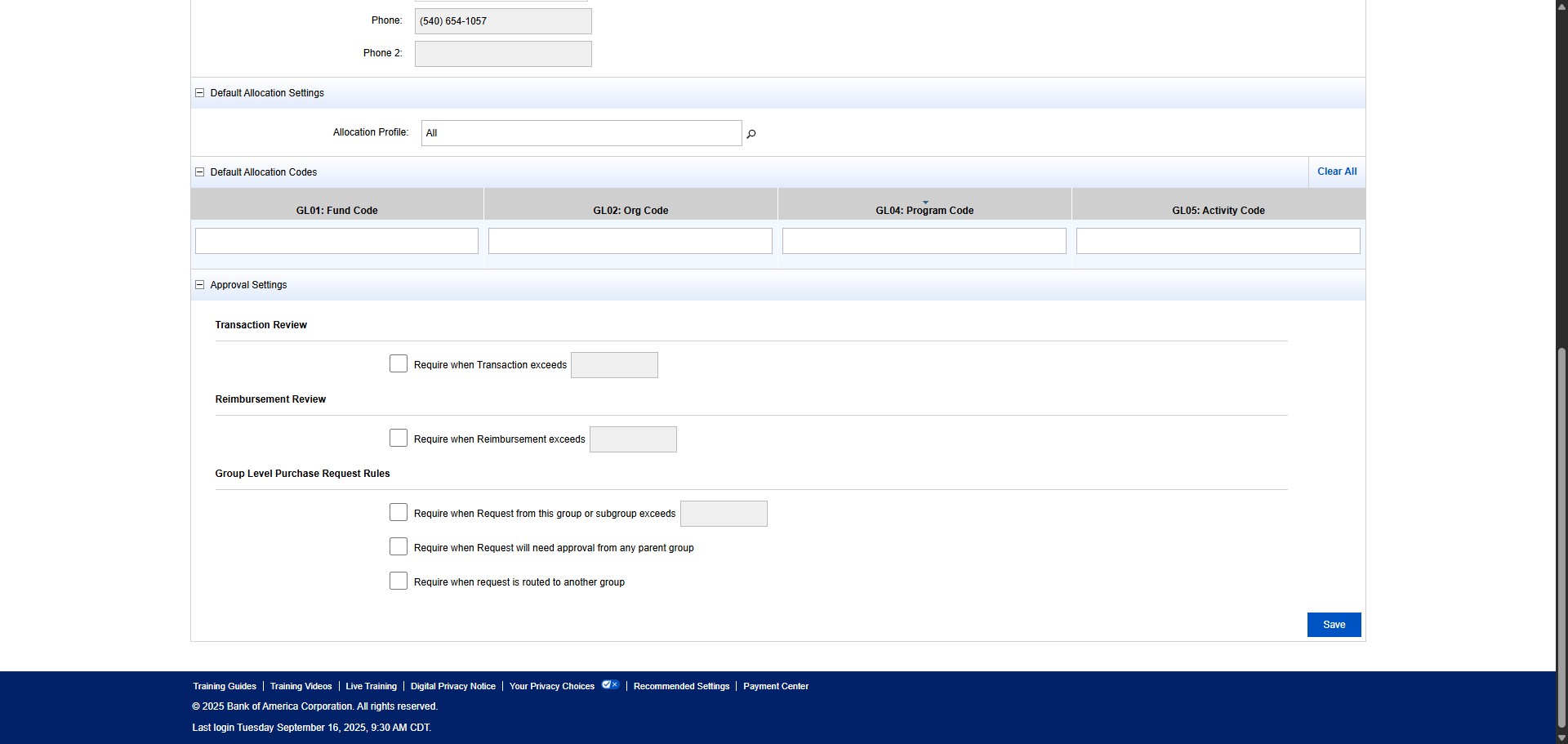
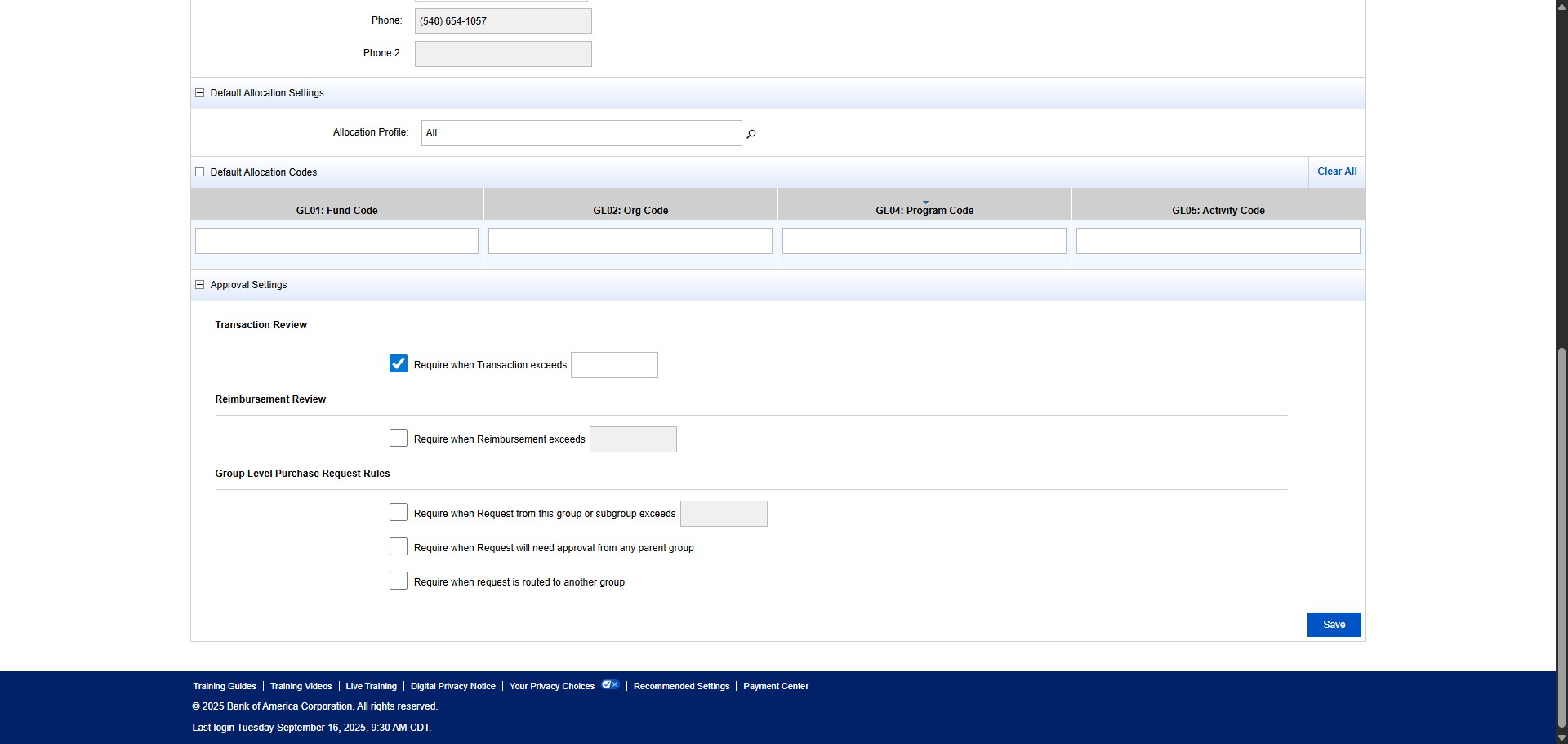
Check the box under Transaction Review for "Require when Transaction exceeds"
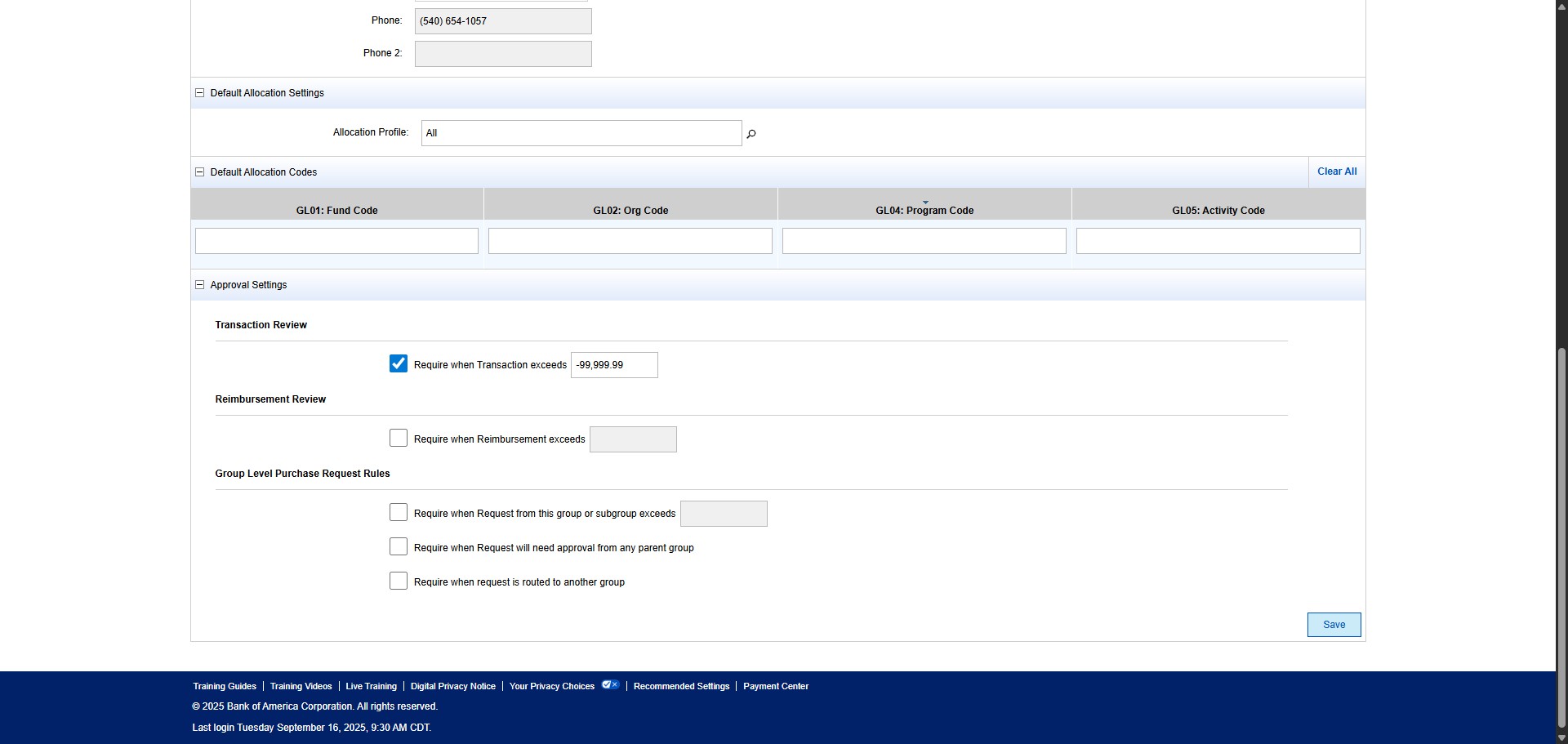
And enter in the amount of -99,999.99.
Then click Save.
Done 🚀