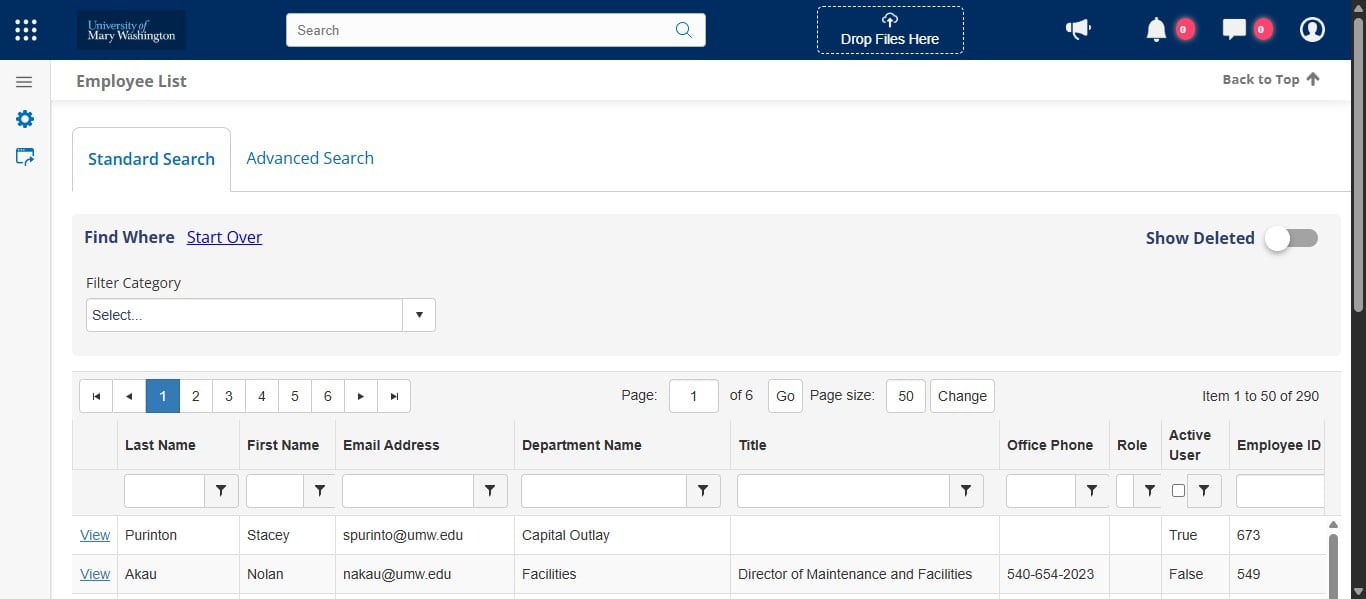
Cobblestone: Adding an Employee/Contract Administrator
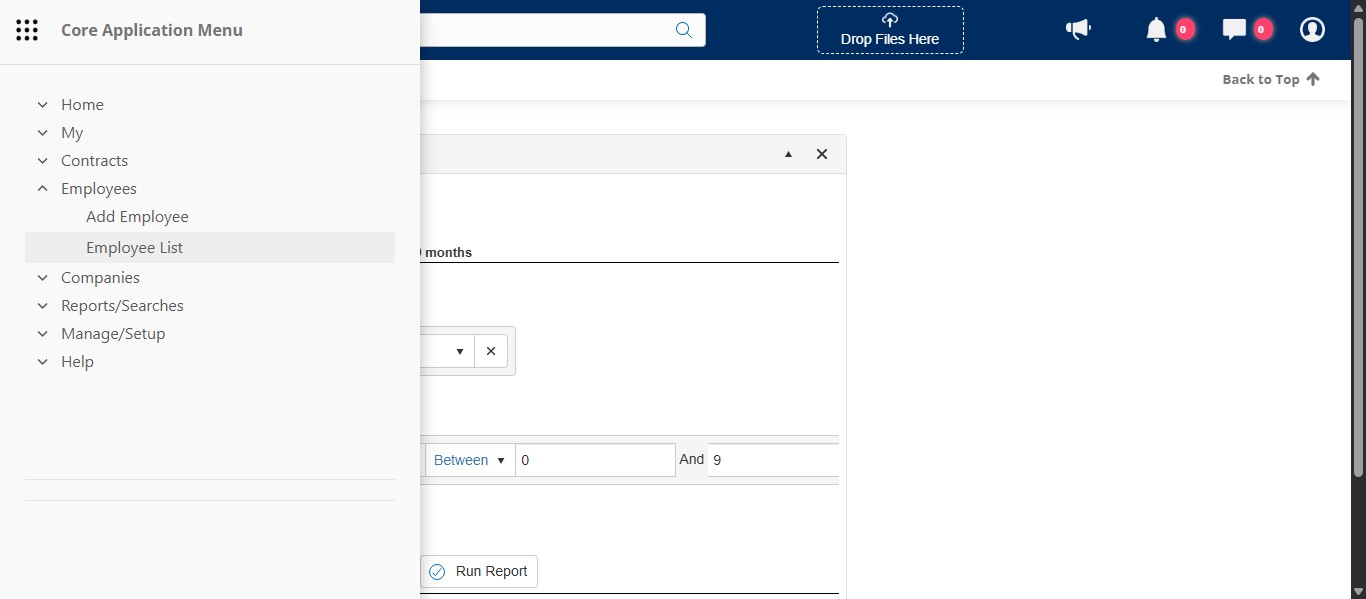
Go to the Main Menu and Click the dropdown for Employees.
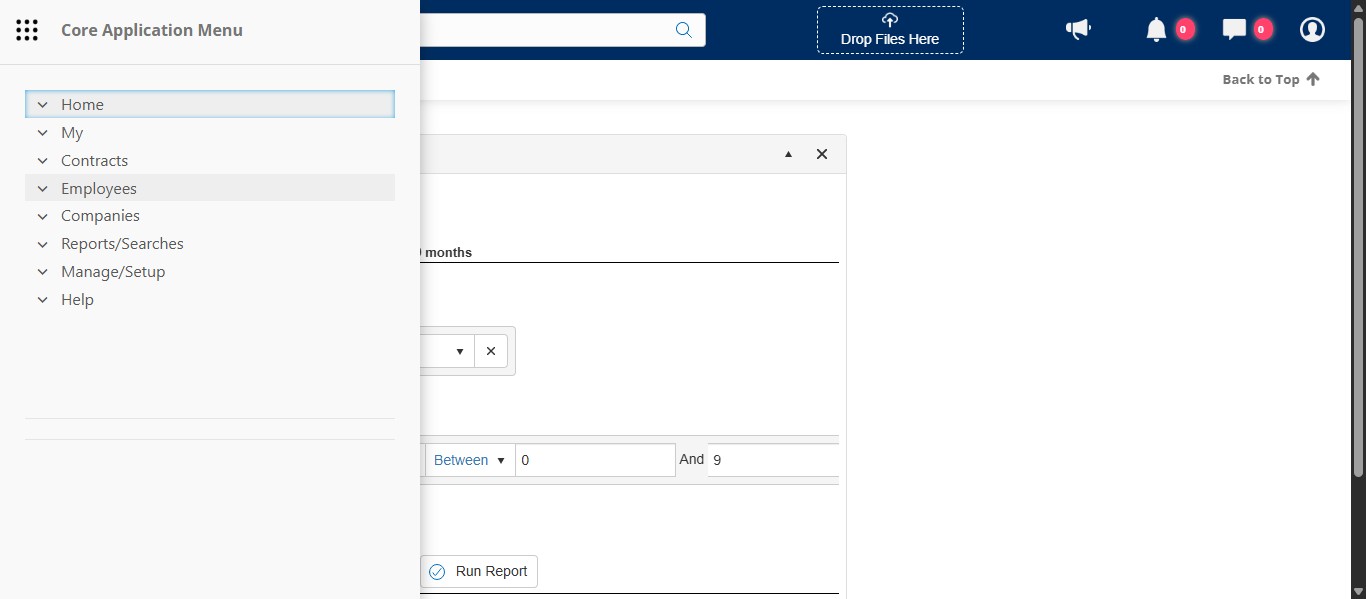
Click on "Employee List"
First we need to check if the employee has been entered already. Click on the Last Name filter and type in the employee's last name. You can add just a few letters to capture any mispellings.
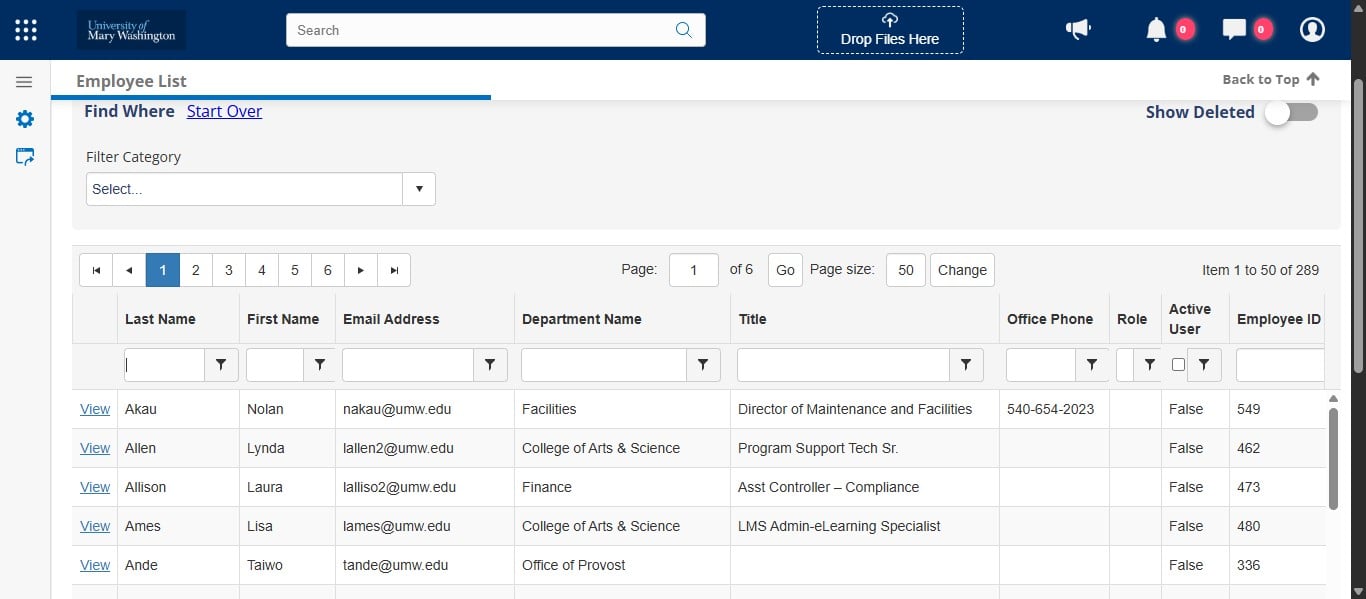
Click the filter button.
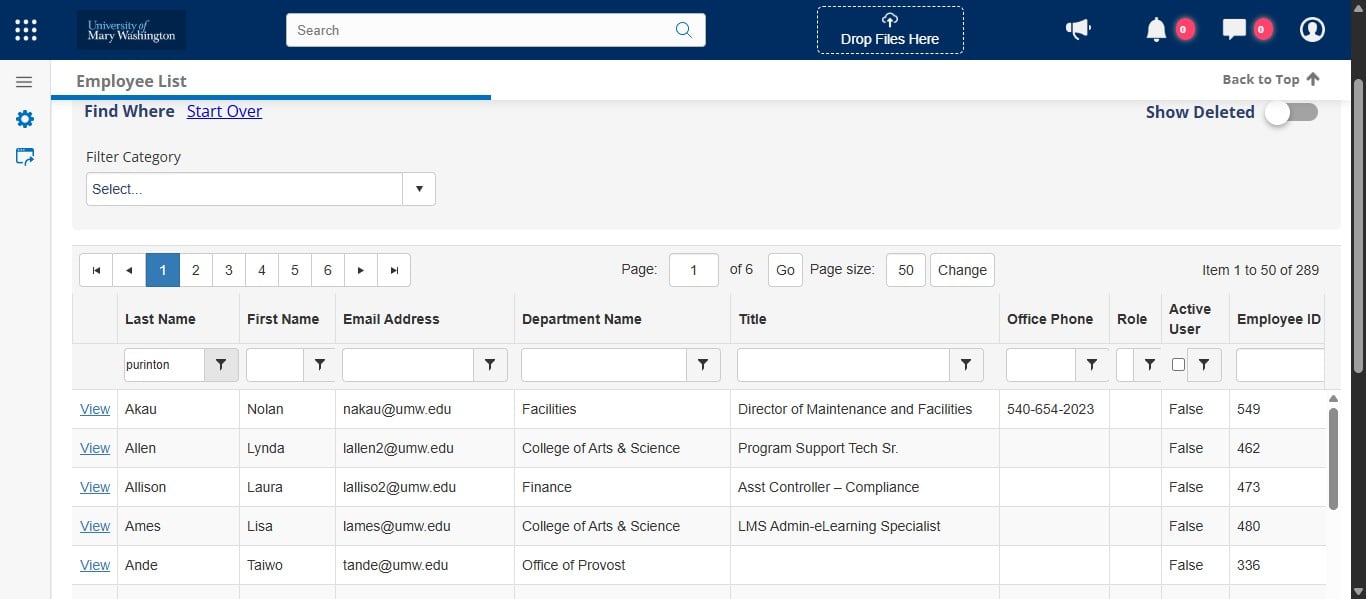
Click on "Contains"
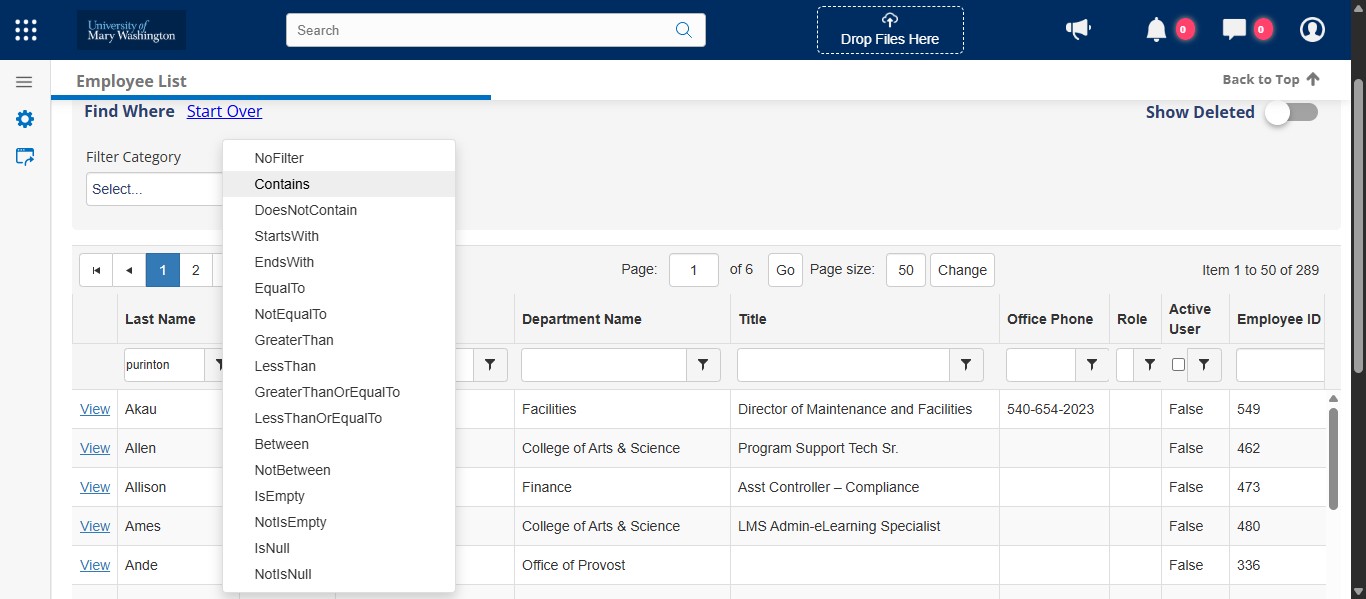
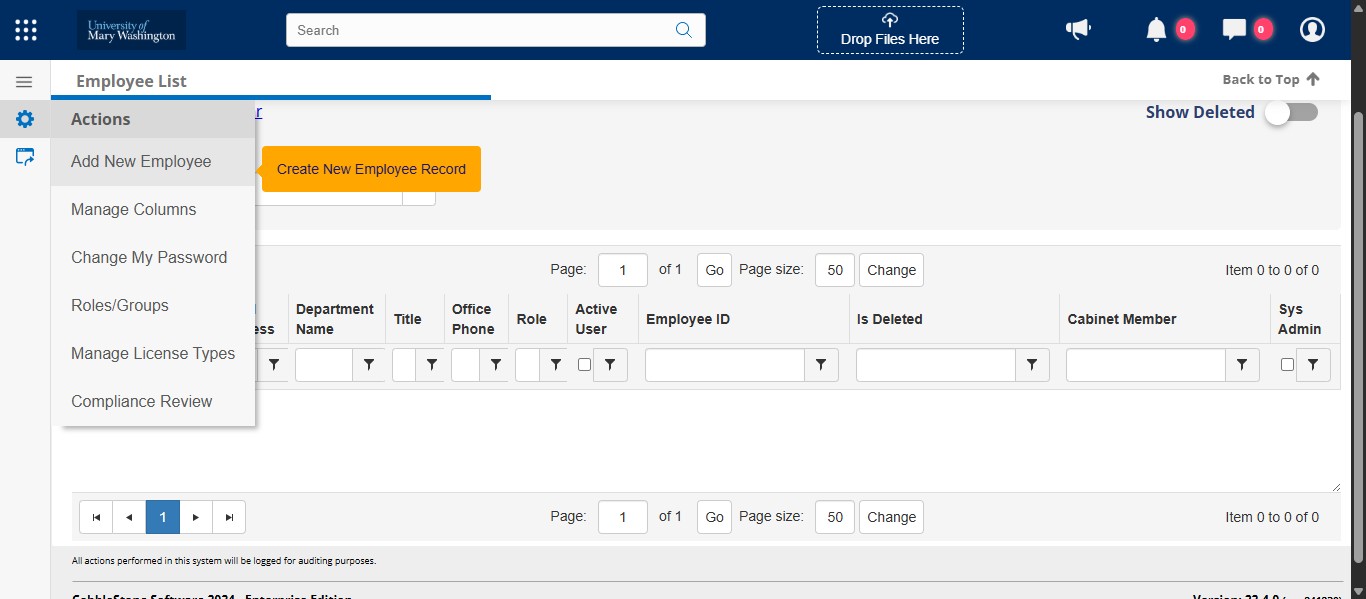
If there are no employee records listed, navigate to the gear icon on the left and select Add New Employee.
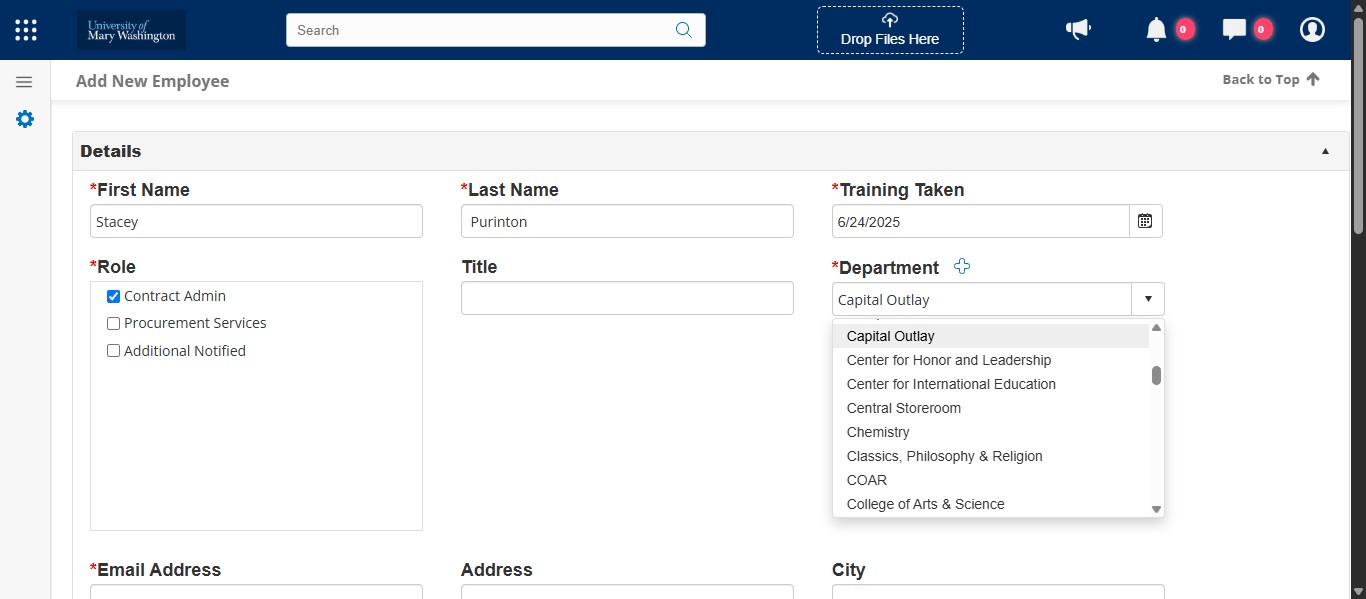
Enter the required field information: First Name, Last Name, enter the date of the training completed as listed in the results of the Contract Administrator Training in Microsoft Forms, select Contract Admin as the Role, and select the employee's department.
Enter their email address, select the drop down under Active User and select Yes.
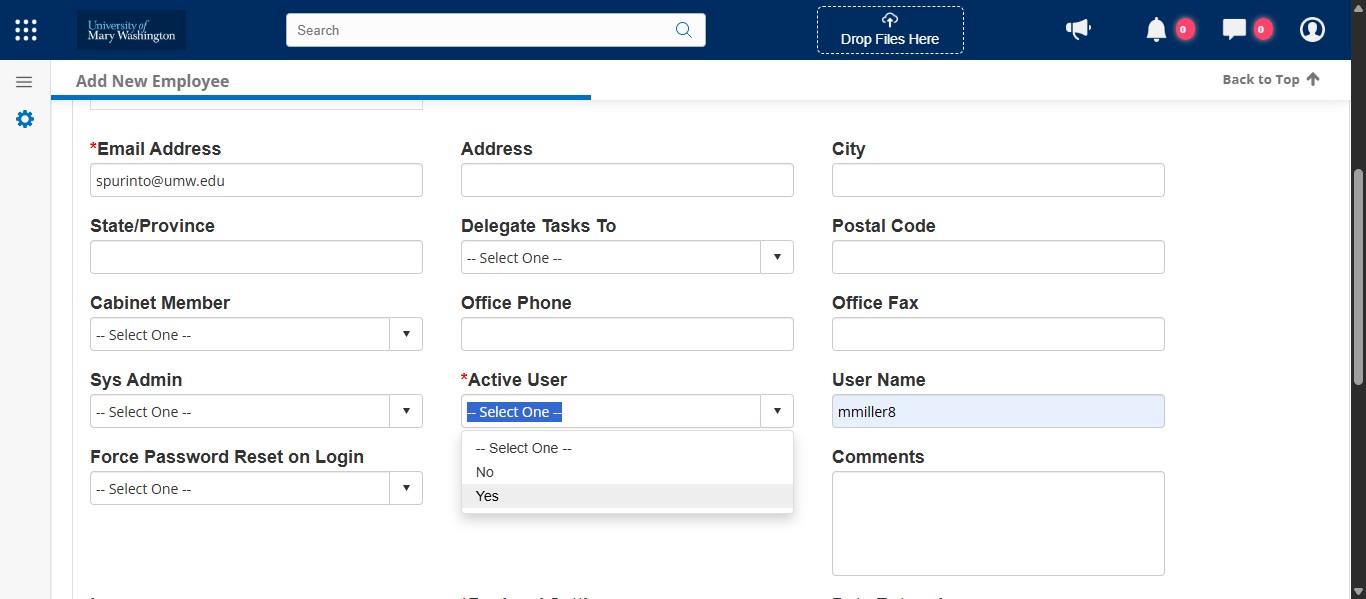
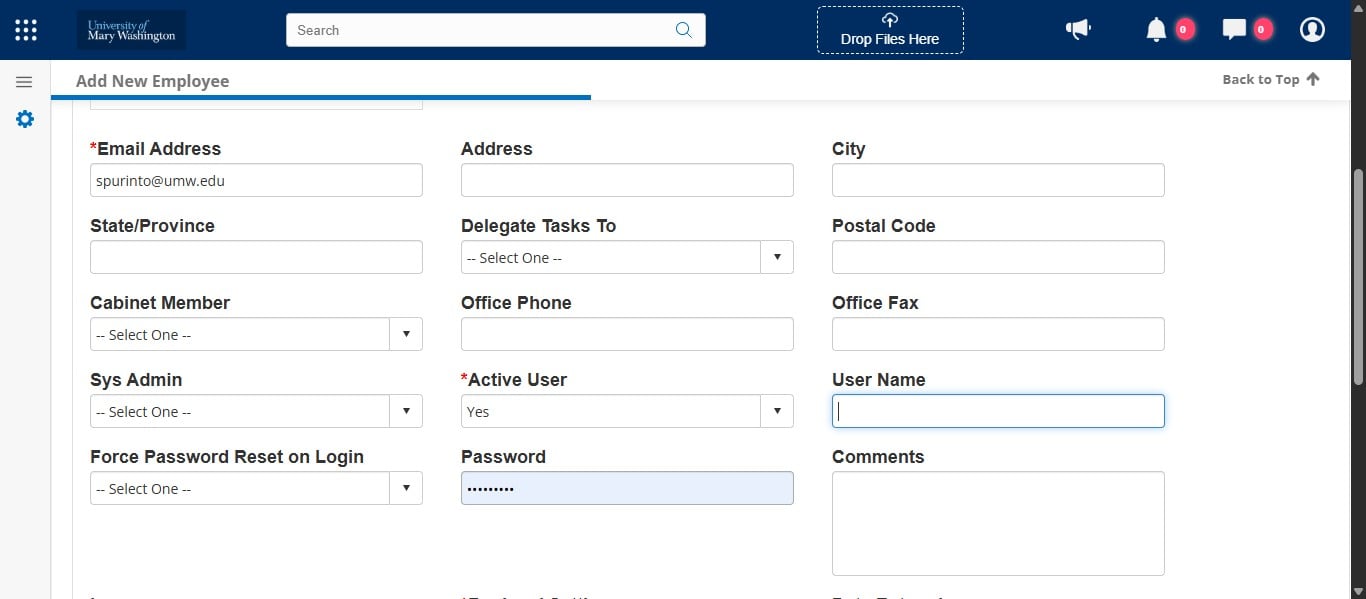
In the User Name field, remove anything listed there.
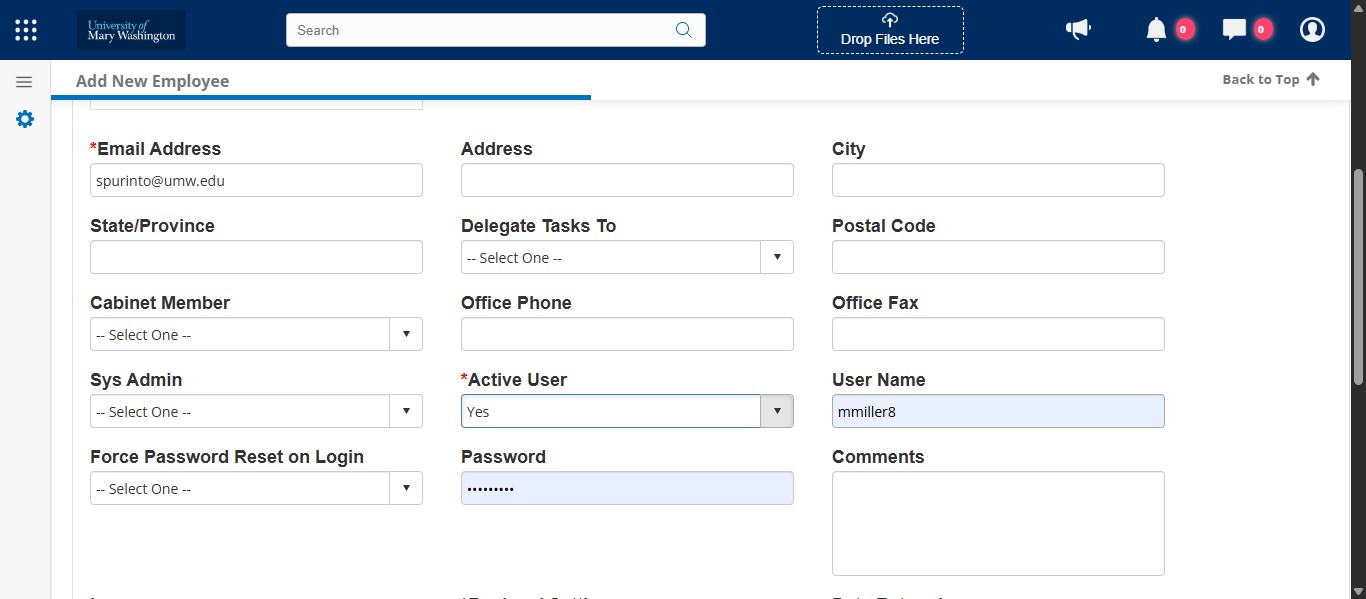
In the Password field, remove anything listed there.
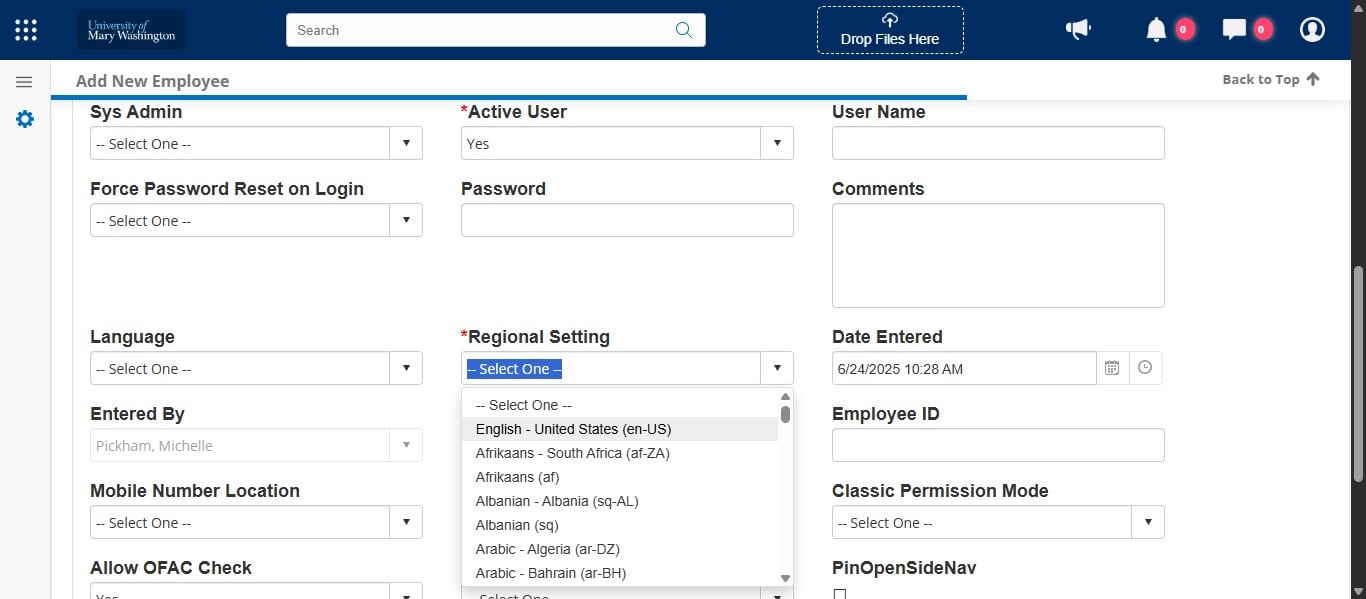
Change the Regional Setting to "English - United States (en-US)."
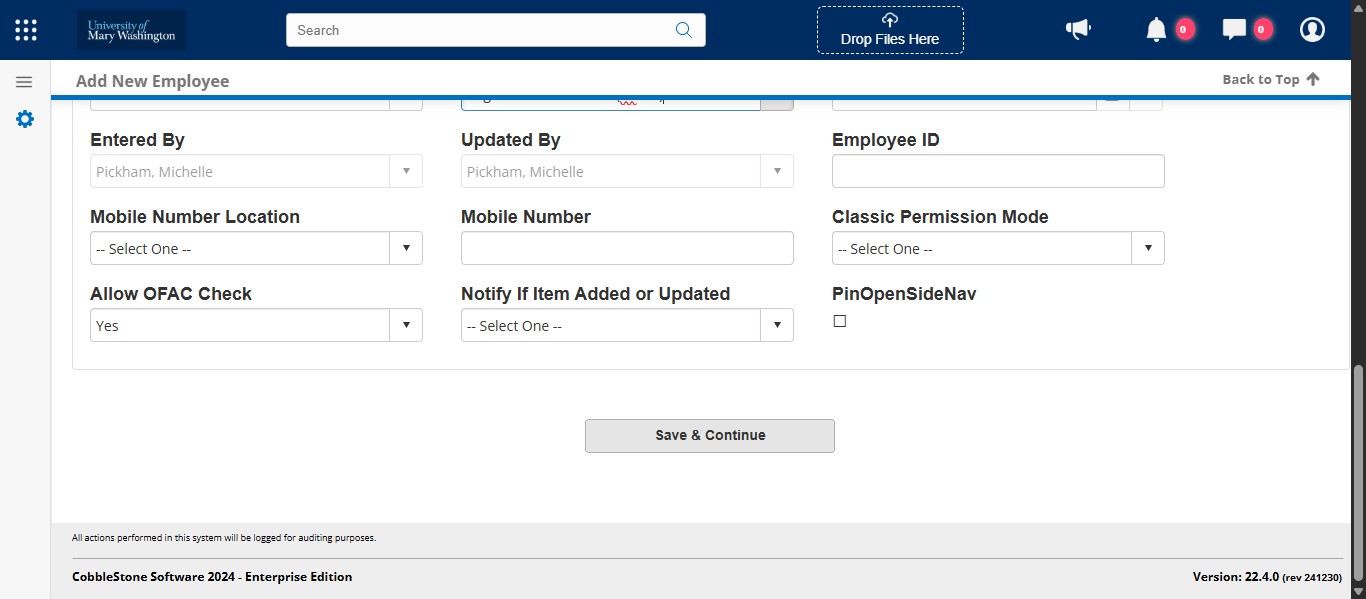
Click on "Save & Continue"
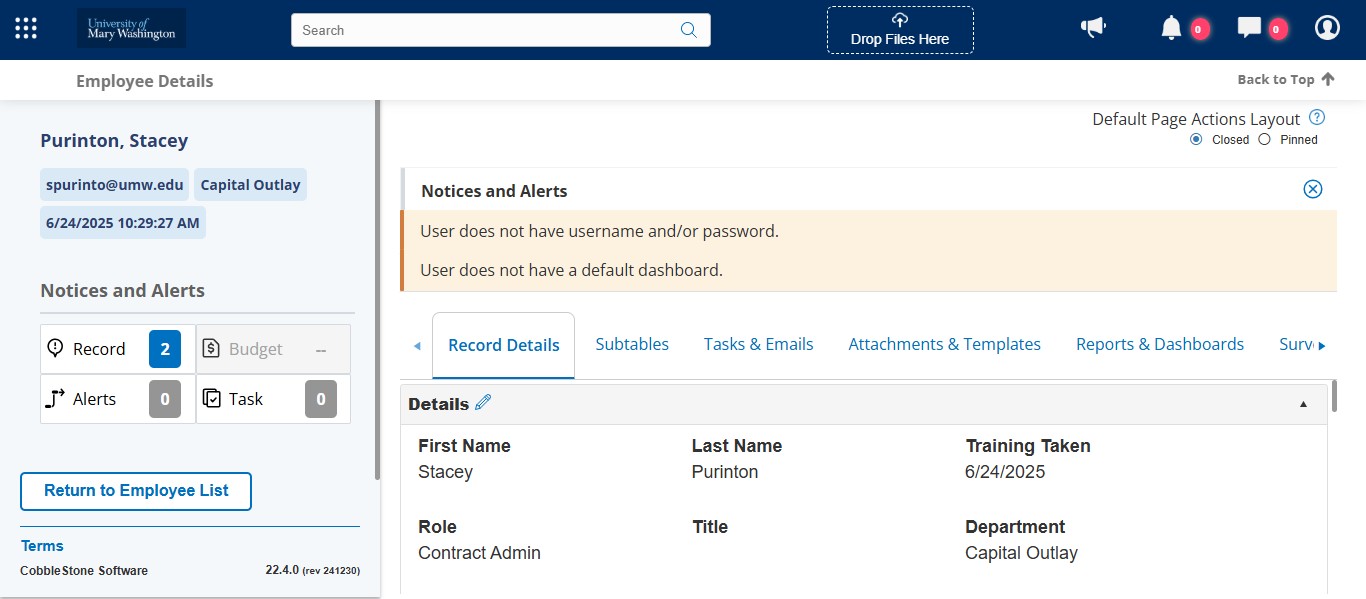
There will be an alert that pops up saying the User does not have username and/or password and that is exactly what we want. They are not a system user to log in so we don't want them to have a username and password for login purposes. You can ignore these alerts.
You can now go to your contract record and select this employee from the Contract Admin drop down list.