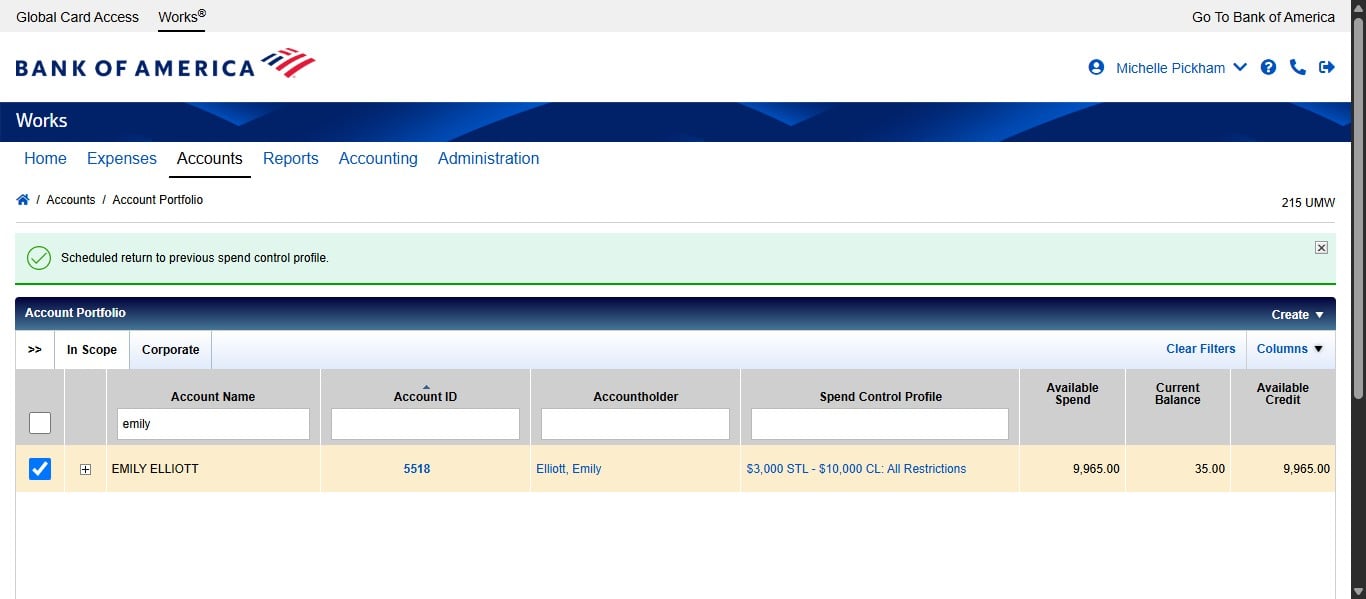
SPCC Works - Temporary Limit Increase
Navigate to https://payment2.works.com/works/home
Click on "Accounts"
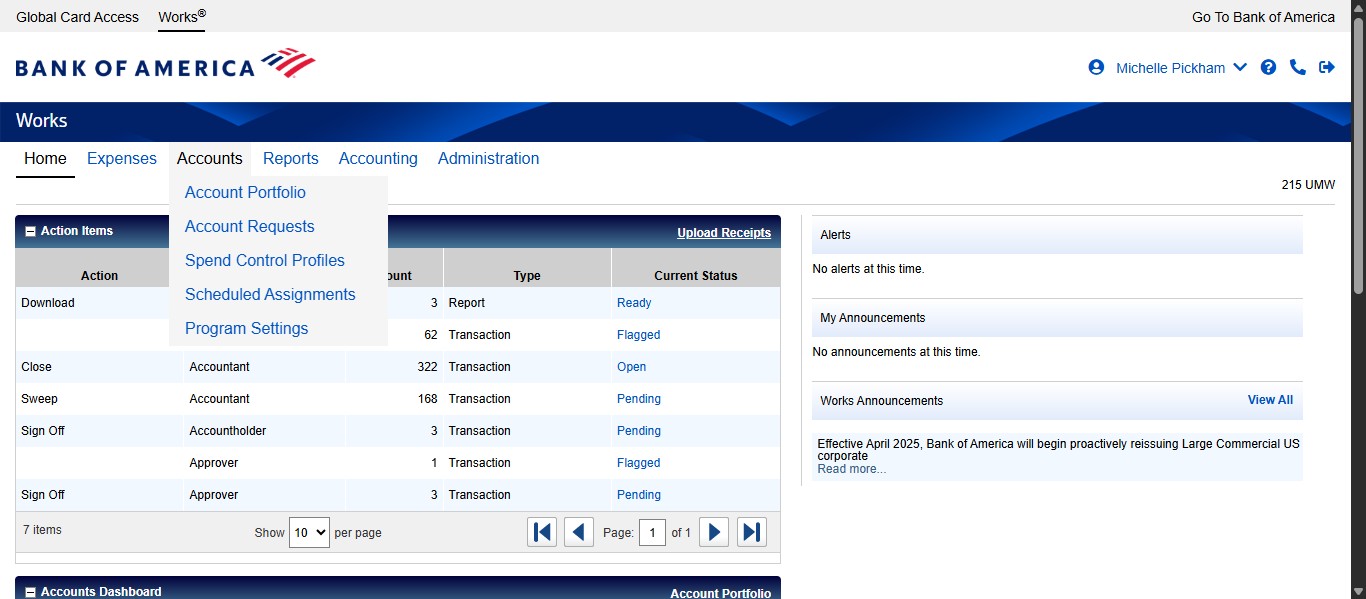
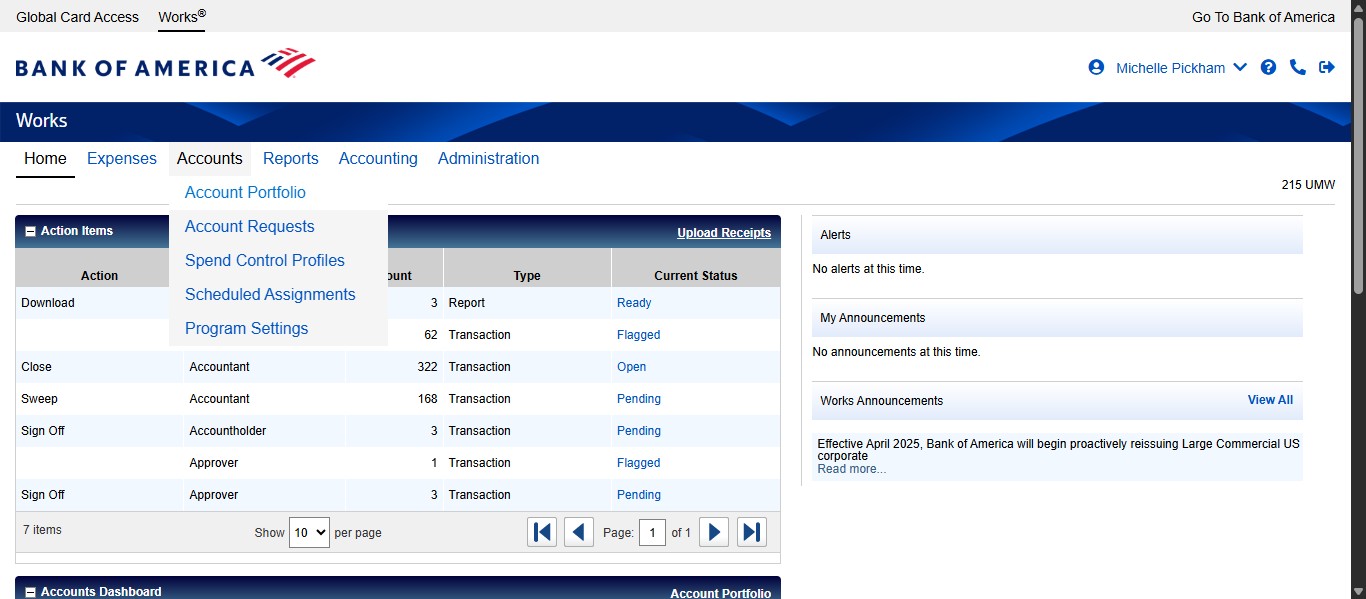
Click on "Account Portfolio"
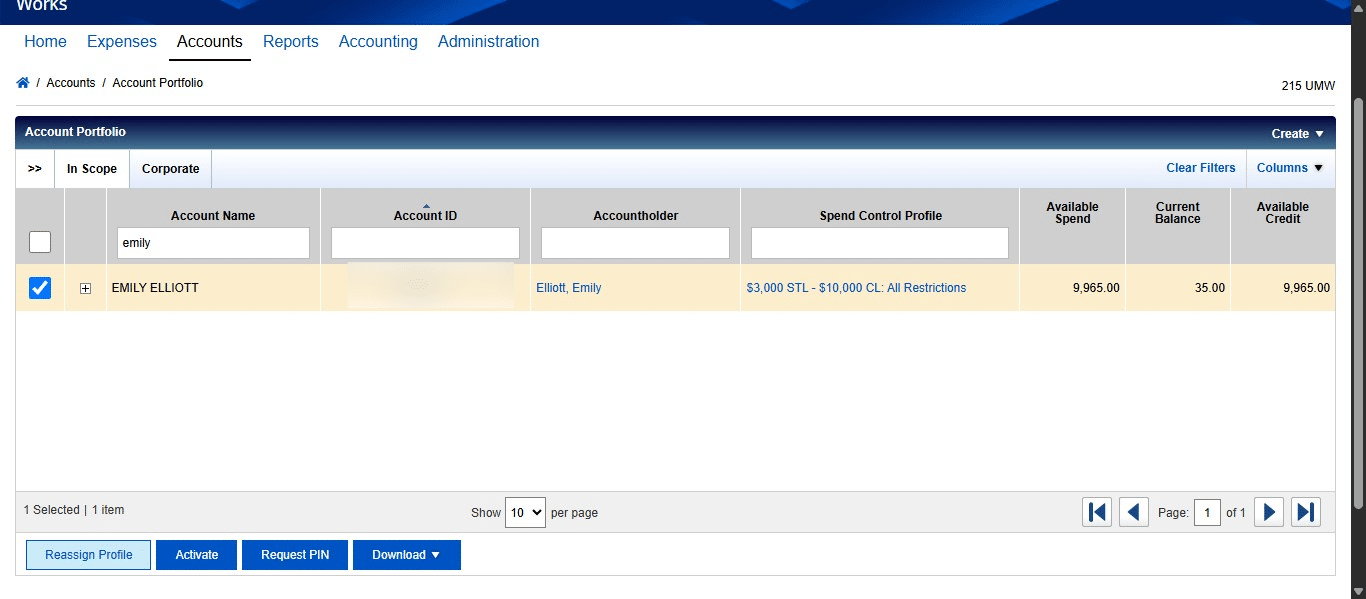
Search for the user.
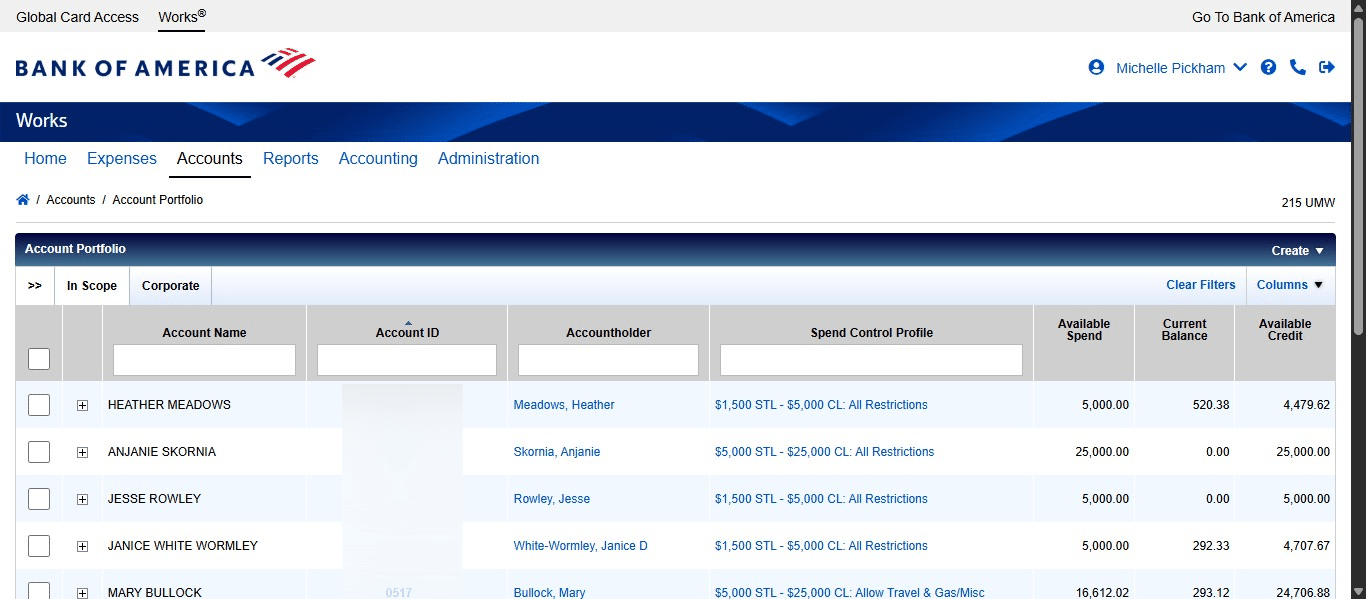
Select the user needing the increase and click on Reassign Profile
Navigate to the profile needed.
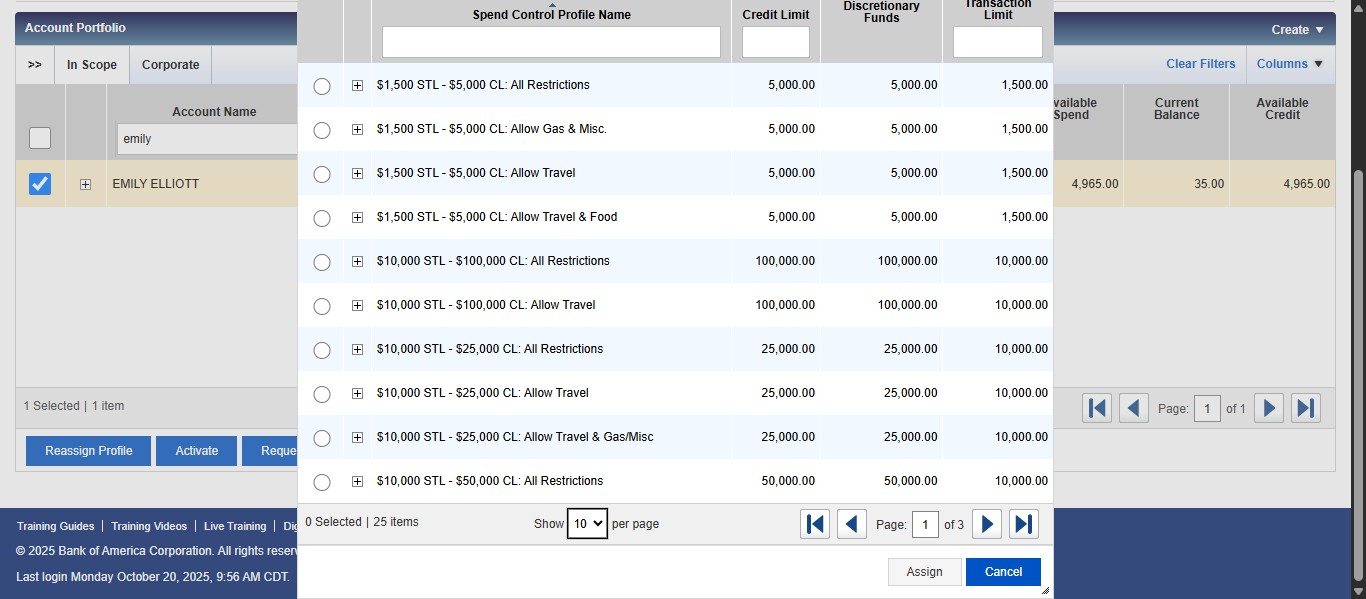
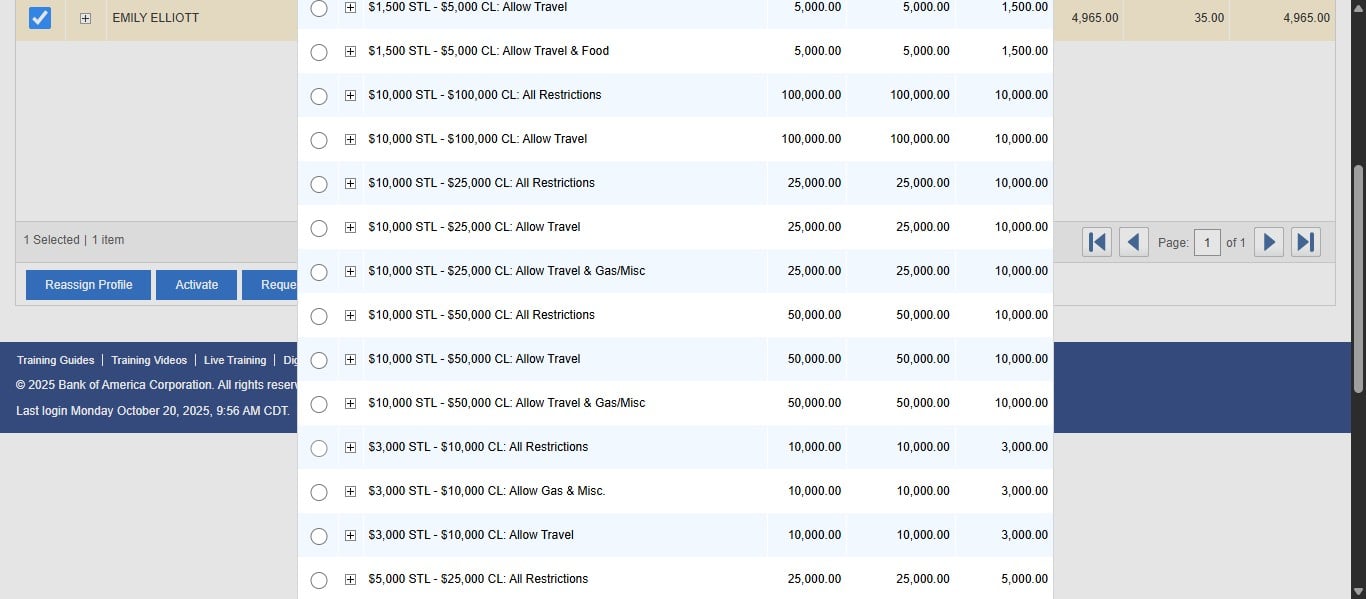
Select the desired profile.
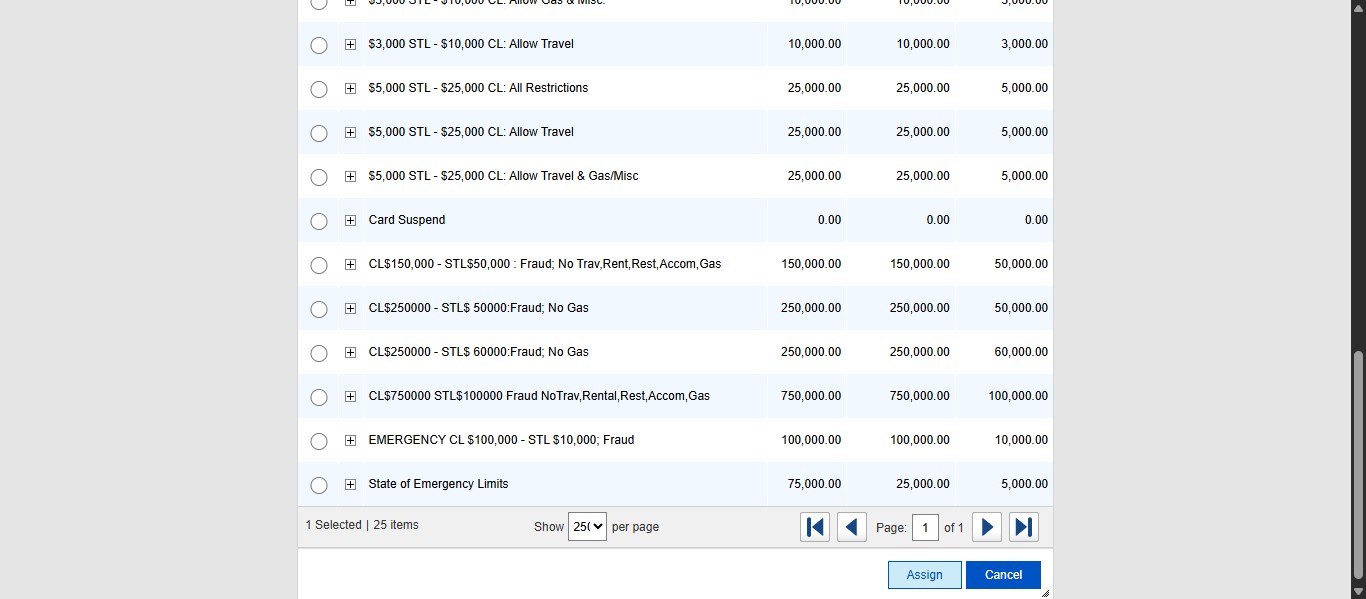
Click on "Assign"
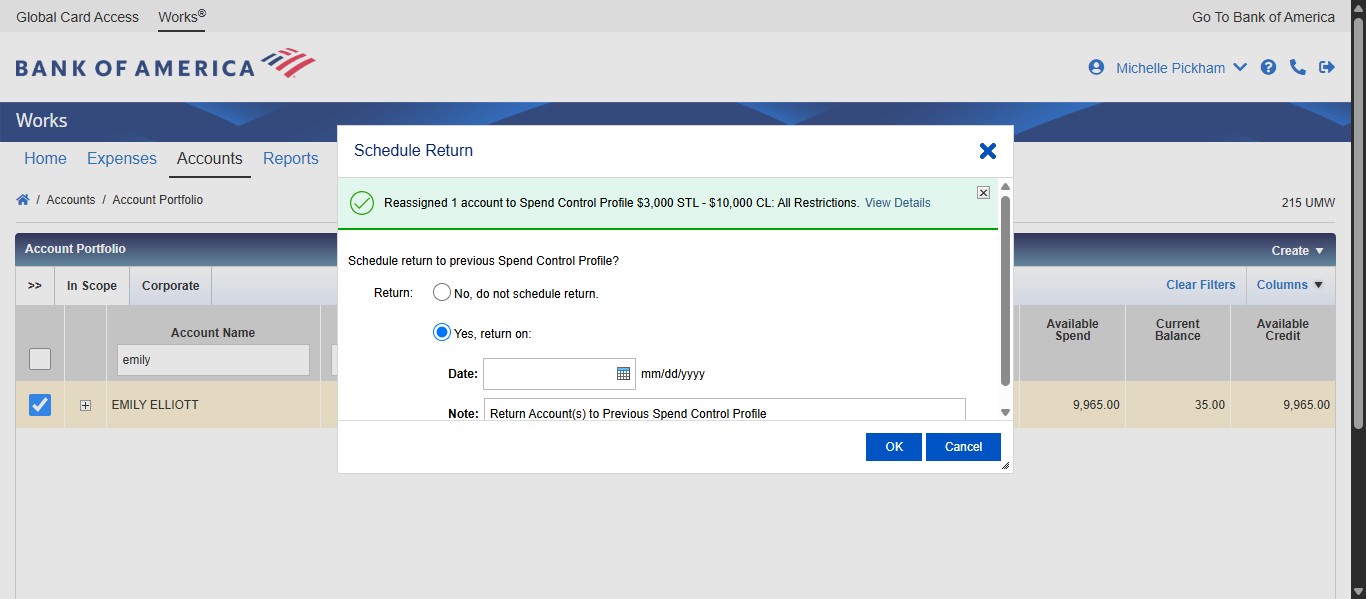
Click Yes, return on:
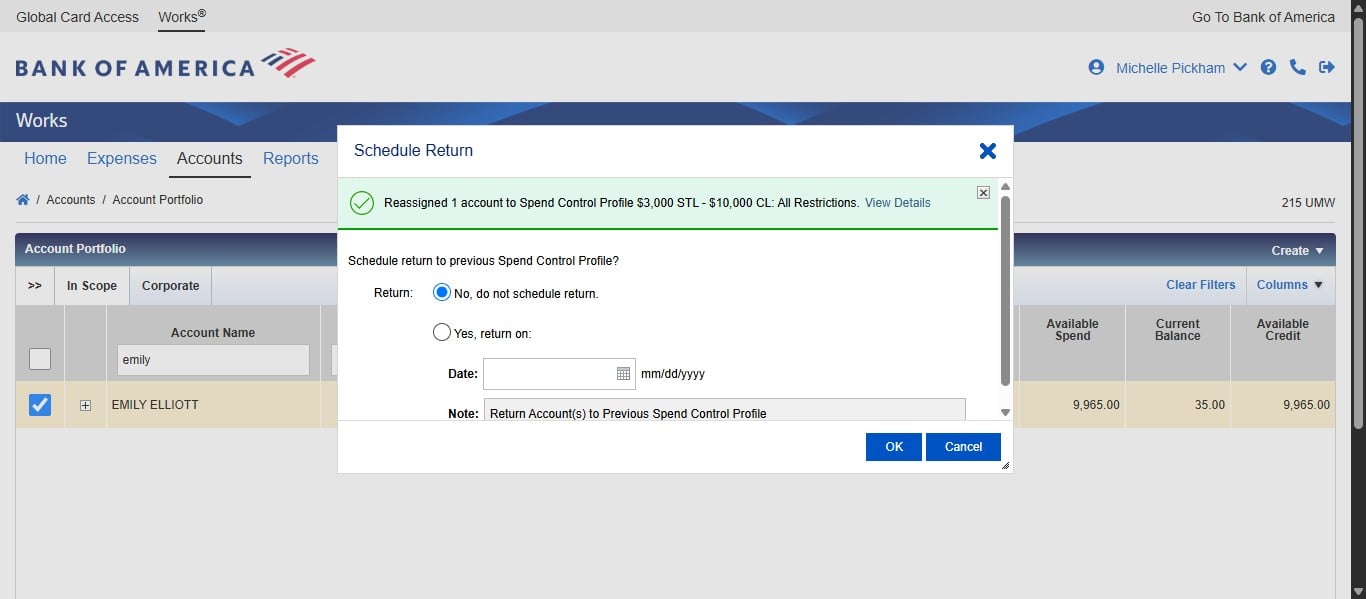
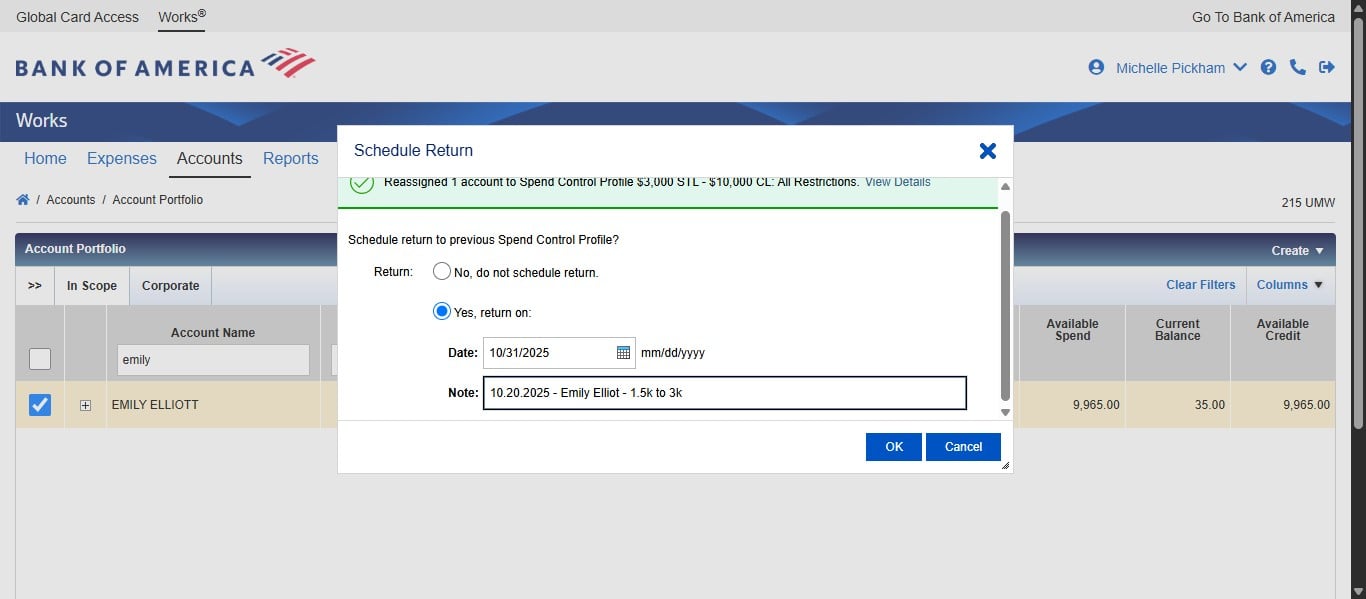
Select a date appropriate for the system to revert back to the permanent profile. If the increase is large, use the first day of the next billing cycle. Use your judgment based on when the user is planning on paying the invoice.
Add in the note area the following information: MM.DD.YYYY - User First and Last Name - permanent profile to temporary profile. Example: 10.20.2025 - Emily Elliott - 1.5k to 3k.
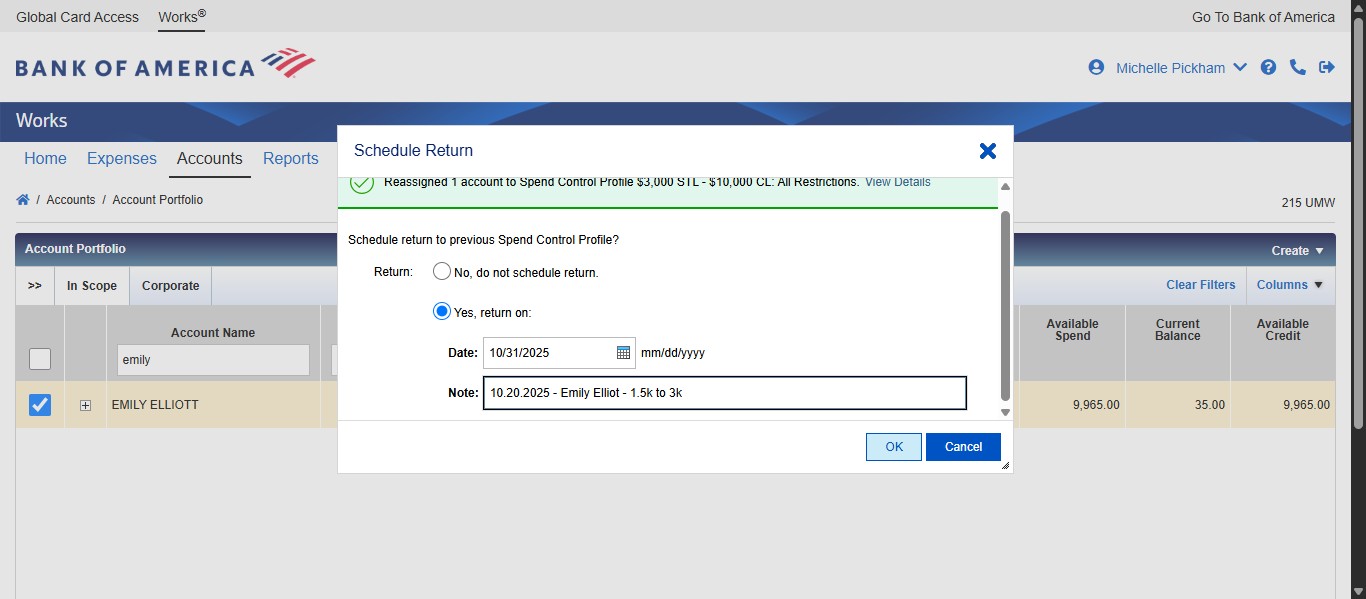
Click on "OK"
Email the user and their approver, CC spcc@umw.edu, letting them know that you've temporarily increased their limits using the profile change email template.