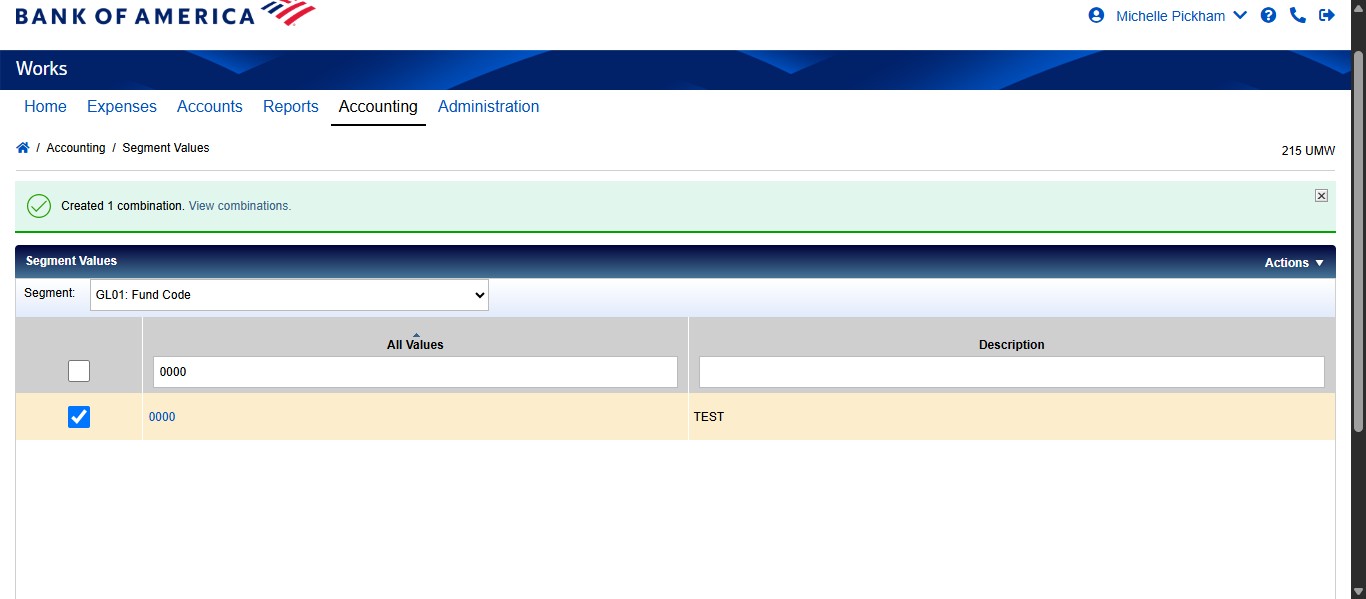
SPCC Works - Adding Segment Values
Navigate to https://payment2.works.com/works/home
Click on "Accounting"
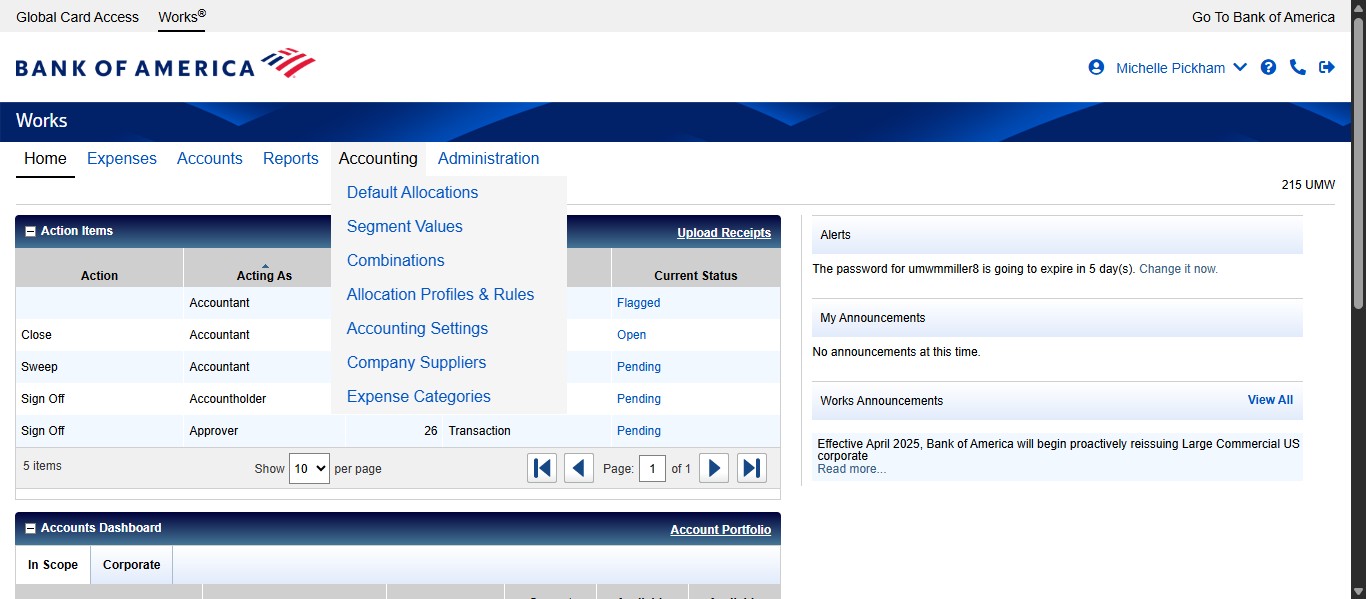
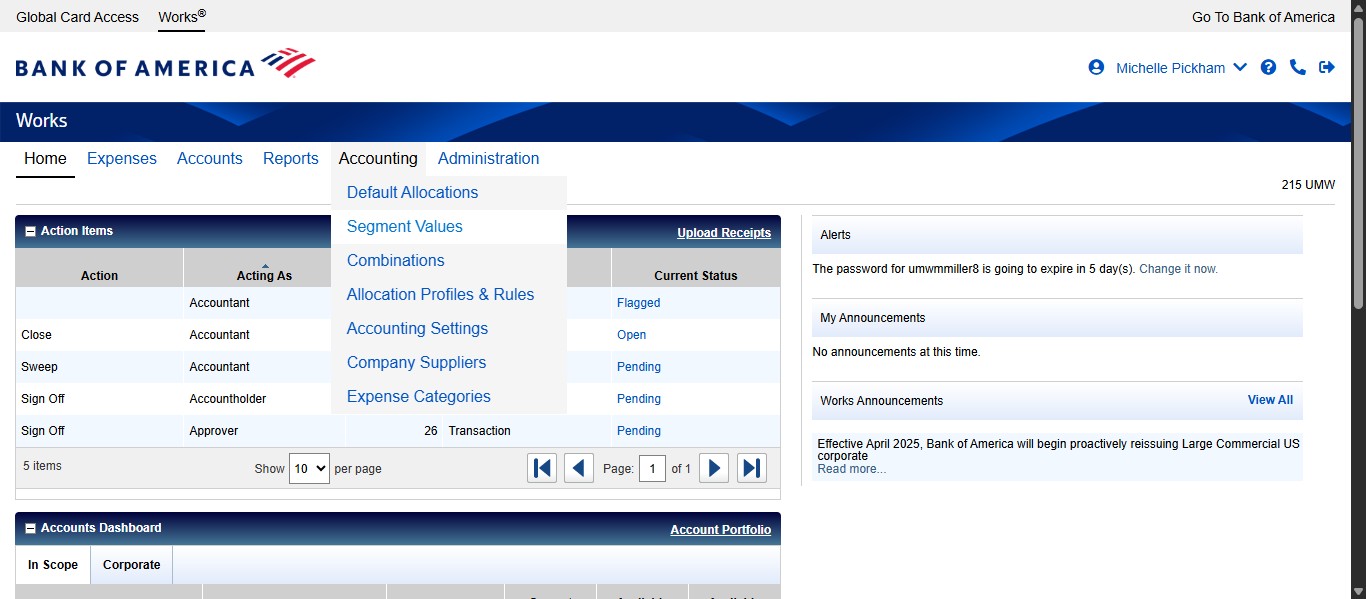
Click on "Segment Values"
First search the list of existing segment values for that particular segment (fund, org, account, program, activity, prepay start/end dates) to ensure the code doesn't already exist.
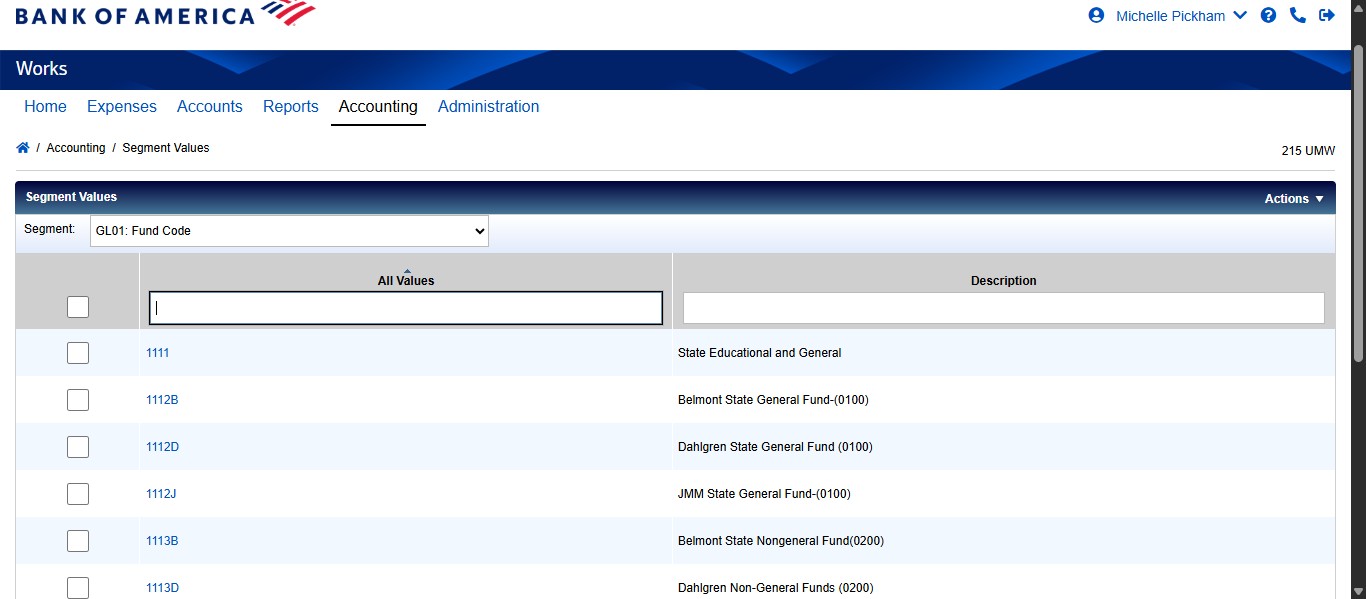
If the new code doesn't exist, click on "Actions"
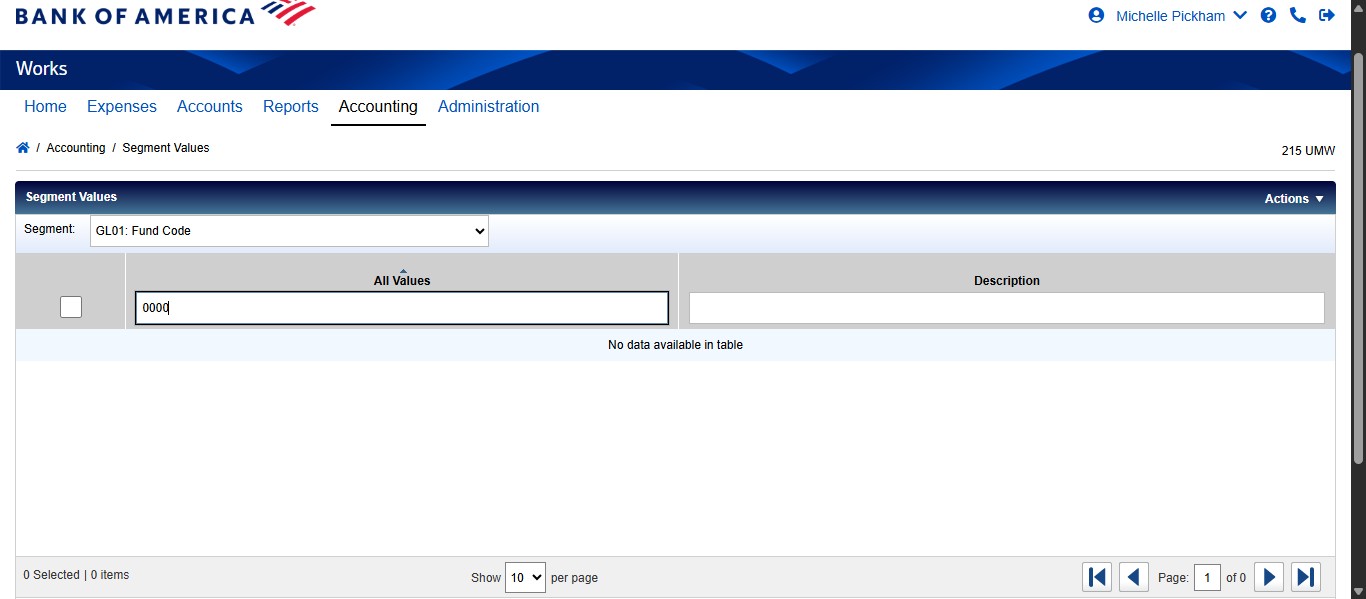
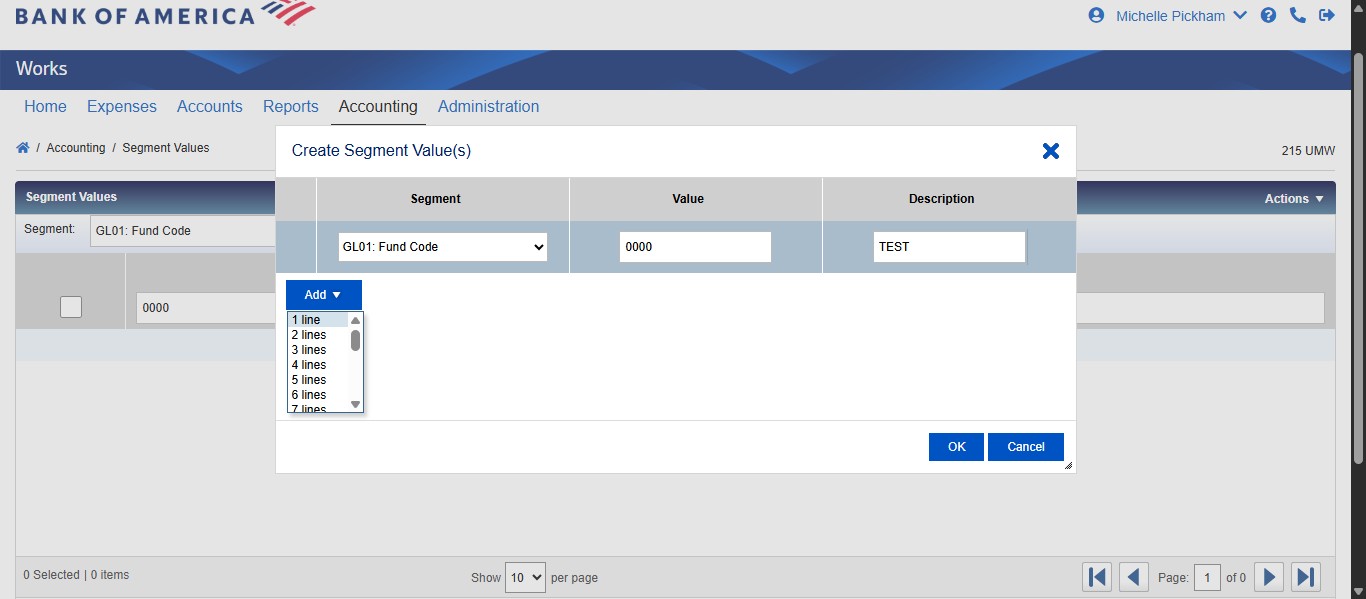
Click on "Create Segment Value(s)"
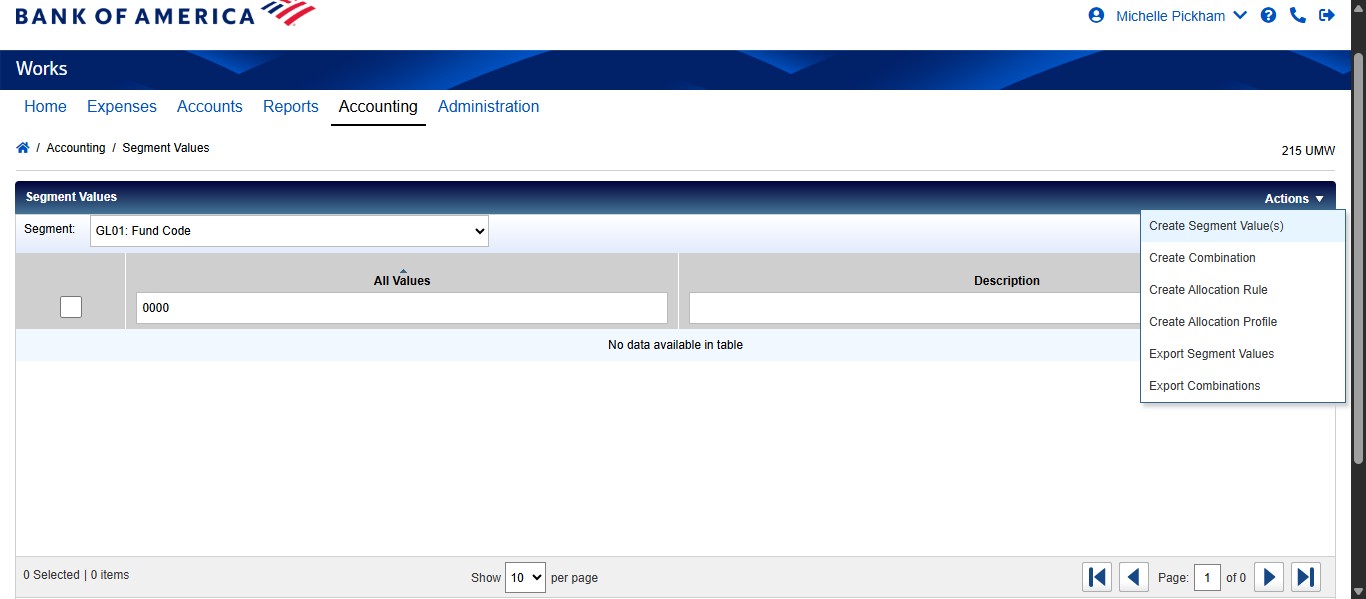
Enter the value of the segment that needs to be added. Typically these values are given in an email from the Director of Accounting or designee.
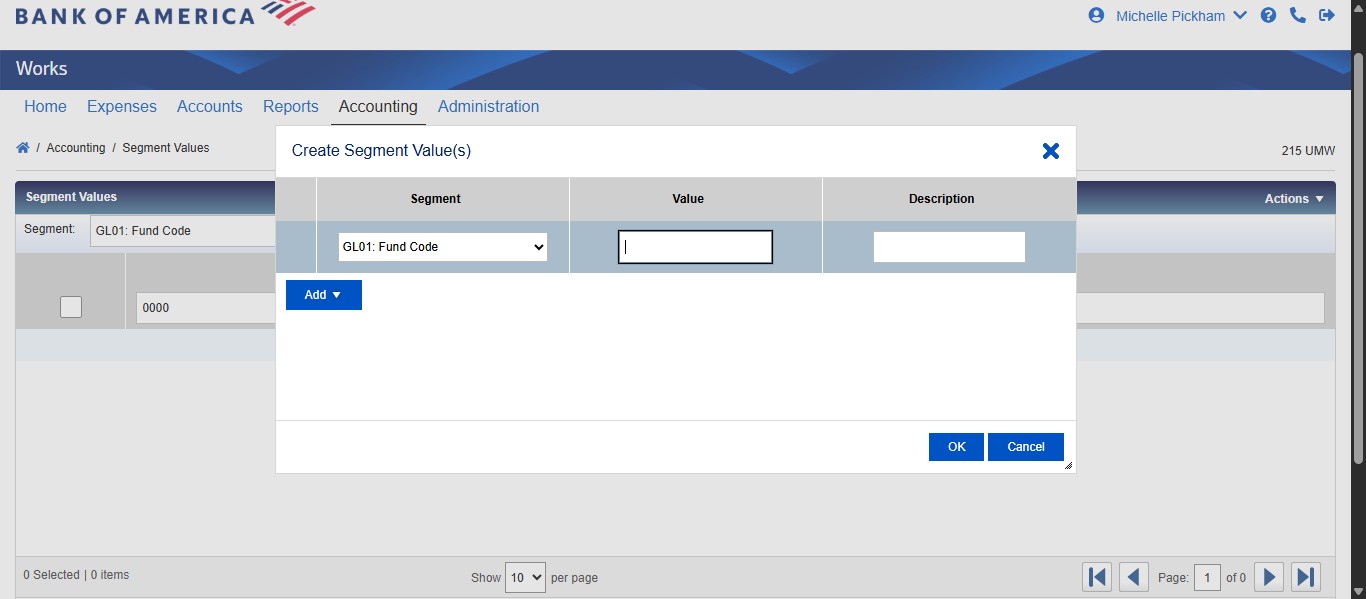
Then enter the description of the new code as given in the email from the Director of Accounting or designee.
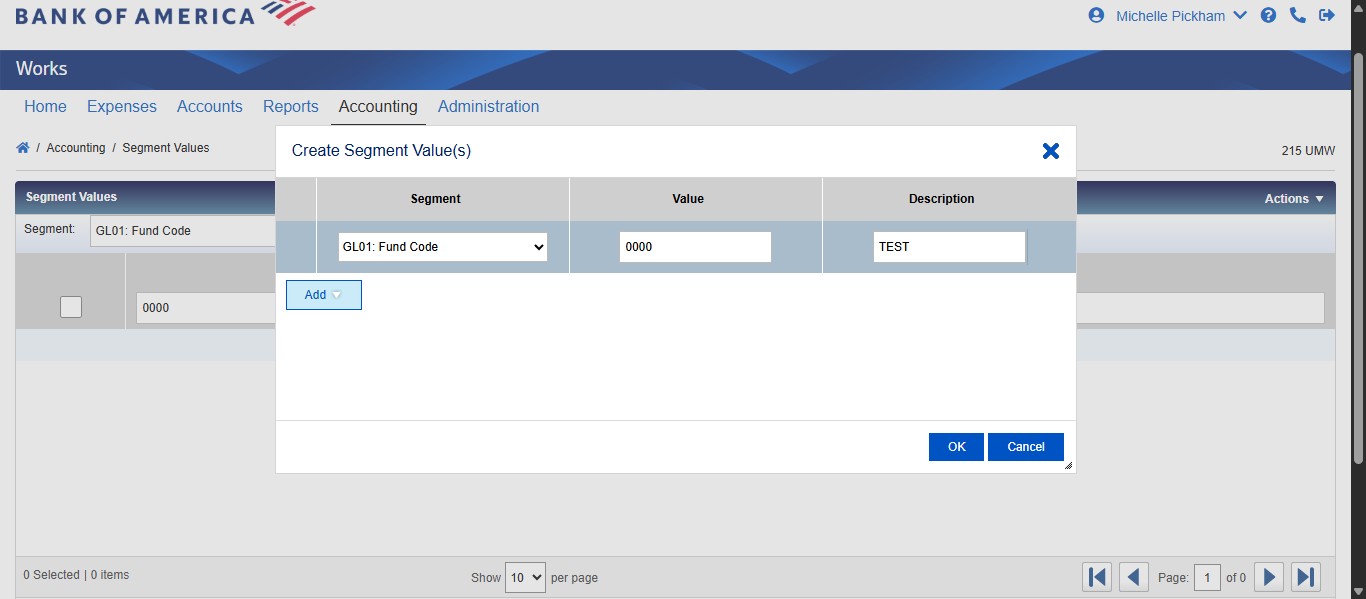
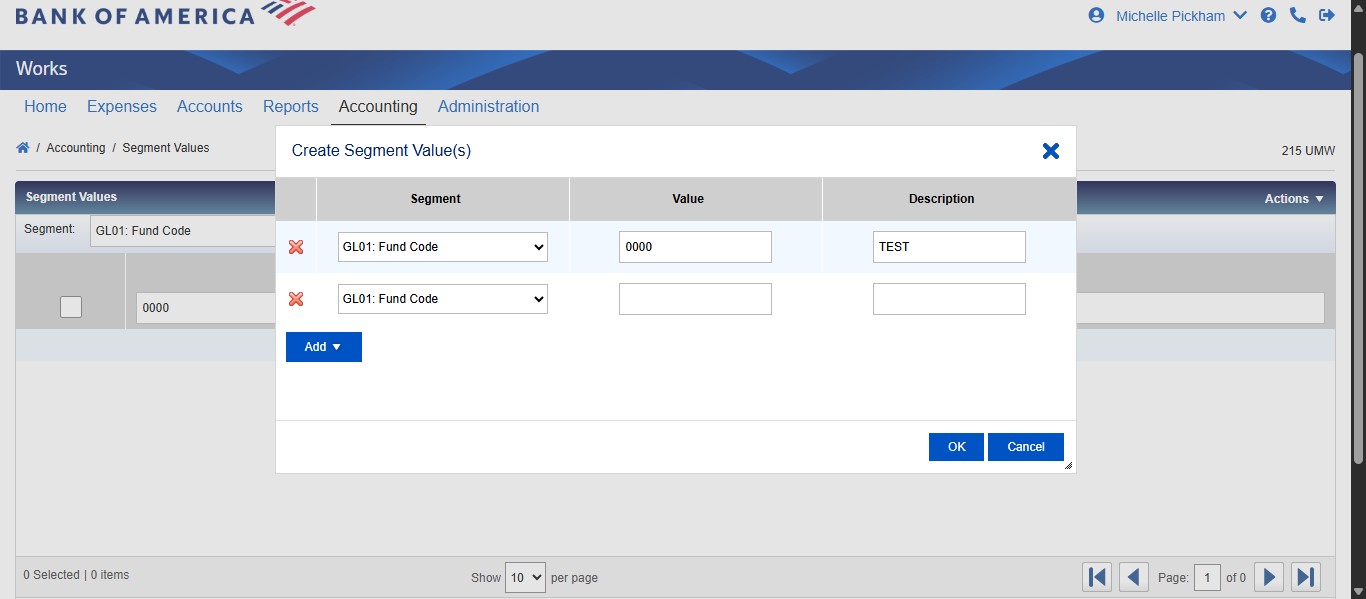
If you need to add more codes, click on the Add button and select the number of additional codes you need to create.
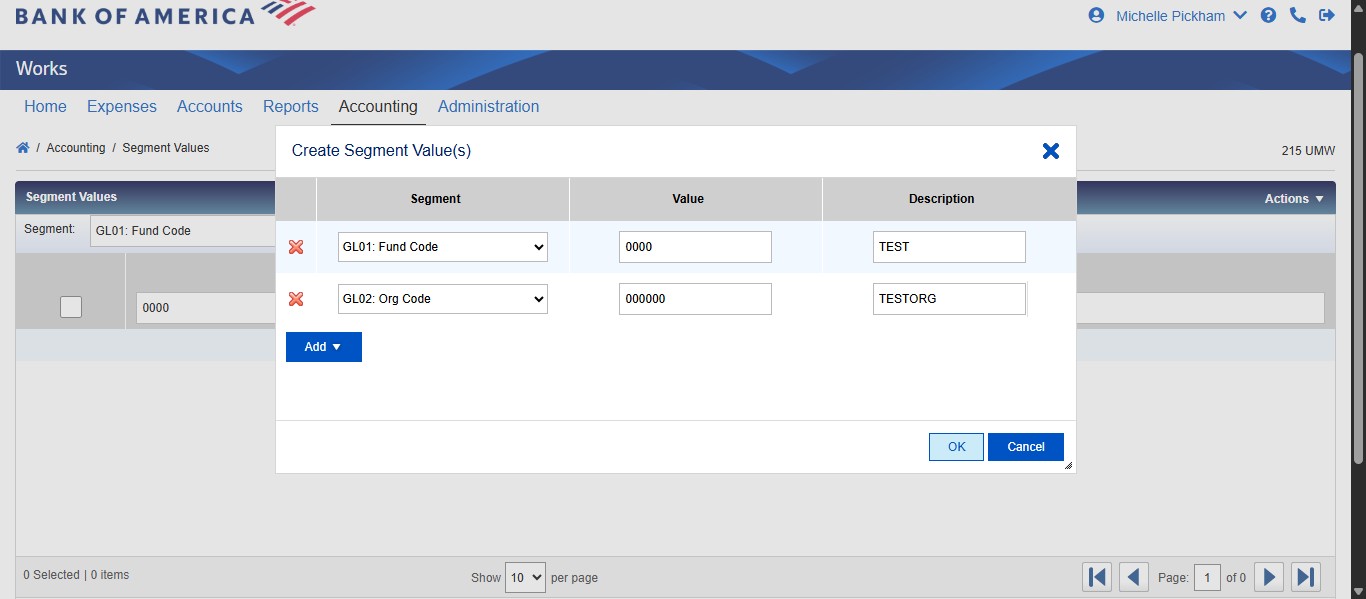
You can change the type of segment you are creating by clicking the drop down and selecting the appropriate segment type.
Once you are done creating all segment values, click on "OK"
For any FUND Code you create, you will need to add an additional step to create a combination. Combinations are how the system validates the fund and program code pairings. To do this, click on the Actions drop down.
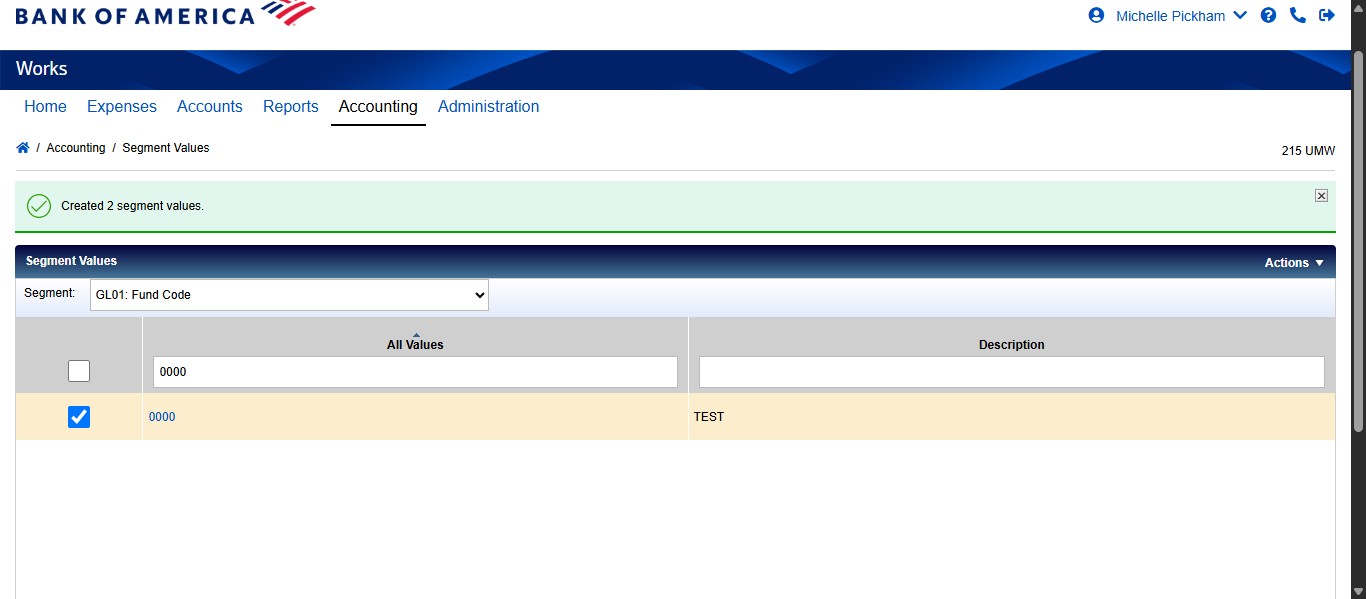
Click on "Create Combination"
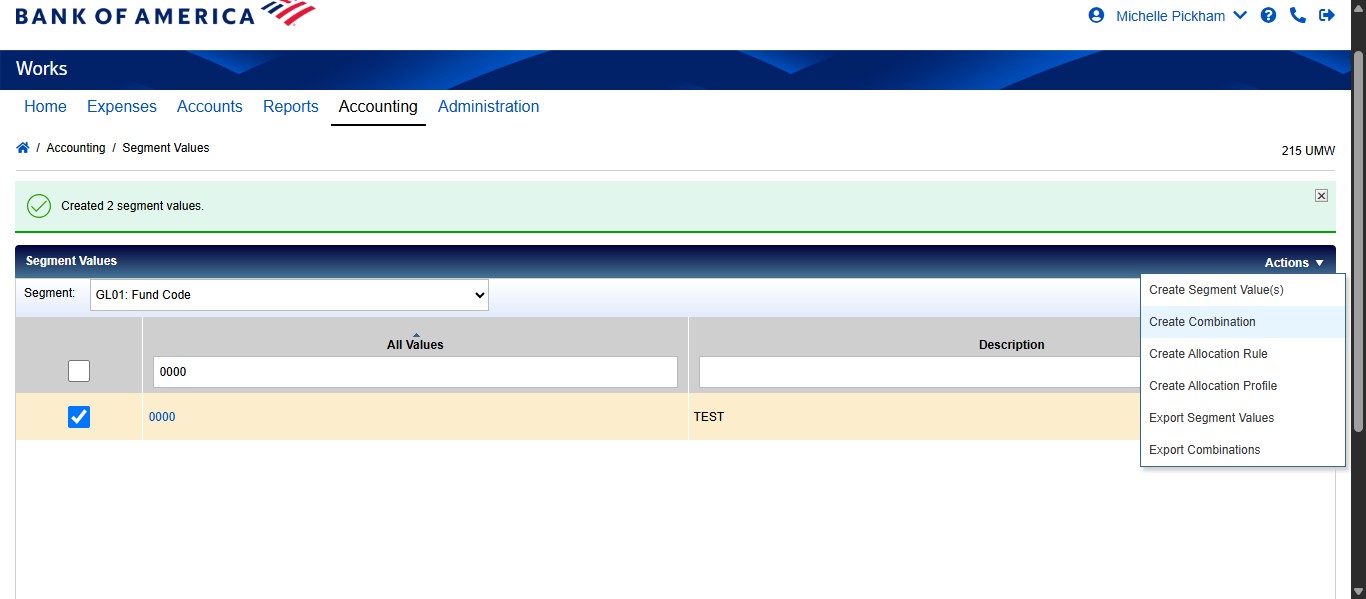
Enter the new fund code you just created.
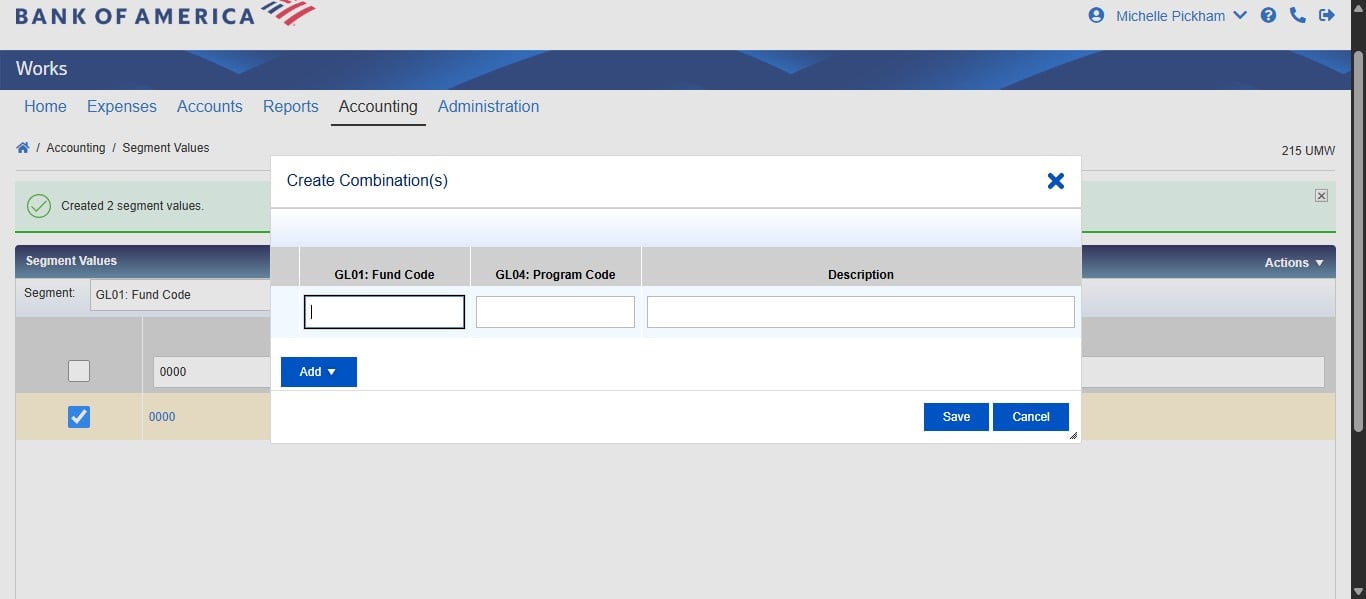
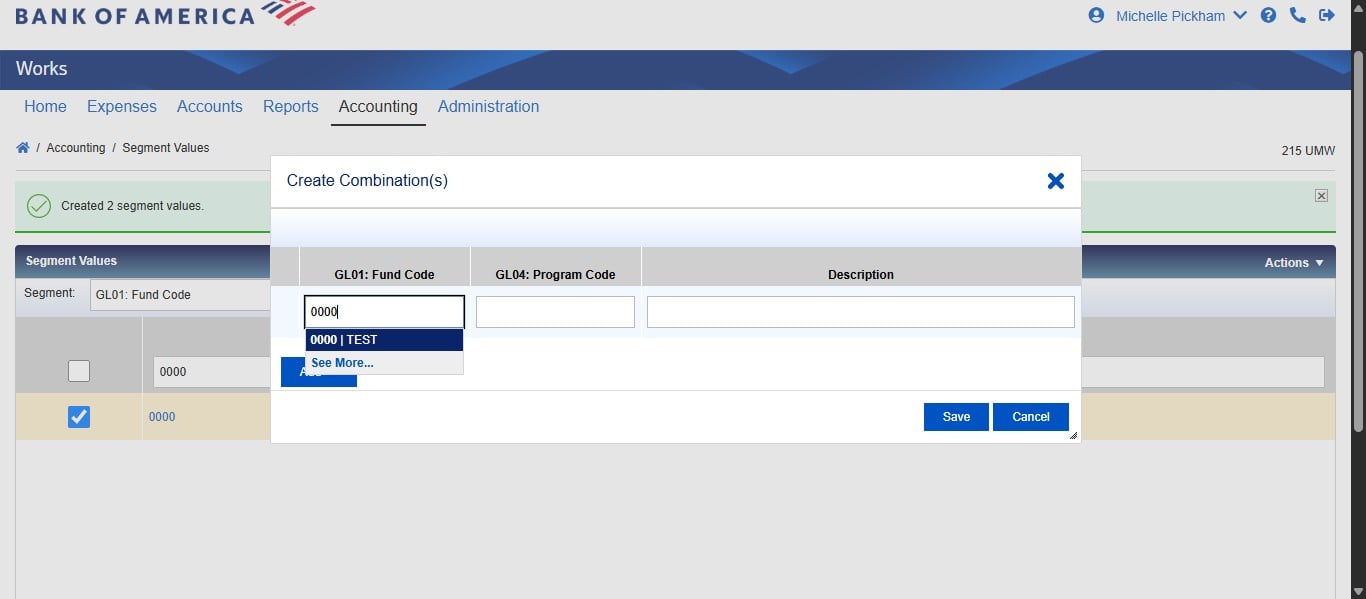
Select the code from the populated drop down.
Enter the paired program code based on the email from the Director of Accounting or designee.
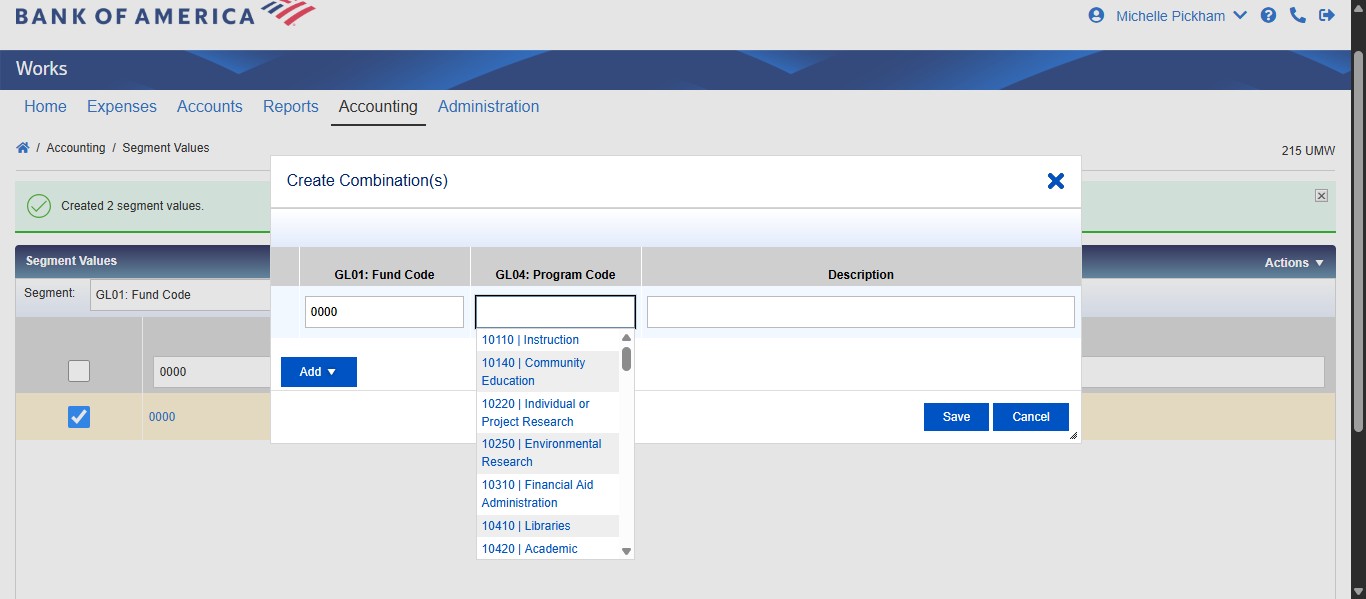
Enter the same description for the combination as the fund code itself.
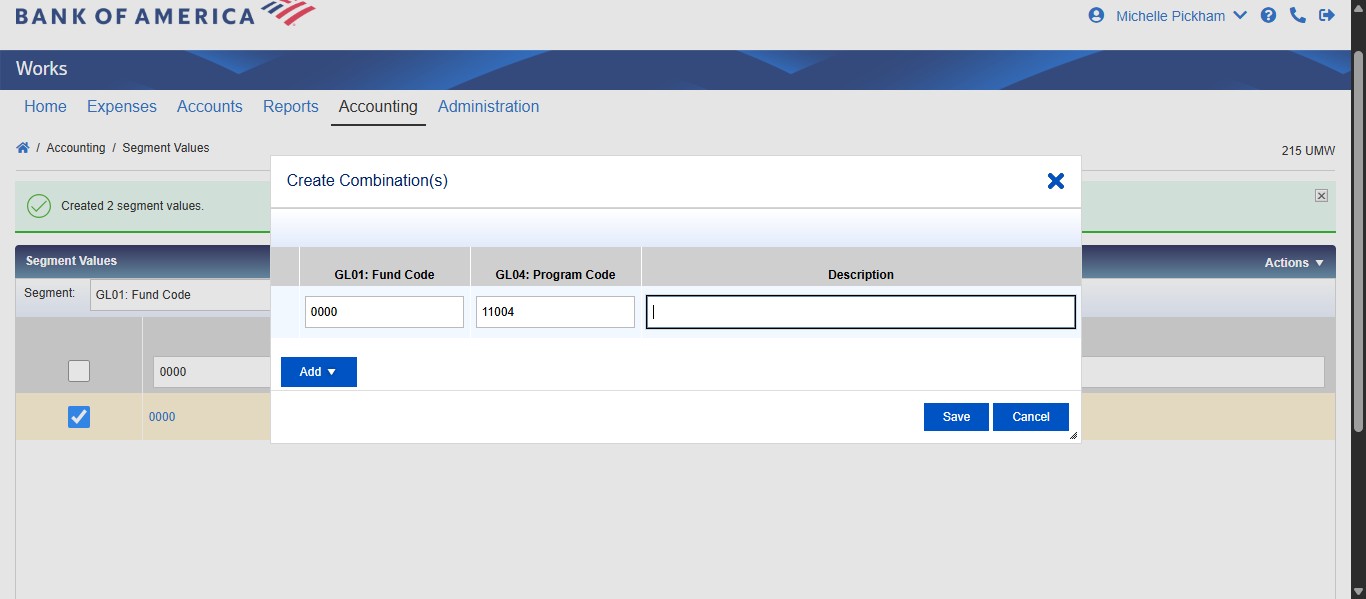
Then click on "Save"
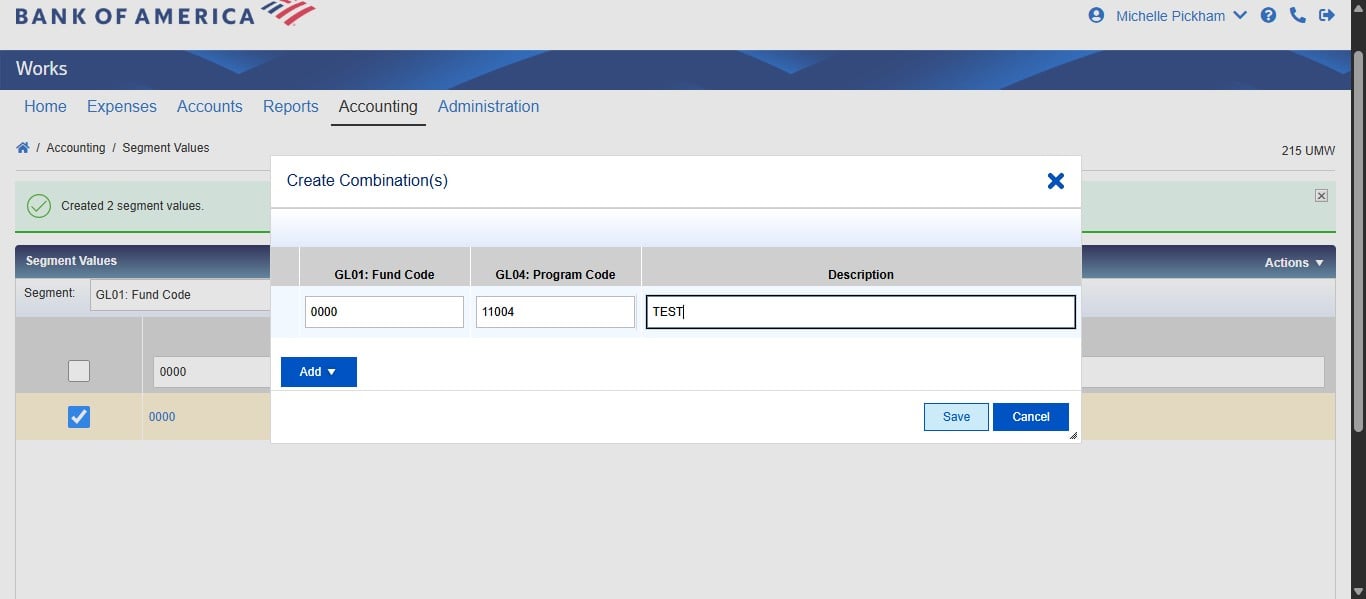
Done 🚀