SPCC Works - Program Admin Tax Check and Changes
Throughout the billing cycle the Program Admin should go through posted Works transactions and check for sales tax applied to transactions. If the transaction is fully signed off (AH APR), then the PA can check the uploaded documentation for tax applied, and change the tax status as necessary. This guide is a brief step-by-step on how to do that.
Click on "Expenses"
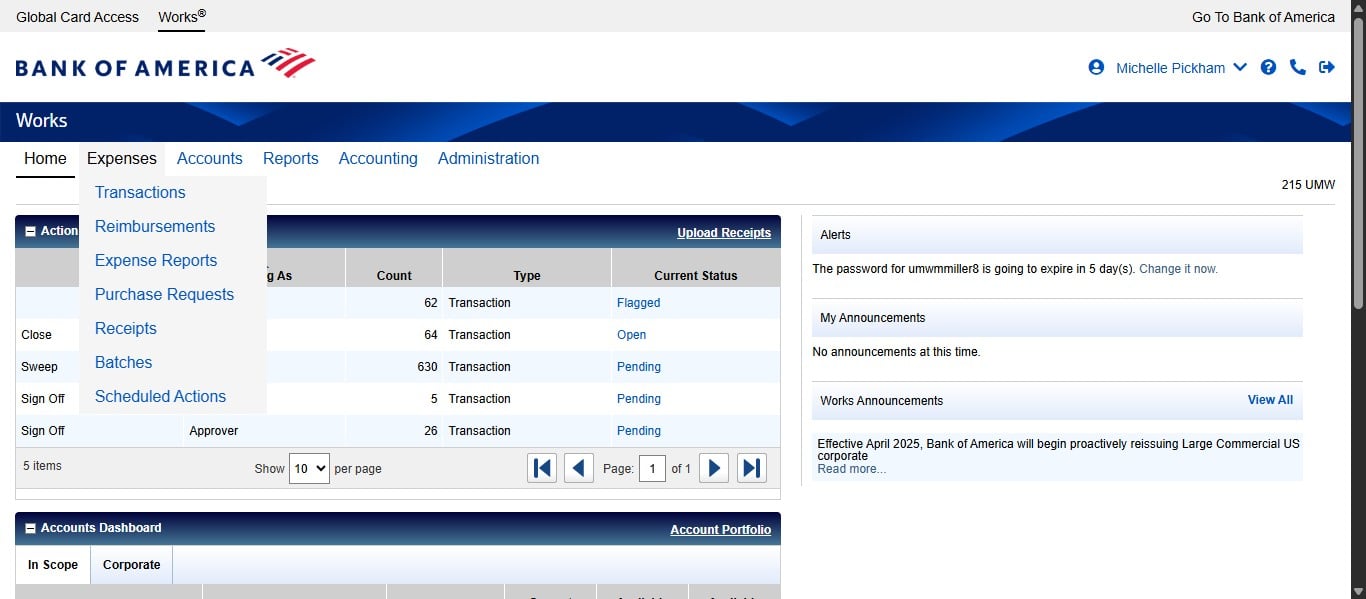
Click on "Transactions"
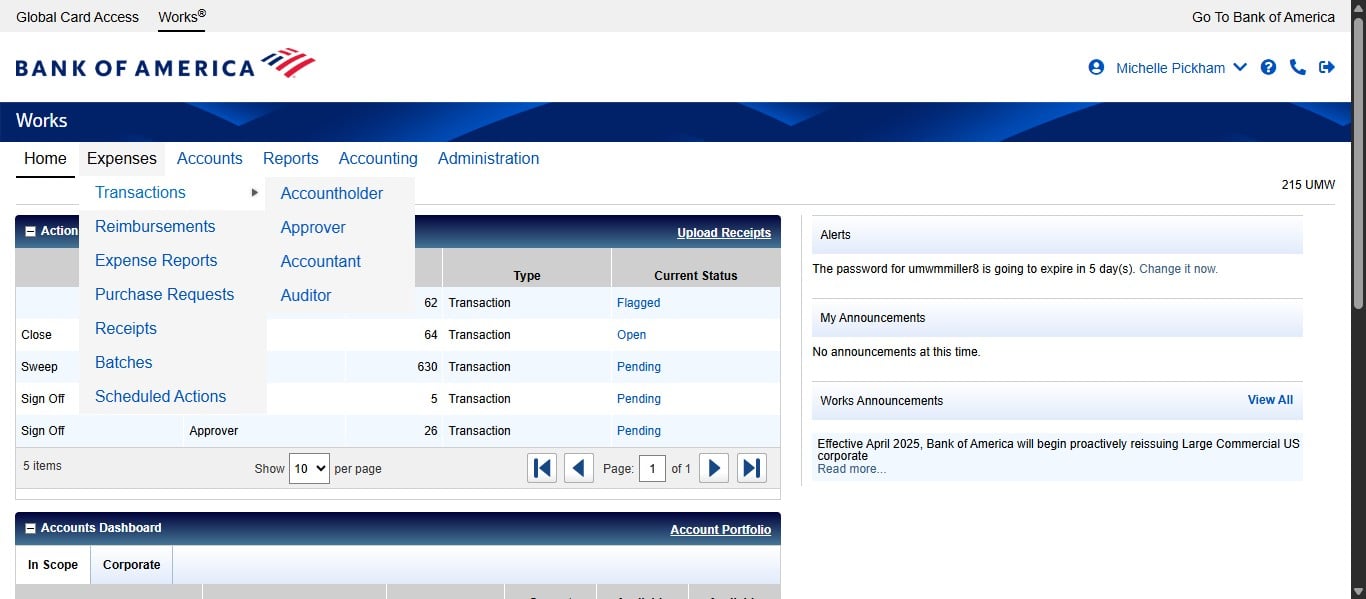
Click on "Accountant"
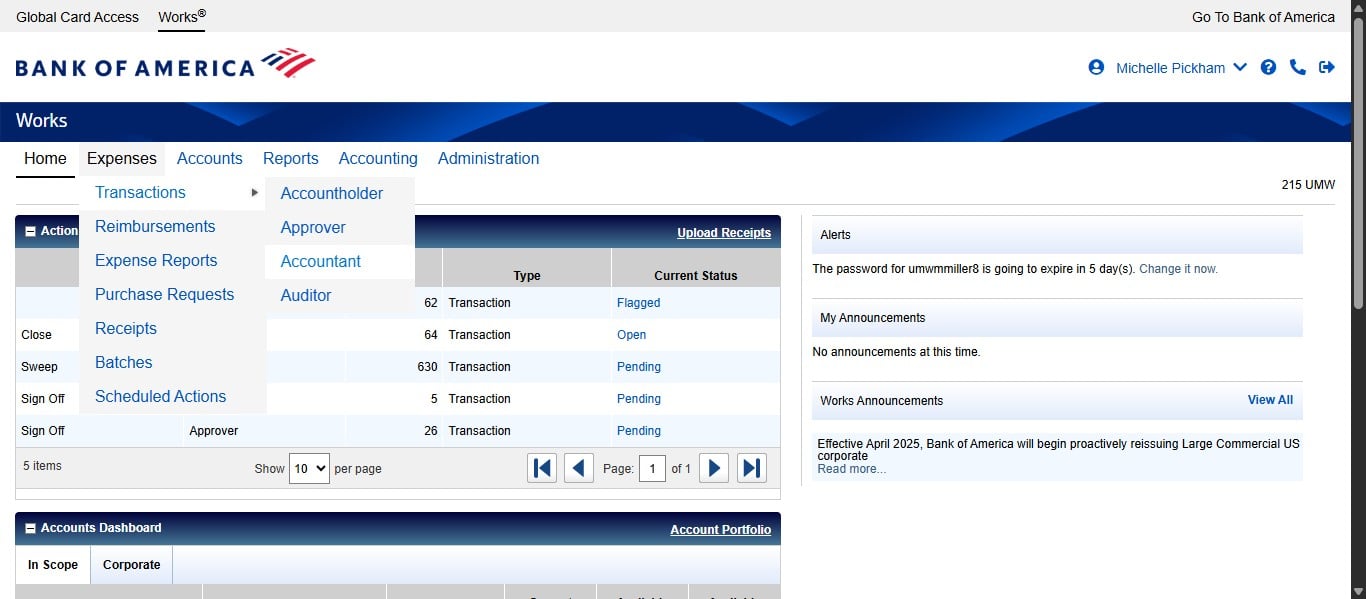
Click on "All"
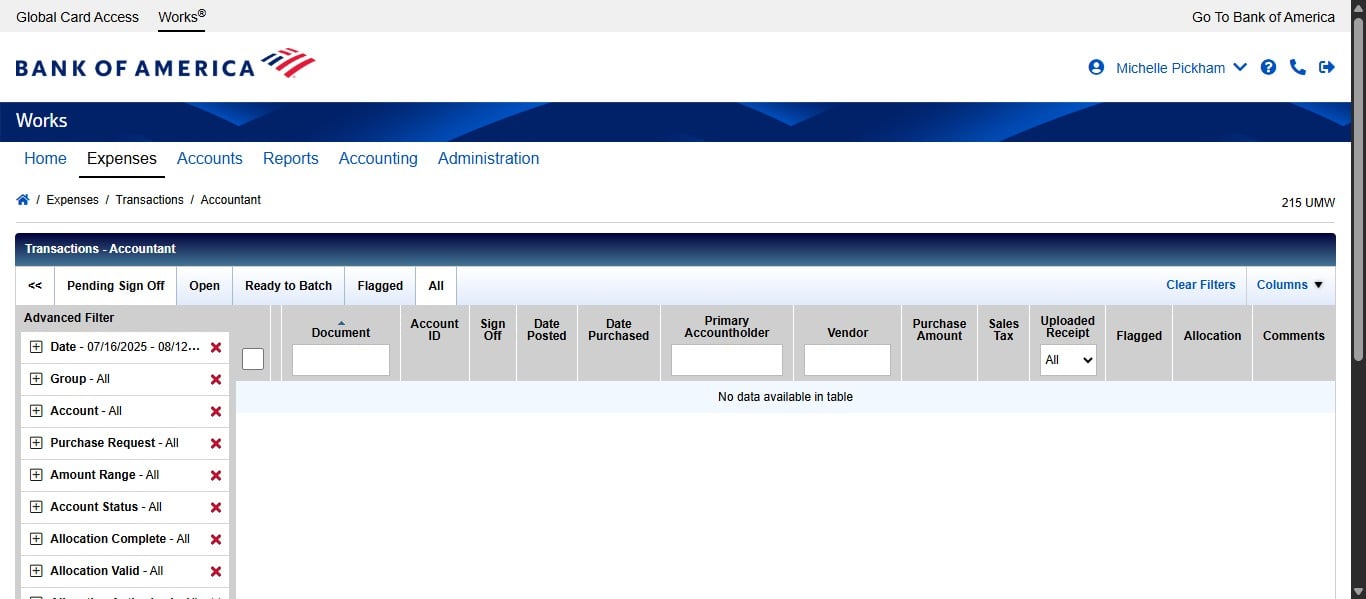
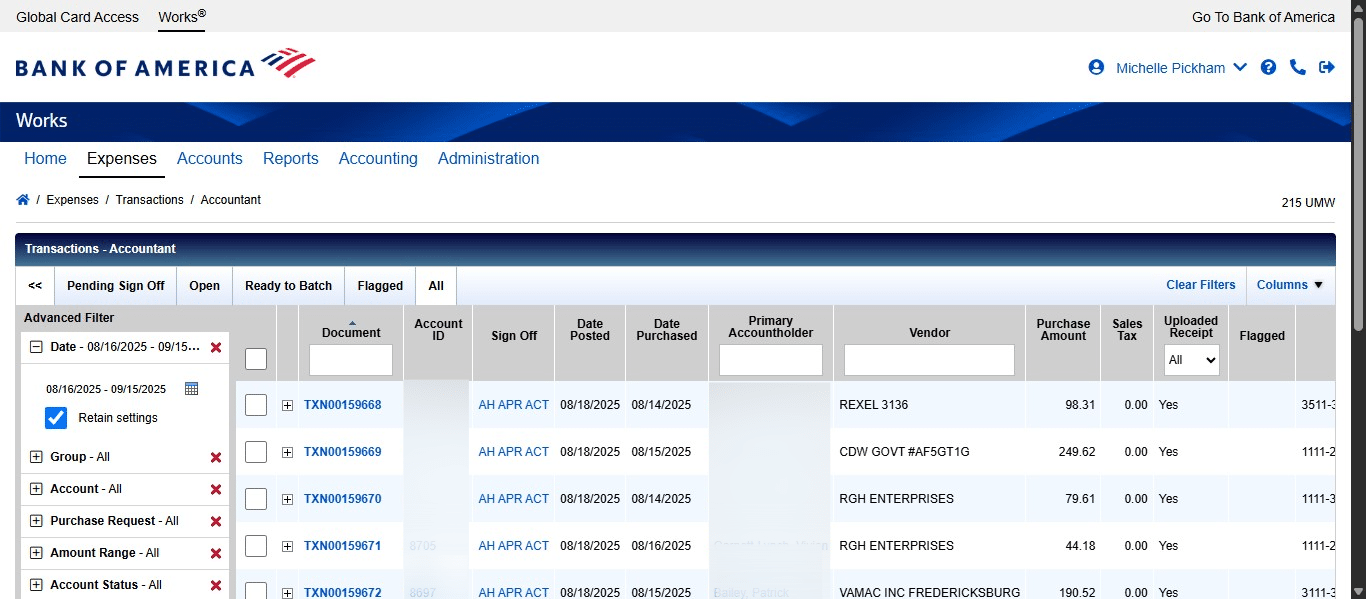
Click the Date filter to edit the date range appropriately.
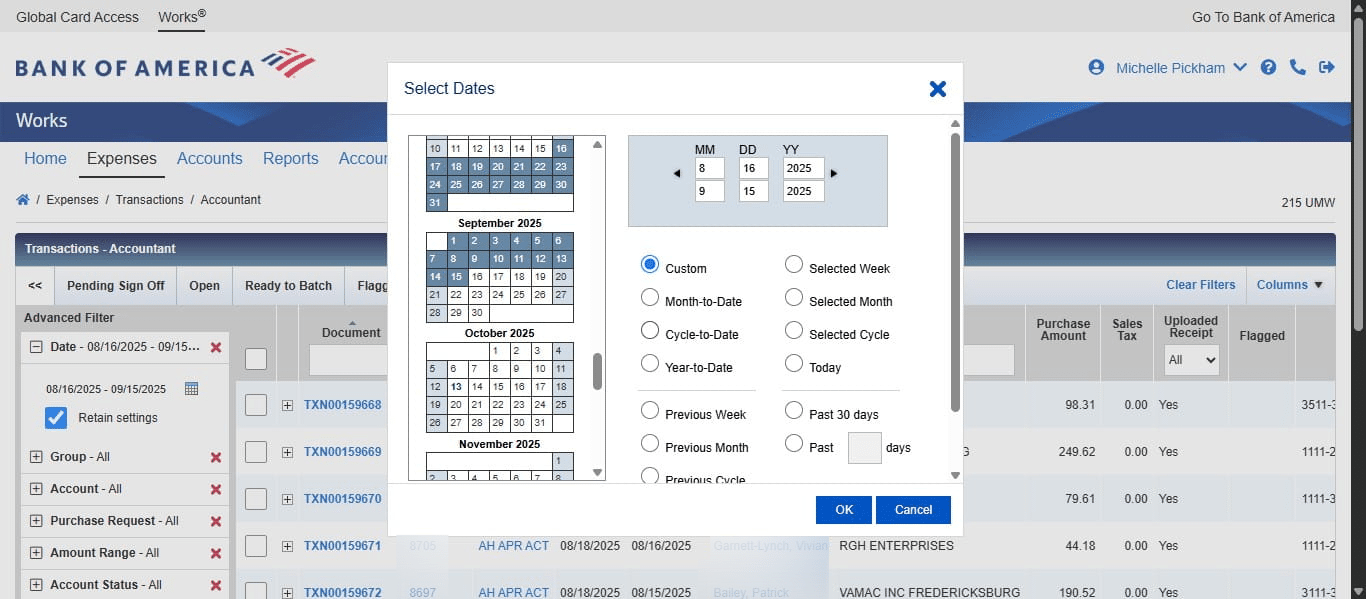
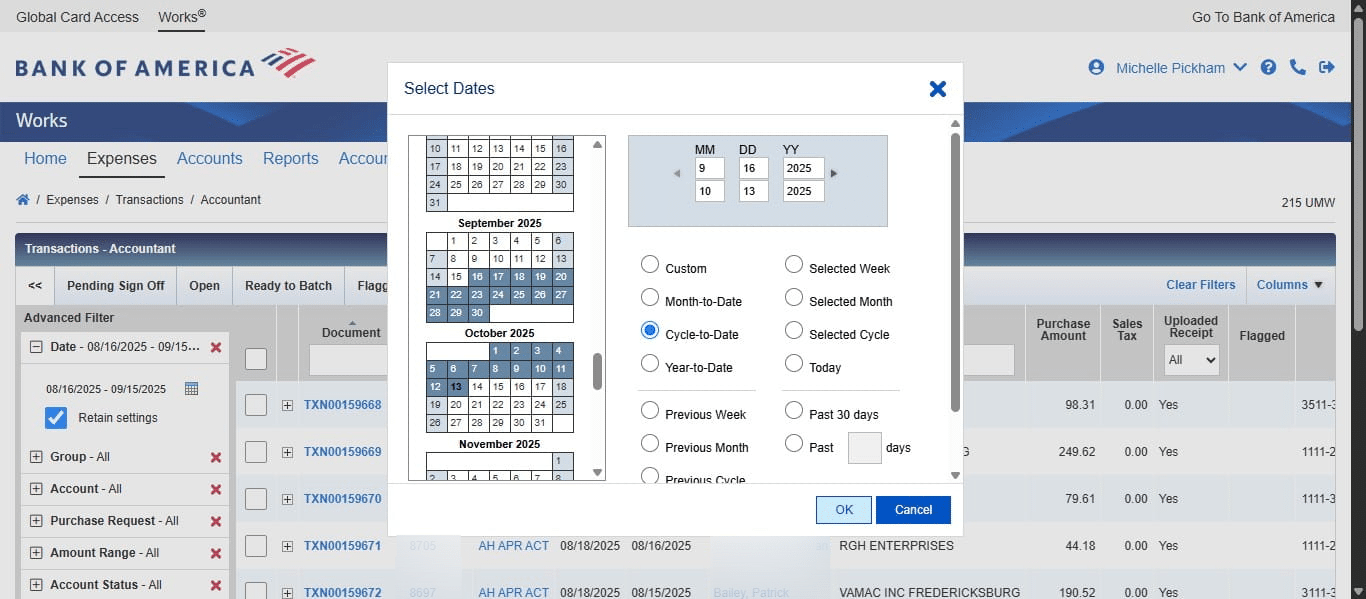
Select Cycle to Date
Click on "OK"
Click Search
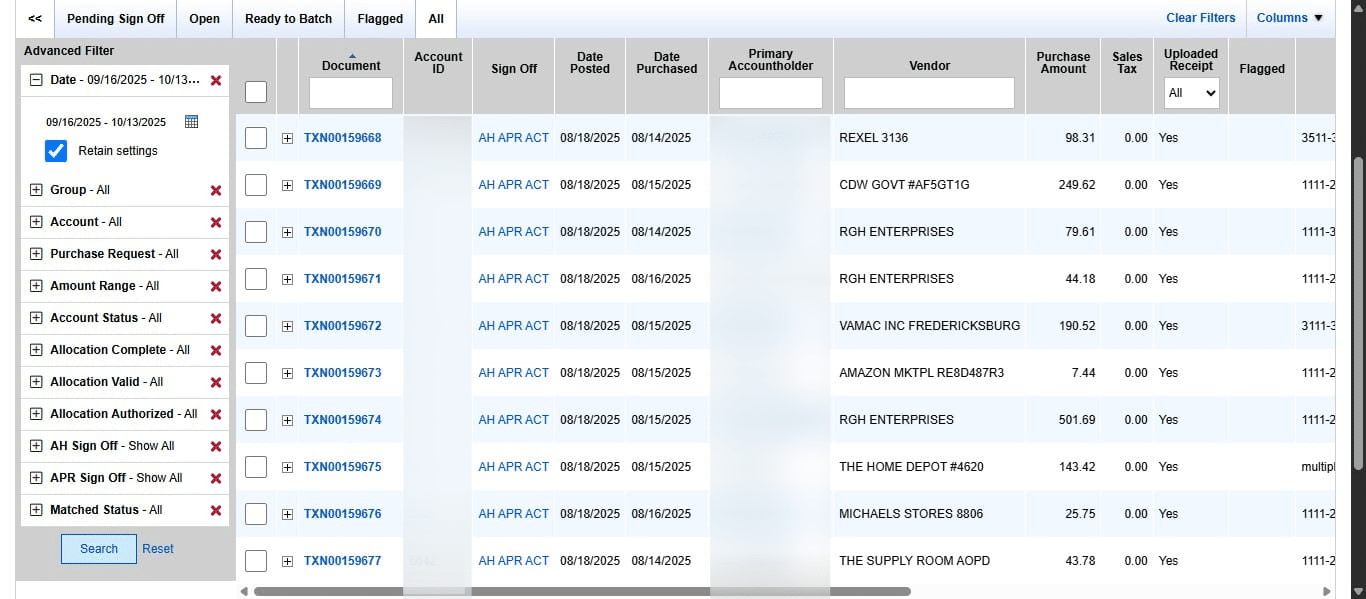
Next we want to sort the transaction by Sales Tax amount. Click on "Sales Tax"
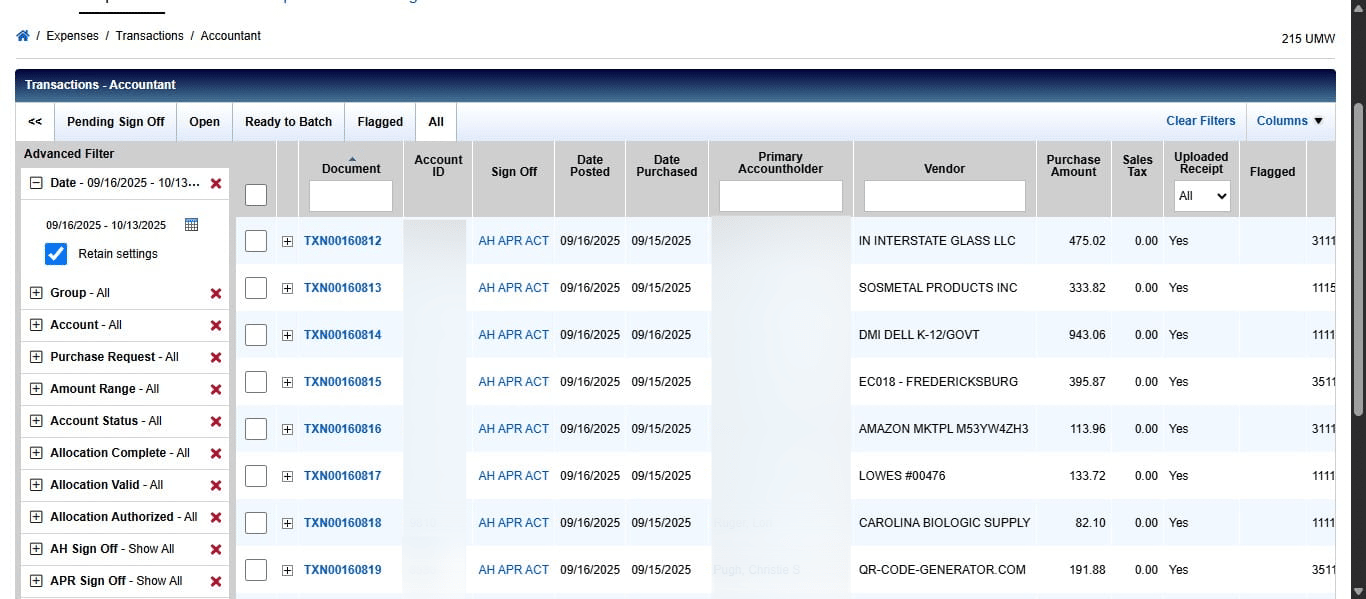
Clicking the column heading once will sort from lowest to highest. We want highest to lowest, so click it again.
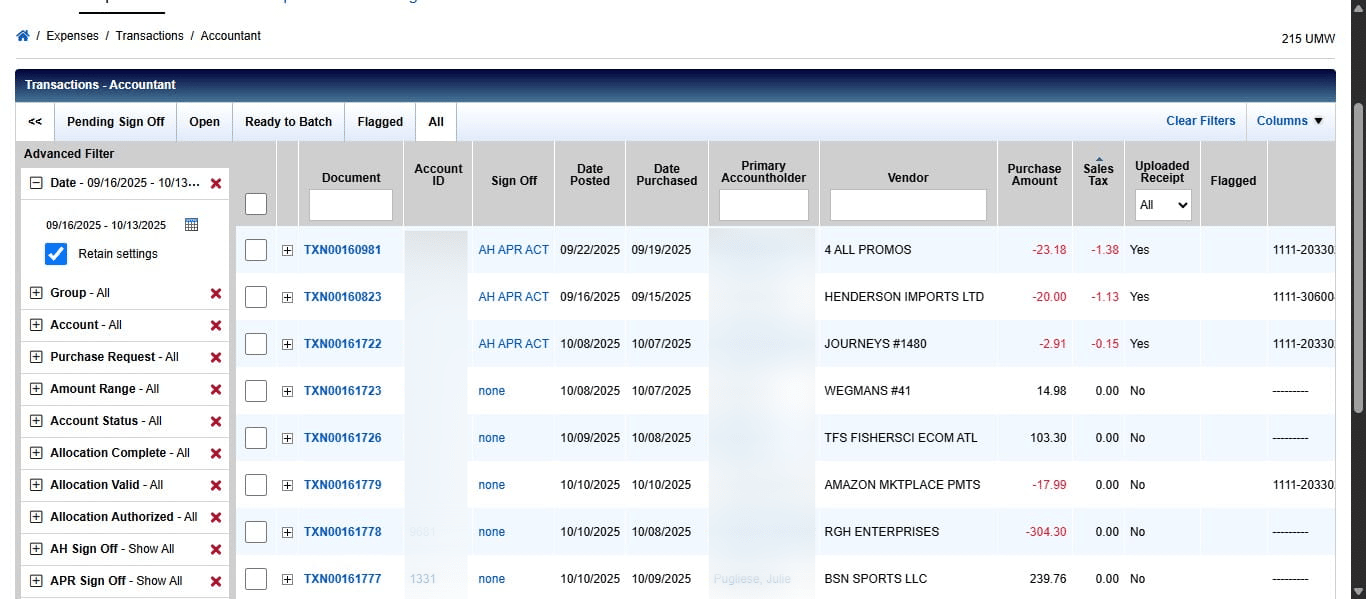
Program Admins can only edit transactions that have been fully signed off on, so we need to find a transaction with the sign off of AH APR. To do this, you may need to show more transactions per page to make the search easier.
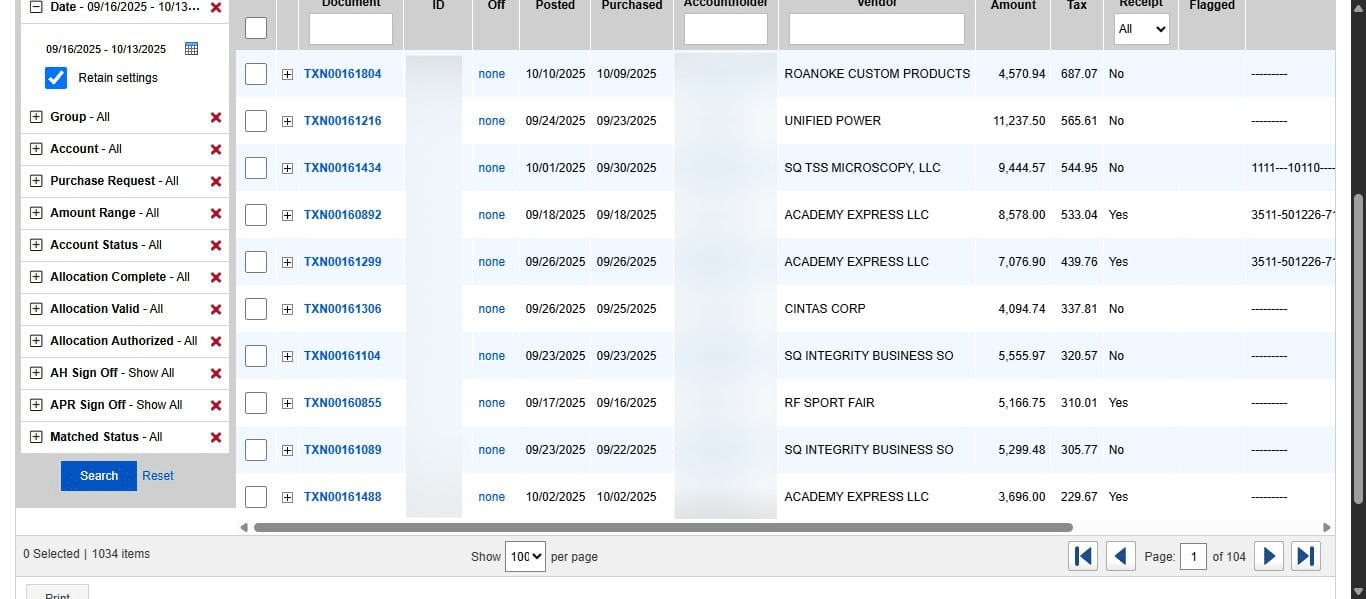
Once you've found a transaction with sales tax listed and that has been signed off by the Cardholder and Approver, click the Transaction ID drop down under Document.
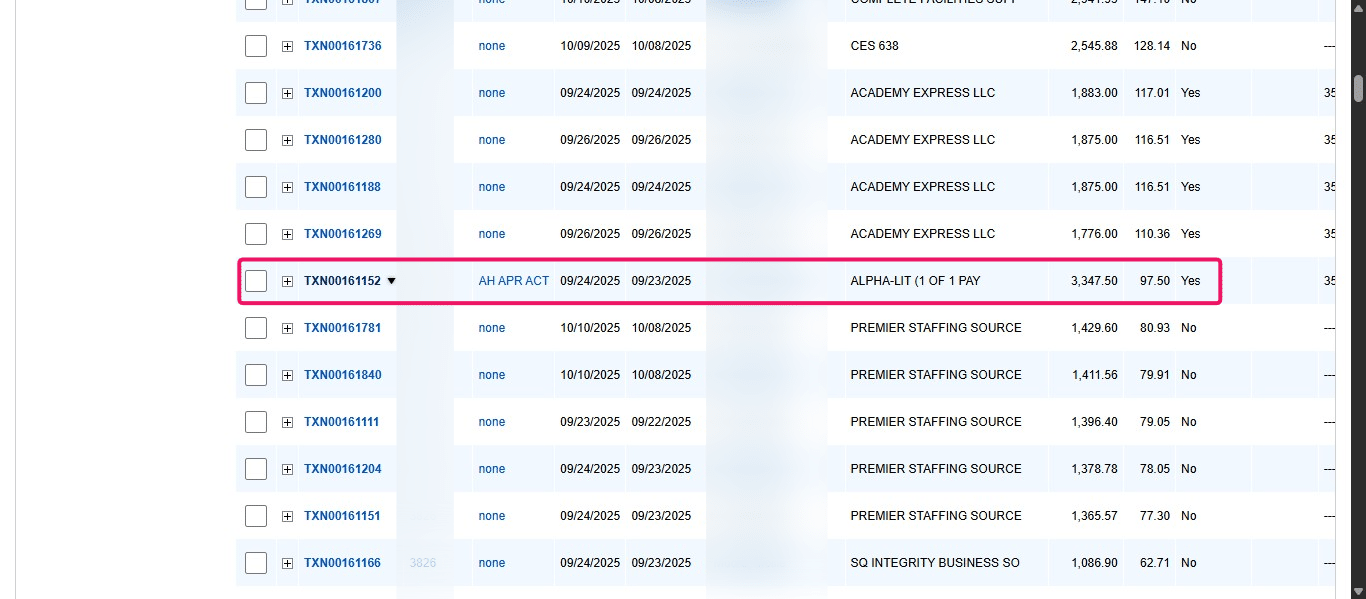
Click on "Manage Receipts"
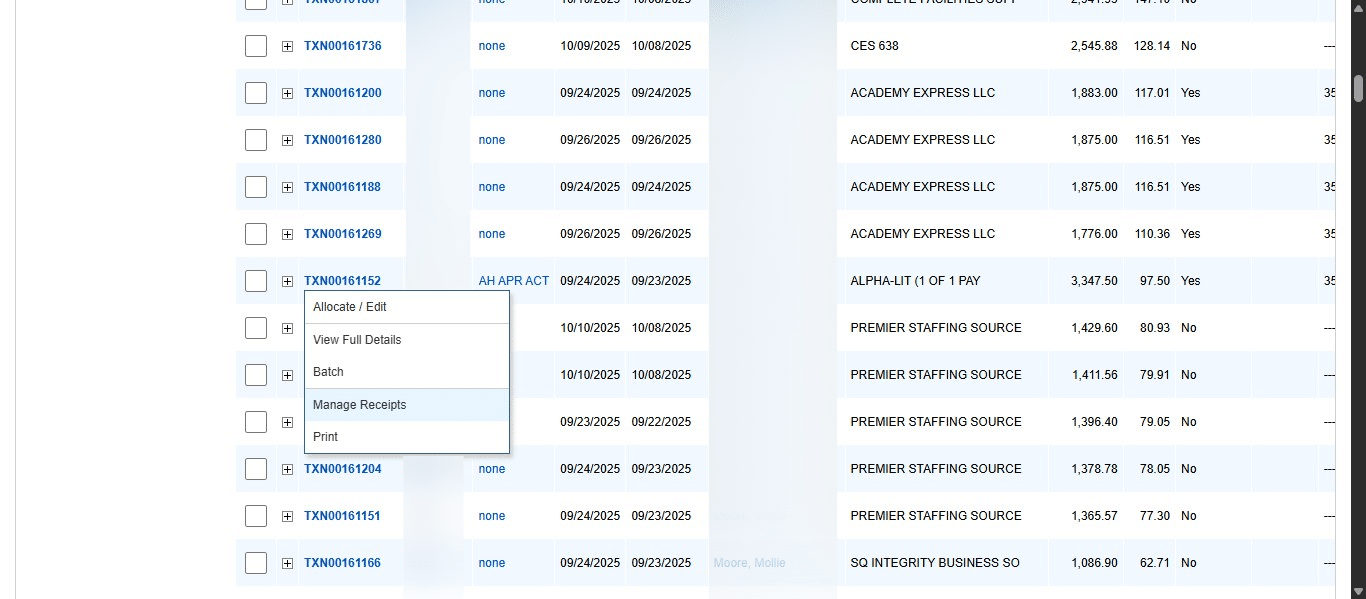
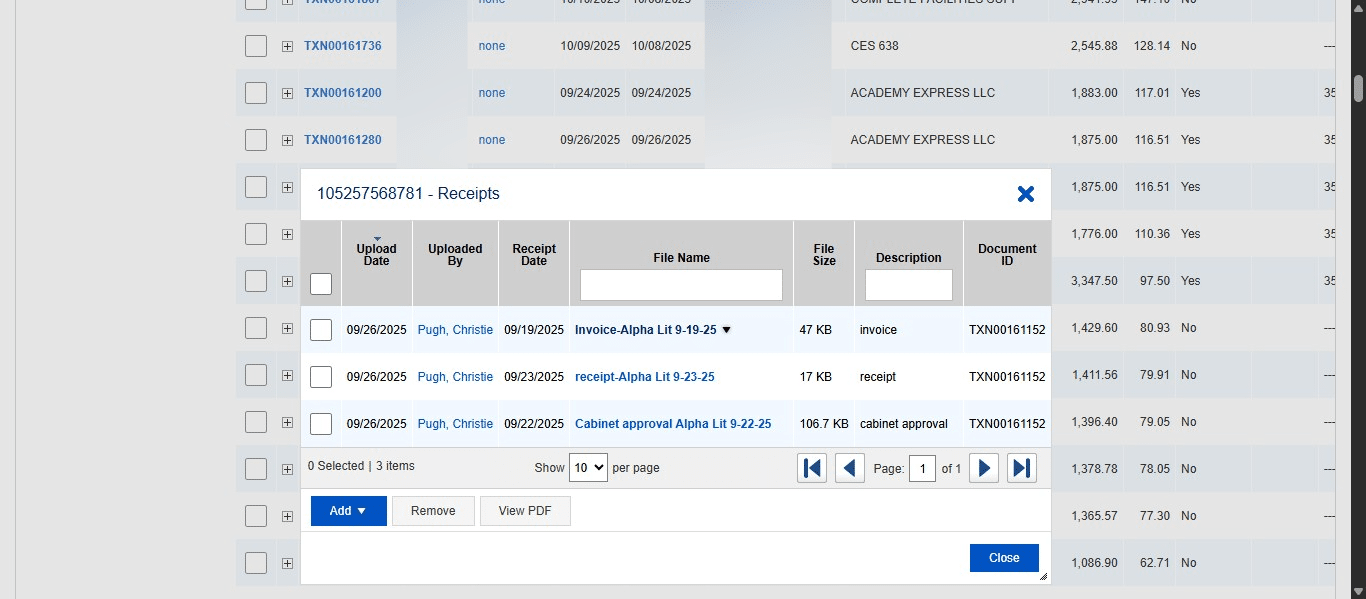
Click on the uploaded documents to view and check the invoice, receipt, or other documentation provided to see if tax was actually applied to the transaction.
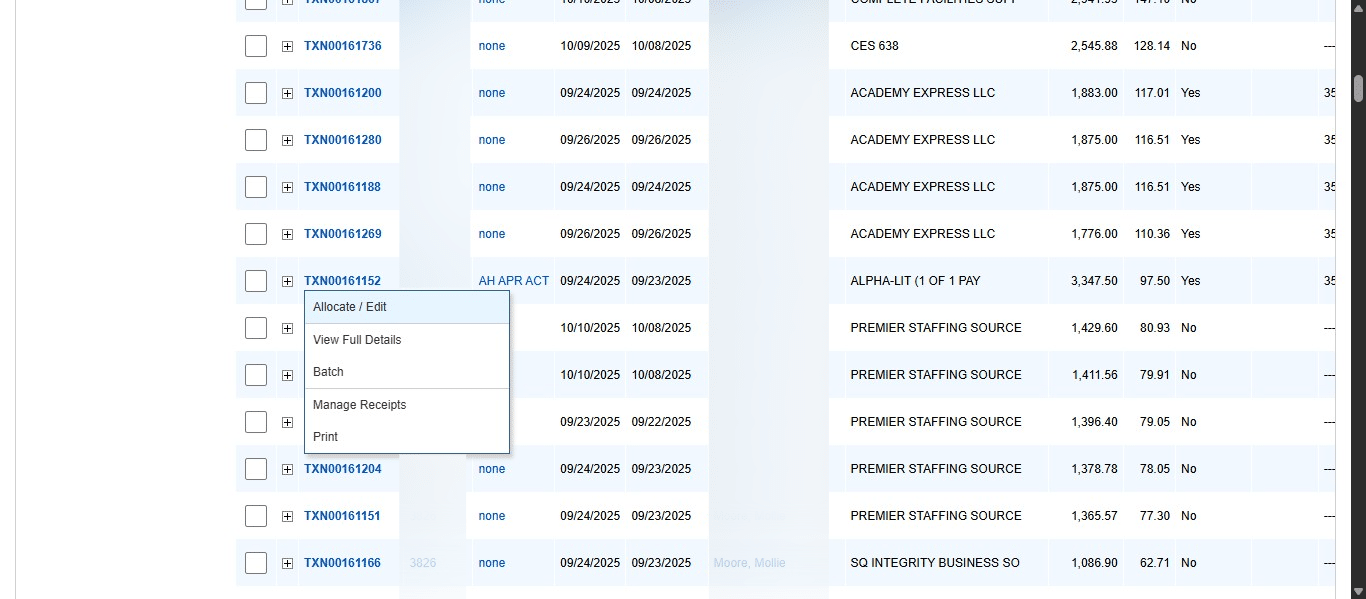
Once you've verified through the uploaded documentation that the transaction was not charged sales tax, you need to change the transaction's tax status. To do this, click the actions drop down on the Transaction ID again.
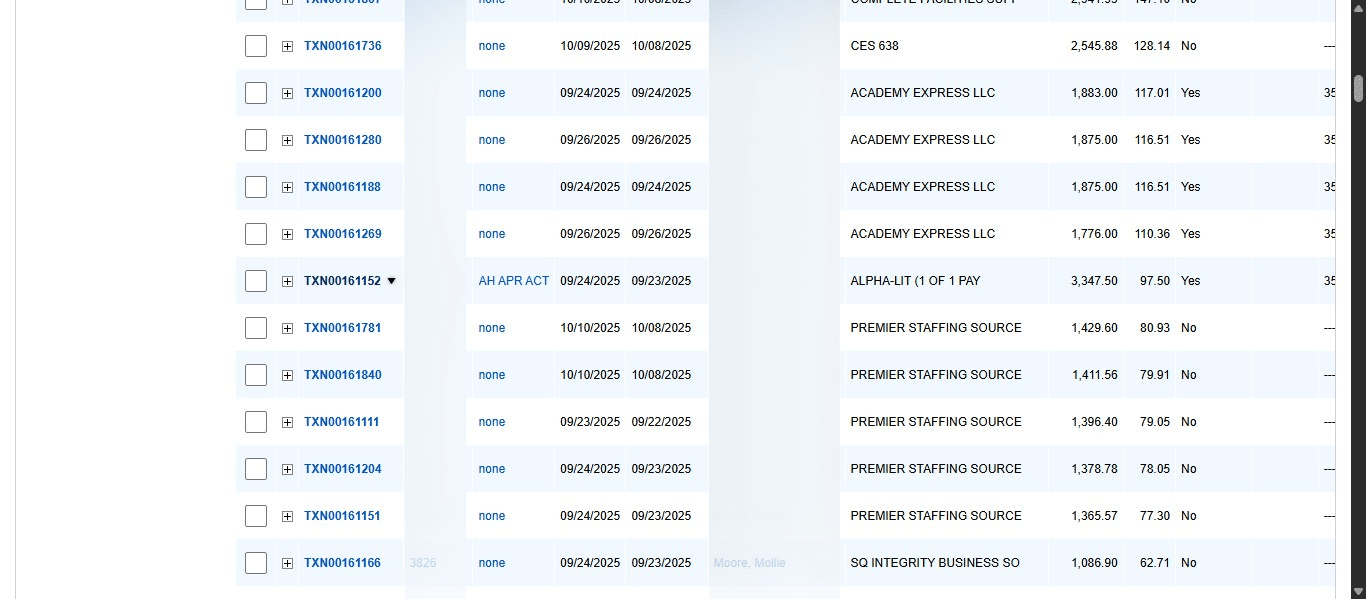
Click on "Allocate / Edit"
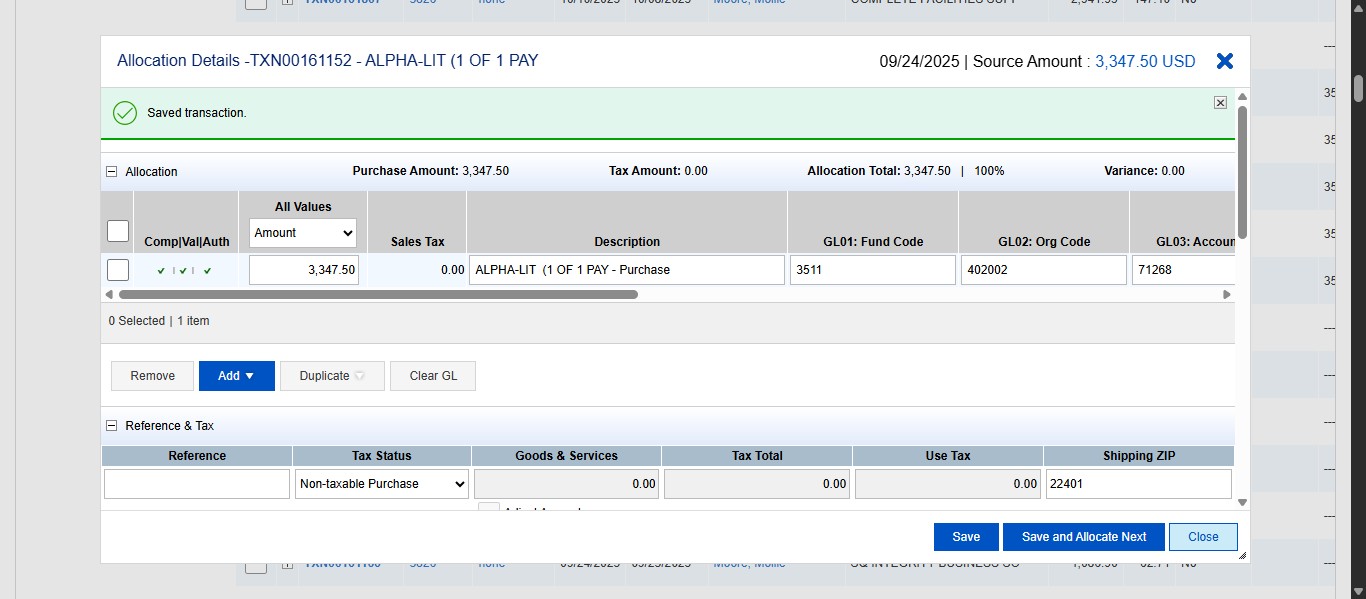
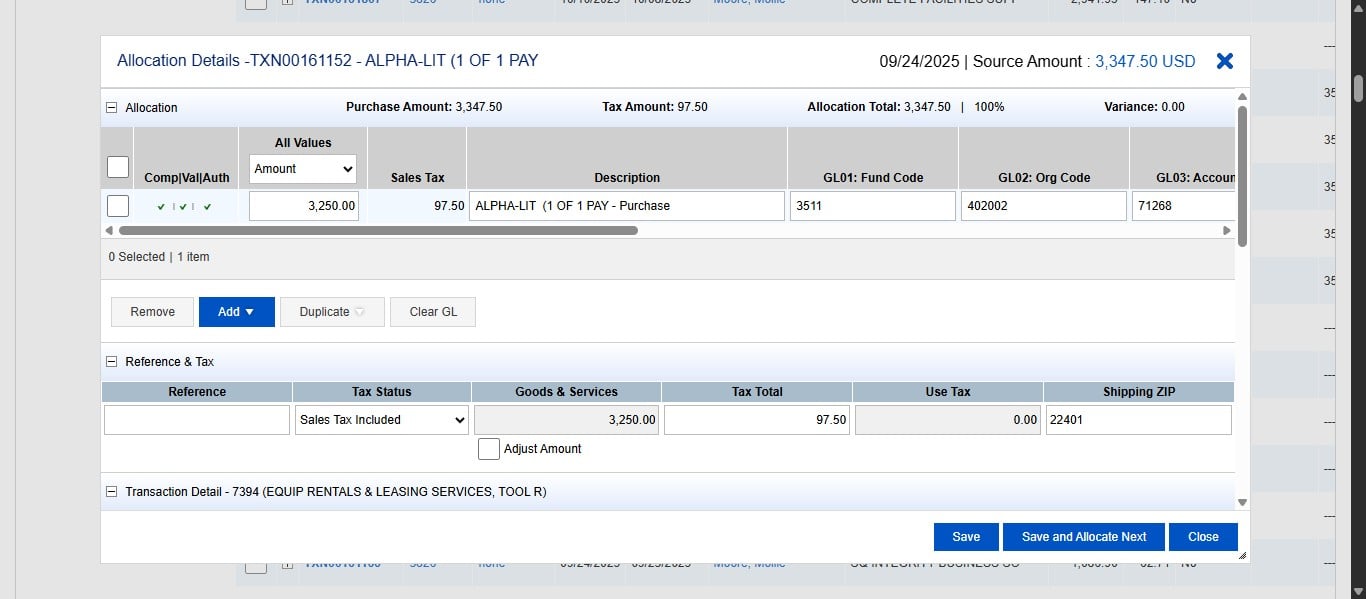
Click on the drop down under Tax Status in the Reference & Tax section and change it from Sales Tax Included to Non-Taxable Purchase.
Then click "Save"
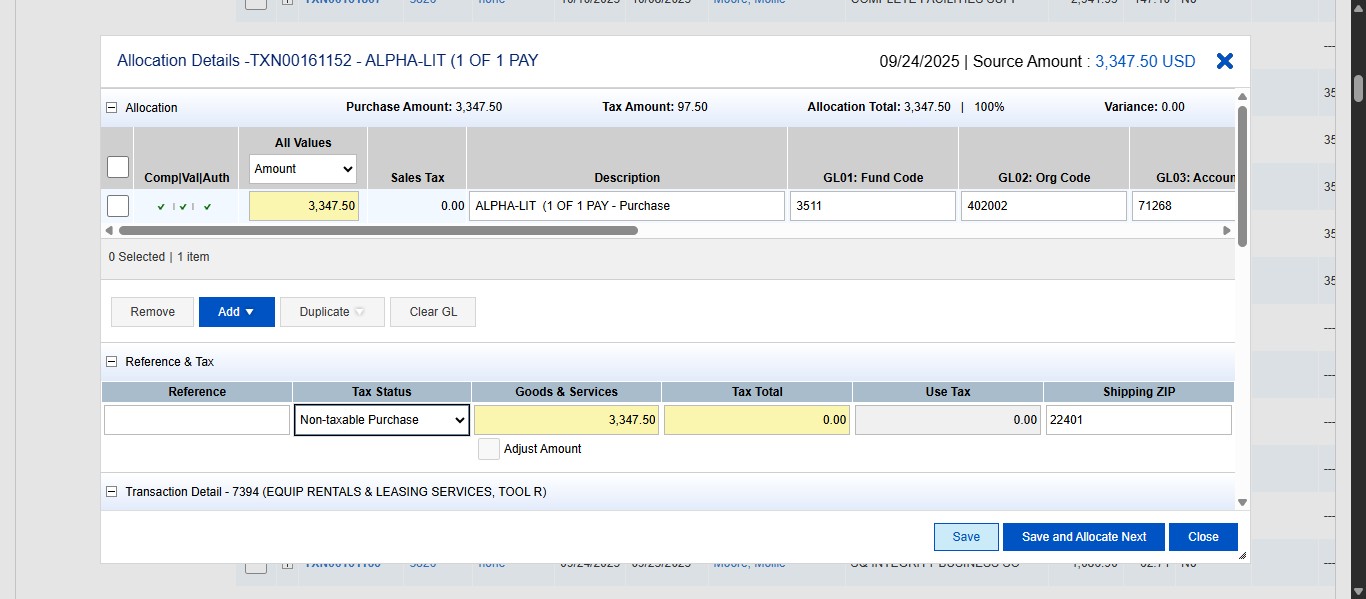
Click on "Close" to go back to the All transactions screen and continue down the list. If tax was actually charged on a transaction and the comments or uploaded documentation do not show that an attempt is being made to get it refunded, contact the Cardholder and let them know they will need to get the tax refunded by the vendor back onto their SPCC.